
Duve automatically pulls service charges (e.g., delivery, in-room dining fees) from Simphony for each Menu.
How to Set It Up
Step 1: Connect Simphony to Duve
Ensure your Simphony POS system is connected to Duve. For more information, please see: New! How to Connect Simphony POS Integration
Step 2: Find/Set up Service Charges in Simphony see Oracle Instructions article
For Flat Amounts to be shown on the Order, click the second checkbox under Options. By default, all service charges are set to percentages.
Step 3: Configure Menus with Service Charges
- Go to the Menu settings in the Duve POS page.
- Navigate to the "Payment Options" section.
- Under the Currency settings, you will now see a list of Service Charges synced from Simphony.
- Select the charges (e.g., Service Fee, Delivery Fee) you want to apply for this Menu.
- You can choose one or multiple charges.
- By default, no service charges are selected.
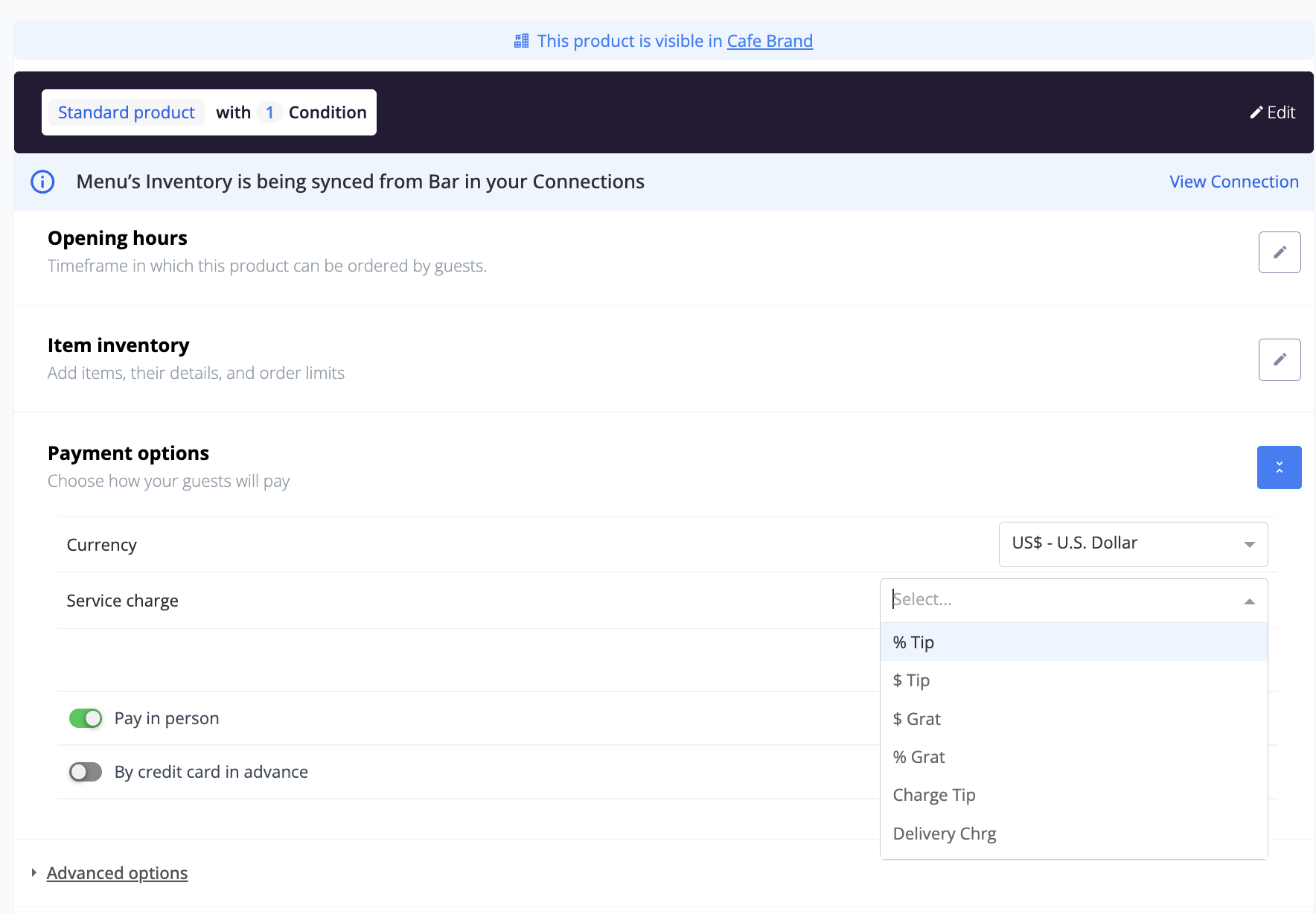
Multiple Service Charges can be added in a single menu -
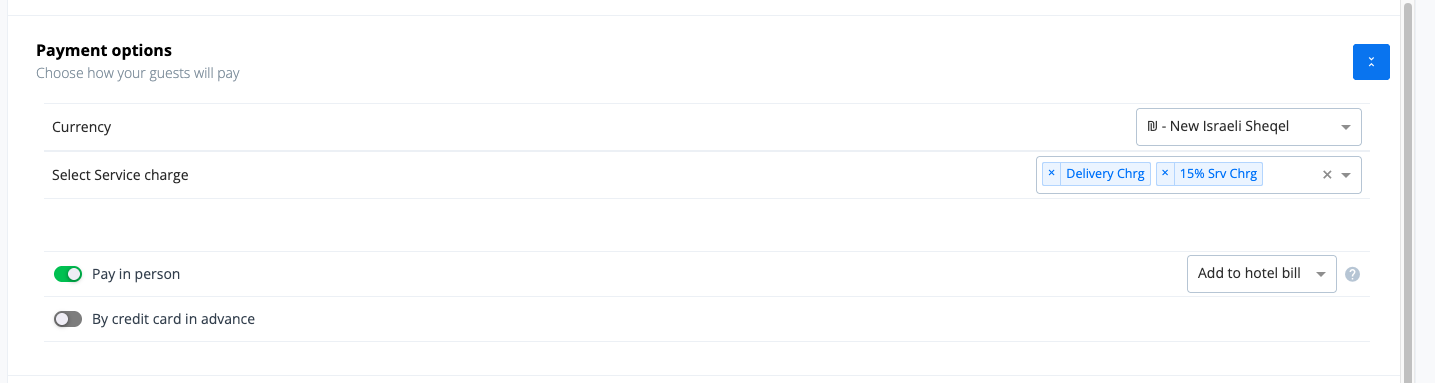
Step 4: Charges Appear in Guest Checkout View
Once selected:
-
Guests will see the service charges in the order breakdown during checkout.
Tips and Tricks
- Be selective with charges: Only add relevant service fees that apply to the guest’s experience to avoid confusion.
- Check email format: Make sure your order summary emails are being received and read by the team preparing the orders.
- Keep Simphony updated: Any changes to service charges in Simphony will reflect in Duve, but double-check when modifying fee names or amounts.
Comments
0 comments
Article is closed for comments.