
Duve automatically pulls service charges (e.g., delivery, in-room dining fees) from Simphony for each Menu.
How to Set It Up
Step 1: Connect Simphony to Duve
Ensure your Simphony POS system is connected to Duve. For more information, please see: New! How to Connect Simphony POS Integration
Step 2: Configure Menus with Service Charges
- Go to the Menu settings in the Duve POS page.
- Navigate to the "Payment Options" section.
- Under the Currency settings, you will now see a list of Service Charges synced from Simphony.
- Select the charges (e.g., Service Fee, Delivery Fee) you want to apply for this Menu.
- You can choose one or multiple charges.
- By default, no service charges are selected.
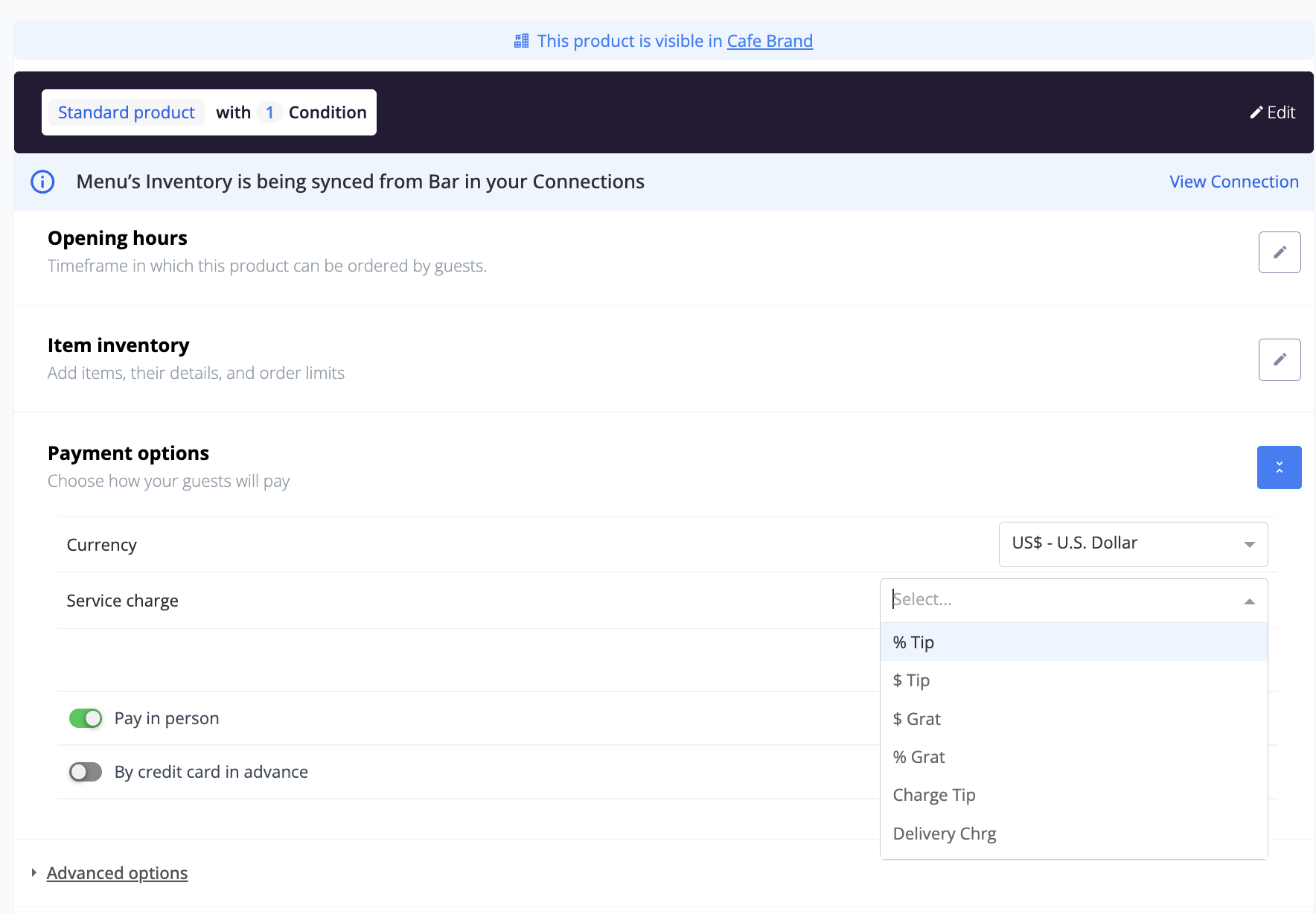
Multiple Service Charges can be added in a single menu -
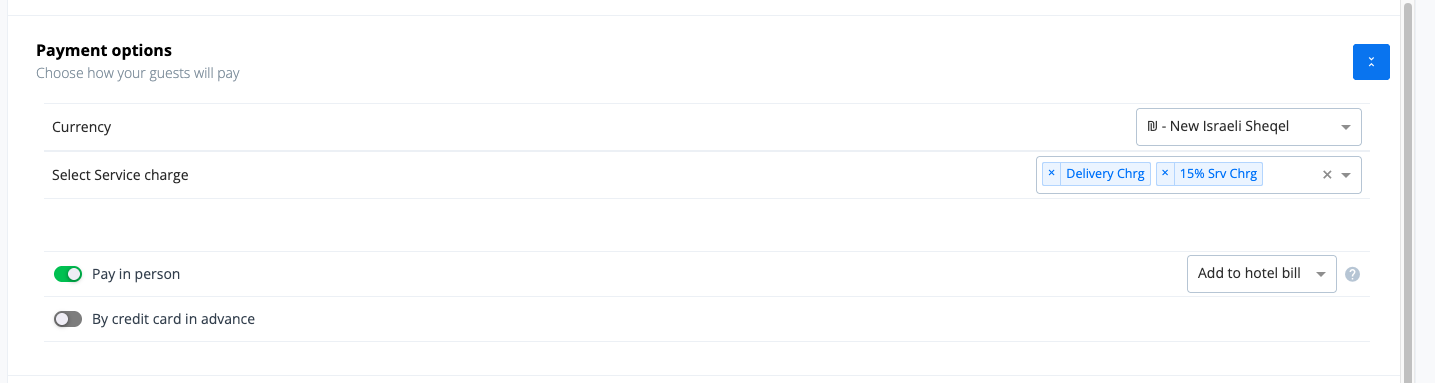
Step 3: Charges Appear in Guest View
Once selected:
- Guests will see the service charges in the order breakdown during checkout.
- The total price will now match what’s defined in Simphony.
Tips and Tricks
- Be selective with charges: Only add relevant service fees that apply to the guest’s experience to avoid confusion.
- Check email format: Make sure your order summary emails are being received and read by the team preparing the orders.
- Keep Simphony updated: Any changes to service charges in Simphony will reflect in Duve, but double-check when modifying fee names or amounts.
Comments
0 comments
Please sign in to leave a comment.