
- Will be provided by Opera/Oracle:
Hotel Code – Property Code – This can be found at the top of the OPERA page or Configuration>Property>Property Details.
- Will be provided by Opera/Oracle:
Username - KIOSK / OEDS$OWS/ (Incase of KIOSK – use KIOSK and incase of OEDS/OWS use OEDS$OWS) - is the Default
- Will be provided by Opera/Oracle:
$$$KIOSK$$ /$$$OEDS$OWS$$ (Similar to the previous point) - Default for KIOSK interface / OWS/OEDS Interface
Has to be without special characters and with only Capital Letters.
- Will be provided by Opera/Oracle:
(The OWS/ Kiosk URL for Opera, either the on-prem or the cloud one, if this is an Opera Cloud-hosted account) - API URL will be configured on their OEDS server.
Origin Entity ID:
- Will be provided by Opera/Oracle:
KIOSK/OWS - Default
Origin System type:
- Will be provided by Opera/Oracle:
KIOSK/OWS - Default
Chain Code:
- Will be provided by Opera/Oracle:
Property Chain Code
Station ID:
- Will be provided by Opera/Oracle.
Other Kiosk/Payment type
- Select all payment methods on the KIOSK Interface screen – Path -Setup>Configuration>Setup>Kiosk Interface:
Phone type variable:
- Will be provided by Opera/Oracle:
OPERA – Setup – System Configuration- Profile – Phone Types:
Oracle's advanced deposit handling configuration
- Will be provided by Opera/Oracle:
Configuration -Application Settings- Cashiering parameter – Advance Deposit handling - Path to check license is - Configuration> Setup> License codes> PMS> Add-On License.
VAT percent
- VAT percent, set per hotel, depending on location
Opt-in Marketing Field
- Field Match for Opt-in Marketing field setting
- If set to Communication Type, add the field name that they would like to sync it to
Use fixed charges for upsells before Check-in
Short Rate Plan Code (E.g. BB)
Set verified phone as primary in guest profile
Sync guest document ID after reservation creation
Agent routing instructions code
Guest folio by window number
Visa identifier code
Mastercard identifier code
Maestro identifier code
American Express identifier code
Diners identifier code
Passport origin entity ID
Passport destination entity ID
Passport origin system type
Update reservation payment method using payment provider info
How to find the configuration in Opera:
Visa identifier code
Mastercard identifier code
Maestro identifier code
American Express identifier code
Diners identifier code
Use Email Reports Sync
Children Group Indexes
Sync Early Arrival Code
Do not use alternative names in guest profile
Using Oracle Clouds
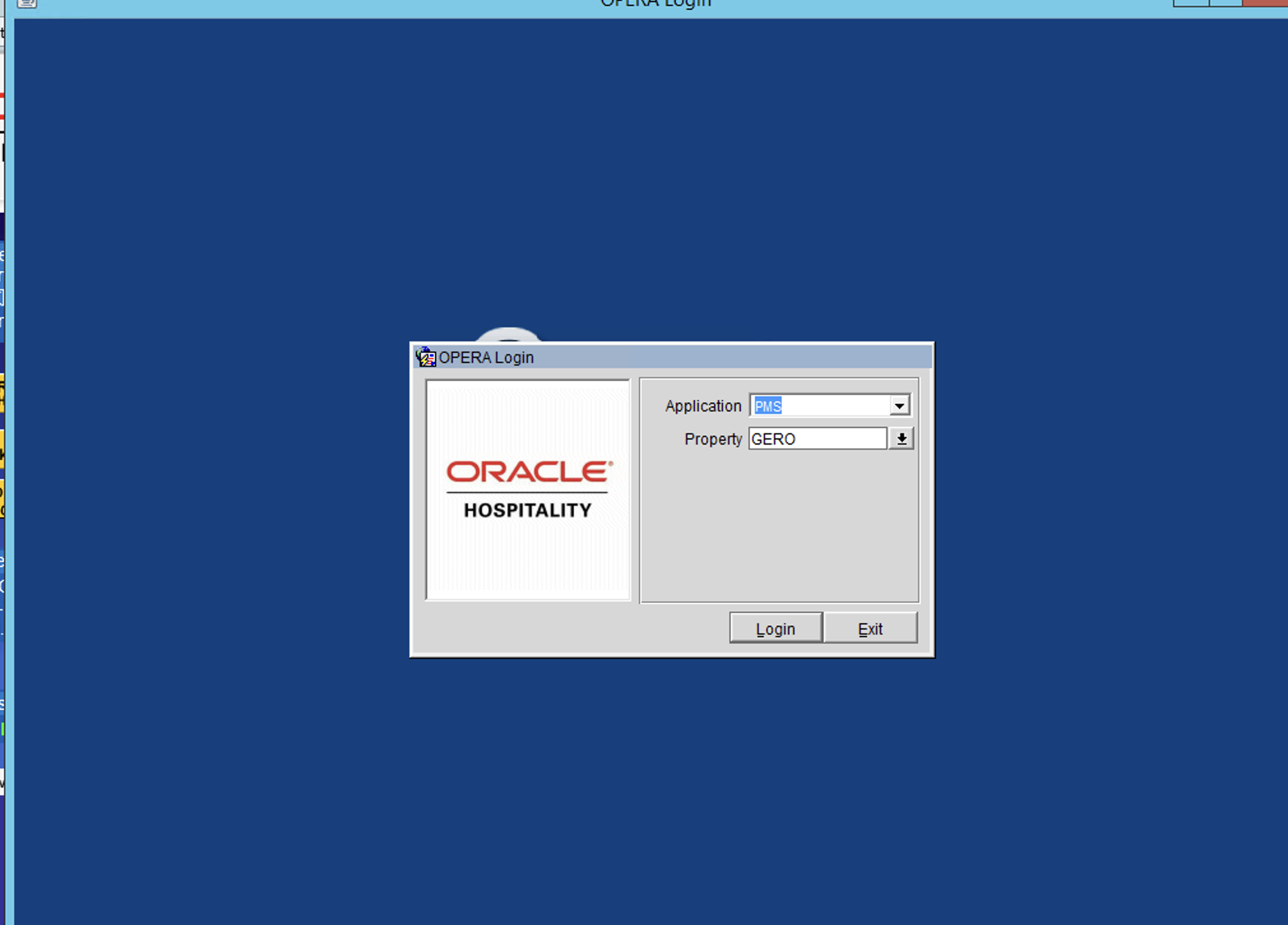
- Open OperaOnPrem login screen
- Click 'Configuration'
- Login to 'PMS' with the relevant property
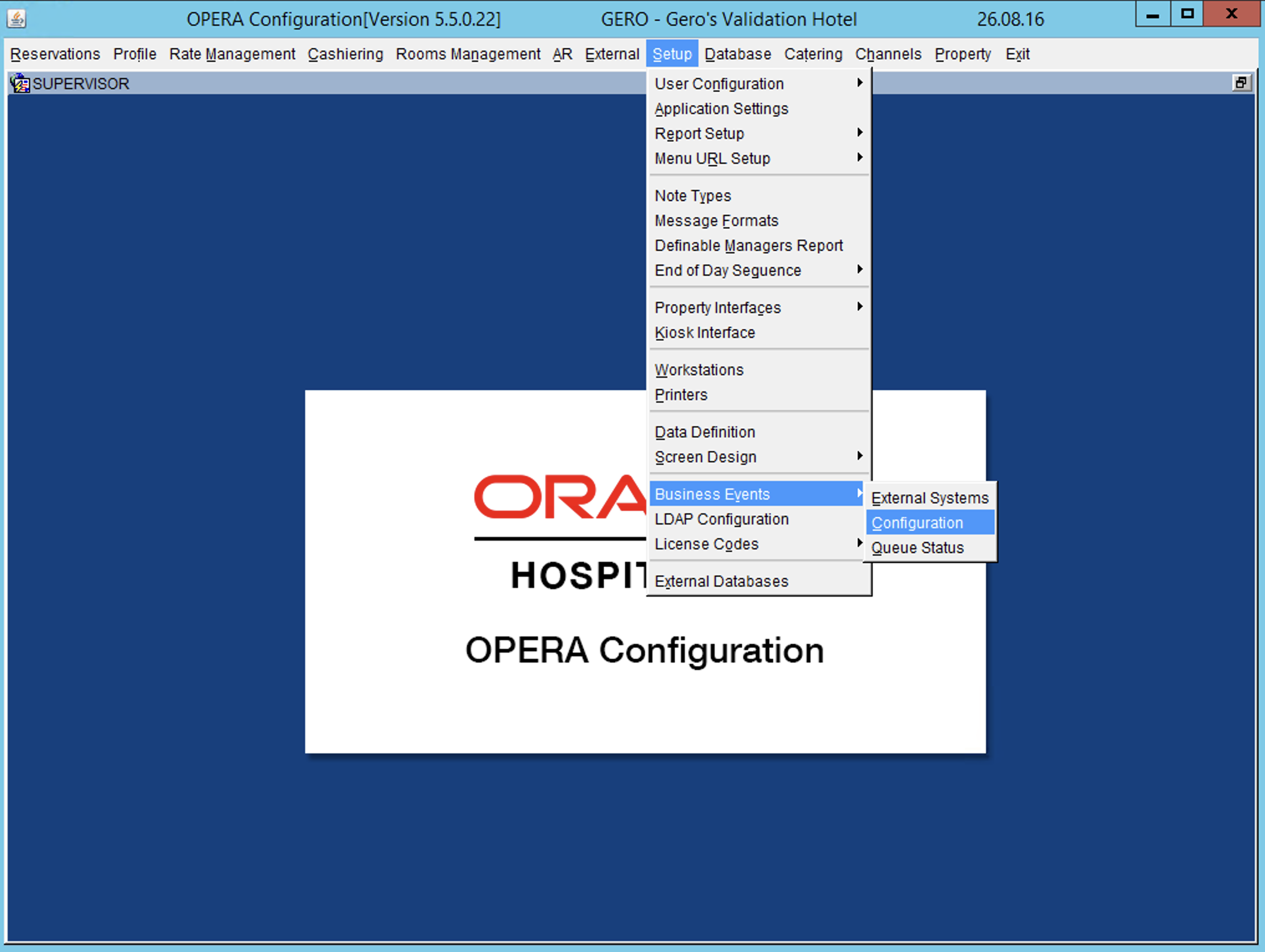
- On the top navigation go to Setup ➝ Business Events ➝ Configuration
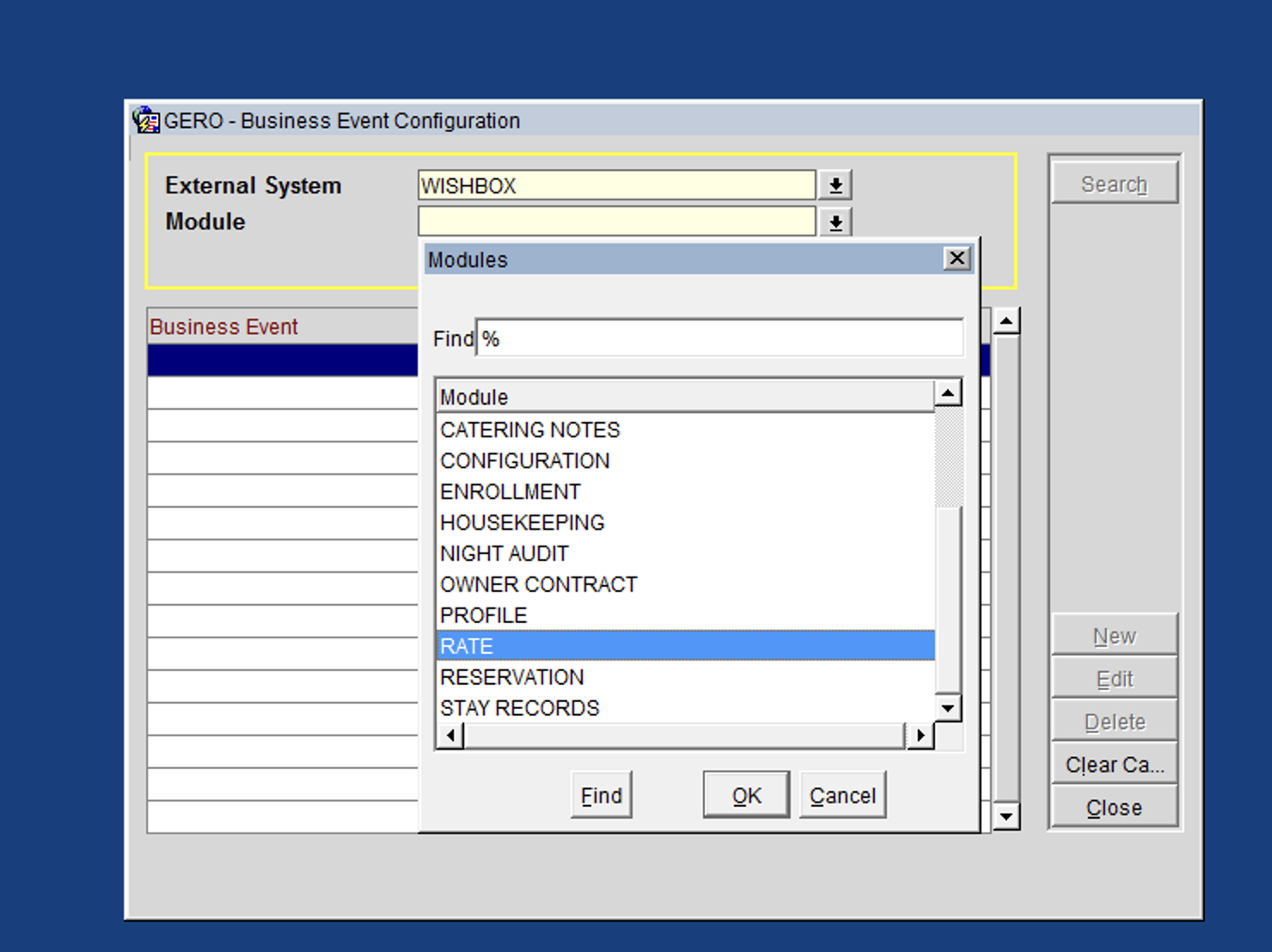
- In the External System select the connection that's responsible to send the information from OXI to Duve, then click OK

- In the Module search for RATE (you can scroll or use the search to find it), select it then click OK
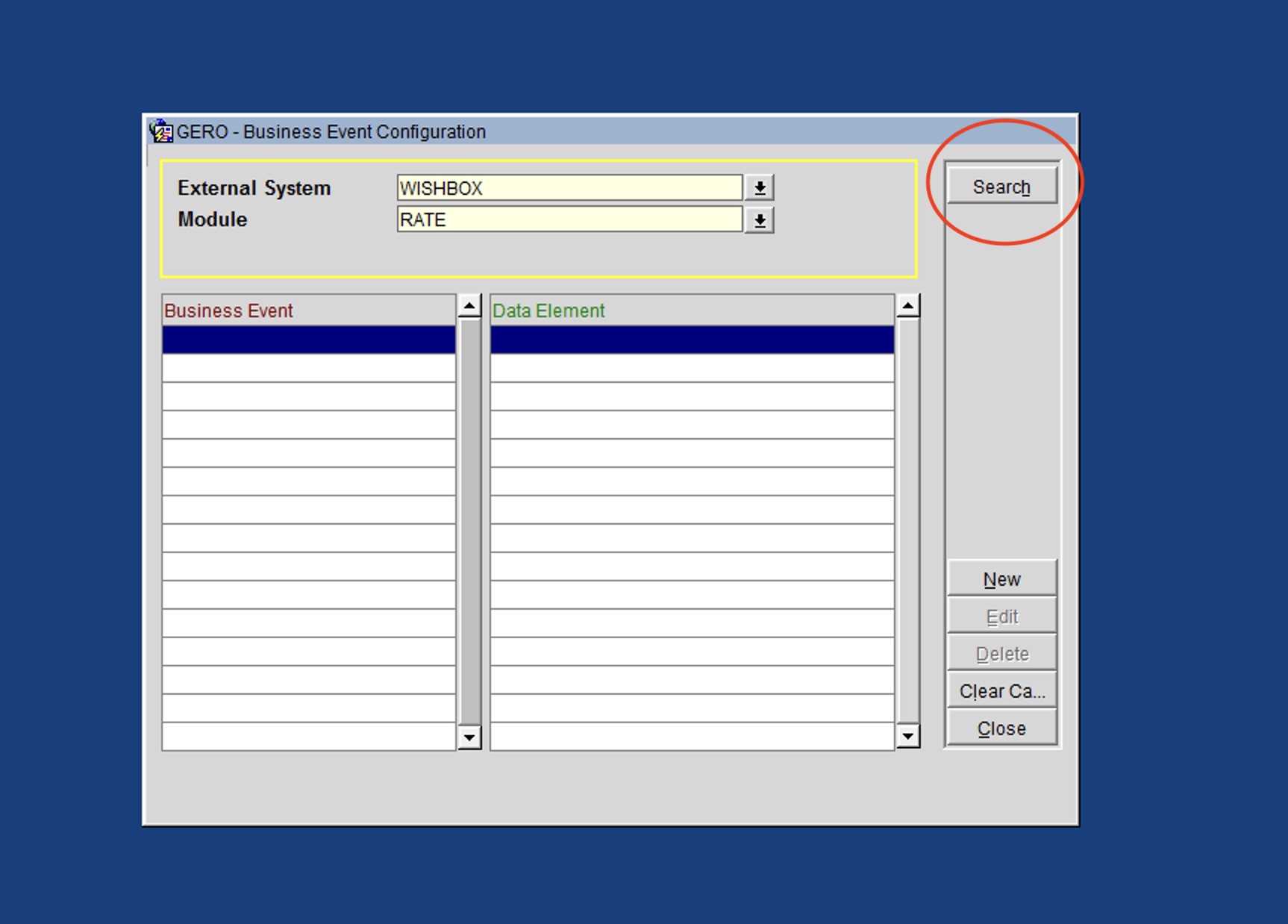
- Click on Search button on the top-right
- Click on the New button to add new event
- In Business Event select one of the following 7 events:
- NEW RATE HEADER
- NEW RATE SET
- UPDATE RATE HEADER
- UPDATE RATE SET
- DELETE RATE HEADER
- DELETE RATE SET
- RATE RESTRICTIONS
- Click on the button All then click Ok
- Do the following steps from 8 to 10 for the rest of following events as well:
- NEW RATE HEADER
- NEW RATE SET
- UPDATE RATE HEADER
- UPDATE RATE SET
- DELETEE RATE HEADER
- DELETE RATE SET
- RATE RESTRICTIONS
- Restart the OXI process so the events will start to be processed
- Re-sync the Rate codes you wish to sync to Duve for dynamic room upgrade will work
- From that point on Rates will be updated in Duve on every change in the rates within Opera.
Comments
0 comments
Please sign in to leave a comment.