

Overview

Step 1: Add a New Menu
Navigate to Upsells > Manage > Add New > Menu in the Duve frontdesk.
Step 2: Configure Menu Details
- Provide a Product Name and a Short Description to introduce the upsell.
- Upload a Cover Image for the menu's main screen.
Step 3: Define Categories and Items
- Use the "Product Inventory" section to add categories like "Breakfast" or "Drinks."
- Add menu items under each category, including:
- Name and Description
- Price (optional for free services)
- Maximum/Minimum Order Limits
- Image per item for visual appeal.
Step 4: Set Opening Hours
Define opening hours for when guests can place orders. Configure each day's opening hours and set timeframes per day for when the menu is open for orders.
Advanced
- Enable the toggle to show the field
- Enable the toggle to make the field mandatory.
- Customize the 'placeholder for guests' to inform them what to include in the Guest Notes
Public guest app mode:
- A switch in the menu Builder (Advanced settings) enables or disables the Public Mode for the Guest App.
Email and Notifications
Pop Up:
Choose internal users from the dropdown who will receive pop up notifications.
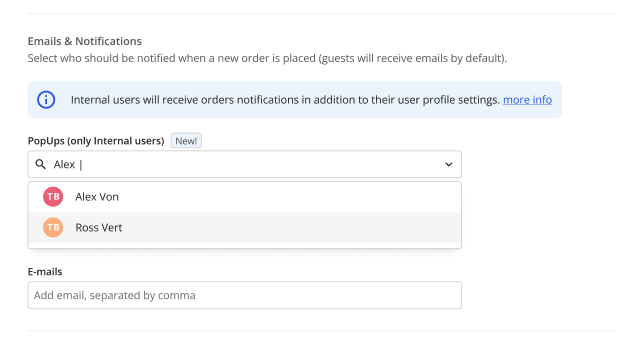
Host Experience: If the pop-up notification is enabled, it will display a pop-up regardless of the screen on which the user is currently standing each time a new Menu order is submitted.
Emails
Add any email address to recieve the order request, order confirmed, order cancelled by guest
Billing Identifier
Add the PMS Connectivity ID according to relevant HelpCenter instructions, see: How to Set up 2 Way sync of Upsells (2 Way Integrations Only)
Guest Experience
- Guests can view all products and services in the app without logging in.
- Guest Attributes: Adults, Babies, Children, Birth date, Guest country, Membership, Last stay.
- Booking Details: Booking source, Second label, Check-in options, Nights, Number of nights, Reservation status.
- Room Details: Brands, Tags, Rooms, Floor, Additional fields.
- Special Criteria: VIP Code, ID/Passport, Payment, Plan type.
- Custom Questions: Custom Question A, B, C, D.
- Timing: Arrive by, Pre Check-in, Pre Check-out.
Ordering
Guest Order Page Experience
- The Cancel button has been removed to prevent order modifications after purchase.
- Guests now see a "Have any questions?" message with a "Chat with us" button for support.
- For companies where chat is disabled, the button will not appear
Host Management
All details from the guest's menu upsell order show in the top of the order page:
If a guest orders a service for a future date and time, the host can see the scheduled time on the Order Details page.
Q: Can guests order menus in advance of their stay?
A: Yes, if the toggle for 'Allow scheduling for later' is enabled, the guest will be able to schedule an order up to 48 hours in advance.
Comments
0 comments
Please sign in to leave a comment.