
Overview
Who this is for
Applies to: Properties that use Oracle Simphony POS, with the correct version and license, and want to connect it to Duve for upsells and in-room dining.
|
- Automated order push - orders placed through Duve go straight into Simphony automatically, so no manual entry and nothing is sitting in a queue waiting to be transferred.
- Upsells synced from the POS - items and upsells configured in Simphony sync over into Duve, so you can offer guests the same menus you already sell, without maintaining a separate menu.
- Service charges and condiments - service charges and condiment options come through with each order, so checks are accurate, and the kitchen gets the full details: Modifiers, extras, and the correct charges applied.
Use cases
- In-room dining: Guests can place orders from their rooms.
- Pool/Beach Bar: Orders made poolside are captured and processed seamlessly and delivered to the correct umbrella number.
- Restaurant outlets: Covers orders for delivery/pickup from the hotel's restaurants
Simphony Vocab:
- EMC (Enterprise Management Console): The Backend platform managers use to configure and design the system (for example, creating menus, adjusting printers, and syncing to PMS).
- CAPS (Check and Posting Service): The service platform where F&B team members key in each order manually and checks from Duve show automatically.
-
Revenue Center (RVC): The name of the organization in the POS - called "Stores" in Duve.
- Stores are the Revenue Centers;
- Menus are configured per store and synced into Duve at each interval.
-
Payment Tenders: Payment methods such as Visa, Mastercard, Cash, and Room Charge; each must be mapped
- Called in Duve "identifier codes" on the Connection page and appears as a "'CardType' identifier code"
- Checks & Printers: Each Duve order creates a check in the POS, which then prints at the relevant bar or kitchen station.
Pricing
Before you start
1. Log in to your Simphony account
- Ensure that the Transaction Services Gen2 API is licensed
- Client ID
- Username
- Password
- Employee ID (POS Sign-in Number)
- API URL
- Authentication URL
- Enterprise Short Name
How to create or access the credentials for the Duve Connection
- Username - to create a user:
- Go to Administration → System → API accounts → Add API account:
- Type: Simphony transaction services
- Account name = username - advised: DUVE_STS_"ENTERPRISE-SHORT-NAME-CODE" (for example DUVE_STS_DUV).
- Email should be set to a user at the hotel to retrieve the password reset
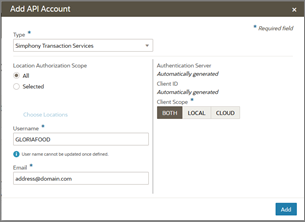
- Location Authorization scope
- Click Selected
- Choose locations
- Pick the one you want to apply
Troubleshooting note: The email address on this API account must be one the hotel manages, not a Duve email address. A password reset link is sent to this address, and the hotel needs to own and manage these credentials. The hotel's IT user completes the password reset and securely saves them.
- Create an Employee ID specifically for Duve as System Administrator
- Go to People → Search for the relevant user (created earlier) → Click "Point of sale" → Settings → under the POS client → POS sign-in number
- Create a dedicated cashier employee for order push: Create a new employee in Simphony named "Duve." Assign it the highest available permissions and ensure it has localization access for every relevant revenue center (RVC).
Troubleshooting note: In the R&A, use the "POS Sign In Number" for the "Employee ID for Order Push" field in Duve. Do not use the "POS Object Number," which is also generated. Confusing these two up is a common source of errors.
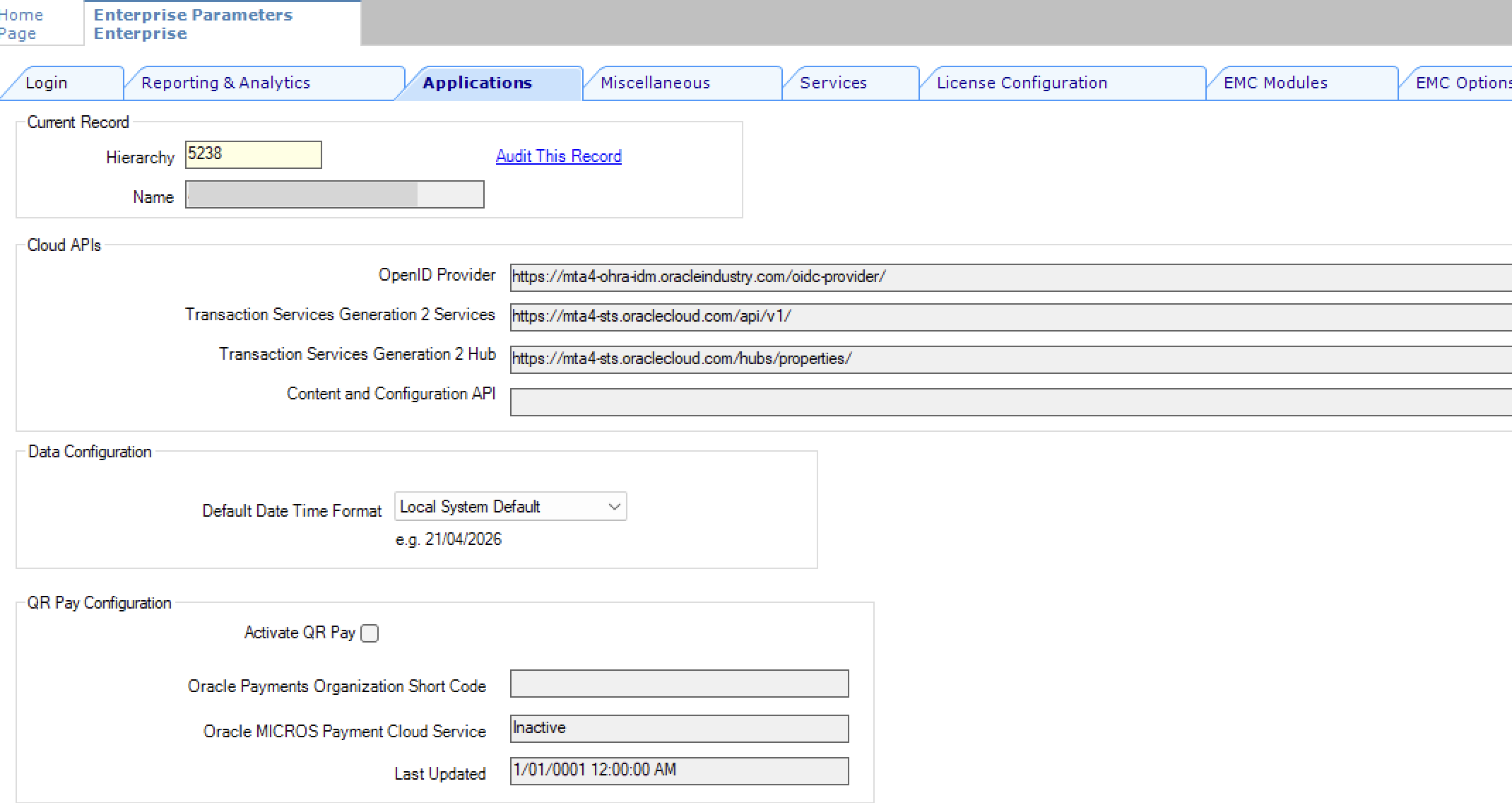
- Go to Applications tab
- Copy the "Transaction Services Generation 2 Services"
Setup note: When adding the URL to the Duve connection page, remove the '/api/v1/'
- Sent in an email to the User
Step 1: Credentials & Connection
Phase 1: Make the connection in Duve
-
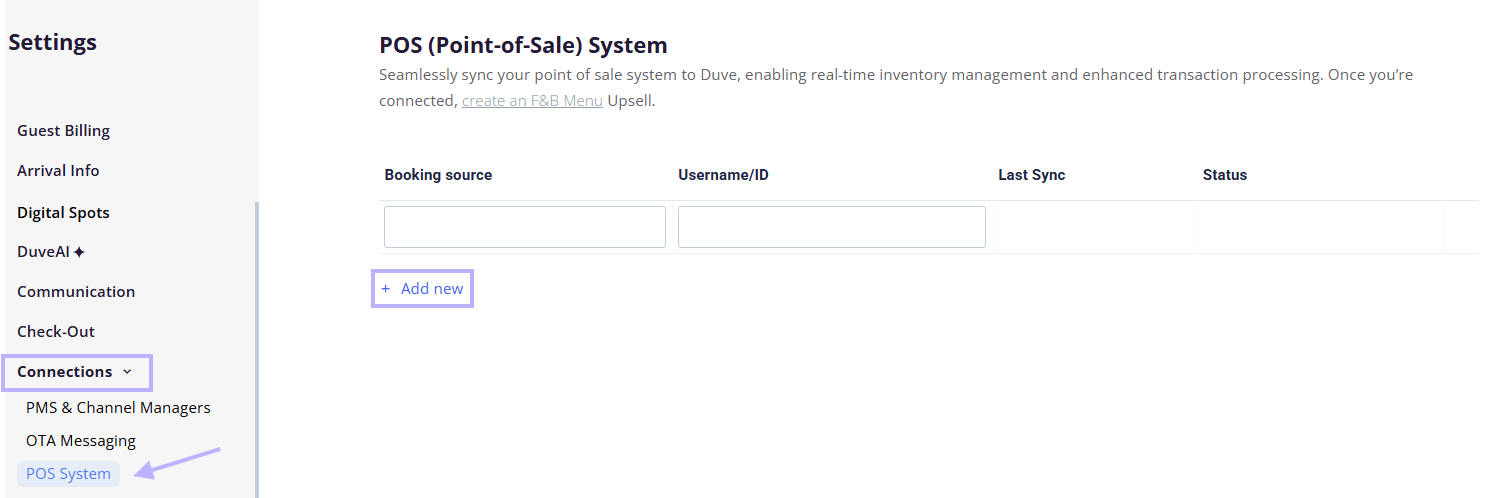
Go to Settings → Connections → POS System. Under the POS tab, add a new source and select 'Simphony'.
-
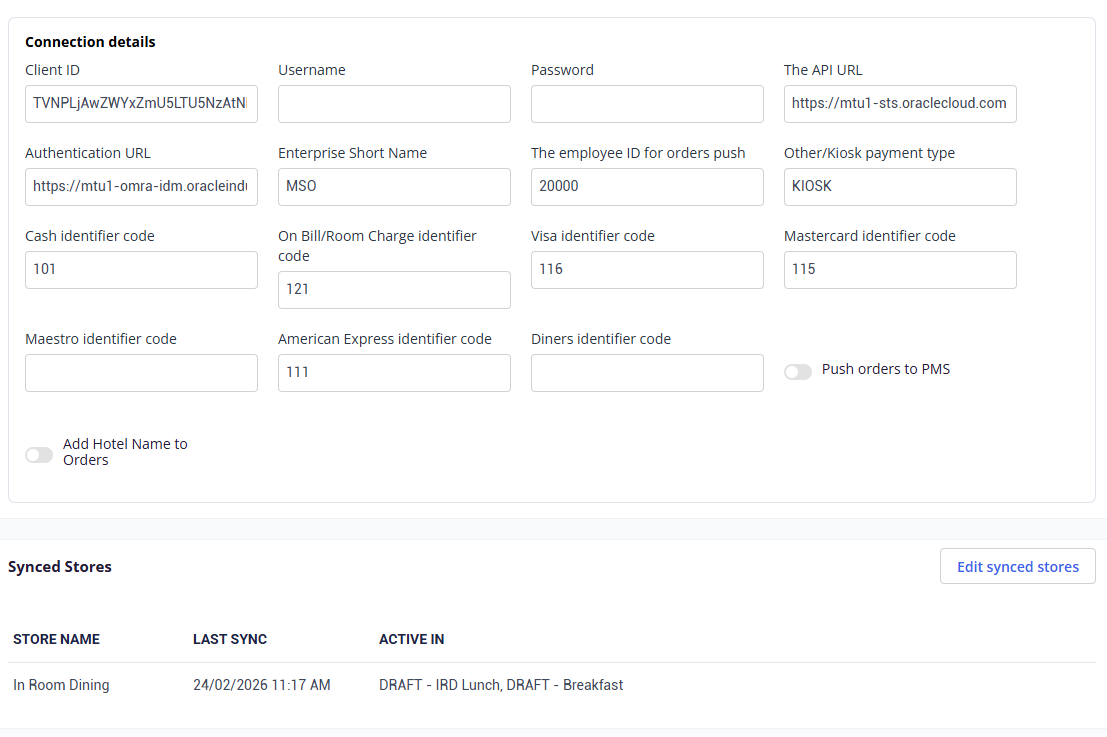
Enter the mandatory credentials you gathered from Simphony.
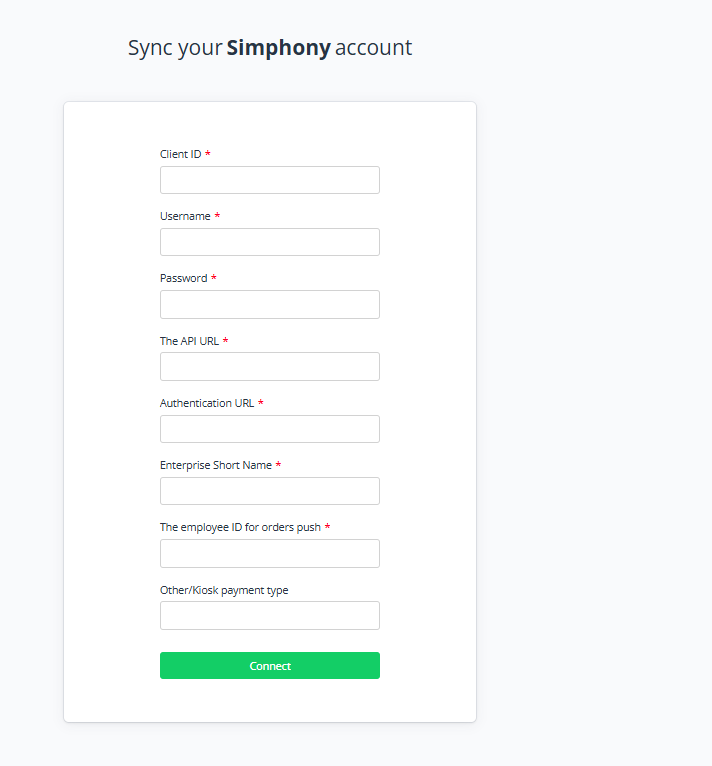
- Save the connection.
Troubleshooting note: If you see an error and the connection is not successful, review the credentials to confirm everything is correct. If you've confirmed they are all correct and are still getting an error, perform a "CAPS" reset.
Phase 2: Configure the integration
-
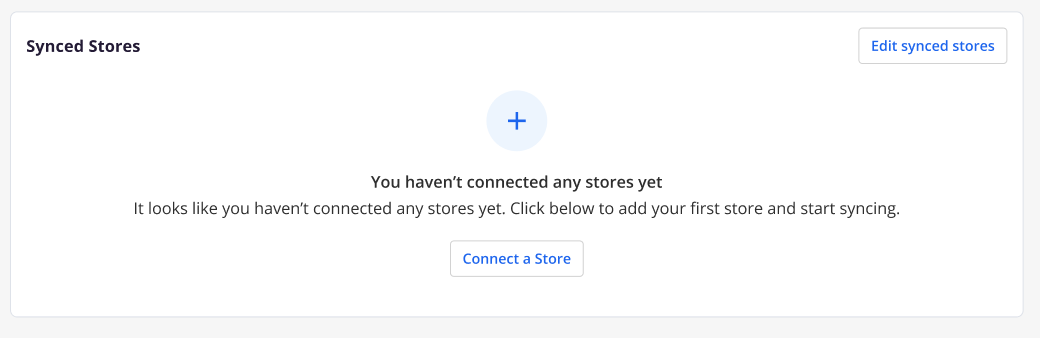
Go to the Settings > Connections > POS System page > enter the connection and click Connect a Store.
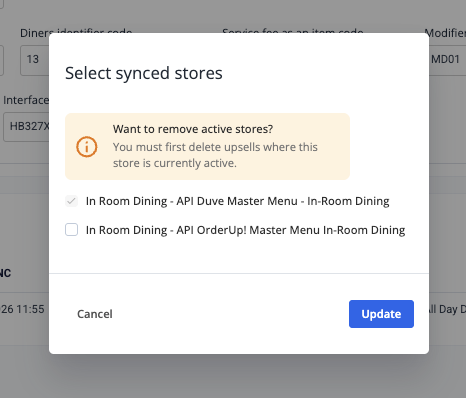
- Select the revenue centers you want to sync with Duve.
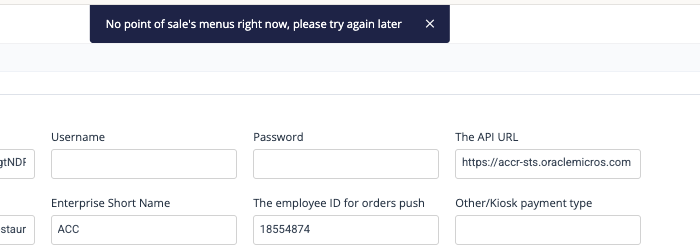
Troubleshooting note: If you see an error that 'No point of Sale's menus right now', wait about a minute and try again. Duve may still be fetching the data in the background.
Step 2: Payment Tenders Setup in Duve Connection page
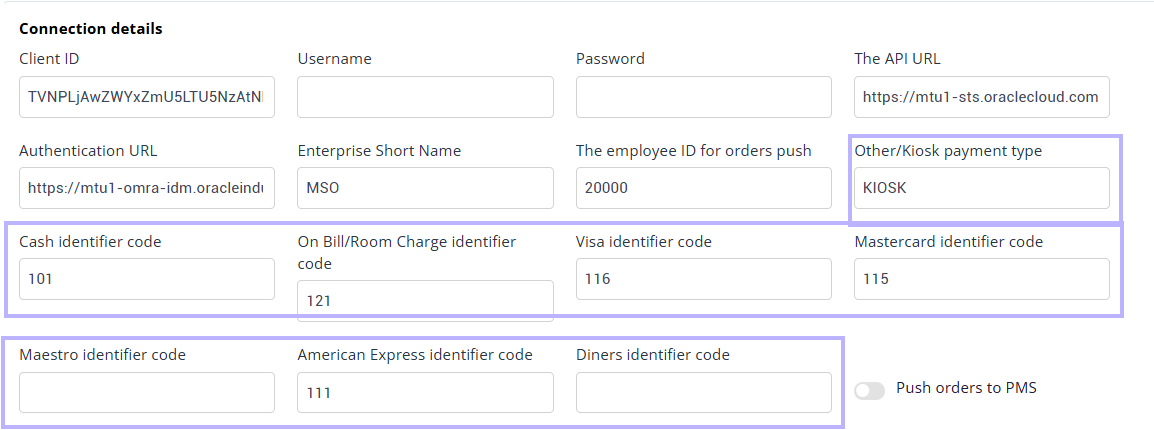
Setup
-
In the Simphony EMC, go to Settings → Configuration → Tenders/Media.
Locate the codes (left-most column) for each payment method (for example, Room Charge).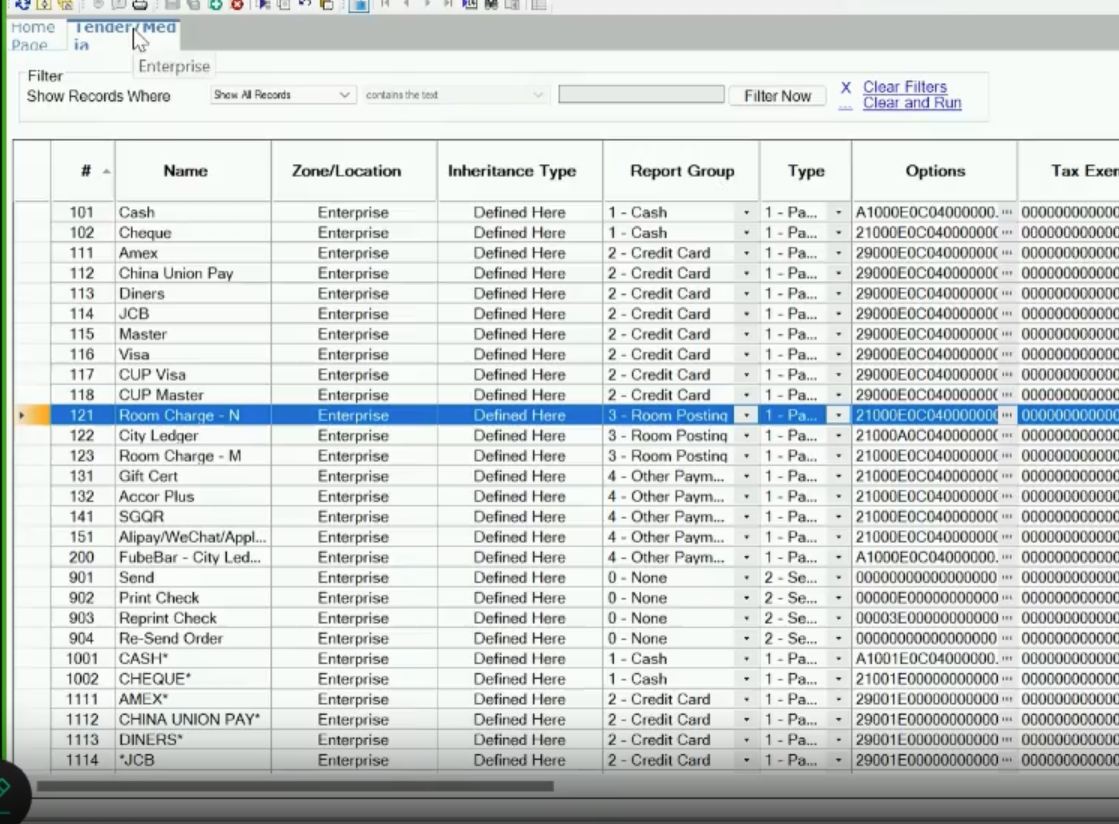
- Enter those codes into the matching fields on the Duve connection page.
- Enter payment Tender Codes for Cash, Visa, Mastercard, Maestro, American Express, and Diners in each field - every field is mandatory
- Other/Kiosk Payment Type - This is for payment methods that Duve cannot recognize. Simphony should provide the type of code for "Other" charges. This is the "fallback" value code for payments we cannot identify as the credit card provider. This value is mandatory for the account to use Credit card payments with Simphony.
Best Practice: Map all payment tenders during setup, even ones the hotel does not plan to use yet, to save time later during testing.
Optional configuration:
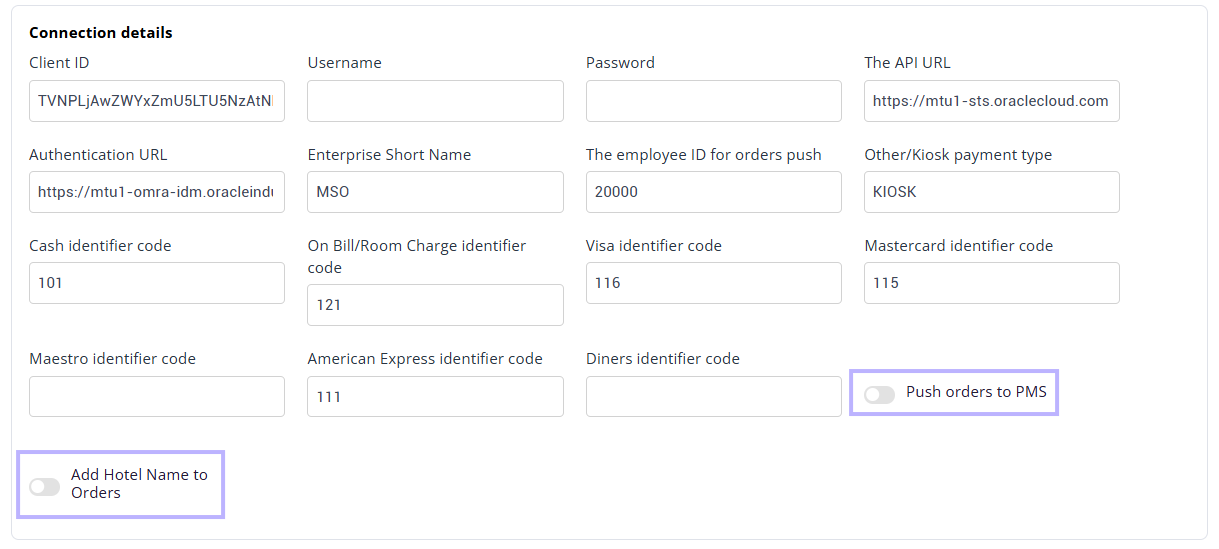
-
"Push Orders to PMS" toggle: Turn on only if there is no integration between the POS for pushing orders to the folio in Opera. Enable the toggle to send POS orders directly from Duve to Opera.
- Best Practice: should be off as the POS should push all orders to the PMS
- "Add hotel name to orders" toggle: When enabled, Duve includes the hotel name with each order sent to Simphony, so staff can easily recognize the originating property.
Checklist Step 3: Menus setup in Duve
- In Duve, create a new upsell menu and choose the option to sync it from the POS.
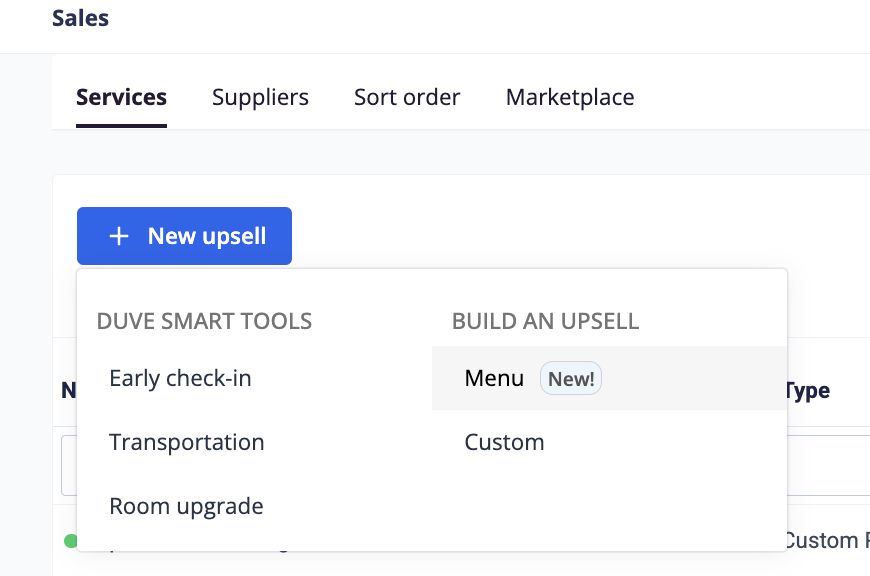
- Select the revenue center (Store) you want to sync from. The item selection step opens with the store's full catalog, grouped by category.
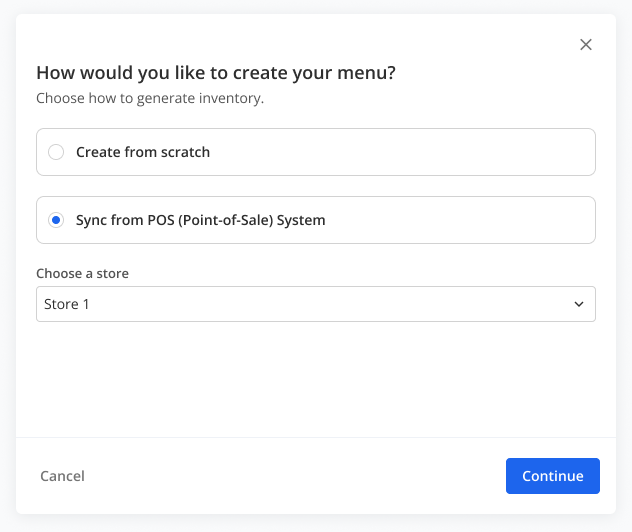
- Select the items you want.
- Tick an item's checkbox to include it.
Setup note: Modifiers appear nested under their item.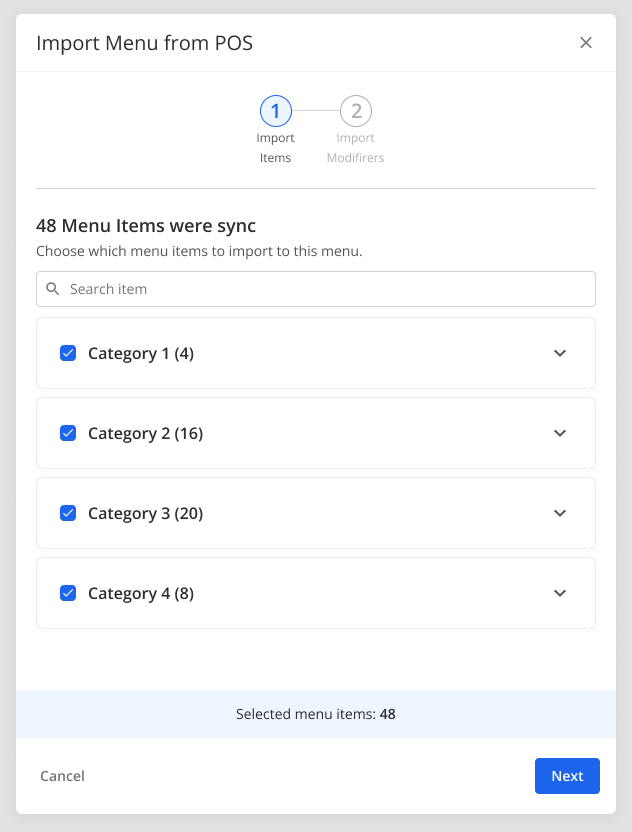
- Expand a category header to include or exclude item/s in it at once.
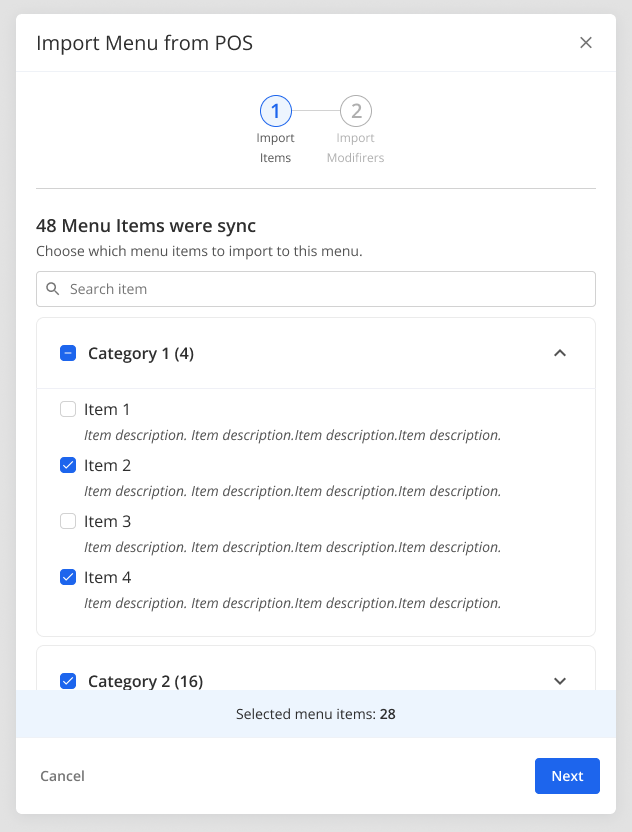
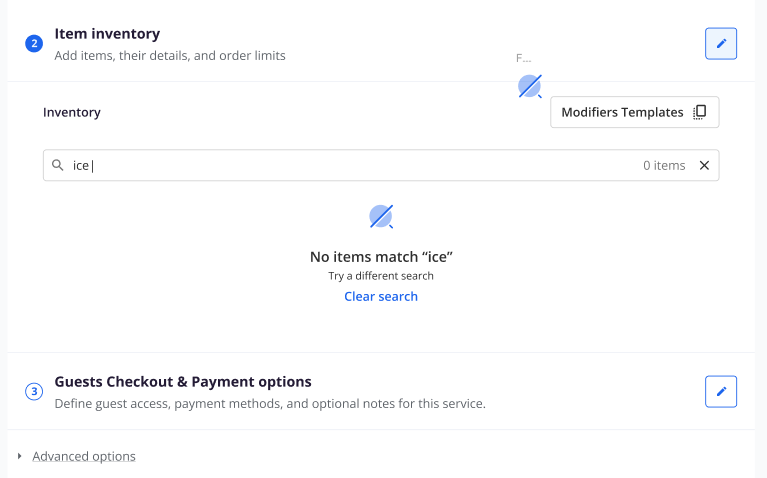
- Use the search field to find an item by name, useful for stores with 100+ items.
- Tick an item's checkbox to include it.
-
Select the related modifiers per selected item.
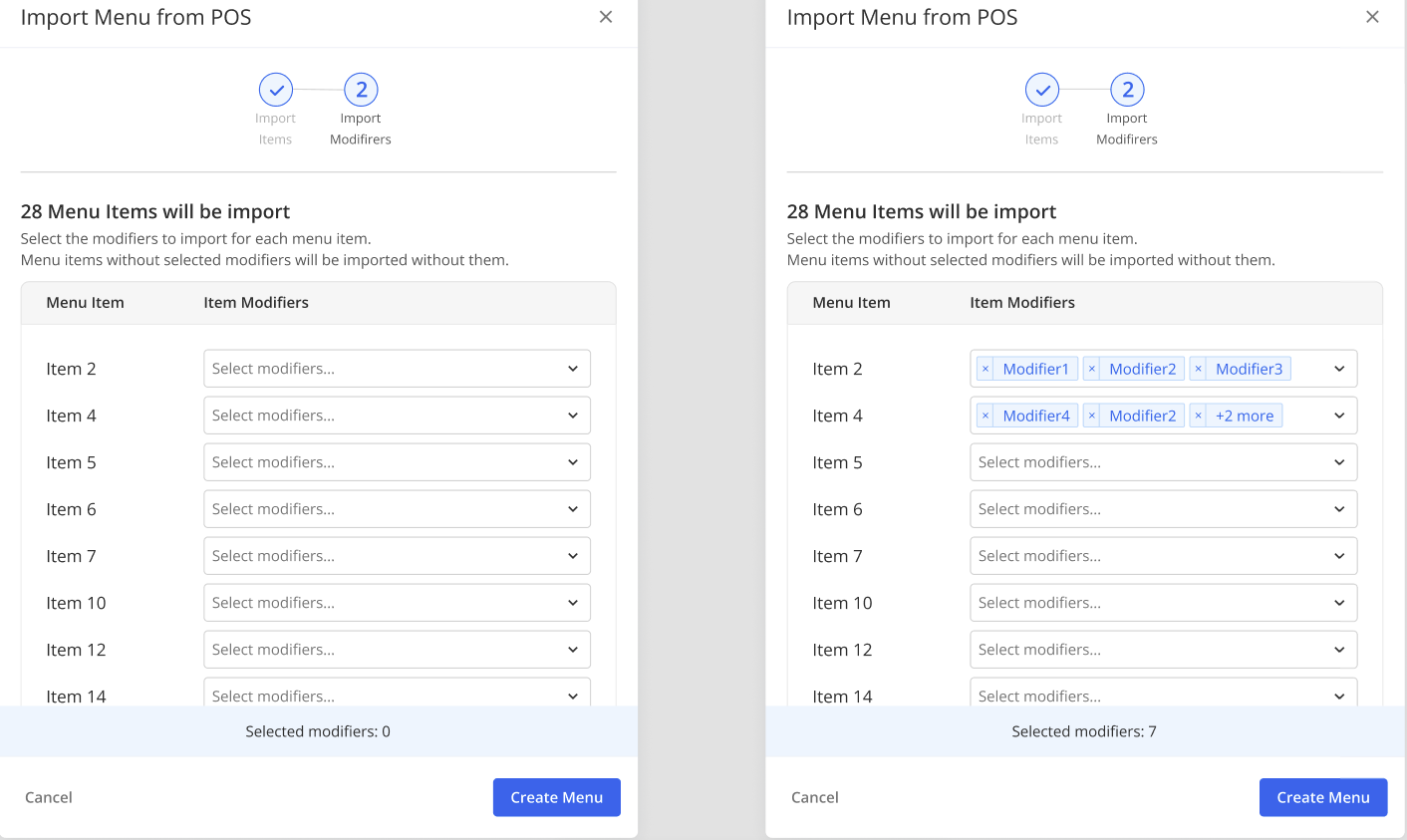
- Troubleshooting notes:
- Only the items you selected are included in the upsell.
- At least one item must be selected to continue.
- A category checkbox appears partially filled when only some of its items are selected.
- All names, pictures, descriptions, and prices are pulled from the POS system. You can edit each synced field, except the price.
Update the selection later
-
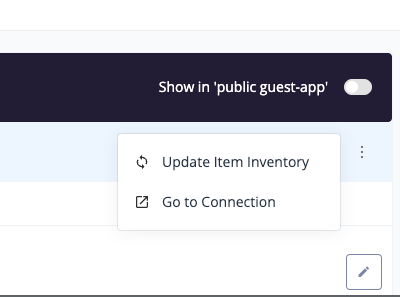
Open the Menu upsell and click the ••• icon → Update Item Inventory.
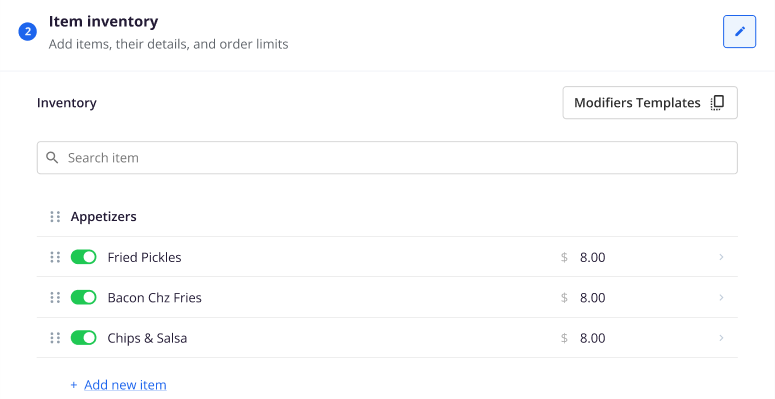
- Your saved selection loads as-is. Add or remove individual items, modifiers, or whole categories.
- Click Save.
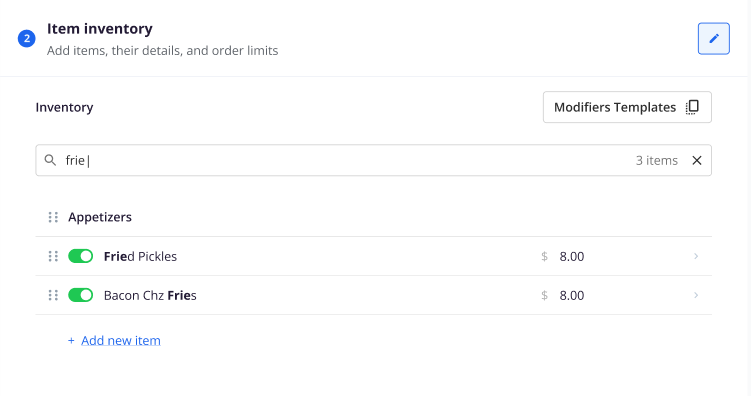
Search an active menu
Sub Checklist for Creating a Menu Product:
- Description - Use cases
- Note about tray charge
- Note about delivery time
- Note about alcohol policy
- Booking options - must be instant booking or else defeats the purpose
- Pictures
- Items synced
- payment types
Optional Configuration:
1. Guest Notes
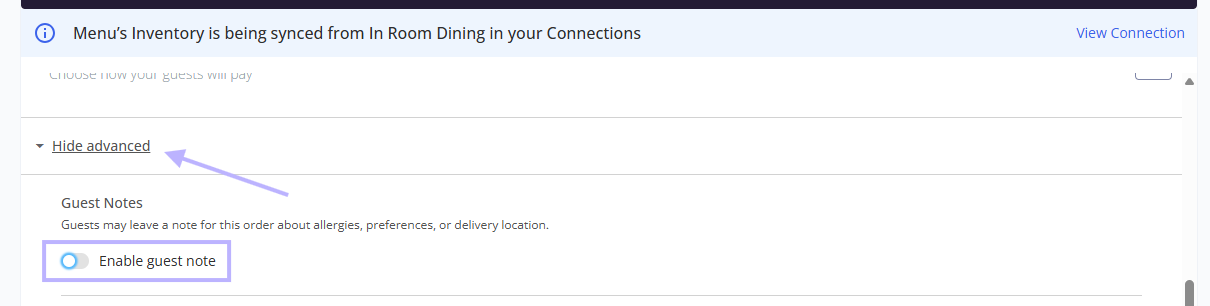
- Please add your Umbrella number
- Please update about any allergies
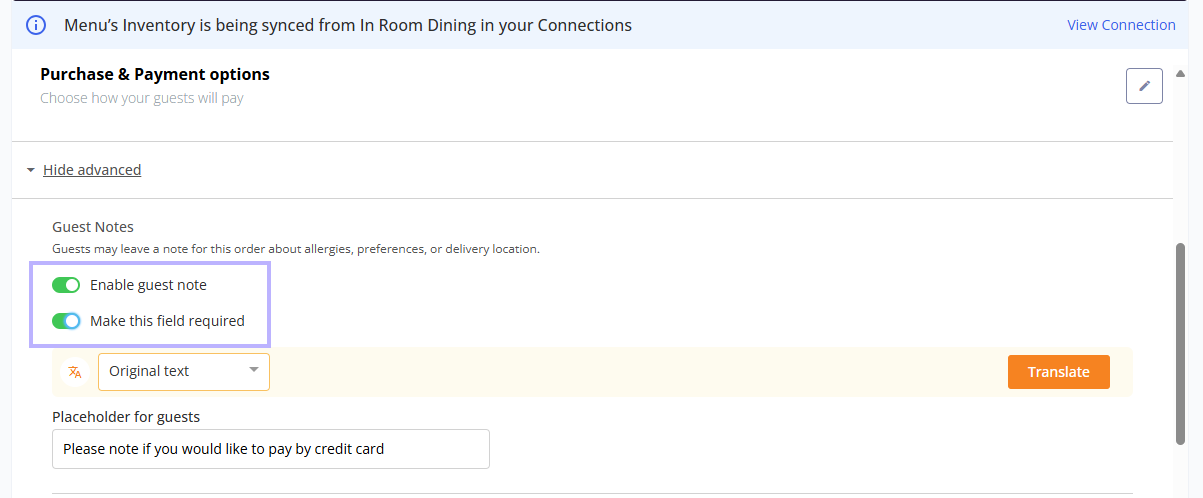
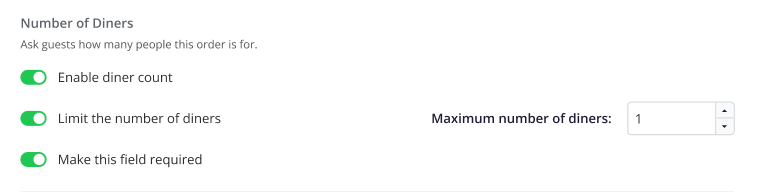
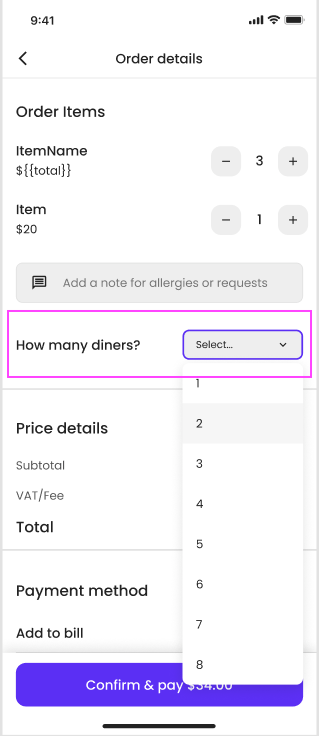
2. Sync Number of Diners to Simphony
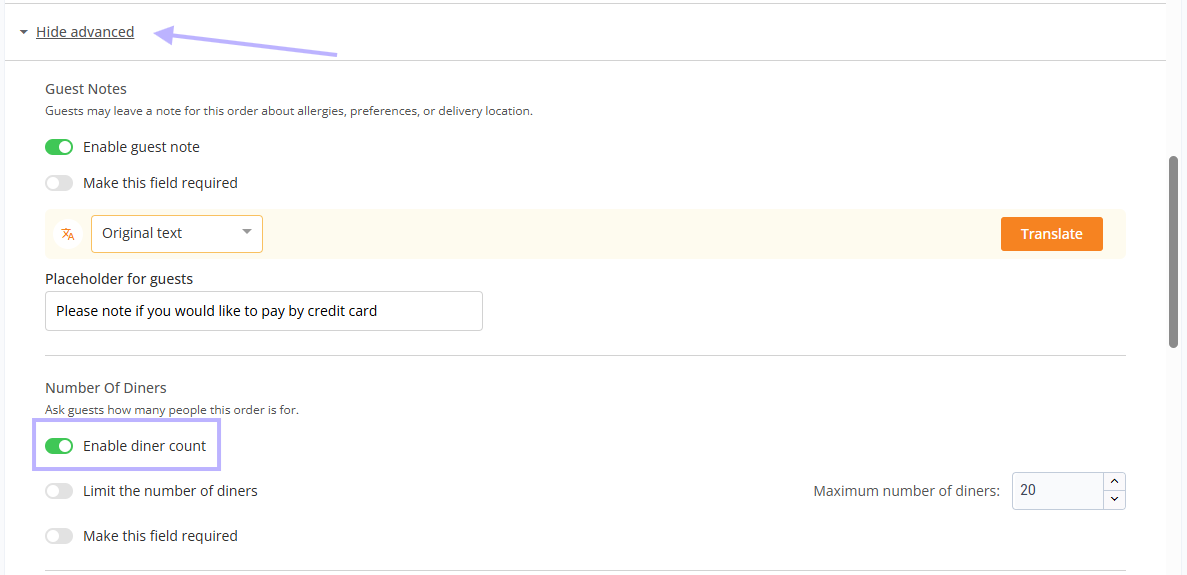
- Check-out order view, with number of diners:
Step 4: Service Charges Alignment
- Service charges sync from Simphony and can be a flat amount or a percentage. This is a required step for most venues, especially for in-room dining (for example, a delivery charge or tray charge).
Step 1: Find or set up "Service Charges" in Simphony; see Oracle Instructions article
For Flat Amounts to appear on the Order, click the second checkbox under Options. By default, all service charges are set to percentages.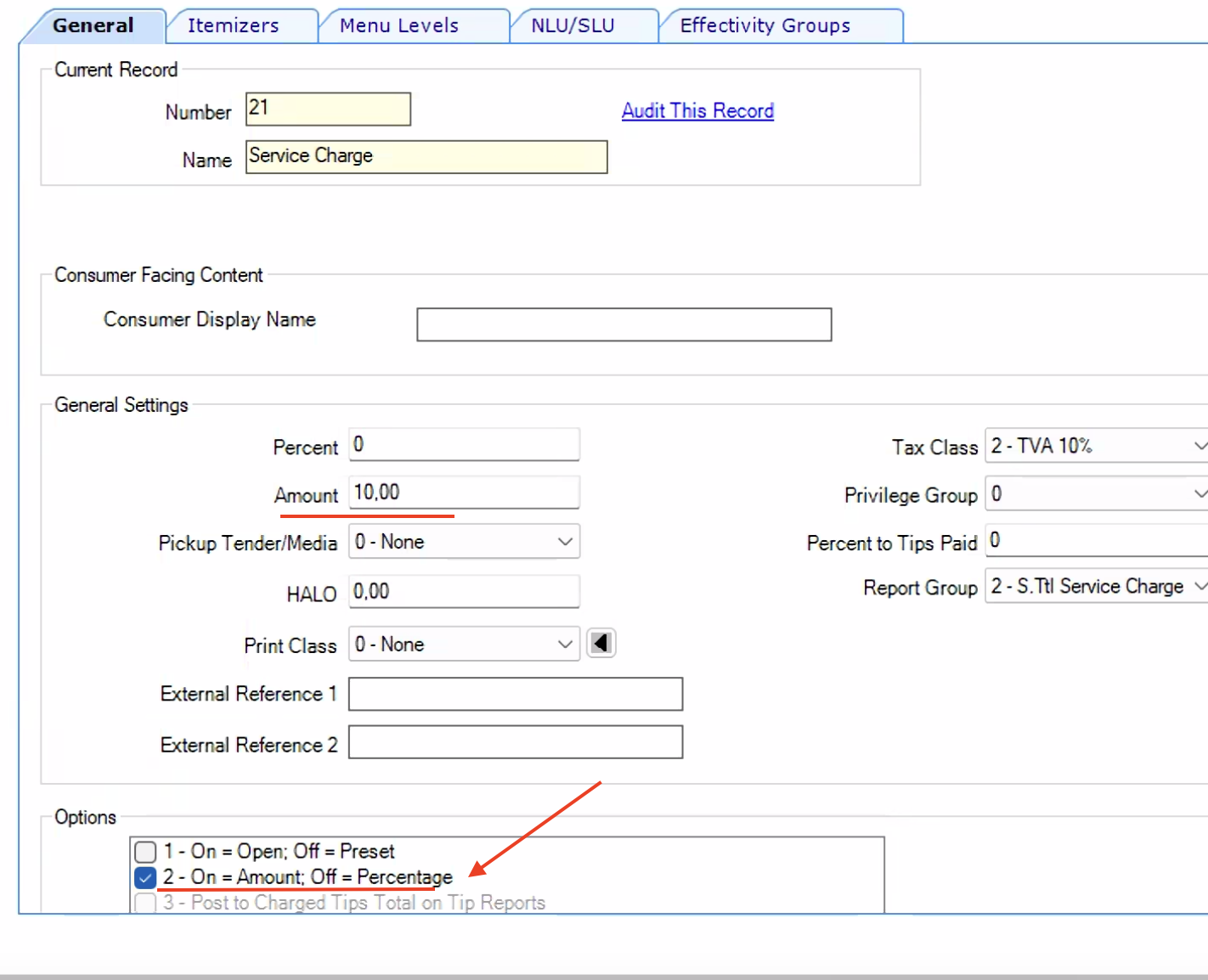
Step 2: Configure Menus with "Service Charges"
- Go to the Menu settings on the Duve POS page.
- Navigate to the "Payment Options" section.
- Under "Currency" settings, you will now see a list of service charges synced from Simphony.
- Select the charges (e.g., Service Fee, Delivery Fee) you want to apply to this Menu.
- You can choose one or multiple charges.
- By default, no service charges are selected.
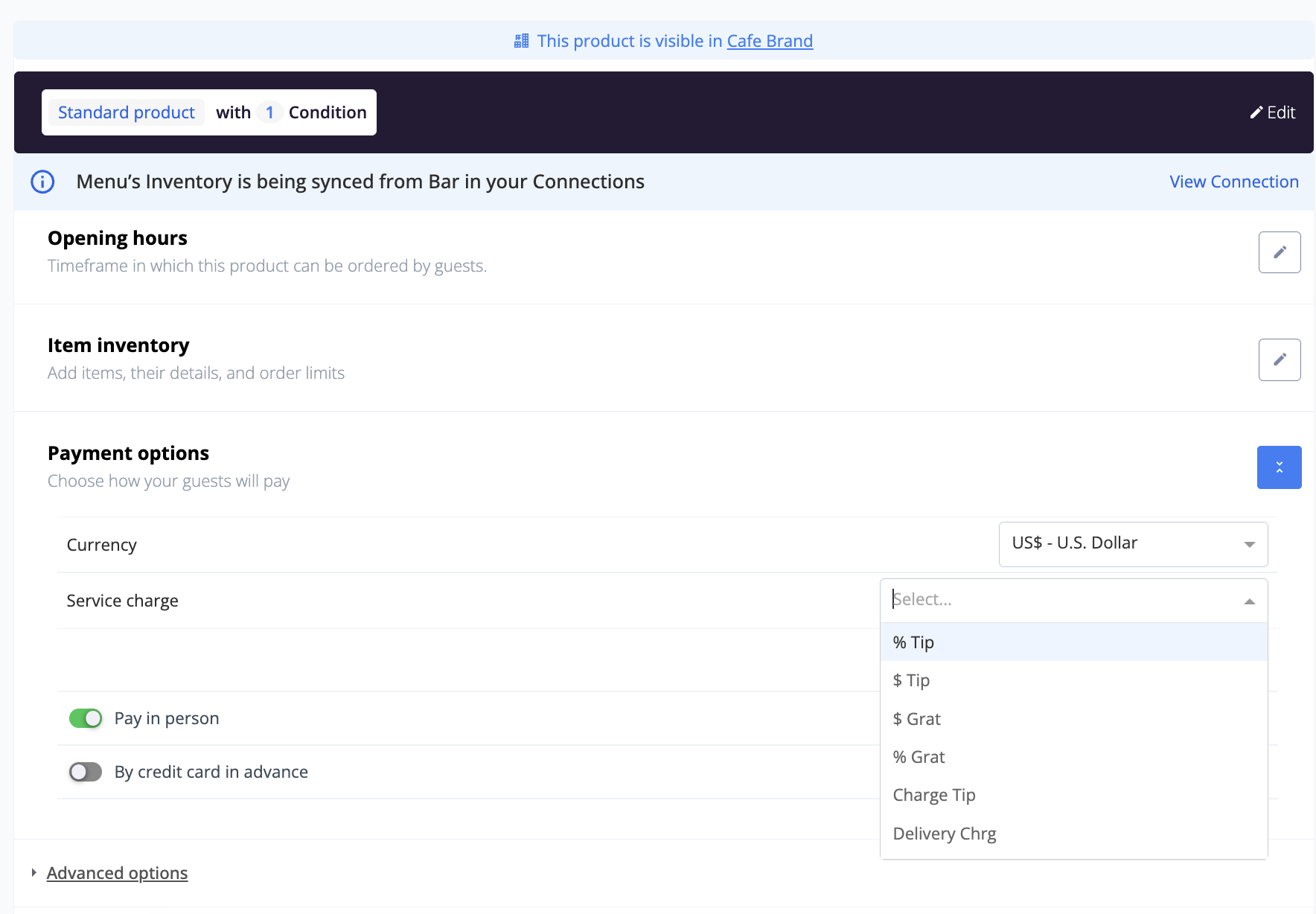
Multiple service charges can be added to a single menu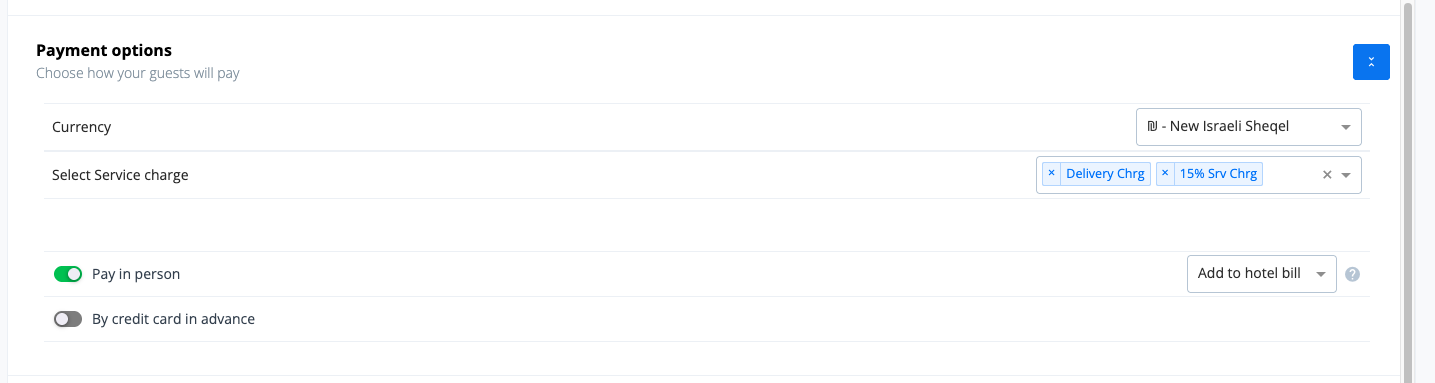
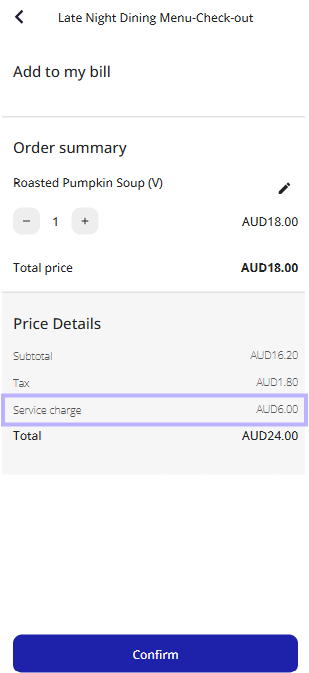
Step 3: Charges appear in the guest Checkout View
- Once selected, guests will see the service charges in the order breakdown during checkout.
- POS auto-sync - The store list for an existing store syncs automatically every 10 minutes from the POS. Items auto-synced every 5 minutes. New stores do not auto-sync, and are synced only when you click "Edit synced stores".

- New Items within an Existing Store - Any new item in an existing store syncs to the menu in 'draft mode' - with the toggle for that item off
- Out of Stock Items - When a guest is browsing and selects items that are out of stock, Duve checks availability in the POS when the guest clicks to Pay
- Changes made to Store Names or Items in the POS - if the host changes an item or menu detail in the POS, those new details will not overwrite the display details the host set in Duve's Product builder.
Troubleshooting
- First, carefully review every credential with the customer once more.
- Then instruct the hotel to reset the CAPS. This causes about a minute of downtime, so the customer will most likely push back if you are meeting during a high-volume meal time. They will action it during a quiet period, not during breakfast service.
- Wait about a minute and try again, since Duve may still be processing the request.
- If the problem persists, check permissions in the Simphony EMC:
- Confirm the API user has the correct permissions for the stores.
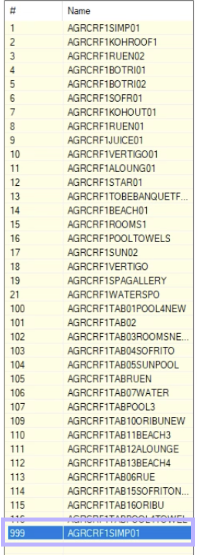
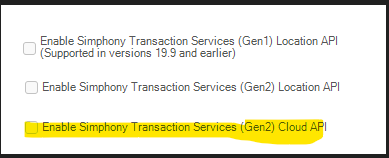
- In the workstation settings, make sure the relevant workstation is selected - often workstation 999 for the POS API. Then, make sure that the "Enable Transaction Services Gen2 Cloud API" checkbox is turned ON for the relevant workstation.
Technical notes
- The API account email must belong to the hotel, not to Duve, because it receives the password reset link, and the hotel must own these credentials.
- A CAPS reset causes about a minute of downtime and should be scheduled during a quiet period
- Give the "Duve" cashier employee the highest permissions and localization access for all relevant revenue centers to avoid permission-related sync failures.
- If a Store sync error appears right after connecting, wait about a minute before retrying. Many errors clear on their own once Duve finishes fetching data in the background.
- In the R&A platform, open the API Accounts section and add a new account of type "Simphony Transaction Services." You can name the account anything, but a consistent, recognizable naming convention is good practice.
- "Last Sync" info: Duve syncs with Simphony's inventory automatically every 10 minutes.
Comments
0 comments
Article is closed for comments.