
Duve now supports a fully contactless check-in experience, allowing guests to check in quickly, securely, and independently using their mobile devices. This streamlined flow is triggered via QR code scanning on the guest's check-in day and guides them through identification, online check-in, ID verification, and digital key access — all without any staff intervention.
Availability
Currently available only for customers connected to Mews, Opera (Oracle), and Oracle Cloud (OHIP) PMS systems.
Pricing
Contactless Online Check-in is an add-on feature that will be available upon request and at an additional monthly cost of 1€ per unit. Please contact Duve's Support Team or your dedicated Customer Success Manager.
What’s New?
- QR Code-Triggered Check-in: Guests can begin check-in by scanning a QR code displayed at the property.
- "Wait Mode" Guest App: Displays real-time updates while waiting for room readiness.
- Automatic Room & Key Assignment: Room is auto-assigned, key is released, and guest receives a welcome message — all seamlessly.
- Guest App Transitions to "Ready Mode": Unlocks access to digital keys and app features once the room is ready.
Guest Experience
1. Scan QR Code
- On the check-in day, the guest scans the QR code in the Reception using their mobile device.
2. Identification & Login
If the guest has already completed Online Check-in on the same device and browser, they will be automatically logged in after scanning the QR code and redirected directly to their private Guest App — without needing to re-enter their reservation details.
If no active session is detected, the guest is prompted to log in using one of the following details:
- The guest can log in with the following details to start their Contactless Check-in process:
- First Name
- Last Name
- Check-out Date OR
- Phone Number
- Email Address
- Booking Number
Note: Automatic login is supported only when the guest scans the QR code using the same browser in which they previously completed the Online Check-in. If cookies are unavailable (for example, a new device, cleared browser data, or an in-app browser), the guest will be prompted to log in manually.
3. For Group Reservations, select which Reservation within the Room
If multiple reservations exist under the guest’s details, the system prompts the guest to select the relevant reservation.
4. Complete Online Check-in
If not already completed, the guest is guided to finish:
- Online Check-in Form
- ID upload or verification
- Payment (if required)
5. Waiting Phase – "Wait Mode"
If any of the following is incomplete:
- ID not yet verified
- Payment not confirmed
- Room not yet ready
The guest app displays a "Wait Mode" screen:
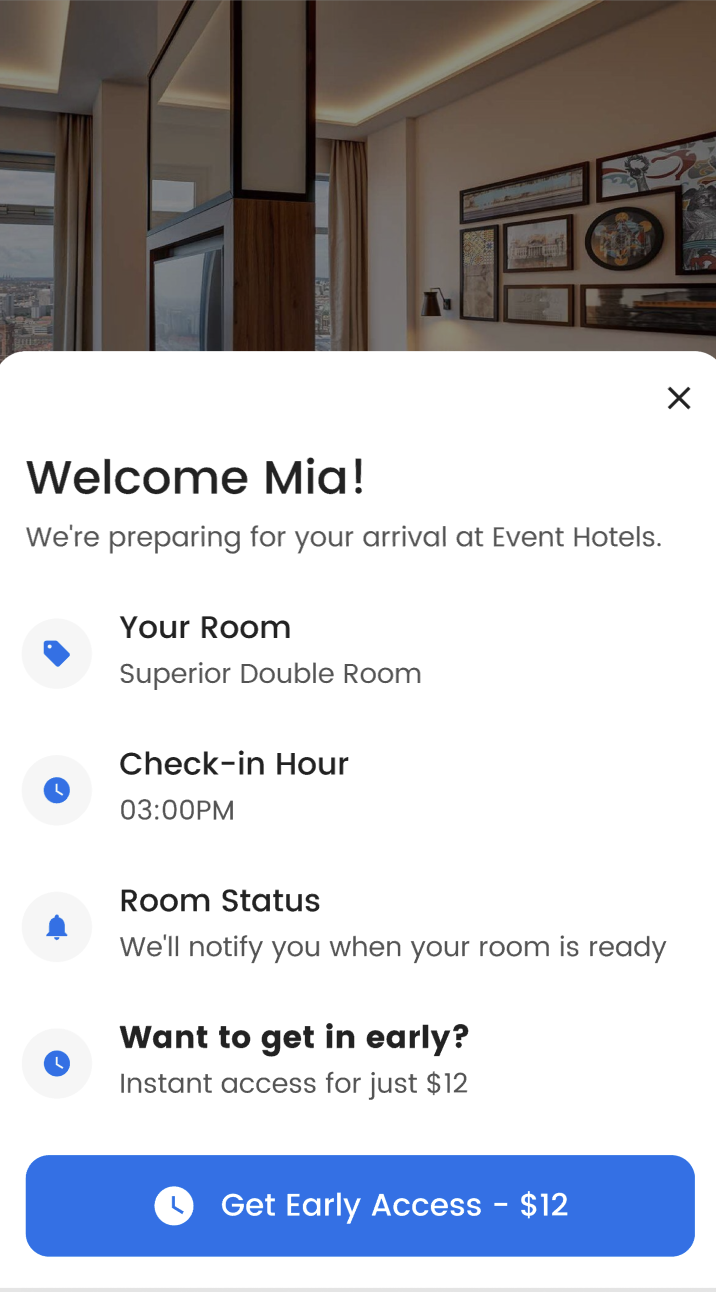
✅ Guests are automatically notified (via Scheduled messaging) once the room is ready.
6. Room Assignment & Key Release
Once all verifications are complete and the room is ready (Clean or Inspected status depending on each hotel's configuration) :
- 🏨 Room is automatically assigned (the highest room number in category)
- 🗝️ Key is automatically released
- ✅ Reservation is marked as “Checked-in”
- 💬 A message is sent to the guest
- 📱 Guest App switches to “Ready Mode”, allowing digital key access
🔑 Digital Key & App Access
Guests are prompted to download the native app to:
- Access their digital room key
- View room details
- Enjoy additional services
⚠️ Digital key access requires the native app. Guests are prompted to download it in the final step.
Guests can log out of the Guest App at any time using the Logout option in the app menu. Logging out returns the guest to the public Guest App and allows them to log in again — for example, to access a different reservation under the same name.
❓FAQ
Q: I already completed Online Check-in. Why wasn’t I asked to log in again after scanning the QR code?
A: If you completed Online Check-in on the same device and browser, Duve automatically logs you in when you scan the QR code — so you can access your Guest App instantly without repeating the process.
Q: When will I still need to log in manually?
A: Manual login is required if you are using a new device, a different browser, an in-app browser (such as email apps), or if your browser cookies were cleared.
Q: How can I switch to a different reservation under my name?
A: Use the Logout option in the Guest App menu, then log in again and select the relevant reservation.
Q: What if the guest does not have a mobile device?A: They will be redirected to the standard OCI flow, which may require front desk interaction.
Q: Can a guest complete this process before check-in day?
A: Guests can start earlier, but the QR-based flow is only triggered on check-in day. Room and key release happen only on that day.
Q: How does a guest know when their room is ready?
A: The app will notify them automatically when they move from "Wait Mode" to "Ready Mode", enabling key access.
Q: What happens if a guest has more than one reservation?
A: The system will display all reservations, and the guest will be asked to select the correct one.
Comments
1 comment
Can "Group Reservations, select which Reservation within the Room" interface be supported for other PMS's, such as Cloudbeds & Apaleo?
Please sign in to leave a comment.