
- adyen.com
- Europe
- Austria
- Belgium
- Bulgaria
- Croatia
- Cyprus
- Czech Republic
- Denmark
- Estonia
- Finland
- France
- Germany
- Greece
- Hungary
- Ireland
- Italy
- Latvia
- Liechtenstein
- Lithuania
- Luxembourg
- Malta
- Netherlands
- Norway
- Monaco
- Poland
- Portugal
- Romania
- Slovakia
- Slovenia
- Spain
- Sweden
- Switzerland
- United Kingdom (including Isle of Man & Jersey)
- Other Adyen Supported Countries
- Australia
- Brazil
- Canada
- Singapore
- United States
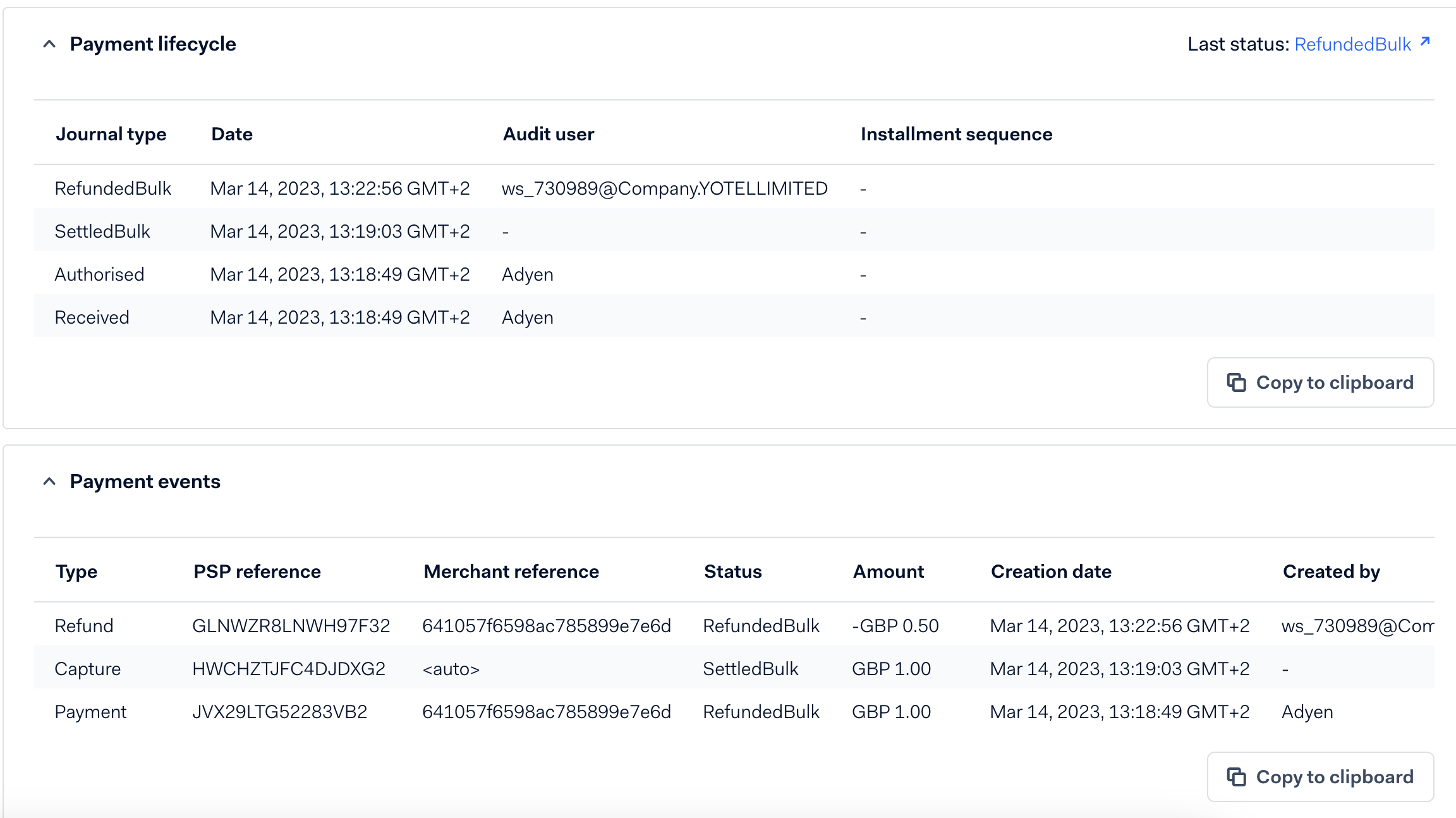
- Direct Charge
- Refund
- Cancellation
- If you are using OHIP, then you will also see the OHIP External ID number added to the Merchant Reference

In order for the flow for Request Approval Upsells to work: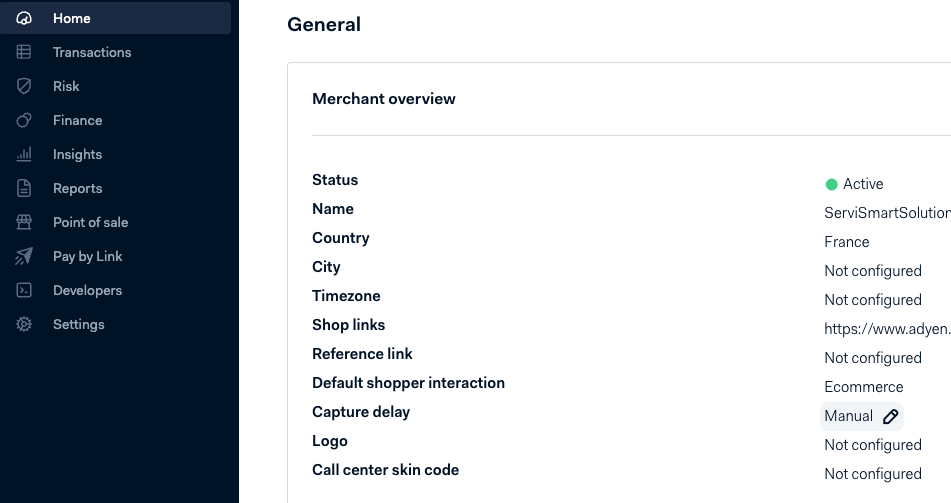
- Go into the Merchant Account and select Settings > Account settings.
- In the General settings, next to Capture delay, select the edit icon .
- From the dropdown list, select Manual.
FAQ:
Q: When the guests click on the button to "Continue to payment", the Adyen iframe doesn't open. How can we fix this?
A: Steps to troubleshoot:
1. Please check the Payment Methods and ensure that there is at least 1 payment method for credit card transactions on the account. Go to Settings > Payment Methods to check the setup in Adyen.
2. Check that you have a Terms & Conditions listed on the Adyen account.
3. Check that the Prefix from Adyen was added correctly in the credentials.
Q: I set up my Adyen, but when the guest completes the Payment successfully, the order is not created in Duve. How to fix that?
A: If the order is not created in Duve and it was successfully paid in Adyen, it means that the Duve webhook in Adyen is not set up successfully. Follow the steps to
- Login to your Adyen account
- Navigate to Developers->Webhooks
- Click on the “Webhook” button to create a new webhook
- Click the “Add” button on the “Standard notification” option.

- On the opened page, expand the General->Server configuration and copy the “Adyen webhook URL” copied earlier from Duve into the URL input:

- Adjust the Method to be HTTP

- Click on Apply and then “Save Changes”
- Click on “Test configuration” to validate that the connection was successful.
Comments
0 comments
Please sign in to leave a comment.