
Quick navigation:
- Use cases
- Before you start
- How to set it up
- Guest experience
- Restrictions & Limitations
- Tips & Tricks
- FAQs
- Related articles
Use cases
- Collect outstanding charges (incidentals, extras, add-ons) before the guest leaves, so the front desk does not have to chase payments.
- Know when each guest plans to leave so housekeeping can schedule cleaning in advance.
- Sell late check-out as a paid upgrade in the same flow.
- Share departure instructions, such as where to leave keys or how to lock the door.
- Require guests to sign their final bill (folio) digitally.
- Offer departure transportation with a priced quote.
- Gather private feedback from unhappy guests and send happy guests to your public review page.
Before you start
- To collect payment at check-out, you need a connected payment provider with guest payments enabled. Without one, the payment toggle is disabled.
- Guest billing must be supported for your account's country and payment provider. Otherwise, the Guest billing link does not appear in the Check-out tab.
- If you manage several brands, some sub-tabs (such as Instructions and the check-out payment step) are configured only at the company level. Brand pages show an Override default settings switch where brand-level overrides are supported.
How to set it up
Step 1: Set the reminder email and check-out times (Basic)
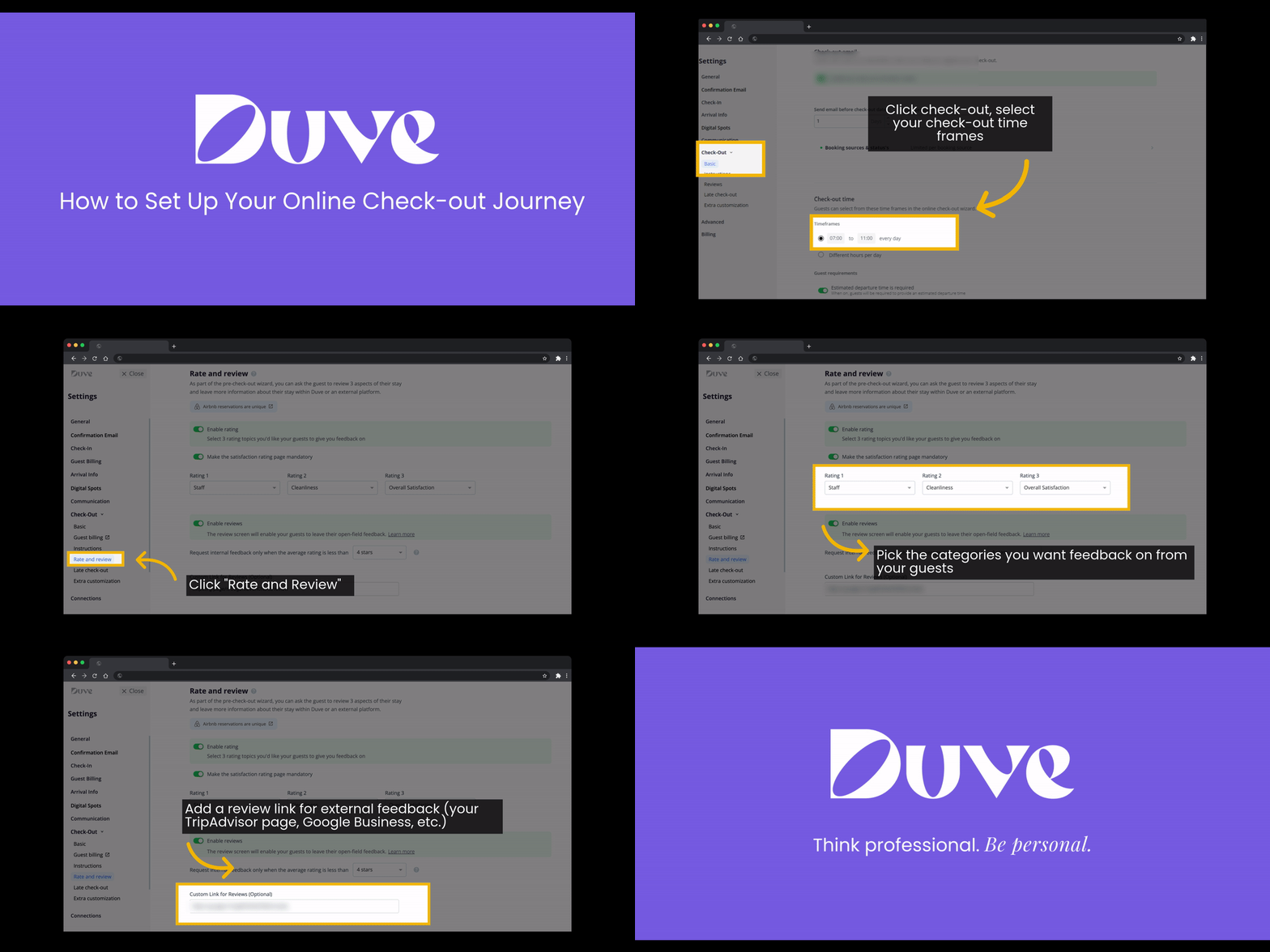
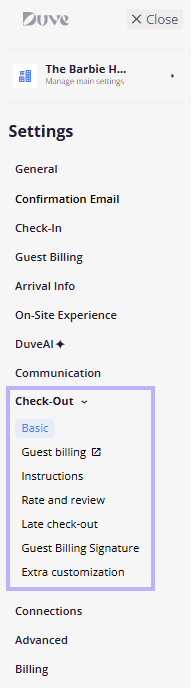
- Go to Settings > Check-out > Basic.
- Decide how guests will receive their check-out link:
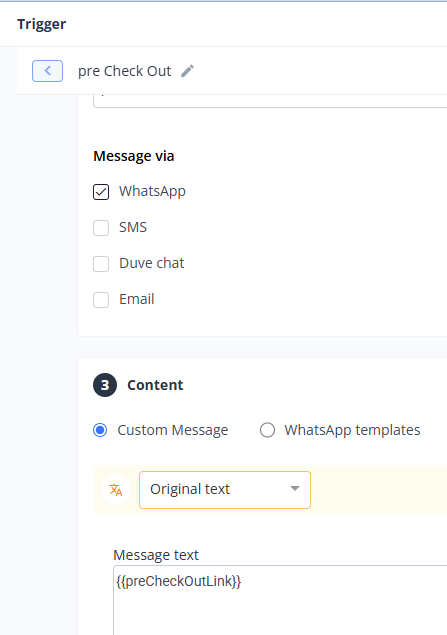
- Recommended: send it as a scheduled message. Scheduled Messages is now the standard way to communicate with guests. Create a pre-departure scheduled message that includes the Online Check-Out link, and choose its timing, channel, and conditions there; see Scheduled Messages
- Legacy option: the Check-out email block. The legacy pre-check-out email is hidden for new accounts, and for existing accounts where check-out emails were not enabled. If the Check-out email block does not appear on this page, use a scheduled message instead. If your account still shows the block, you can turn on Enable pre-check-out reminder emails and complete steps 3 to 5 below. To learn more, see Moving to Scheduled Messages: Legacy Message Options Are Now Hidden.
- (Legacy email only) In Send email before check-out date, enter how many days before check-out the email should go out.
- (Legacy email only) In Email sending hour, choose the hour the email is sent.
- (Legacy email only) Use Booking sources & status's to limit which reservations receive the email.
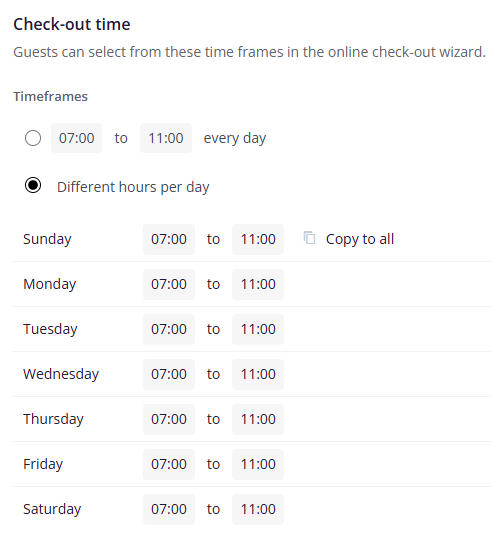
- Under Check-out time, set the time frames guests can choose from:
- Select the first option to use the same "from" and "to" hours every day.
-
Select Different hours per day to set hours for each weekday. Hover over a day and click Copy to all to apply its hours to the whole week.
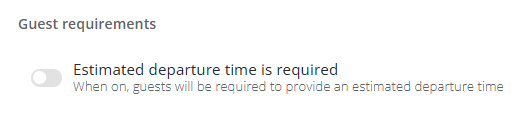
- Under Guest requirements, turn on Estimated departure time is required if guests must choose a departure time before continuing.
Step 2: Turn on payment collection (Guest billing)
- In Settings > Check-out, click Guest billing. This opens Settings > Guest billing > Check-out.
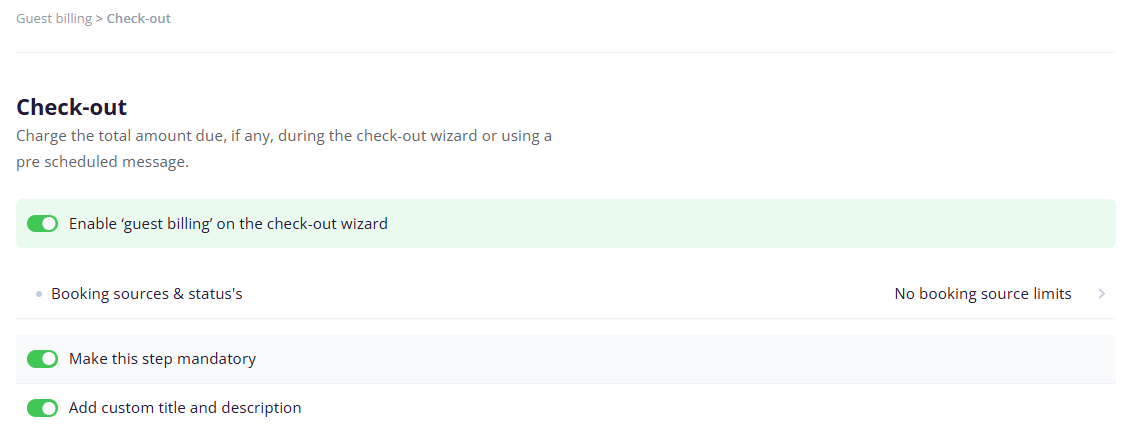
- Turn on the toggle to enable guest billing on the check-out wizard.
- Use Booking sources & status's to choose which reservations are asked to pay.
- Turn on Make this step mandatory if guests must pay before they can continue.
- Optionally, turn on Add custom title and description to replace the default wording guests see on the payment step. You can translate it to other languages.
Step 3: Add check-out instructions (Instructions)
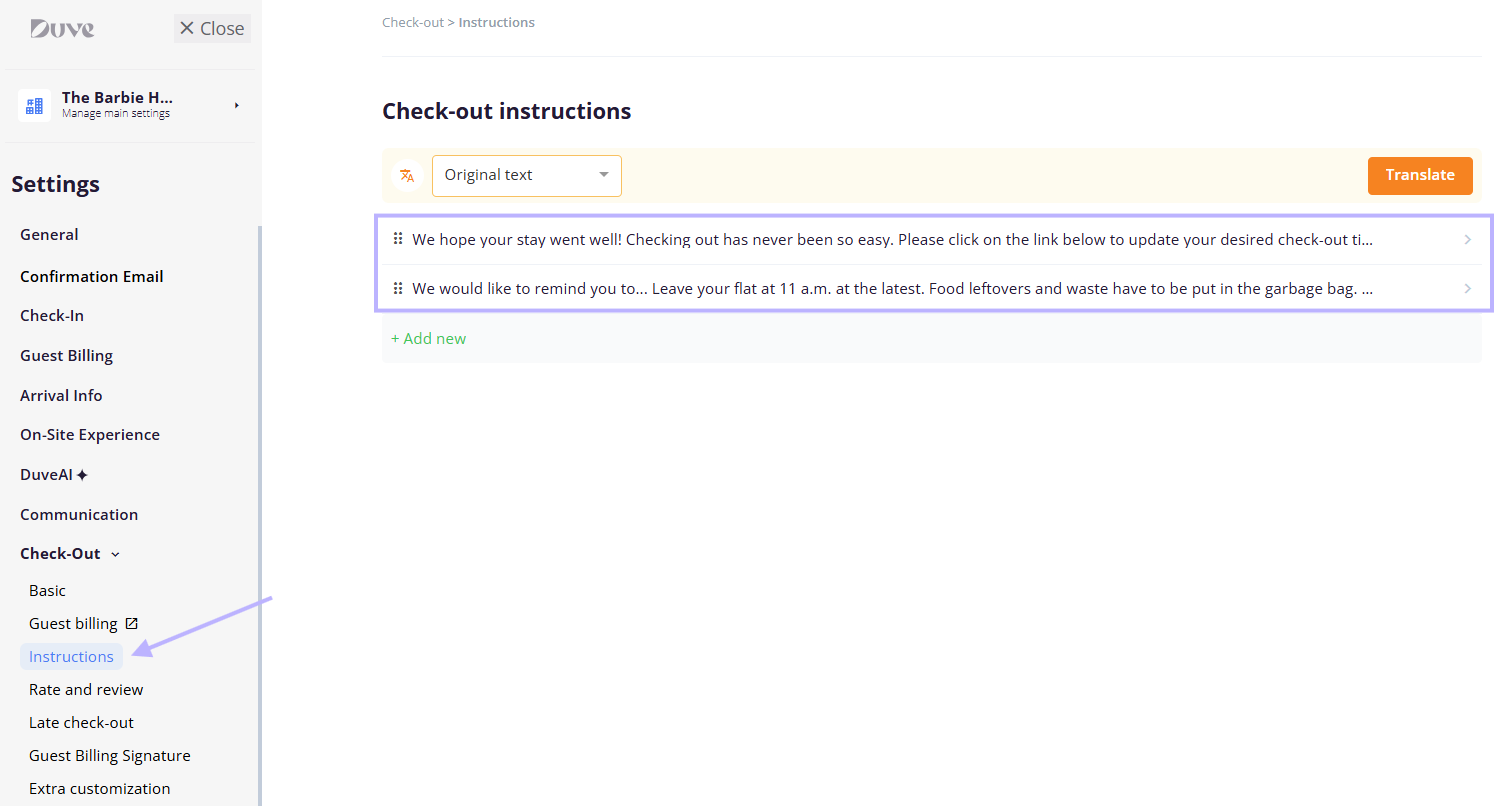
- Go to Settings > Check-out > Instructions.
- Click Add new and type an instruction, for example, "Please leave the keys on the kitchen table."
- Repeat for each instruction. Drag rows to reorder them, or use the edit and delete icons.
- Use the language selector to translate your instructions.
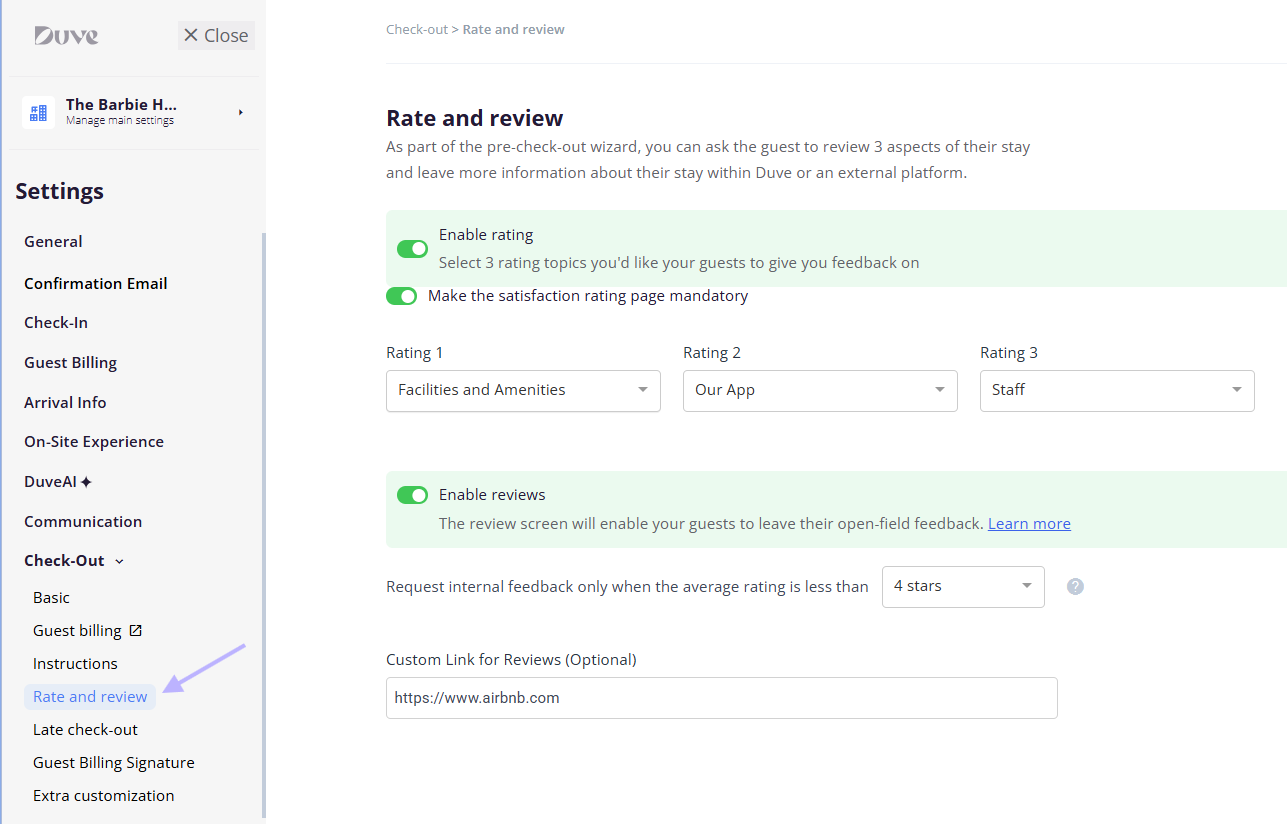
Step 4: Configure ratings and reviews (Rate and review)
- Go to Settings > Check-out > Rate and review.
- Turn on Enable rating to ask guests to rate their stay.
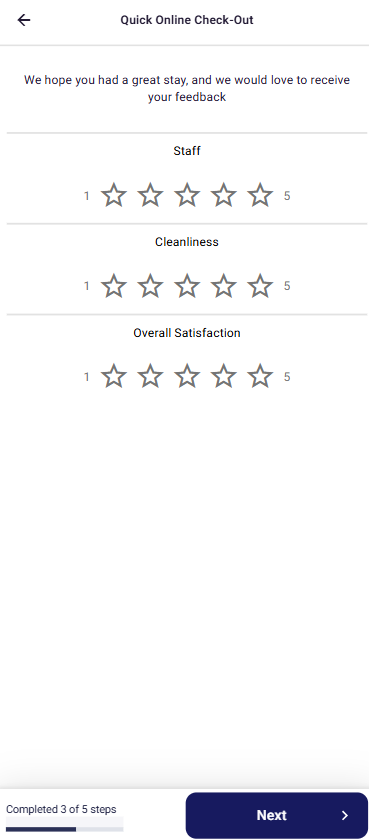
- Choose the three aspects guests rate in Rating 1, Rating 2, and Rating 3. The defaults are staff, cleanliness, and overall satisfaction. The options available depend on whether your account is set up as a hotel, hostel, or vacation rental.
- Optionally, turn on Make the satisfaction rating page mandatory so guests cannot skip the rating.
- Turn on Enable reviews to show the review step after the rating.
- In Request internal feedback only when the average rating is less than, choose the star threshold. The default is 4.
- In Custom Link for Reviews (Optional), paste the URL of your public review page (for example, Google or TripAdvisor).
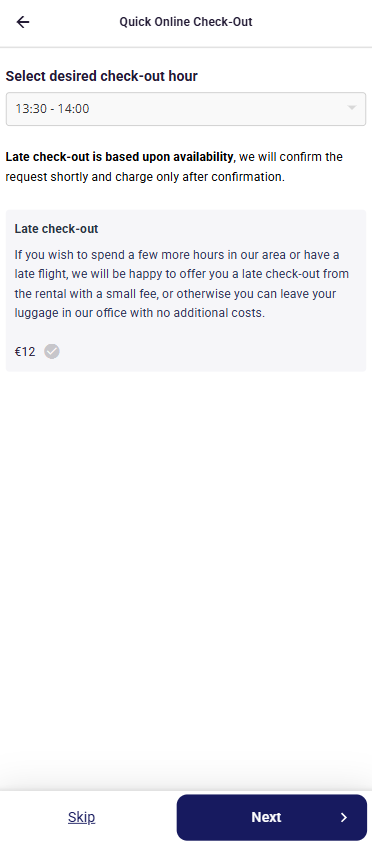
Step 5: Sell late check-out (Late check-out)
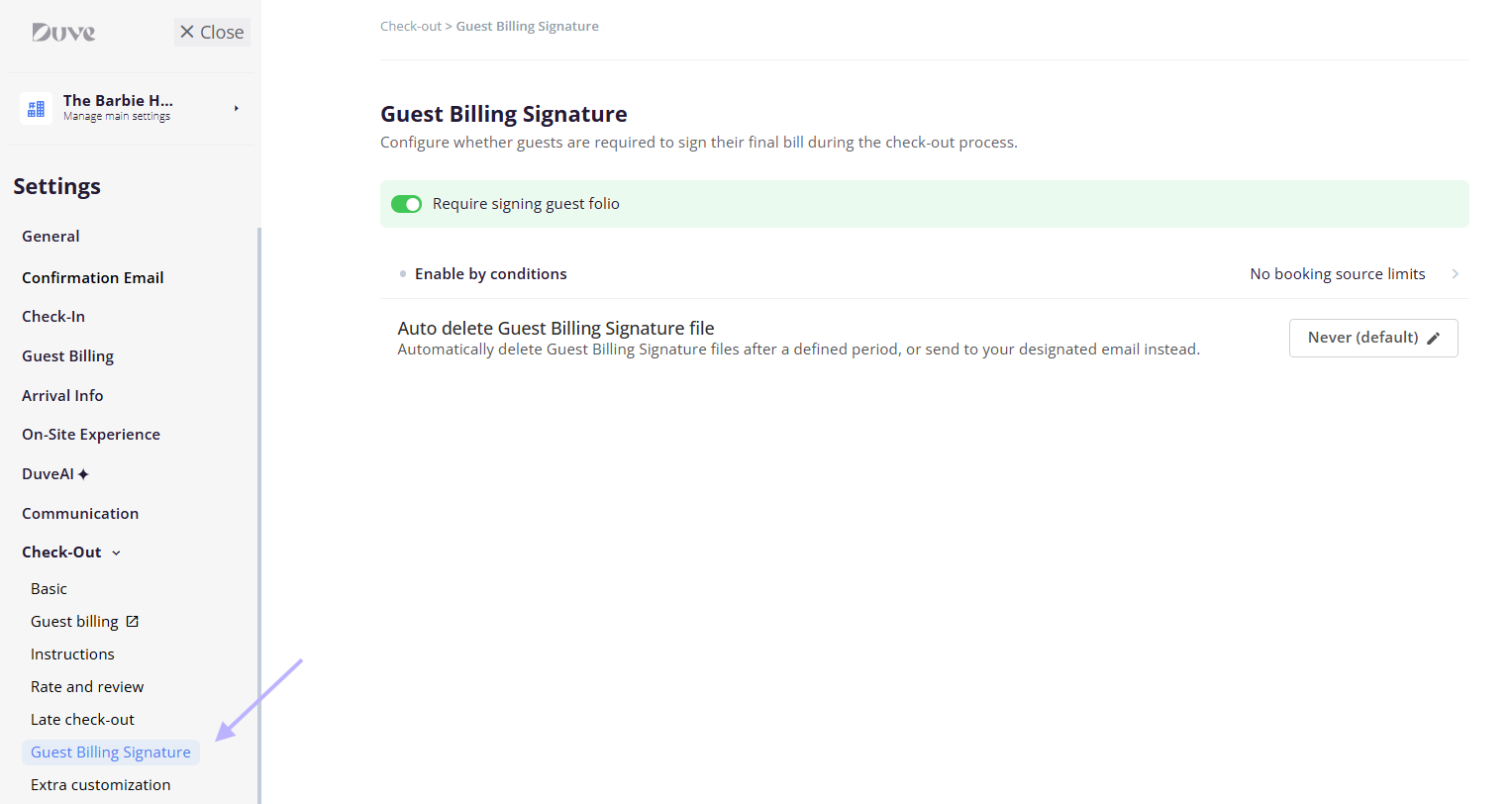
Step 6: Require a folio signature (Guest billing signature)
- Go to Settings > Check-out > Guest billing signature.
- Turn on Require signing guest folio.
- Use Extra conditions to choose which reservations must sign, by booking source and status or by custom conditions.
- Optionally, set up automatic deletion of signature files after a set period, or after they are sent by email.
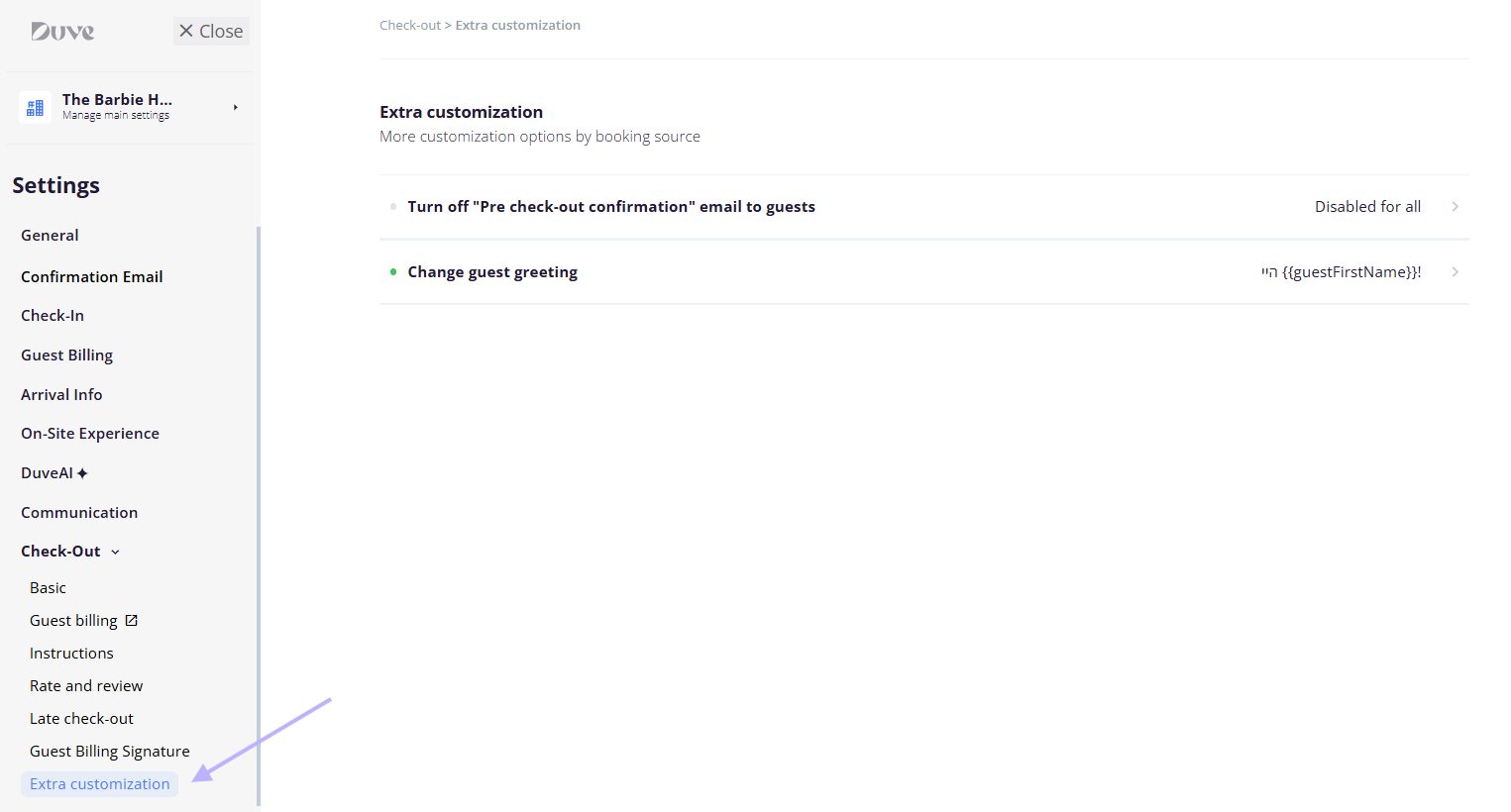
Step 7: Fine-tune by booking source (Extra customization)
- Go to Settings > Check-out > Extra customization.
- Use the turn-off email row to stop the pre-check-out confirmation email for specific booking sources.
- Use Change guest greeting to customize how guests are greeted in the check-out wizard. You can insert reservation details as dynamic fields and translate the text.
Guest experience
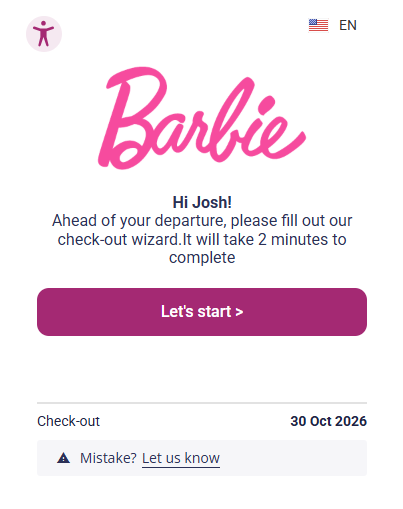
- Welcome page: greets the guest by name.
-
Estimated departure time: the guest picks a time from your time frames. If you offer late check-out, paid slots appear with their price, and the guest can pay by card, cash, or charge to their bill (depending on what the offer accepts).
-
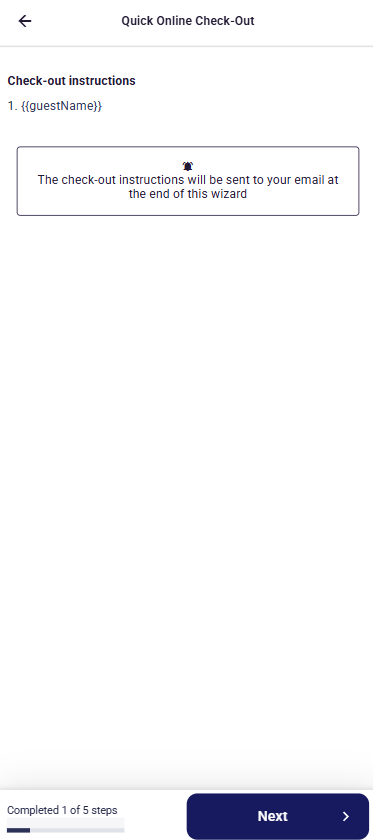
Check-out instructions: your numbered list, followed by a reminder message.
-
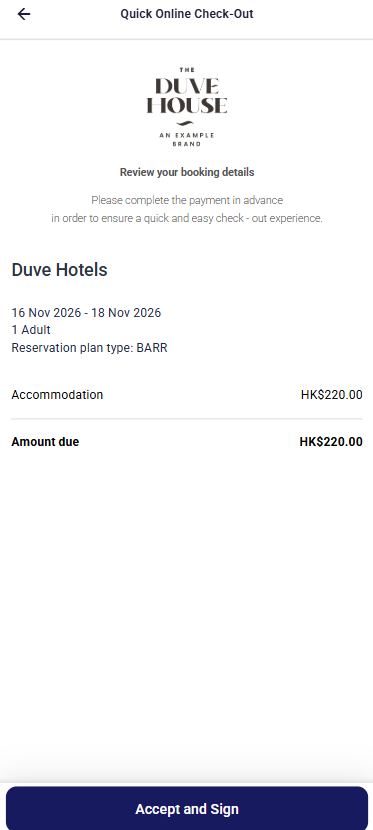
Folio signature: the guest reviews their up-to-date balance and signs on screen.
-
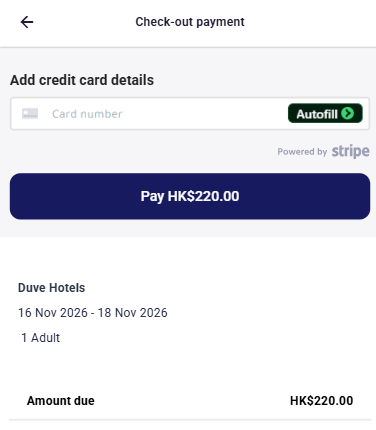
Payment: the guest pays any remaining balance for the stay. If nothing is owed, this step is skipped automatically.
-
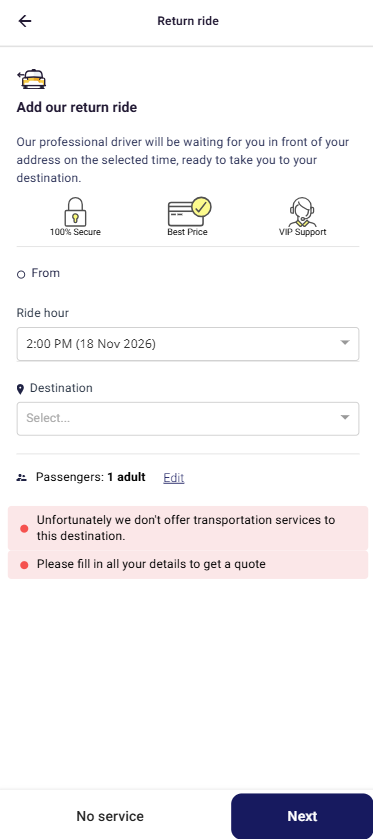
Departure transportation: the guest enters destination, passengers, special seating needs, and pickup time, gets a priced quote, and pays by card or cash. They can later edit or cancel the booking.
-
Rate your stay: the guest rates the three aspects you chose.
-
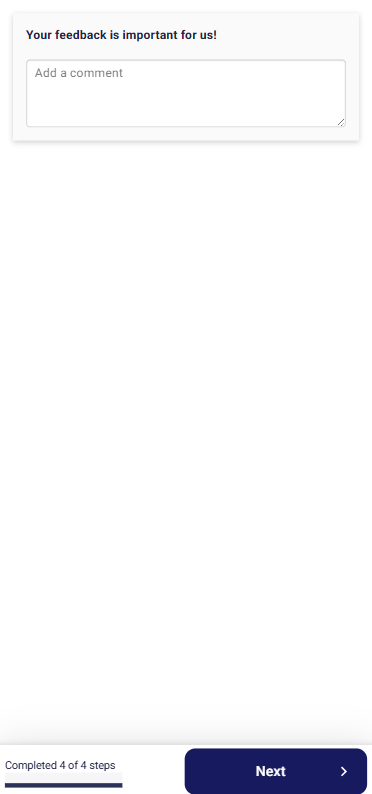
Review: what the guest sees depends on their average rating:
- Below your threshold: a private comment box. This feedback stays internal and is not posted publicly.
-
At or above your threshold: a button that opens your custom review link. For Booking.com and Airbnb reservations, the guest sees a message pointing them to review on that platform instead.
-
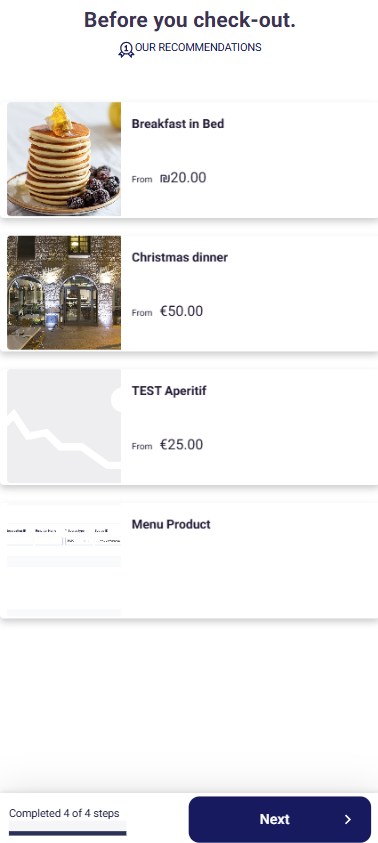
Services: if you have services available, some guests see a final "before you check out" offer.
- Confirmation page: a thank-you screen. Closing it takes the guest to their Guest app.
Restrictions & Limitations
- Airbnb reservations skip the instructions, rating, and review steps automatically.
- The instructions step is skipped when no instructions exist at the rental or account level.
- The payment step appears only when guest billing is enabled for check-out and the guest has not already paid. It is skipped if the balance lookup returns nothing to pay.
- The transportation step appears only when transportation pricing is available for the property's default route.
- Once a guest completes Online Check-Out, reopening the link takes them straight to their Guest app instead of replaying the wizard.
- Make the satisfaction rating page mandatory can only be turned on while Enable rating is on. Turning rating off also turns this option off.
- The internal feedback threshold only appears while Enable rating is on.
- Check-out instructions cannot be set at the brand level. Use the account level or a rental override.
Tips & Tricks
- Keep instructions short and practical. Guests usually read them on a phone, on their way out.
- Set your review threshold to 4 or higher so only your happiest guests are sent to public review sites, while everyone else can share feedback privately.
- Making the payment step mandatory reduces unpaid balances, but consider leaving it optional if many of your guests pay at the front desk.
- If you connect Airbnb, a banner on the Rate and review sub-tab reminds you that Airbnb guests do not see the rating and review steps.
FAQs
Comments
0 comments
Article is closed for comments.