
Overview - 
Front Desk Upsells is a Duve tool that lets your front desk agents browse, offer, and record upsell purchases directly from the admin dashboard during a guest interaction, whether at check-in or at any point during an active stay. By surfacing the right offers at exactly the right moment, it helps your team increase ancillary revenue while delivering a more personalized guest experience.
Agents can book a service on the spot. The confirmed order is then created in the system, logged against the reservation, and, where applicable, synced with your Property Management System (PMS). Every interaction is tracked for analytics so you can measure performance over time.
The upsell catalog shown to agents is drawn from the upsell products already configured for your property. Dynamic pricing rules (minimum, maximum, and recommended prices) can be applied per product to give your team pricing flexibility at the point of sale.
|
Who this is for: Plan: Front Desk Upsells is available on the Premium plan only. Contact your Duve account manager or the support team (support@duve.com) if you do not see this feature in your dashboard. |
Use cases
- Check-in upsells: Offer room upgrades, early check-in, late check-out, or add-on services the moment a guest arrives, when they are most receptive to enhancing their stay.
- In-stay upsells: Present additional services (spa treatments, meals, room cleaning, etc.) to guests who are already checked in and have an active reservation.
- Last-minute offers: Promote packages or services that may not be visible through your online channels or pre-arrival communications.
- Service recovery: Turn a check-in issue into a positive moment by proactively offering a complimentary or discounted service upgrade.
- Dynamic revenue optimization: Use real-time pricing ranges to maximize yield on each booking based on demand and occupancy.
Before you start
Before your team can use Front Desk Upsells, make sure the following are in place:
- Upsell products are configured. Your upsell catalog (room upgrades, services, packages, etc.) must already be set up in Duve. Front Desk Upsells surfaces the products you have defined; it does not create them. Set these up in your upsell/product settings before using this tool.
- The feature is active on your account. Front Desk Upsells must be enabled for your property. If you do not see it under FrontDesk → Upsells, contact Duve Support.
- Active reservations exist. The tool only works with non-canceled, non-expired reservations. Agents cannot offer upsells against past or canceled bookings.
Accessing the Book a Service button
The Book a Service button is how front desk staff start an upsell on behalf of a guest. It appears in several places across the Duve platform, so your team can log an upsell from wherever they happen to be working.
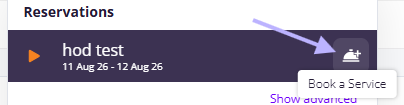
- Search Component (Reservations List): The button appears next to each guest's reservation name (only for present and future reservations). Click Book a Service to open the upsell pop-up for that reservation:
-
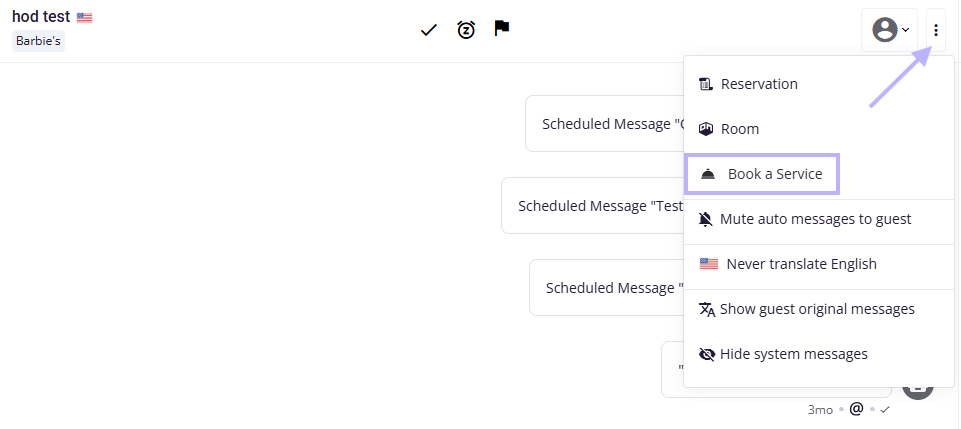
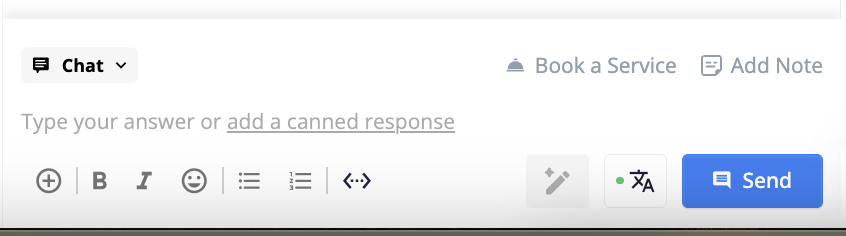
Communication Hub: Inside a specific conversation thread, open the ••• icon menu and select Book a Service to log an upsell during a chat or call with the guest. This is available from the Communication Hub conversation composer and from Front Desk Chat. Note that Front Desk Upselling is not available on mobile view:
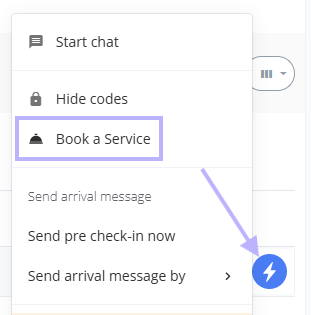
- Task Screen: Open the lightning (⚡) menu next to the relevant task or reservation and choose Book a Service to quickly add an upsell while managing operational tasks:
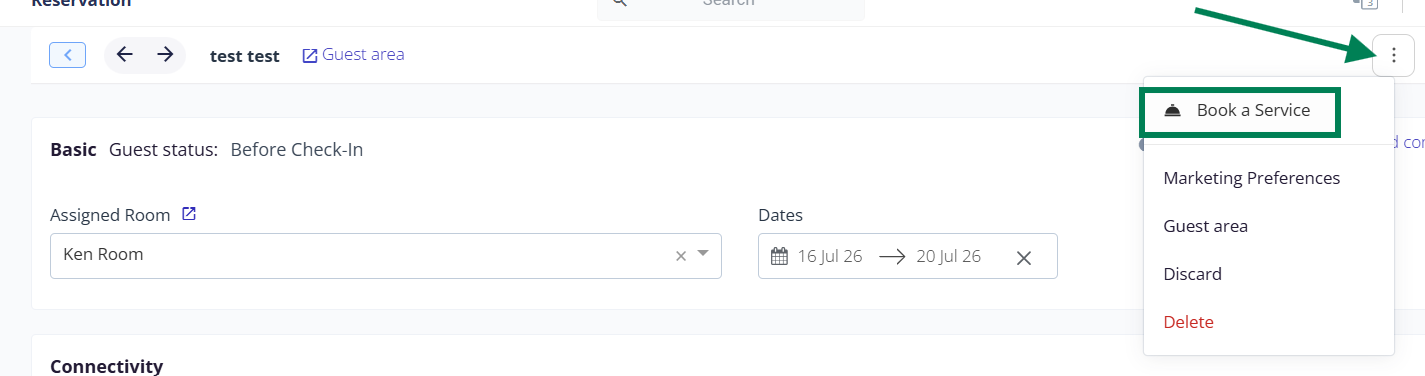
- Reservation Screen: Open the ••• icon menu in the reservation header, then click Book a Service to view available upsells for that guest:

How to use Front Desk Upsells
Step 1: Open the Book a Service option Start from any of the entry points described in the "Accessing the Book a Service button" section above.
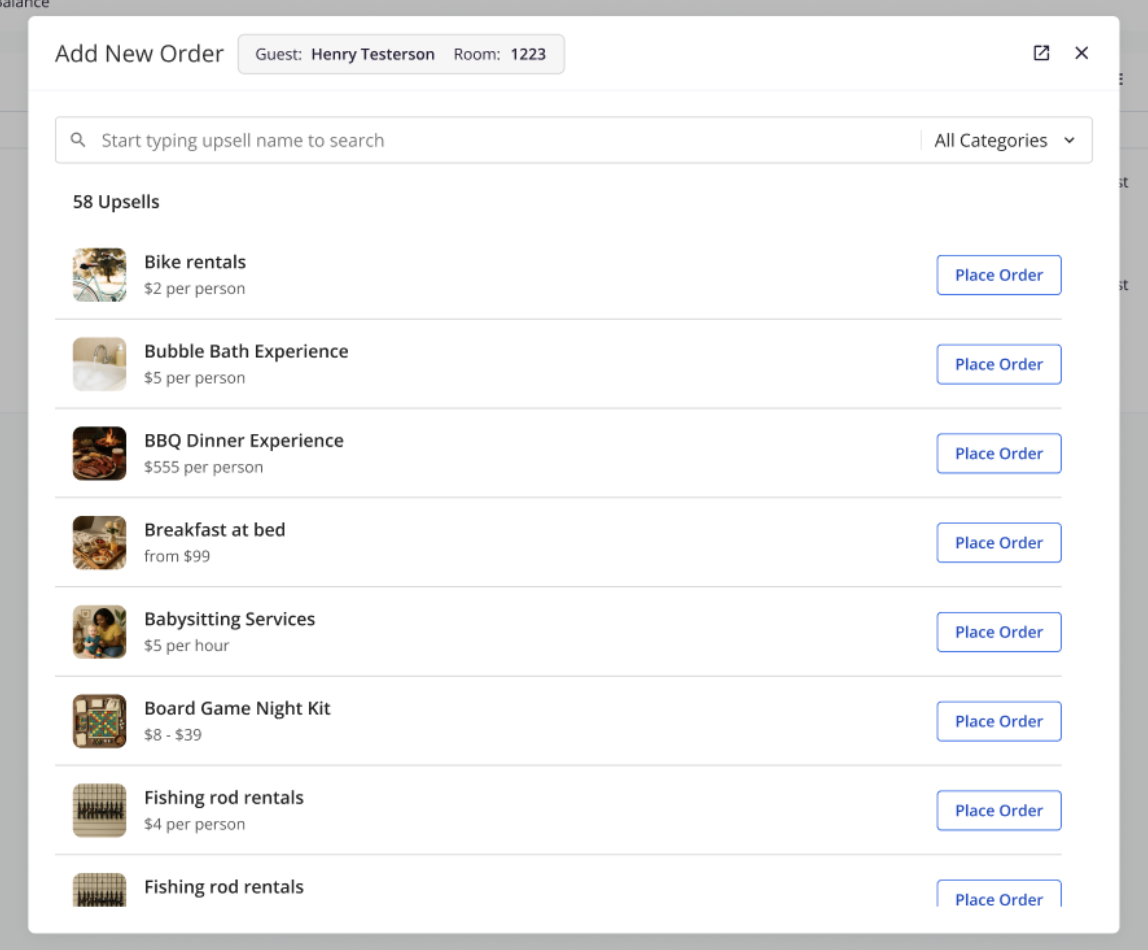
Step 2: Browse available upsells Once you open Front Desk Upsells, the upsell catalog for that reservation and property loads. The view includes:
- The reservation's details (main guest name and listing)
- A search bar, so upsells can be searched by keyword
- A categories list
- Each upsell item, showing its product image, name/title, price, and availability status. Sold-out items are indicated and cannot be booked, while available items show a Place Order button.
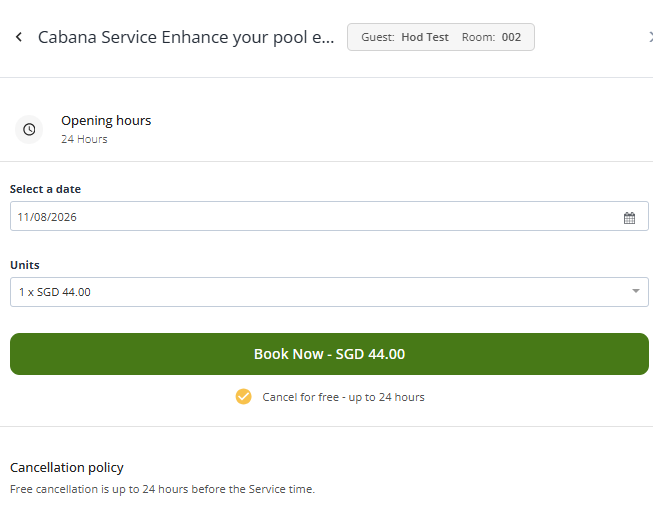
Step 3: Select options and book Click on an available upsell to expand its details. Depending on the product, you may need to:
- Choose a quantity using the Amount Picker
- Select a date or time for delivery/scheduling
- Fill in any required custom fields
Once all required fields are complete, click Place Order to confirm the upsell for the guest.
Step 4: Confirm the order The system validates the booking, creates an order against the reservation, and updates the reservation record. The agent receives an on-screen confirmation. Where your setup supports it, the order is also synced to your PMS. Once submitted, both the host and the guest receive identical confirmation notifications.
-
Approve "Requires Approval" Upsells Instantly: When upsells in Duve are configured with "Requires Approval," there are 2 options to approve them:
- Approve immediately: After creating an upsell that requires approval, the approval popup appears. Click Approve now to complete the upsell during the guest interaction, without navigating to the approval list.
-
Leave it pending: Not ready to confirm? Click Not now (or close the popup) to send the order to the approval queue and decide later or consult a colleague. The approval will be from the "Requests" page, under the "Orders" tab.
Tips & Tricks - Approve "Requires Approval" Upsells Instantly
- Check your permissions. The Approve now option only appears for users with upsell approval permissions. If you don't see it, your account uses the standard approval workflow — ask a manager to review, or have your permissions updated.
- "Not now" isn't a rejection. Choosing Not now, clicking the X, or clicking outside the popup all do the same thing: the upsell stays in Pending Approval and moves to the queue. Nothing is lost.
- Confirm while the guest is in front of you. Approving on the spot is the whole point — it's the fastest way to lock in the sale and avoid follow-up delays.
- Everything is still logged. Approvals made from the popup are recorded in the reservation and order timelines, just like approvals done from the Orders section — so your audit trail stays complete.
- Guest-facing flows are untouched. This change applies only to upsells created by front desk staff; upsells guests request themselves still go through the normal approval process.
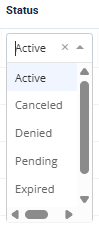
Step 5: Review sold upsells: Sold and ordered upsells are logged against the reservation and in the "Upsells" tab (under "Orders" and, if relevant, "Requests"), with the following statuses:
- Active: Any current, past, or future confirmed orders.
- Canceled: Orders that have been canceled by the host or the guest.
- Denied: Request-approval orders that have been denied by the host.
- Pending: Request-approval orders that are still waiting to be accepted or declined.
- Expired: Request-approval orders that were not approved before the reservation passed.
Advanced settings: Dynamic pricing
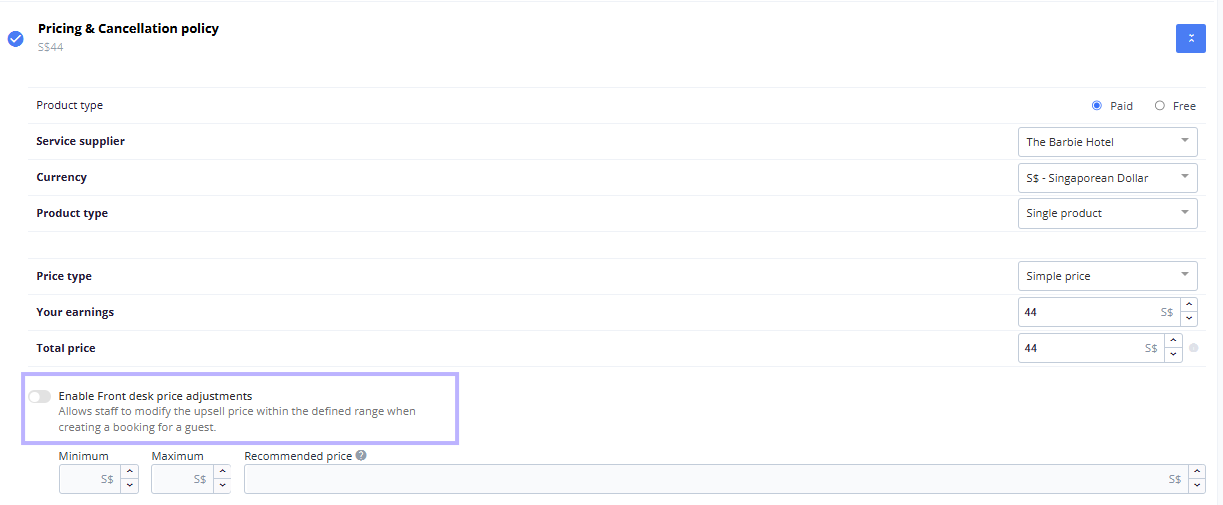
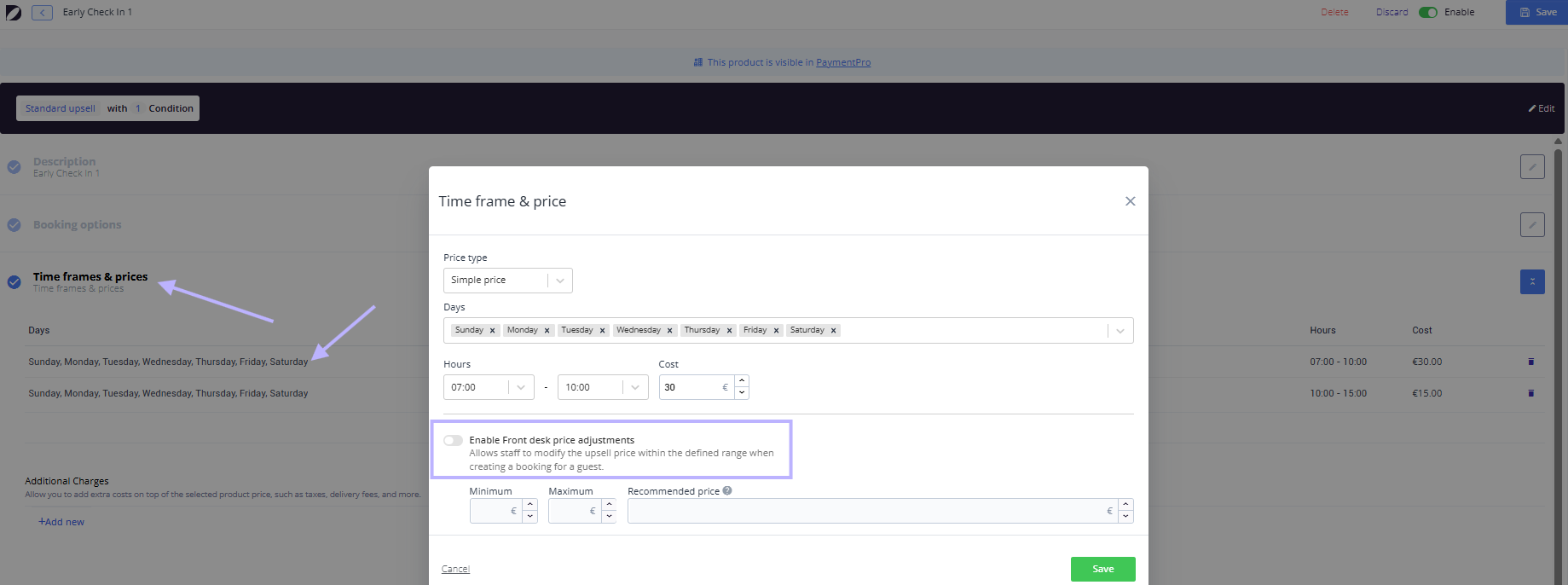
Staff Price Adjustment allows your reception team to adjust upsell prices during live guest conversations, helping maximize Front Desk upsell opportunities with more flexible pricing. Instead of offering one fixed price, authorized staff can negotiate within the limits your team has defined, giving receptionists flexibility while keeping pricing controlled and aligned with your revenue strategy.
This option is supported for the following upsell item types: Custom Products, Transportation, Room Upgrade, Early Check-in, and Late Check-out. The Dynamic Pricing Manager includes the following fields:
-
Enable dynamic pricing: Toggle to switch dynamic pricing on or off for the product. When off, all price fields are disabled and the base price applies.
- Custom product:
- Early check-in/Late check-out:
-
Transportation upsells:
- Minimum Price: The lowest price the product can be offered at. Must be 1 or above.
- Maximum Price: The highest allowable price. Must be 1 or above.
- Recommended Price: The suggested selling price. Must be greater than or equal to the Minimum Price and less than or equal to the Maximum Price.
- Dynamic pricing can be set as (according to the "Price type" setup):
- Fixed: Minimum and maximum are set as absolute currency values. The recommended price is shown to guide the agent.
-
Percentage: Minimum and maximum are calculated as a percentage of the base price. In this mode, no recommended price is shown.


When the toggle is off, the recommended, minimum, and maximum prices match the total price and cannot be edited.
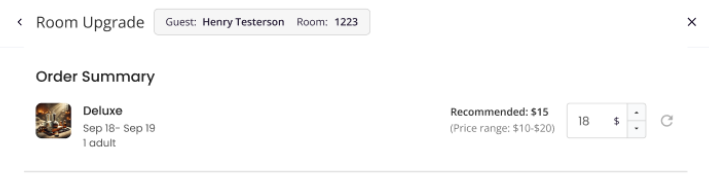
Adjusting the price at the Front Desk:
- Select the relevant upsell.
- Review the recommended price and allowed range.
- Enter the price agreed with the guest.
- Submit the upsell order.
If the price is outside the allowed range, Duve blocks the submission and displays an error. Staff must enter a valid price before completing the order. To return to the recommended price, click Reset. The reset option is only available after the price has been changed.
 Front Desk Upsells - Payment link
The Share Payment Link option in Front Desk Upsells lets your front desk staff charge guests for upsell orders remotely, without needing a card terminal. Instead of collecting payment in person, staff generate a secure link and send it directly to the guest's email inbox, allowing the guest to pay at their convenience.
| This feature is available only to accounts that accept payments and have activated the Credit Card payment option. Please ensure you have a connected Payment Service Provider (PSP) in your account. |
Overview
When a front desk staff member creates a host-initiated upsell order (Book a Service) for a product that accepts credit card payments, a Share Payment Link option appears alongside the other payment methods (Pay by Credit Card, Pay by Cash, Add to Hotel Bill). Selecting it prompts the staff member to enter or confirm the guest's email address. Duve then emails the guest a personalized, secure payment link tied to their reservation and order. Once the guest completes payment via the link, they receive a confirmation email automatically. Staff can also copy the link directly to their clipboard to share it through any other communication channel.
How to Use It
No additional configuration is required to enable Payment Link - it appears automatically once the conditions below are met.
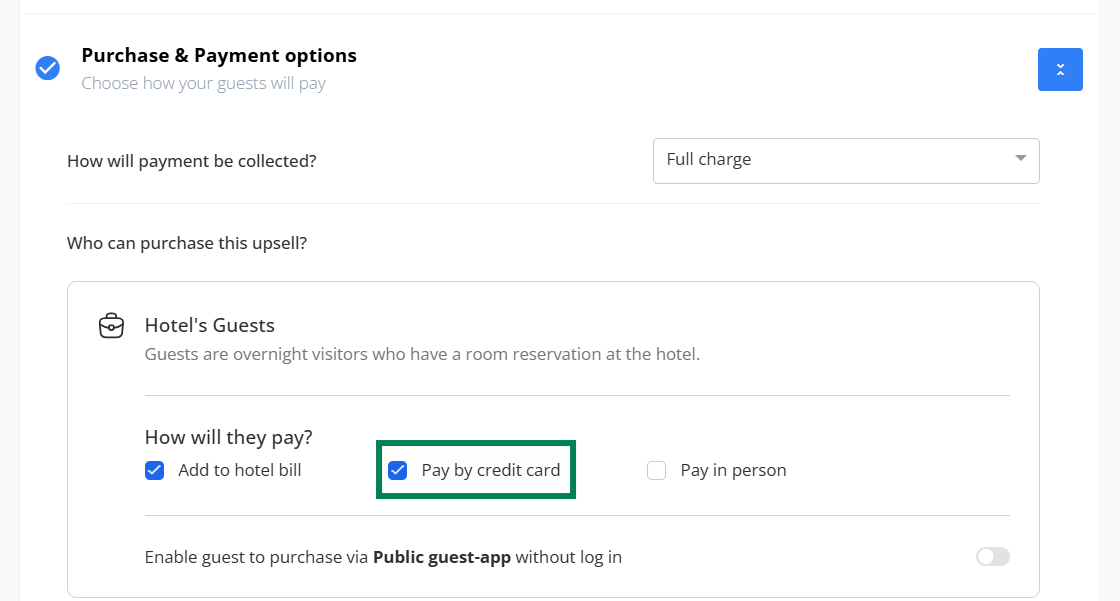
- Upsells are available in the "Book a Service" option.
- Upsell payment options include "Pay by credit card"
To share the link with guests:
- Log in to the Duve Dashboard and open the Reservations panel.
- Select the relevant reservation.
- Open the "Book a Service" flow to create or view an upsell order.
- In the payment step, select "Share Payment Link (by credit card)" from the list of payment methods.
- Confirm or update the guest's email address (pre-filled from the reservation.
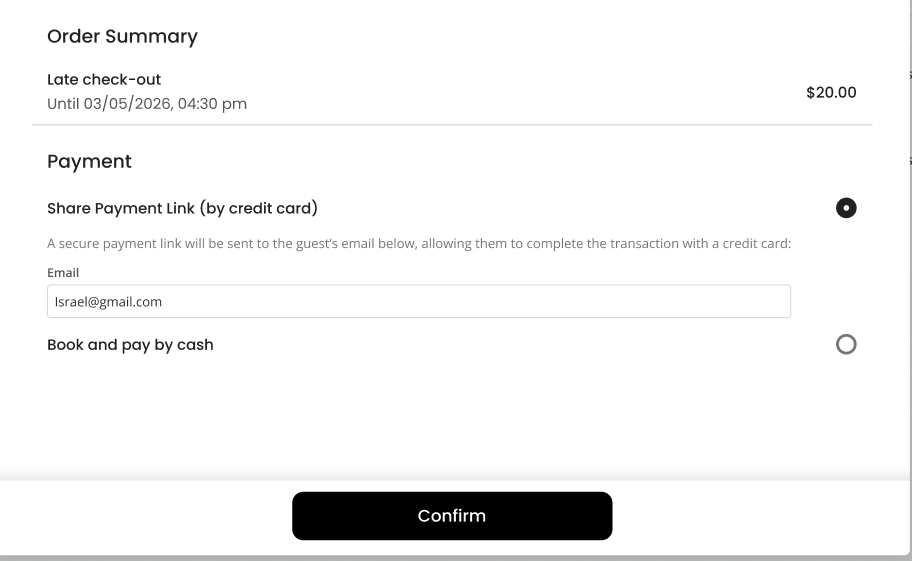
- Submit the order to send the payment link to the guest by email. The link is valid for 3 hours after being sent.
Share Payment Link: Email Flow
When staff submits the form, Duve automatically sends an email to the guest containing a secure, personalized payment link. The email directs the guest to complete payment safely online using their credit card. Once payment is made, the guest receives a confirmation email with the transaction details, and the order status in the dashboard updates to reflect the completed payment.
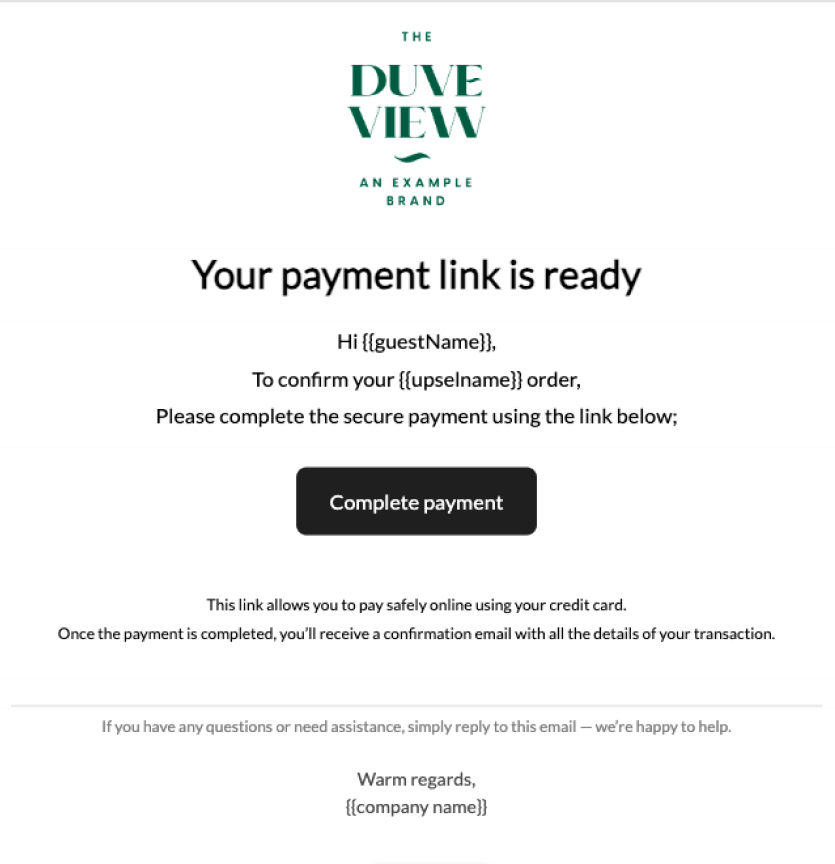
Copy Link to Clipboard
In addition to sending via email, staff can copy the payment link directly to their clipboard and share it through any preferred channel (e.g., WhatsApp, SMS, chat). The copied link is the same unique, secure link tied to the reservation and order.
How can the link be found?
- When submitting the payment link, a pop-up will inform the host a payment link was sent. The pop-up will remain visible for 8 seconds and includes a "Copy payment link" button:

- Once the order and payment requests are sent, the order will appear on the "Upsells" > "Requests" page, where a "Copy" button in the order's row copies the payment link:

Restrictions & Limitations
- Host-initiated orders only: Share Payment Link appears exclusively when a staff member creates an order via "Book a Service". Guest-initiated orders do not show this option.
- Requires credit card acceptance: The upsell product must be configured to accept credit card payments, or the option will not appear.
- Requires payment processing enabled: If your account is not set up to accept payments, the option will not be visible. Contact your Duve account manager or the support team (at support@duve.com) if you believe this should be active.
- Requires a guest email address: The field pre-fills from the reservation's verified email (with a fallback to the general reservation email). Staff can edit it before submitting. If the reservation has no email, the field will be empty, and the staff will need to enter one manually.
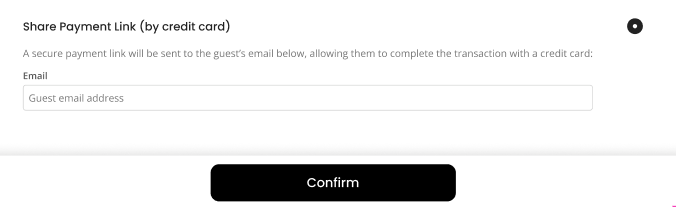
If the email field is empty or contains an invalid email address, the payment link cannot be sent:
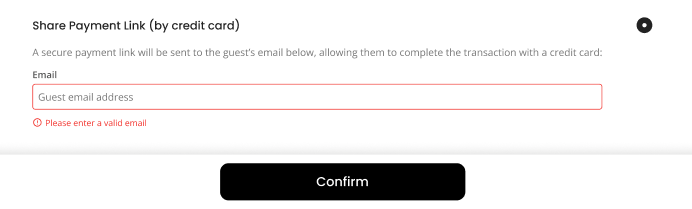
- Share Payment Link is one of three payment methods available in Front Desk Upsells, alongside Add to Hotel Bill and Pay by Cash. These are mutually exclusive per order; only one can be selected at checkout.
Tips & Tricks - Payment link
- Double-check the guest's pre-filled email before submitting, especially for walk-in bookings where the address may not have been verified.
- Use Copy to Clipboard when a guest prefers to pay via a channel they are already active on (like WhatsApp) rather than waiting for an email.
- If a payment link expires before the guest completes payment (after 3 hours from the link being sent), the order status will be reflected as "Expired". To share a fresh link, create a new order.
Tracking upsell activity
Duve keeps a record of upsell activity across the platform so you can see who sold what and measure performance over time.
- Order Screen: Orders placed by staff include a Front Desk Upsell icon next to the guest's name, so you can quickly identify which orders came from a front desk interaction.
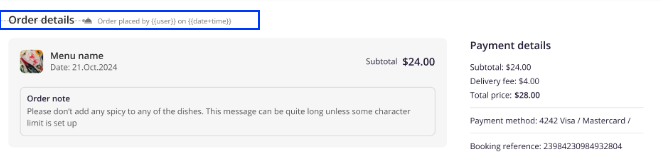
- Reservation Log: Every upsell order is logged in the reservation's activity log with the staff member's name, the item sold, and the payment details. For example: "Maria Lopez submitted an order, Spa Treatment, on behalf of the reservation for €45 paid by card."

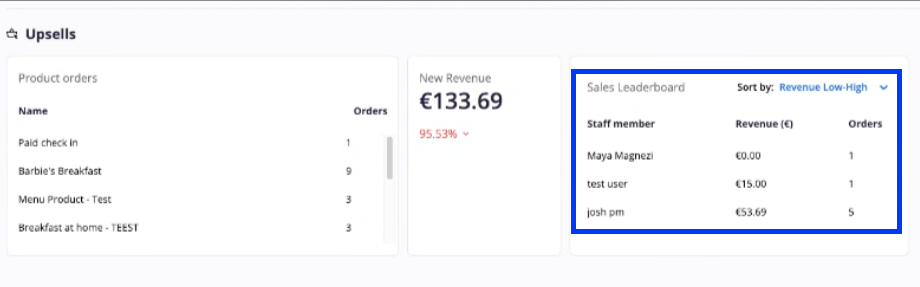
- Upsells Analytics: A Sales Leaderboard displays each user's total upsell revenue and number of orders, making it easy to track individual and team performance.
Booking upsells directly from OHIP
If you use OHIP as your PMS, you can book a service for the guest straight from the OHIP interface.
A button becomes available in OHIP's reservations once the Front Desk Upsells feature is activated in your Duve account. When enabled, your Duve integration settings will include a new field called "Duve Front-Desk Upsells," where the PMS receives a dedicated URL for upsells or room upgrades.
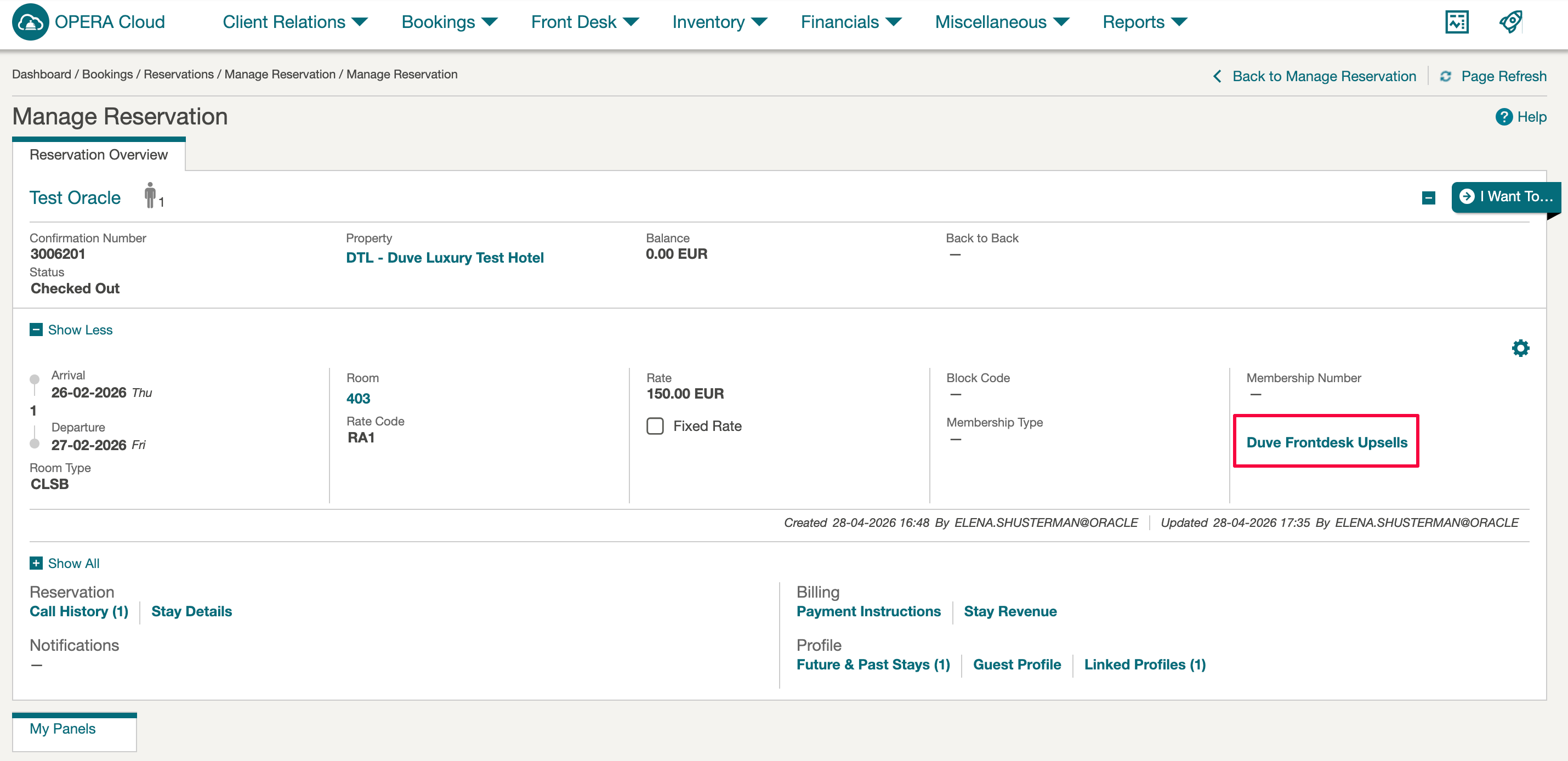
Once OHIP adds this button on their side, the receptionist can click it directly from within a reservation in OHIP. A new tab opens automatically, showing the Duve upsells pop-up already linked to the correct reservation, making it easy for staff to offer upgrades and add-ons during check-in.
If you use OHIP, reach out to them so they can activate the button on their end.
Troubleshooting
- A product is not appearing in the catalog: The most common reasons are that the product is not active in your upsell settings, or the product is not associated with the property linked to the reservation. Check your upsell product's settings.
- The Place Order button is disabled: This usually means the product is sold out. Sold-out products stay visible in the catalog for awareness, but they cannot be booked.
- A validation error appears when saving dynamic pricing: Confirm that Minimum Price and Maximum Price are set to 1 or higher, and that the Recommended Price falls between them. If you are using percentage pricing, remember that a Recommended Price cannot be set in that mode.
Tips & tricks
- Prioritize your catalog: Keep your active upsell catalog focused on your highest-converting offers. A shorter, curated list is easier for agents to navigate during a live guest interaction than a long catalog.
- Use dynamic pricing for flexibility: Set a generous minimum to maximum range on high-demand products (such as room upgrades) so agents can negotiate slightly on price without needing manager approval.
- Train to the timing: The check-in moment is the highest-conversion window. Brief your team to offer the most impactful upsells (upgrades, late check-out) during the first 60 seconds of the interaction.
- Check your PMS sync: After recording a sale, confirm the order appears correctly in your PMS to ensure billing and housekeeping are notified.
FAQs
Q: Can I offer upsells to a guest who has already checked in? A: Yes. The Front Desk Upsells tool works with any active, non-expired reservation, including guests who have already checked in and are mid-stay.
Q: What happens if an upsell product is sold out? A: Sold-out products are still visible in the catalog so agents are aware of them, but the Place Order button is disabled. Agents cannot book a sold-out item.
Q: A product is not appearing in the catalog. Why? A: The most common reasons are that the product is not active in your upsell settings, or that it is not associated with the property linked to the reservation. Check your upsell product settings.
Q: Does the guest receive a confirmation after an upsell is booked? A: Yes. Once an order is confirmed and created in the system, both the host and the guest receive a confirmation that includes the order details.
Q: Is the upsell order sent to my PMS? A: Yes. Confirmed upsell orders are synchronized with your PMS as part of the order creation process, subject to your PMS integration being active and configured.
Q: How many upsells can I offer per reservation? A: There is no hard system limit on the number of upsells that can be offered or recorded per reservation. However, for the best guest experience, it is recommended to focus on a small number of relevant, high-value offers.
Q: Can I customize the price at the time of booking? A: Yes, if dynamic pricing is enabled for a product. Agents can work within the configured minimum to maximum price range. If dynamic pricing is not enabled, the base price applies and cannot be changed from within the Front Desk Upsells tool.
Related articles:
Upsell Operations - Request Approval Upsell
Comments
0 comments
Article is closed for comments.