
Overview
Staff Goals adds monthly revenue goal setting and progress tracking to the Front Desk Upsell experience. You set a brand-level monthly revenue target on an individual upsell, and personal monthly targets for individual front desk staff members on that same upsell. Progress is then tracked for you in a Staff Goals section on the analytics Revenue & Sales tab, and each staff member gets their own view of their target, their live progress, and how much revenue is still needed to reach it.
Goals are set per upsell and per calendar month. Only Front Desk Upsell activity counts toward them.
Who this is for
|
Use cases
- Set a monthly revenue target for the brand on a specific upsell, so you can see whether the property as a whole is on pace.
- Set individual monthly targets per staff member, so each agent has a clear number to work toward.
- Watch progress during the month instead of at month-end, so you can coach someone who is falling behind while it still matters.
- Compare staff fairly by percent of goal achieved rather than raw revenue, which keeps newer or part-time staff from being measured against tenured top sellers.
- Set a higher target for a strong performer and an achievable one for a new hire during onboarding.
- Assign the same baseline target to everyone at once instead of repeating the setup per person on a large team.
- Look back at earlier months to set more realistic numbers for the month ahead.
- See the revenue target you are expected to reach this month.
- Track your progress in real time from your profile, from the side menu widget, and from the Book a service screen while taking an order.
- See exactly how much revenue is left to reach the goal on the upsell you are about to sell.
- See how your effort contributes to the brand's overall target.
- See your own position on the leaderboard without exposing anyone else's numbers.
Before you start
- You need the manager role to configure goals. Staff members cannot set goals, including for themselves.
- Confirm the upsell you want to set goals on is one of the five supported types.
- Confirm you can reach that upsell's setup page. Configuring goals uses the same access as managing upsells.
- Decide who should carry a personal target. The staff picker lists you first, then the account's agents, so managers can be assigned goals too.
- Goals can only be assigned to people who are on this account's front desk roster. A user from another account, or a deleted user, is rejected on save.
- The goal editor always writes the current month. Months that have ended are read-only.
How to set it up (managers)
Turn on Staff revenue target goals
-
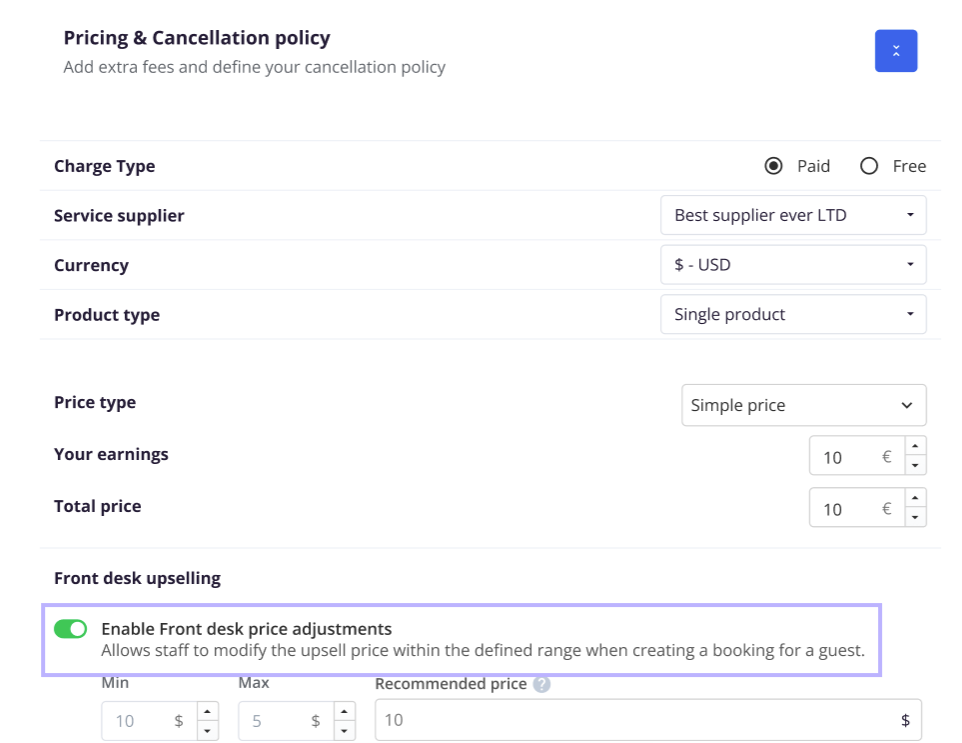
Open the upsell configuration, Pricing & Cancellation policy, and activate the "Front desk upselling" toggle:
-
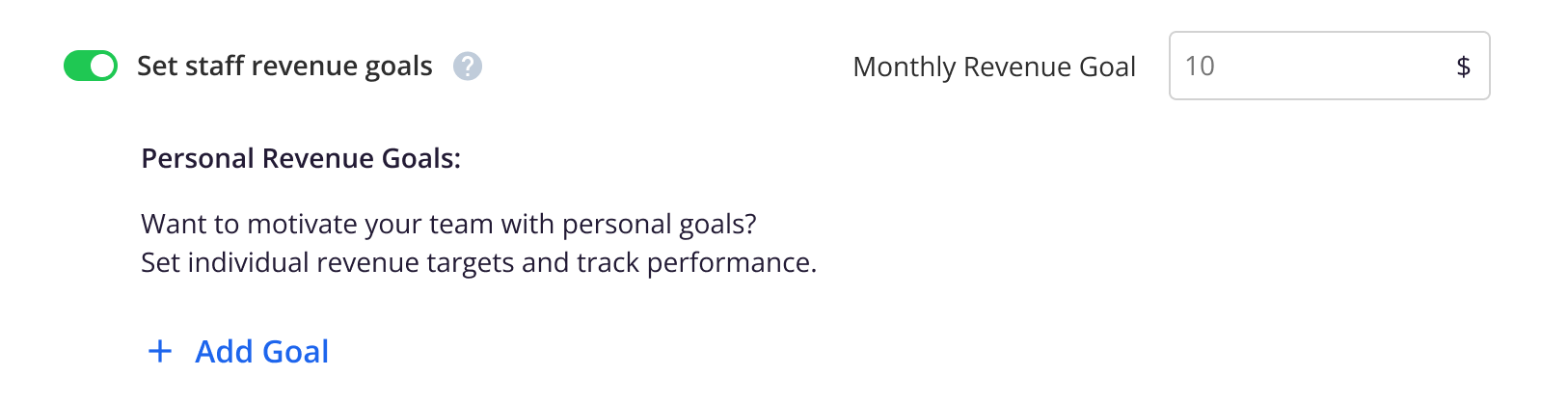
Activate Set Staff revenue goals. It is off by default, and it is a separate control from the price adjustment setting above it, so you do not need price adjustments turned on to use goals.

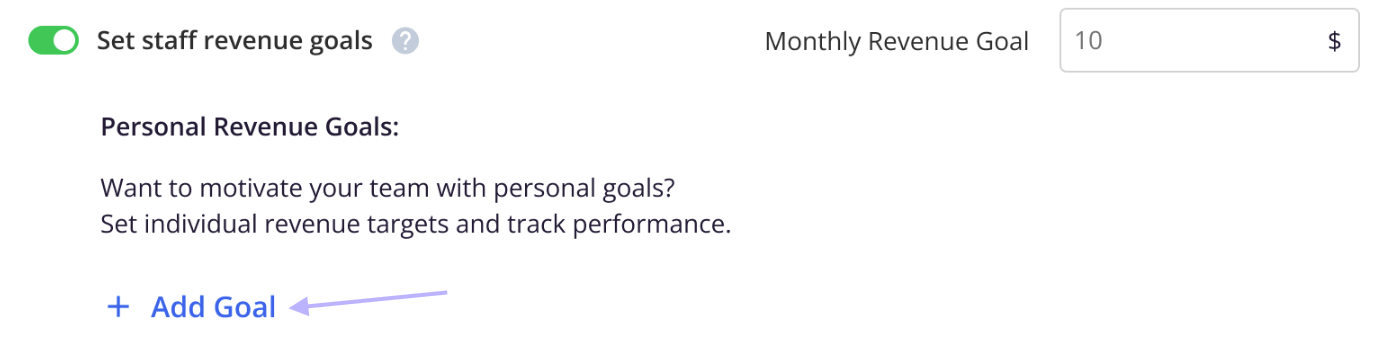
- The Monthly Revenue goal field and a + Add goal button appear
Set the brand monthly target
- Enter the amount in Monthly Revenue Target Goal, next to the toggle.
- The field takes a plain number, and the currency symbol shown is the currency configured on that upsell, not a fixed symbol and not necessarily your account currency.
- The target applies to all revenue earned through Front Desk Upsell on that upsell, across every staff member.
- Leaving it empty is fine. The brand target and the personal targets are independent, so you can use either one on its own.
Add personal goals
-
Click + Add goal.
- Assign the goal to one or more individual members (You can create several goals within one upsell)
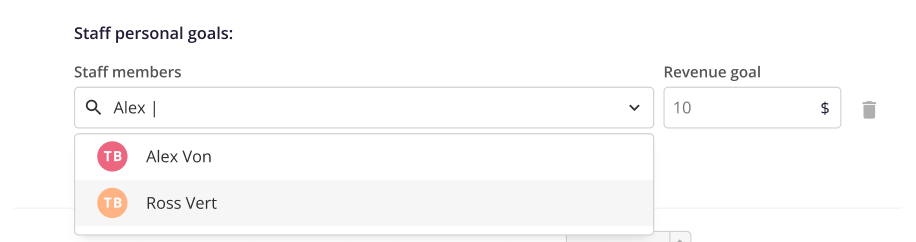
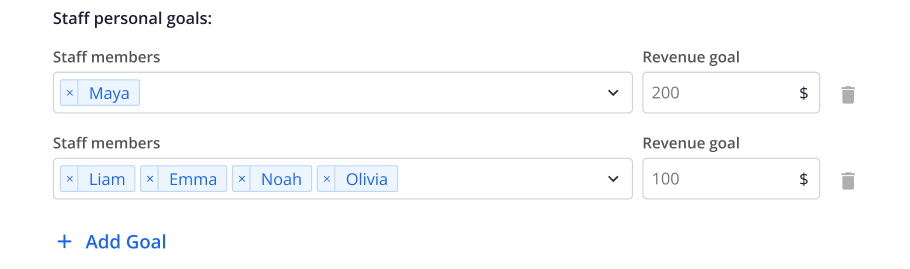
Or to "All members":

- All Members is offered only when no individual has been picked. As soon as you select one person, the option disappears.
- Picking All Members replaces any individual rows and collapses the setup to that single row.
- A person can hold only one goal on the same upsell, so a name already used in another row is not offered again.
- Add Goal is disabled when an All Members goal exists, when the row you just added has no one selected yet, or when everyone on the team already has a goal. The reason appears next to the link: "A goal has already been assigned to all team members. Remove it to add individual goals." or "All team members have already been assigned a goal."
- A row with a staff member but no amount is skipped on save rather than saved as zero.
- Use the trash icon on a row to remove that goal.
Edit, carry forward, and locking
- You can edit any goal at any point during the current month. The new value applies to the whole month, calculated from day one, not from the day you edited it. If a goal starts at 500 on June 1 and you raise it to 800 on June 15, progress for all of June is measured against 800.
- Goals carry forward month to month. The first time a new month is opened with no goals of its own, the most recent earlier month that does have goals is copied into it, including the on or off state and the amounts. You can then adjust the new month.
- Once a month ends, its goal value is locked. You cannot edit or delete a goal from a past month, and the attempt is rejected. The current month is the only editable one.
- "Current month" is resolved in the account's own time zone, so a save on the last day of the month is not rejected because of a server-side date rollover.
Turning the feature off and back on
- When you turn Set Staff revenue target goals off after amounts were entered resets the section to its off state and hides that upsell's goals from the analytics dashboard, the brand cards, the leaderboard progress, and the staff-facing views. The upsell is also removed from the goal calculations.
- Nothing is deleted. The amounts are kept, so re-enabling restores the last saved setup.
- Turning a goal off in the middle of a month stops every sale on that upsell that month from counting toward the goal, including sales made earlier while it was on. Revenue and order counts still appear normally everywhere else.
- Turning a goal on in the middle of a month starts counting every sale on that upsell that month toward the goal, including sales made earlier while it was off.
What counts toward a goal
- Only Front Desk Upsell activity. Revenue from other channels such as the Guest app or Pre check-in is never counted toward a goal, even on the same upsell.
- A fully refunded order is removed from Front Desk Upsell analytics entirely, as if the sale never happened, so it stops counting toward revenue, toward the order count, and toward goal progress. Canceled upsells are excluded the same way.
- Where an upsell has several items or time frames, for example, Early-check-in offered across multiple slots, revenue from all of them rolls up to that upsell's single goal.
- When upsells use different currencies, each amount is converted to the account's base currency before anything is combined, so a blended percentage is never a mix of currencies. This applies at both brand level and per staff member.
Host experience
Manager analytics: Staff Goals dashboard
Brand progress:
- A single percentage plus the label "of Revenue goal achieved".
- The percentage is total Front Desk Upsell revenue on upsells that have a goal, divided by the sum of those upsells' targets. Revenue on an upsell with no goal is not included.
- Below it, the change in percentage points against the previous month.
- When no brand goal is set for the month, the card shows a dash instead of a percentage.
Brand Monthly Goal by upsell card:
- One row per upsell that has a monthly target, under the column headings Upsell and Current progress.
- Rows are ordered by percent achieved, highest first, and each carries a colored dot, a progress bar, and its percentage.
- Hovering over a bar shows the numbers behind it: revenue earned over the revenue target.
- When staff goals exist but no upsell has a brand target, the card shows "No brand goals set".
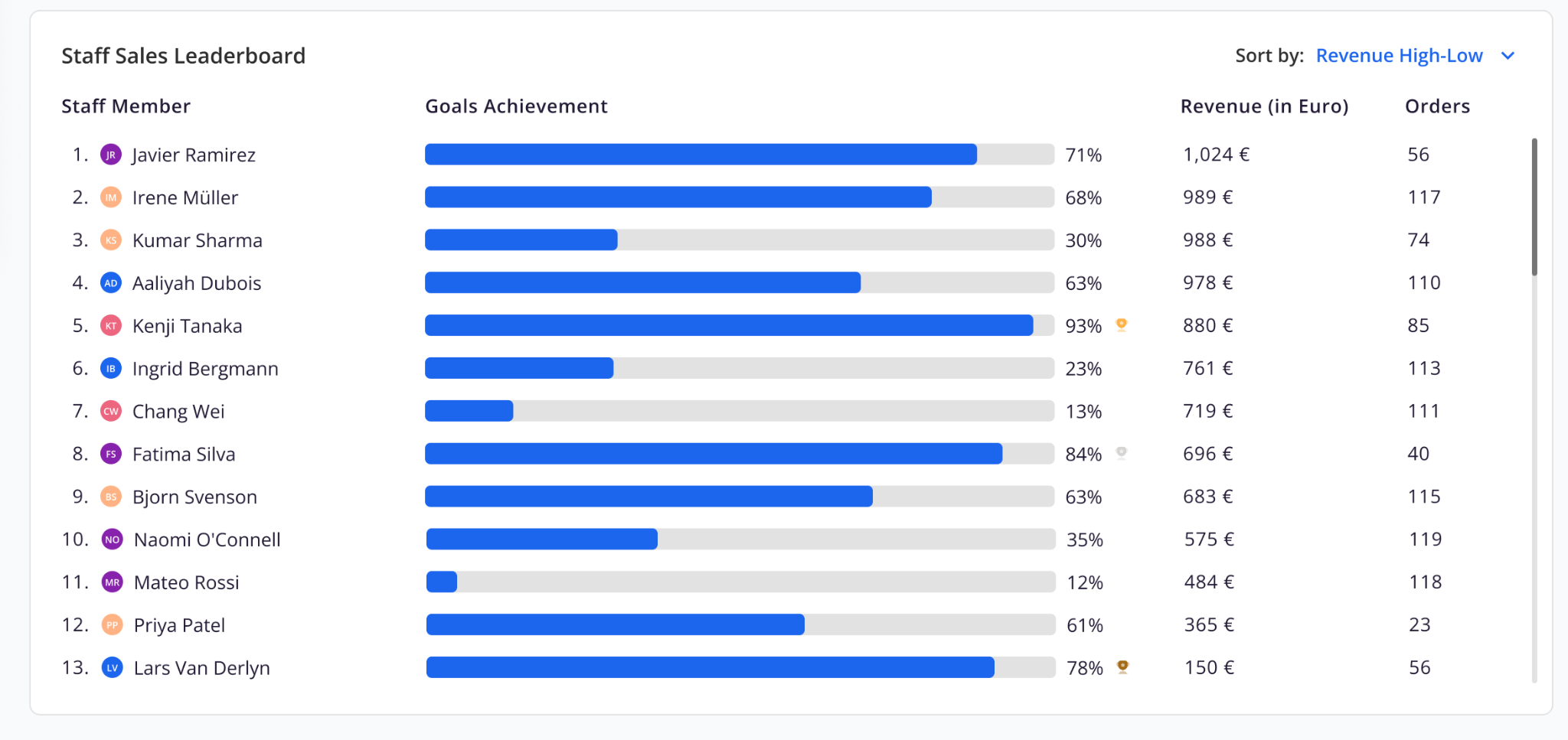
Staff Sales Leaderboard card:
- Four columns: Rank number, Staff member (avatar plus name), a Goals Achievement progress bar, the percentage, Revenue, and Orders
- A Sort by selector offers Revenue High-Low (the default), Revenue Low-High, Orders High-Low, Orders Low-High, Goals Achievement High-Low, and Goals Achievement Low-High.
- A staff member's percentage is their combined attainment: Everything they earned on upsells they have a goal for, divided by the sum of those goals. Two goals of 500 and 200 (total of 700) with 300 and 100 (total of 400) earned give roughly 57 percent.
- Hovering a bar opens a breakdown with one line per upsell the person has a goal on, each showing revenue over goal and the percent achieved.
- At 100 percent or above, the bar turns amber and picks up a sparkle. The bar itself stops at 100 percent, while the percentage label keeps showing the real figure, so a large overshoot reads as a full bar next to its true number.
- A trophy marks the top three goal achievers by attainment. The trophies are gold, silver, and bronze; they are based on attainment only, and they do not move when you change the sort.
- Staff is sorted by goal achievement, with no goal always sorted last, since no goal is not a meaningful zero percent.
Staff without goals:
- With sales but no goal this month: listed with a bar at zero and "0%", with no hover breakdown, and never eligible for a trophy.
-
With a goal but no sales this month: listed with their real numbers and zero progress.
- With neither a goal nor any sales: not listed at all.
Empty states:
The Staff Goals section has three empty states, and in each one the section shows only the empty state. The brand cards and the leaderboard are hidden.
-
The date filter is not a single full month: "Staff goals are available in monthly view only", with the subtitle "Select a single month to view team performance and goal progress." and a View current month button that resets the filter.
- No goals configured anywhere for the selected month and no Front Desk Upsell sales at all: "You haven't set any staff goals yet", with the subtitle "Motivate your team by setting personal revenue goals and tracking their progress." and a Read more about Staff goals link.
-
No goals configured anywhere for the selected month, but Front Desk Upsell sales exist: the same "You haven't set any staff goals yet" state.
Troubleshooting note: Once any goal exists for the month, the dashboard renders normally even before a single sale, showing the goals at zero progress.
Analytics export:
The Upsells sheet of the analytics export is split into two sections and carries seven columns: Metrics, Upsells, Purchases, Revenue, Revenue Target monthly goal, % to Goal, and Monthly Trend.
- The first section lists all upsells sold in the period across every channel (Guest app, Pre check-in, and Front Desk Upsell), with purchase counts per product, ordered by purchases, highest first. The goal columns stay empty here. The New Revenue row closes the section with total net revenue and the month-over-month trend.
- A FRONT DESK UPSELLS banner opens the second section, which covers Front Desk Upsell products only. There is one row per staff member per product; all of a person's rows appear together, and staff is ordered by total revenue, highest first. Each row carries that person's configured target for the selected month and % to Goal, which is revenue divided by the target, times 100. Where no goal is set, the goal and % to Goal cells are left empty rather than showing zero, so an empty cell reads as "not set". Monthly Trend is empty on staff rows.
- A Brand Goal row closes the second section with total Front Desk Upsell revenue, the brand target, and % to Goal. It carries no purchase count, and it appears only when a brand target is configured.
Front desk staff experience
Monthly Goals page
- A month and year time selector. Goals are monthly, so the selection is full months only.
- A Your progress card with the combined percentage across all of your goals, the change against the previous month, and a Personal monthly goal by upsell list. At 100 percent or more, the card shows "Goal achieved!". With no goal for the month, it shows "No personal goal set for this month". (The pie chart described in the published version is gone from this card too.)
- A Staff Sales Leaderboard card showing your own row in full, with your rank, your progress bar, your percentage, and your hover breakdown. Every other row is a blurred placeholder carrying only its rank position. You can change the sort and watch your own position move, but no peer name, revenue, order count, or percentage is ever shown.
- A Brand Monthly Goals card, the same card managers see. With nothing configured it shows "No brand goals set for this month".
- When the selected month has no goals at all, the page shows "No upsell goals yet" with "You have no upsell goals for [month]. Pick another month above to see past goals." A past month with no goals shows "No upsell goals".
The side menu widget:
- Staff who have a goal see a Monthly upsell goals widget in their profile menu, with a progress bar and the percentage of the monthly goal achieved, combined across all of their goals.
- The widget appears only when the user has at least one goal. It does not render at all otherwise, so there is no empty row in the menu.
- A goal that exists before any progress is computed shows zero percent rather than hiding the widget.
- Clicking the widget opens the Monthly Goals page.
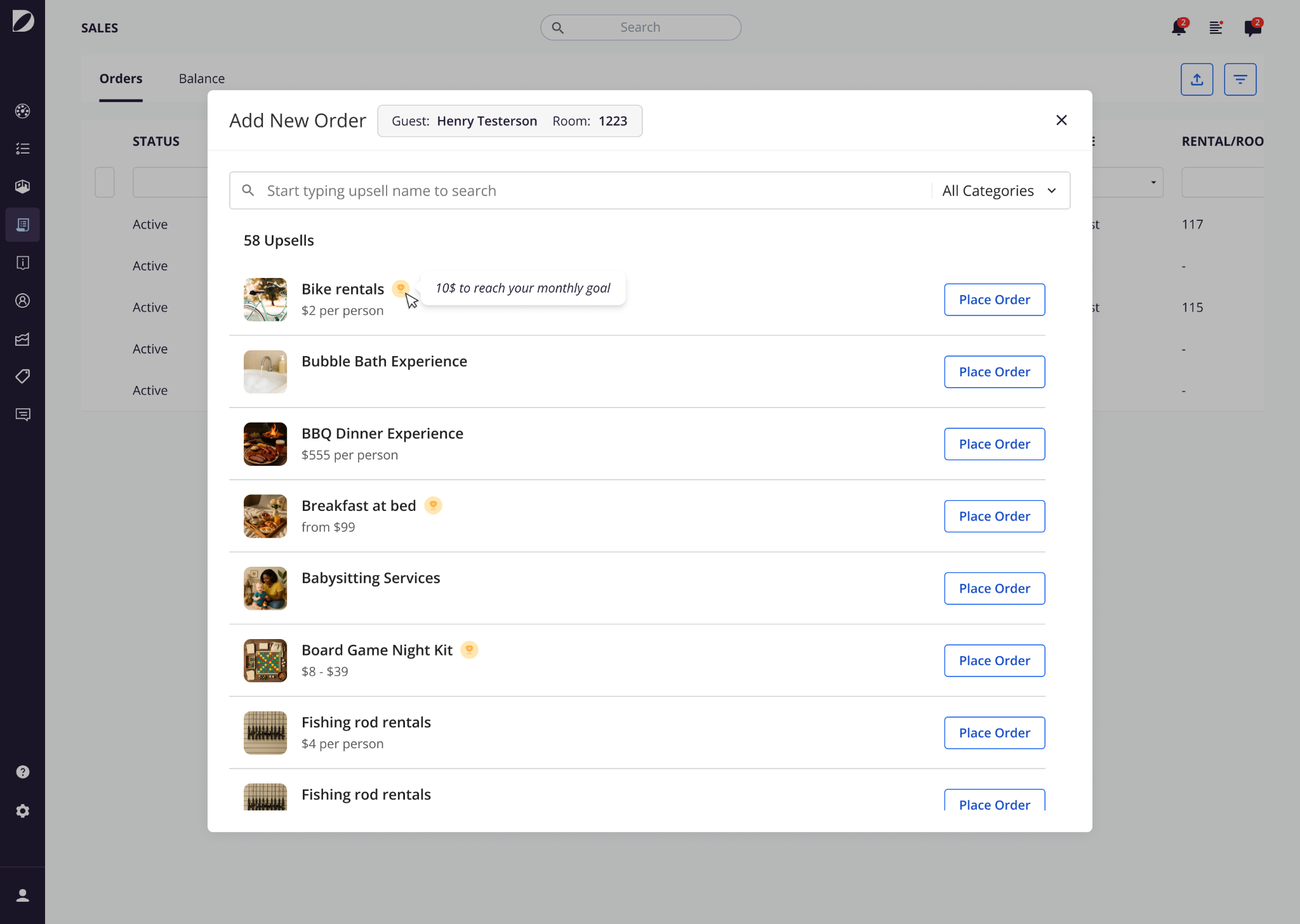
Book a service goal indicator
 icon indicator sits next to the name of any product the user has a goal on. Hovering it shows how much is left to reach the monthly goal for that specific upsell, for example, "10$ remaining to reach your monthly goal".
Once the goal on that upsell is met, the tooltip reads "You've reached your monthly goal".
Troubleshooting
- I do not see the goal widget, or my Monthly Goals page is empty. You most likely have no goal for the selected month. Both the widget and the page need at least one goal assigned to you. Ask your manager to confirm a goal is set for the current month, and check the month selector on the page.
- I do not see the Staff Goals section in Analytics. It needs the Manage goals permission, which Agent and Staff users do not have by default. It also needs Front Desk Upsells on the plan and a single full month selected in the date filter.
- The Staff Goals section shows an empty state even though I set goals. Check the date filter. The section needs a single full month, and it reflects the month you selected, not necessarily the current one.
- My progress looks lower than expected. Only Front Desk Upsell activity counts, and refunded or canceled orders are removed entirely. Revenue on an upsell that has no goal, or whose goal is turned off, is not counted toward attainment either.
- A staff member shows 0% with real sales. They have no goal on any upsell for that month. Assign one and the bar starts tracking.
- The tooltip on Book a service is not in my account currency. That is expected. Remaining-to-goal amounts on that indicator use the upsell's own currency.
- I cannot change a goal for a month that already ended. Ended months are locked for both goals and results, and can only be viewed.
- A goal I assigned was rejected on save. The person must be on this account's front desk roster. A user from another account, or one who has since been removed, cannot hold a goal.
Restrictions and limitations
- Goals can be set only on custom products, room upgrades, early check-in, late check-out, and transportation upsells. Menu products and multiple custom products are not supported.
- The goal editor writes the current month only. Past months are read-only for goals and for results.
- One person can hold only one goal per upsell.
- An All Members goal and individual goals cannot coexist on the same upsell. Choosing All Members replaces the individual rows, and once an individual is chosen, All Members is no longer offered.
- Only Front Desk Upsell revenue counts. Refunded and canceled orders are excluded.
- Revenue on an upsell without an enabled goal never feeds a goal percentage, even when the same upsell type has a goal elsewhere.
- Staff never see another person's individual performance. Peer rows on the staff-facing leaderboard show rank position only.
- The Staff Goals analytics dashboard is not visible to Agent or Staff users, including those who can otherwise view Analytics.
- Turning a goal off hides that upsell from every goal chart and calculation while it is off. The amounts are retained and restored when it is turned back on.
- Team-level goals shared across several agents, rewards or commission calculations, points and gamification, goal recommendations from past performance, and splitting one agent's goal across multiple brands are all out of scope.
Tips and tricks
- Put several people in one goal row to give the whole group the same baseline in a single step, then add separate rows for the amounts that need to differ.
- Use All Members when the whole team should carry the same number, and remember you will need to remove it before you can set anyone individually.
- Compare people by percent of goal achieved rather than raw revenue when their targets differ, so a smaller target met in full reads as strongly as a larger one missed.
- Sort by Goals Achievement High-Low to see who is ahead, and Low-High to find who needs coaching, keeping in mind that people with no goal always sit at the bottom either way.
- Hover over a leaderboard bar rather than opening the export when you want to know which upsell is driving someone's number.
- Let carry forward hold your baseline and adjust only the goals that need to change for the new month.
- Review the previous month's attainment before setting the new month's numbers, while the earlier month is still selectable in the analytics filter.
- Set a goal at the start of the month even if you expect no sales for a while. The board renders at zero progress rather than showing an empty state, so the team can see the target from day one.
Comments
0 comments
Article is closed for comments.