
Tags are custom labels you attach to your properties (rentals or rooms) in Duve. Use them to group properties by city, building, zone, owner, or any other attribute that matters to your operation. Once a tag exists, you can use it to filter properties, decide which Guest app content guests see, and limit which properties a team member can access. You can add tags one property at a time or apply them to many properties at once with bulk edit.
Quick navigation:
- Use cases
- Before you start
- How to set it up
- Host experience + Guest experience
- Troubleshooting
- Restrictions & Limitations
- Tips & Tricks
- FAQs
Use cases
- Group by location: Tag properties by city, neighborhood, or building (for example, "Paris", "Downtown", "Building A") so you can filter and manage them together.
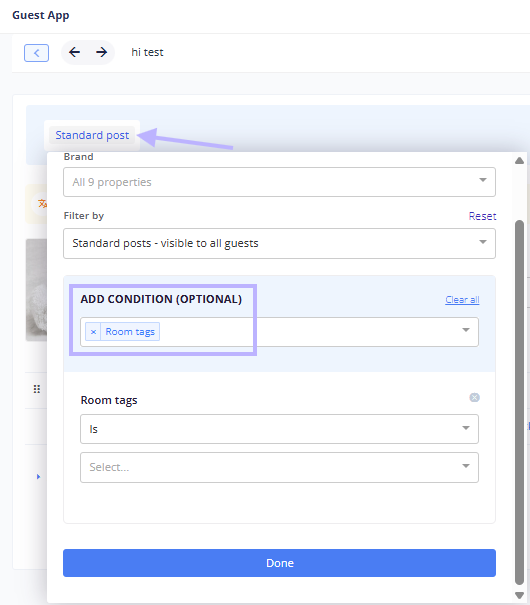
- Target Guest app content: Show a Guest app post only to guests staying in properties with a specific tag, such as parking instructions for one building.
- Limit team access: Restrict a team member, such as a local cleaner or property manager, so they only see properties with the tags assigned to them.
- Organize large portfolios: Mark properties by owner, size, or service level to speed up bulk edits.
Before you start
- Make sure your properties are already in Duve (synced from your PMS or created manually).
- Plan a consistent naming convention. Tag names are free text, so "Paris" and "paris" are treated as two different tags.
- In hotels and hostels, tags are set on individual rooms, not on room types.
How to set it up
Add a tag to a single property
- Go to the Rentals page (or Rooms page for hotels and hostels).
- Click the property you want to tag.
-
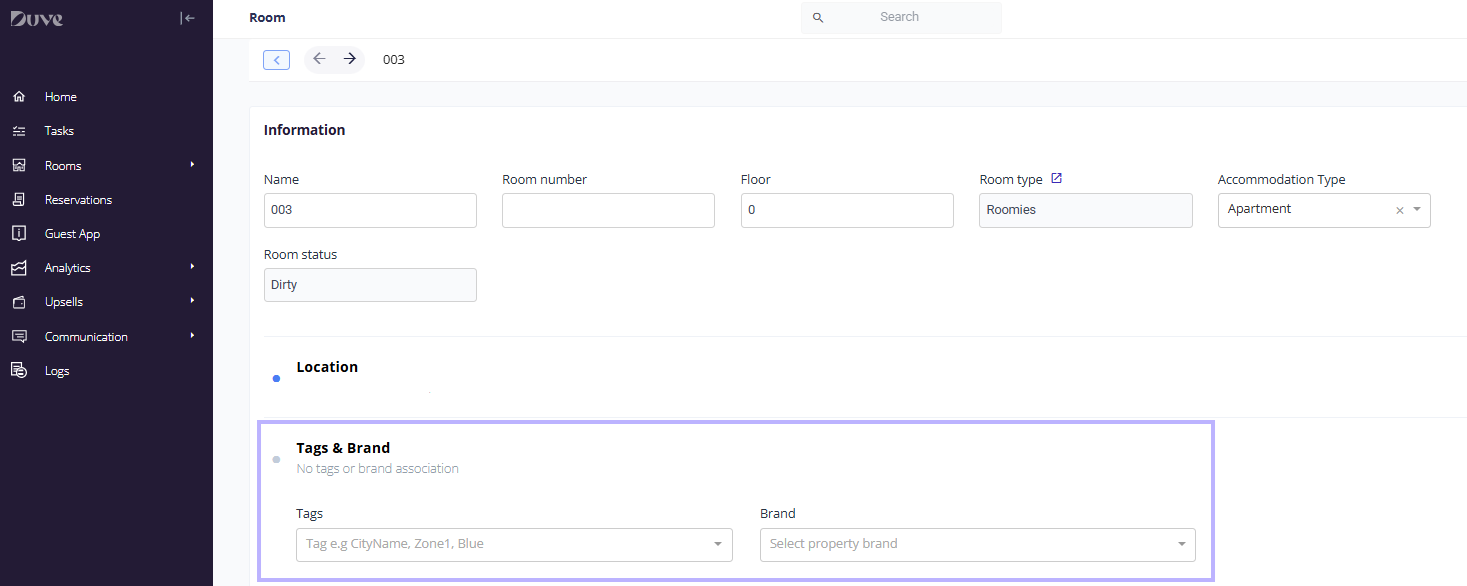
Scroll to the Tags & Brand section.
-
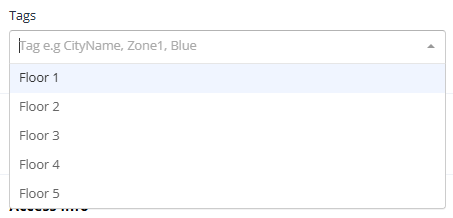
Click the Tags field and either select an existing tag from the list or type a new tag name and press Enter. You can add several tags to the same property.
- Click Save.
The new tag is now available to select on every other property in your account.
Add or remove a tag on multiple properties (bulk edit)
- Go to the Rentals page (or Rooms page).
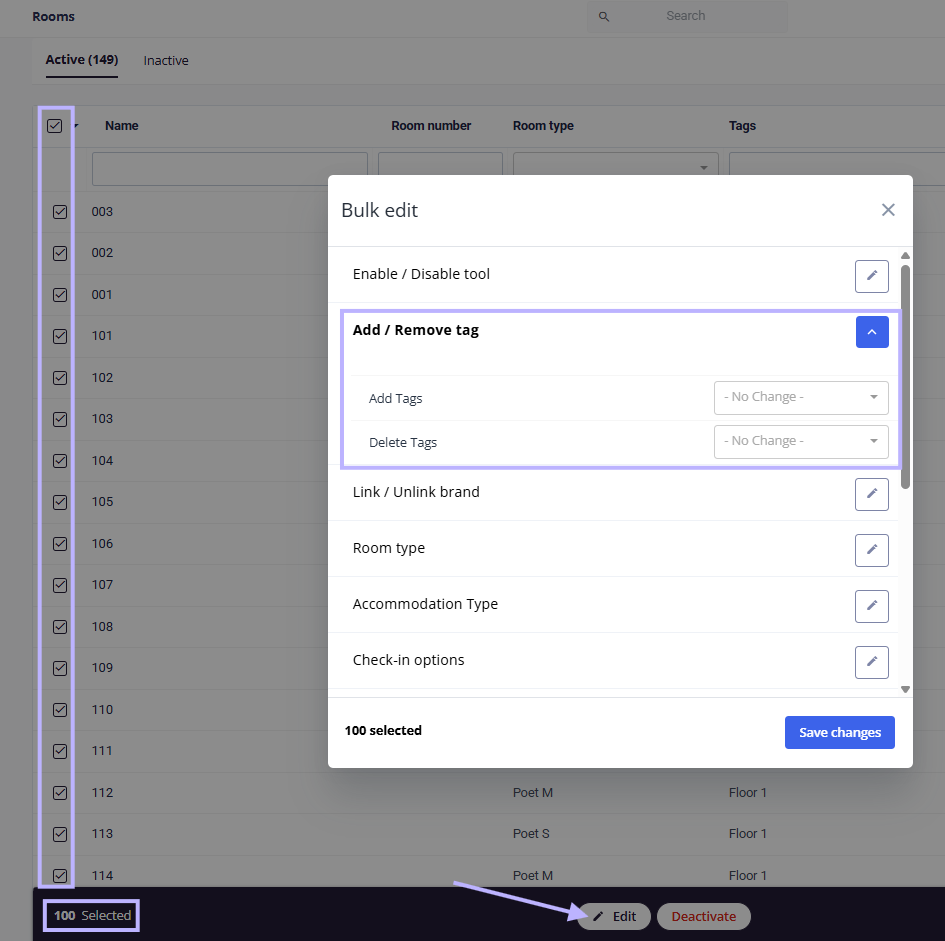
- Select the checkboxes next to the properties you want to update.
- Click Edit to open the Bulk Edit window.
- Expand Add/Remove tags.
- Choose what you want to do:
- Add Tags: Select an existing tag or type a new one. Duve adds it to every selected property and skips properties that already have it.
- Delete Tags: Select the tag to remove from the selected properties, or choose - Remove All - to clear every tag from them.
- Click Save Changes, then confirm by clicking Yes.
Remove a tag from a single property
- Open the property and go to the Tags & Brand section.
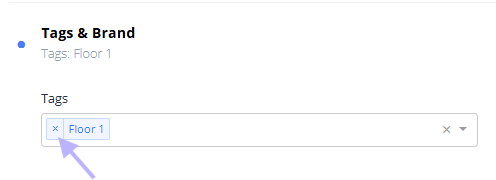
- Click the x next to the tag you want to remove.
- Click Save.
Delete a tag from your account
There is no separate tag list to delete from. Duve builds your tag list from the tags currently assigned to your properties, so a tag disappears from the list once no property (active or inactive) uses it. To delete a tag entirely, use bulk edit to remove it from every property that has it.
Host experience + Guest experience
- Host experience: Tags appear on each property's page under Tags & Brand and can be used to filter the Rentals or Rooms list, set Guest app post visibility, and limit user access.
- Guest experience: Guests never see your tags. Tags only affect which Guest app content is shown to them. You can check this by previewing the Guest app as a guest staying in a property with a specific tag.
Troubleshooting
- A deleted tag still appears in the list: The tag is still assigned to at least one property, which may be an inactive one. Check the inactive tab of your Rentals or Rooms page and remove it there.
- A team member can't see some properties: Their user profile may be limited to specific tags. Properties without those tags are hidden from them.
- I can't edit the Tags field: You have view-only access to that property. Ask an account admin to update your permissions.
Restrictions & Limitations
- Tags can't be added to room types, only to individual rooms or rentals.
- Tags can't be renamed. To rename a tag, add the new tag to the relevant properties with bulk edit, then remove the old one.
- Bulk edit adds or removes one tag per save.
Tips & Tricks
- Keep tags short and consistent (for example, "City-Paris", "Zone-1") so they're easy to find and filter.
- Use bulk edit with the Rentals or Rooms list filters to tag a whole group of properties in one step.
FAQs
Q: Are tags case-sensitive?
A: Yes. "Downtown" and "downtown" are saved as two separate tags, so stick to one format.
Q: Will removing a tag affect my Guest app posts or user permissions?
A: Yes. Any post shown only to guests in properties with that tag, and any user limited to that tag, will no longer apply to the properties you removed it from.
Q: Do tags sync from my PMS?
A: No. Tags are managed only in Duve and aren't imported from your PMS, so you need to add them in Duve yourself.
Q: Can I add the same tag to a property twice?
A: No. If a property already has the tag, Duve skips it when you add the tag again.
Comments
0 comments
Article is closed for comments.