
Tag exclude lets you control who sees your Duve content, products and messages, so guests in specific rooms or rentals only get what's relevant to their stay.
Use the tag exclude to prevent specific content, products, or automated messages from appearing in reservations associated with certain room or property tags. It helps you precisely target who sees what in the Guest App, Upsells, and Scheduled messages.
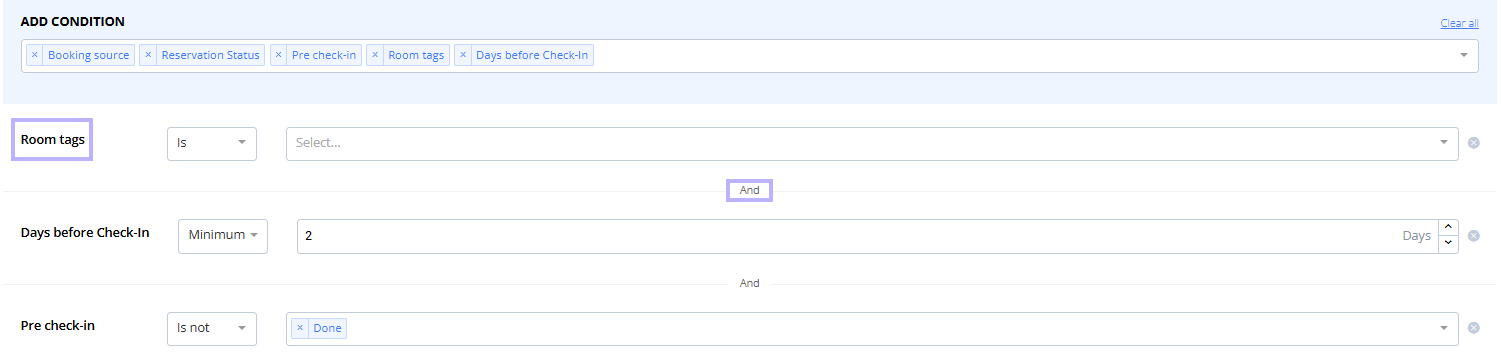
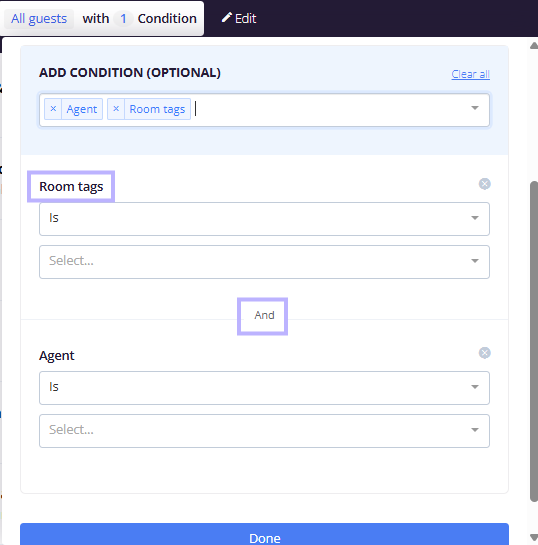
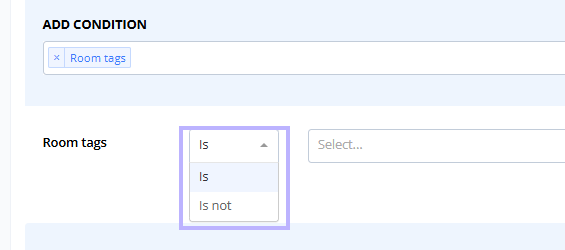
Tag exclude uses the same condition builder you already use to target content. Add a Room tags condition, switch the operator to Is not, then choose one or more tags. Guests whose reservation includes any of those tags will be excluded. Tag conditions evaluate together with your other conditions using AND logic.
Quick navigation:
- Use cases
- Before you start
- How to use it
- Include vs. exclude logic
- How conditions combine with others
- Restrictions and limitations
- Troubleshooting
- FAQs
- Related articles
Use cases
- Hide spa-related posts and upsells from rooms tagged "Business Wing"
- Exclude corporate bookings (Room tag "Corporate") from receiving leisure-focused pre-stay messages
- Suppress alcohol upsells for properties tagged "Family Friendly"
- Show a seasonal post to all properties except those tagged "Off-season"
- Block parking add-ons for properties tagged "No Parking"
- Exclude VIP-tagged reservations from receiving default upsell nudges, so they get a bespoke flow instead
Before you start
- Make sure your rooms and properties are already tagged in Duve, and that you know which tags you want to exclude.
- Decide whether you need to exclude by tag across content (Guest App posts), products (Upsells), or automated messages (Scheduled messages).
How to use it
Scheduled messages
Go to Communication → Scheduled messages → open or create a message. In the editor, select Add Condition (optional), choose Room tags, change the operator to Is/Is not, then select one or more tags to include/exclude. Save or publish your message.
Guest App
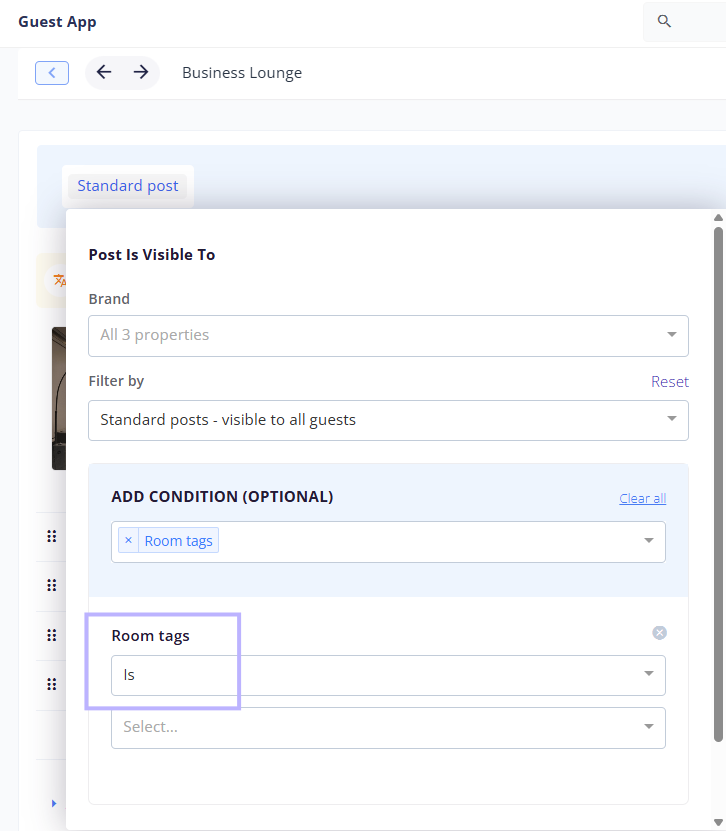
Open a post. In the visibility section, select Add Condition (optional), choose Room tags, change the operator to Is/Is not, then select the tags to include/exclude. Save the post.
Upsells
Go to Upsells → Manage → open a product. Find Product is visible to and click Edit. Select Add Condition (optional), choose Room tags, set the operator to Is/Is not, then select the tags. Save the product.
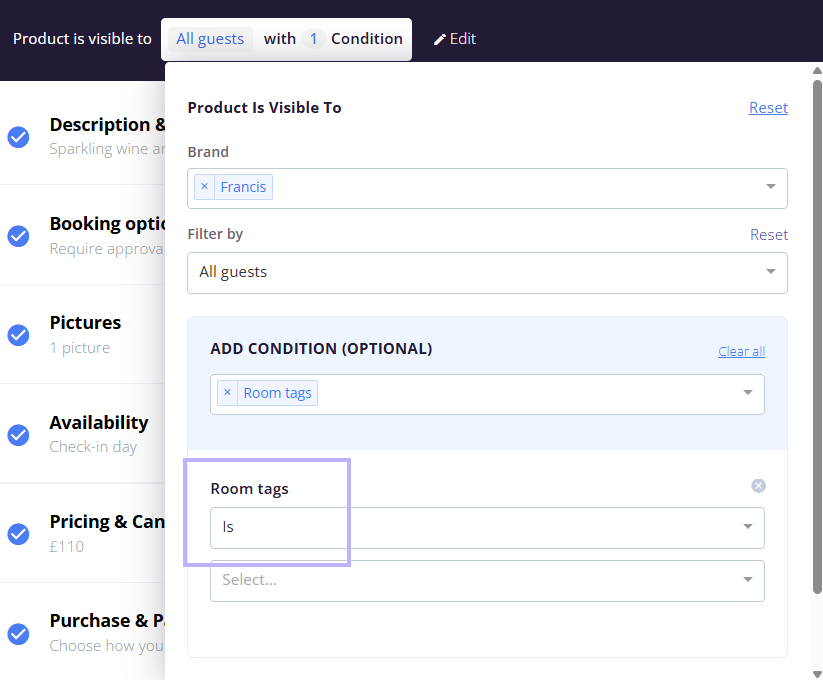
Include vs. exclude logic
- Room tags "Is" [A, B, C]: A guest matches if their reservation has ANY of the selected tags (A OR B OR C).
- Room tags "Is not" [A, B, C]: A guest matches only if their reservation has NONE of the selected tags. If the reservation has at least one of the selected tags, it is excluded.
How conditions combine with others
All condition rows are combined with AND. If you add other filters, such as dates or room types, the guest must meet all conditions to match.
Restrictions and limitations
- Only one Room tags condition row can be added per item. After you add it once, the Room tags option is disabled in the Add condition dropdown.
- Multi-select logic: include matches ANY of the selected tags, while exclude requires ALL selected tags to be absent.
- Conditions are evaluated at match time using the current reservation data. If you later change tags on a room or property, matching reflects the change the next time Duve evaluates the conditions.
- Not supported in Chat filters or Marketplace and Webhooks-based automations.
Troubleshooting
No guests are matching
- Check whether your Room tags Is not list is too broad. If many rooms or properties have at least one of the excluded tags, everyone is filtered out. Try removing some tags from the exclude list.
- Review your other conditions. Because conditions use AND logic, another condition might be preventing matches.
I cannot add a second tag filter row
- This is expected. You can only add one Room tags condition row. To create an OR between tags, select multiple tags within the single Room tags row.
I do not see my tags in the picker
- Confirm the tags exist in your property setup and are applied to the correct rooms or properties. If tags were just added, refresh the page and try again.
The product or post is still showing to the wrong audience
- Verify whether the reservation's property actually has one of the excluded tags. If it does, the item should not display. If not, the guest may be matching due to other conditions, so review and adjust them.
FAQs
Q: Where do I find the tag filter?
A: In the condition builder, add a condition and choose Room tags. Use the operator dropdown to select Is or Is not.
Q: Can I create OR logic across multiple condition rows?
A: No. Conditions combine with AND. To get OR behavior for tags, select multiple tags within a single Room tags row.
Q: What happens if I add or remove a tag from a property after I set up the condition?
A: Matching updates automatically based on the current tags when Duve evaluates the conditions.
Q: Is tag exclude available in Chat filters or Webhooks?
A: No. Tag filters, including exclude, are not available in Chat filters or Webhooks-based automations.
Q: What are the exact labels I will see?
A: The filter type is Room tags, and the operator options are Is and Is not. You will also see Add Condition (optional) above the filter box. In Upsells, look for Product is visible to, Edit, and the Show in 'public guest-app' toggle.
Comments
0 comments
Article is closed for comments.