
Scheduled Messages let you automate guest communication around the reservation lifecycle. Each scheduled message is a rule: when a chosen event happens to a reservation, and the reservation matches the conditions you set, Duve sends the message you wrote through the channel you selected.
You build a scheduled message in three numbered steps, plus a conditions step:
- When: the event that starts the message and how long before, after, or at that event it should go out.
- Conditions: who the message goes to inside the reservation, and which reservations qualify.
- General: the internal name of the message and the channels it is sent through.
- Content: the message text, WhatsApp template, or email design.
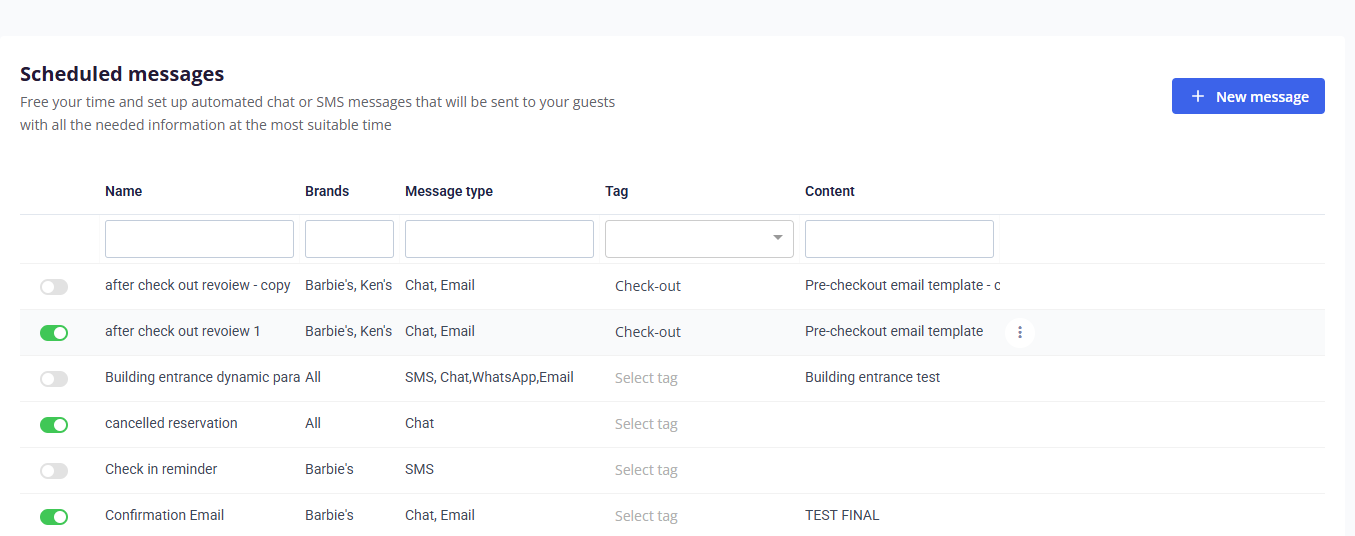
You can save a message as a draft, activate it later, duplicate it, and filter your message list by tag. All scheduled messages live on the Scheduled Messages page, where a toggle on each row turns it on or off.
Who this is for
Applies to
|
Use cases
- Send a pre-arrival message a set number of days before check-in with the pre-check-in link.
- Send directions and door codes a few hours before the guest's estimated check-in hour.
- Thank guests and ask for a review a day after check-out.
- Send a one time announcement on a specific date and time, repeating weekly if needed.
- Send a daily message during the stay with the day's activities or offers.
- Follow up automatically when a guest completes pre-check-in, completes the satisfaction form, or finishes quick check-out.
- Send a message when the reservation status changes in your PMS, for example to a cancellation confirmation.
- Message a guest after they scan a QR spot on property, or after the room assigned to them changes.
- Update the reservation status in your PMS when an event fires, with or without sending any guest message.
Before you start
- Make sure you have the Edit scheduled messages permission. Ask an admin to grant it if the page is read only.
- To send through SMS or WhatsApp, make sure SMS and WhatsApp billing is activated for your account.
- To send through WhatsApp with an approved template, create the template first in Settings > Communication > WhatsApp. A template that is already used by a scheduled message cannot be edited or deleted.
- To send through email, you need an email template. You can pick an existing one or create one in the email editor from inside the message.
- If you plan to use conditions based on custom pre-check-in questions, set those questions up first.
How to set it up
Create the message
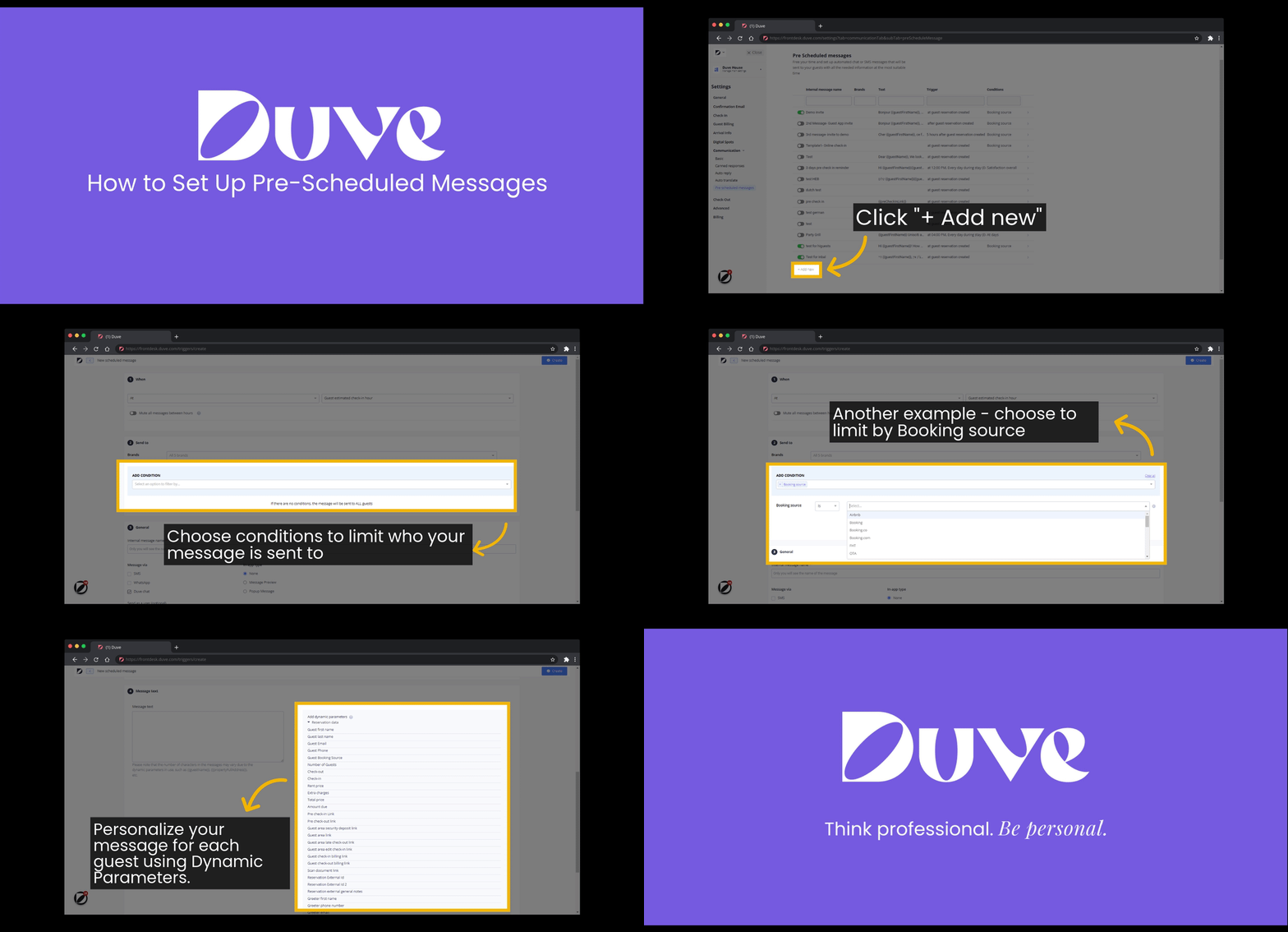
- Go to the Scheduled Messages page.
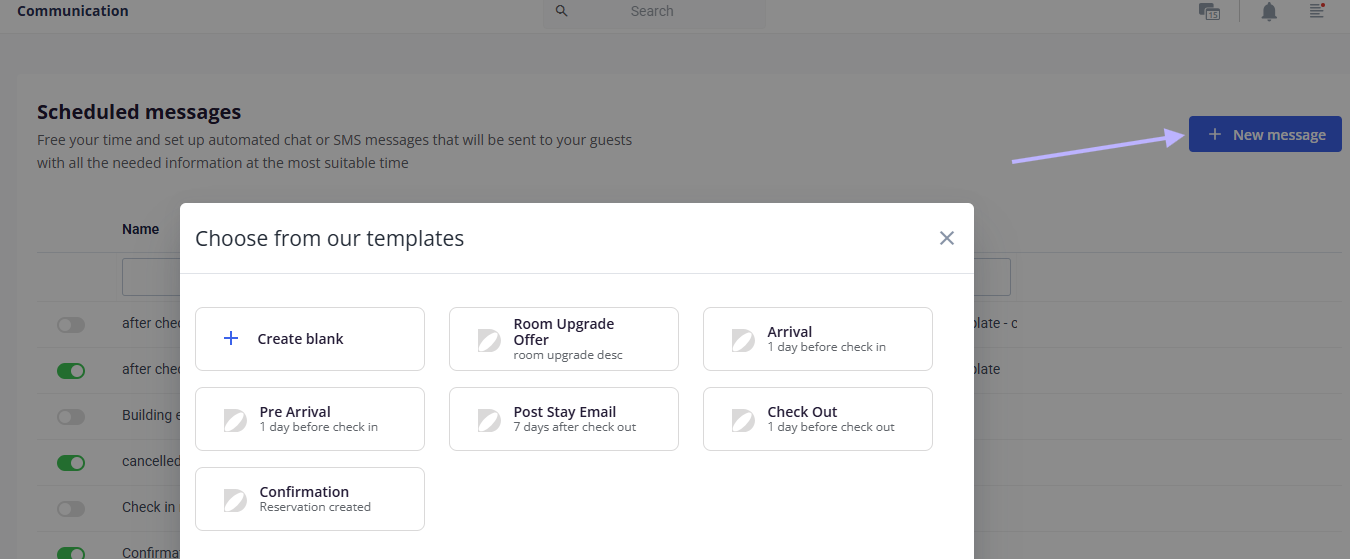
- Click New message.
-
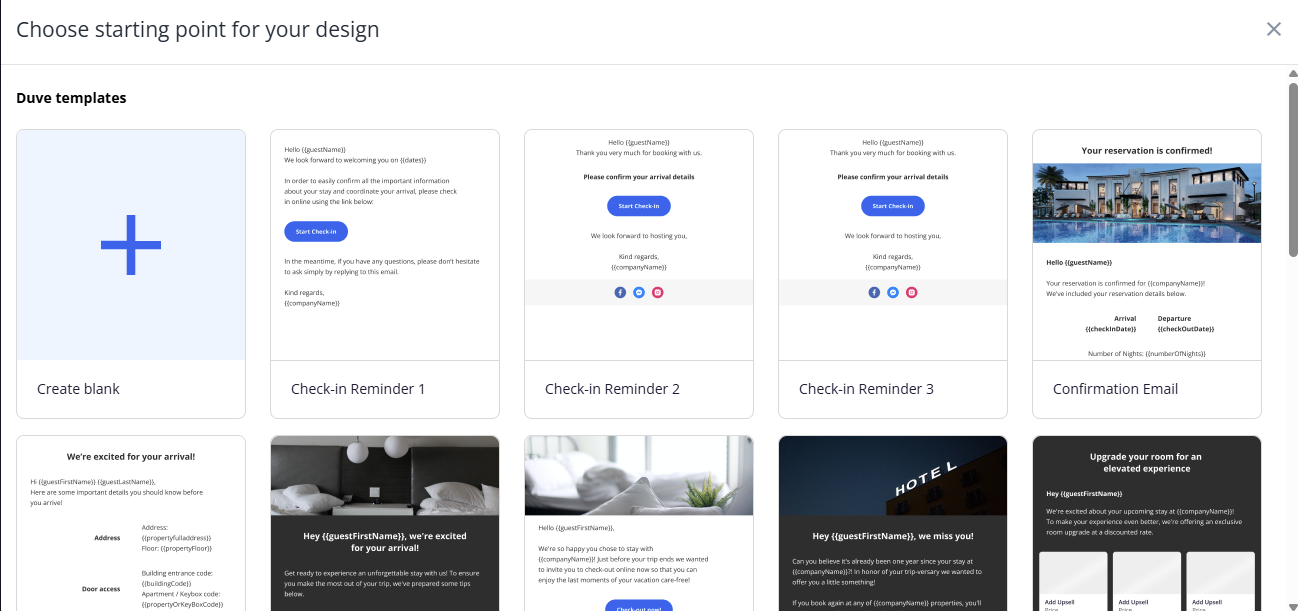
In the popup, choose Create blank to start from scratch, or pick one of Duve's ready made templates. Templates are not offered on the Communication Hub only and lite packages.
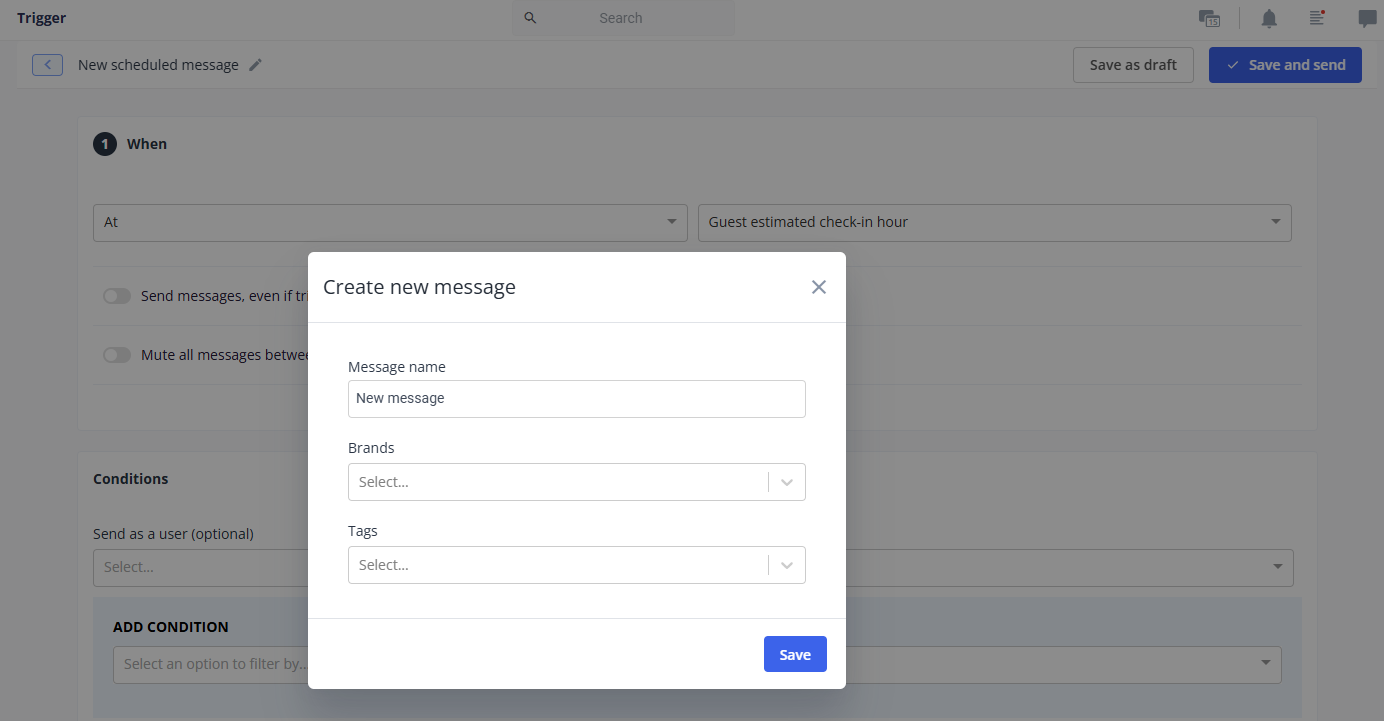
- The editor opens with the Create new message popup on top. Fill it in and click Save:
- Message name: required. Only your team sees it, so use a name that is easy to find in the list. It defaults to "New message".
- Brands: optional, and shown only when your account has brands. Select one or more brands to limit the message to them. Leave it empty to apply the message to all brands.
- Tags: optional. Pick a tag so the message can be grouped and filtered in the list. The options are Booking confirmation, Checked in, Arrival, During stay, Check-out date, Marketing, Reviews, and Other.
Note: You can reopen this popup at any time from the pencil icon next to the message name at the top of the editor, or from the tag cell on the message's row in the list. Create new message popup showing the Message name, Brands, and Tags fields
Step 1: When
Set the timing by filling in the row left to right: a number, a unit, a timing word, and the event.
- Number and unit: choose hours, days, or minutes. Days are offered only for the check-in day and check-out day events. Minutes are offered only for events that run minute by minute, which are pre-check-in done, pre-check-out done, reservation created, reservation status changed, room status update, additional field changed, and order start time. When you choose minutes, the smallest offset is 5.
- For the guest estimated check-in hour and guest estimated check-out hour events, you also get quick picks of 15 minutes, 30 minutes, and 45 minutes.
-
Timing: choose at, after, or before. Not every event supports all three:
- At, after, and before: Guest estimated check-in hour, guest estimated check-out hour, check-in day, check-out day, key is released, guest app first-time login.
- At and after only: Guest completed pre-check-in, guest completed pre-check-out, guest reservation created, reservation status changed, room status updated, assigned room changed, additional field changed, guest completed satisfaction form, guest completed quick check-out.
- At only: Specific date and time, every day during stay, guest scans QR, order external status changed, selfie match result, EVA submission result, sub-reservation contact details updated by main guest.
- Before and after only: Order start time.
- Event: the reservation event that starts the message. The list includes guest estimated check-in hour, guest estimated check-out hour, check-in day, check-out day, guest completed pre-check-in, guest completed pre-check-out, guest reservation created, specific date and time, reservation status changed, every day during stay, room status update, guest scans QR, assigned room changed, guest completed satisfaction form, guest completed quick check-out, order start time, guest app first time login, sub-reservation contact details updated by main guest, and any reservation additional field you have defined. Key is released appears only when a supported key provider is connected. Order external status changed appears only for accounts allowed to use private apps. Selfie match result and EVA submission result appear only when face verification is enabled.
- Send hour: appears when the timing is measured in days, when the event is a check-in or check-out day, and for the specific date and time and every day during stay events. Pick the hour of day the message should go out.
- Date: appears for the specific date and time event.
- Some events ask for one more detail: a target status for reservation status changed, one or more QR spots for guest scans QR, a value or "any value" for an additional field change, a service and target status for order external status changed, the services the trigger applies to for order start time, and passed or failed for selfie match result and EVA submission result.

Three optional switches appear under the timing row:
- Send messages, even if trigger time has passed: shown for the guest estimated check-in hour, guest estimated check-out hour, check-in day, check-out day, and order start time events when the timing is not "after". Turn it on so guests who book after the send time still get the message.
- Mute all messages between hours: define one or more time windows in which this message is never sent. Click Add new for additional windows. This is not offered for the events that do not support muting.
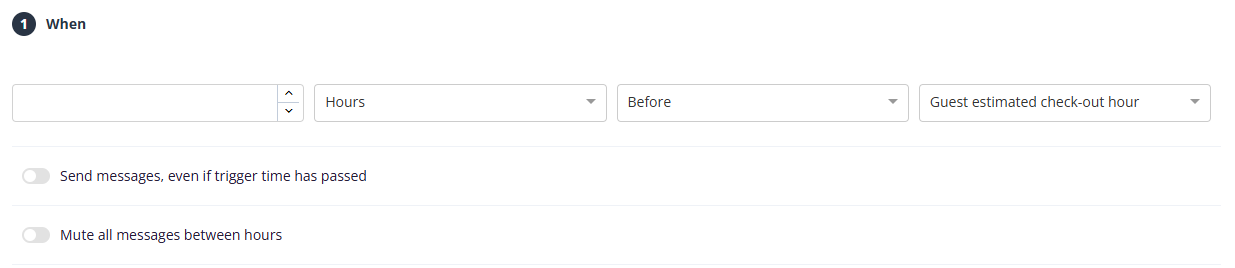
- Repeat weekly on [day]: shown only for the specific date and time event, so a one time announcement becomes a weekly one.

Conditions
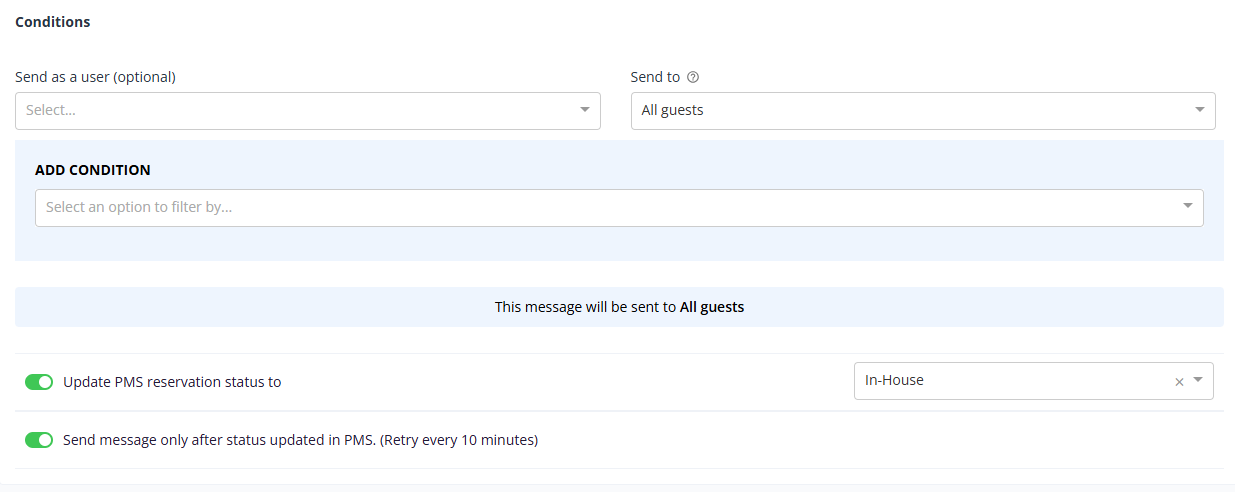
- Send as a user (optional): pick a team member whose name appears as the sender. Leave it empty to send under your company name.
- Send to: choose who in the reservation receives the message. The options are All guests and Main booker only. When your PMS supports a separate booker on the reservation, the options are All guests, Primary guest only, and Booker only. Choosing All guests sends to every guest in the reservation and its sub-reservations, including the main booker.
- Conditions: add filters to limit which reservations qualify. All conditions must be met. Available filters include: booking source, reservation status, pre-check-in state, passport and payment status, number of nights, floor, number of adults, children, and babies, rate plan, country, agent, tag, day of week, satisfaction, check-in method, guest email, in-house window, days before check-in or check-out, sync source, answers to custom pre-check-in questions, membership, room status update, hour of day, guest purchase, marketing source, special request, phone number, last stay, birth date, number of stays, VIP code, billing company and country, QR scan, ID verification, marketing consent, block or group name, method of payment, price code, paid by, and check-in or check-out day of week. ID verification is offered only when document verification is enabled. When you have not added any conditions, a line under the section summarizes who the message will be sent to.
- Update PMS reservation status to: appears when your connected PMS supports two way status updates. Turn it on and pick a status to have the message also update the reservation status in your PMS.
- Send message only after status updated in PMS. (Retry every 10 minutes): appears once a PMS status value is selected. Turn it on to hold the guest message until the PMS confirms the status change, retrying every 10 minutes.
More options:
- Auto release key to the guest: appears for events that support automated key release (guest estimated check-in hour, check-in day, guest completed pre-check-in, reservation status changed, guest scans QR) when a supported key provider is connected.
- Release code for key dispenser: appears when a supported key dispenser is connected.
Step 2: General
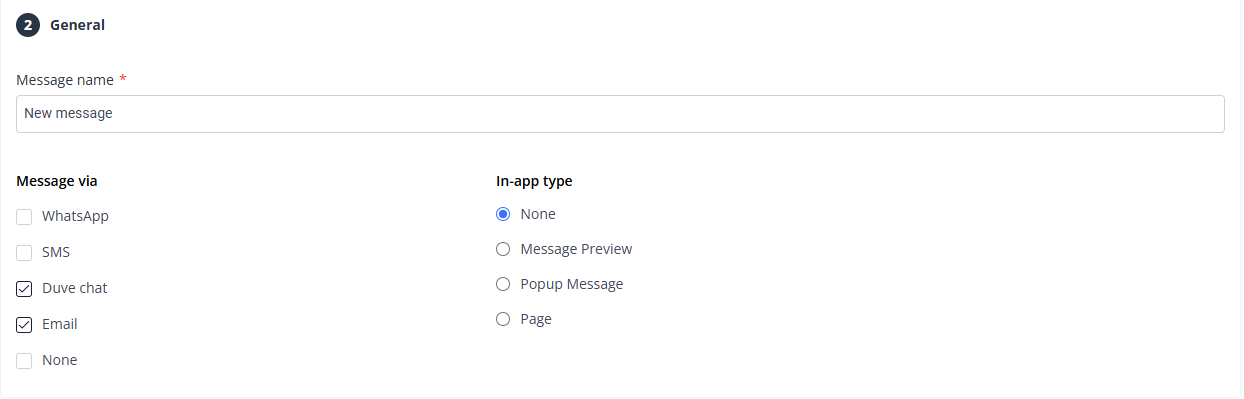
- Message name: required. Only your team sees it, so use a name that is easy to find in the list.
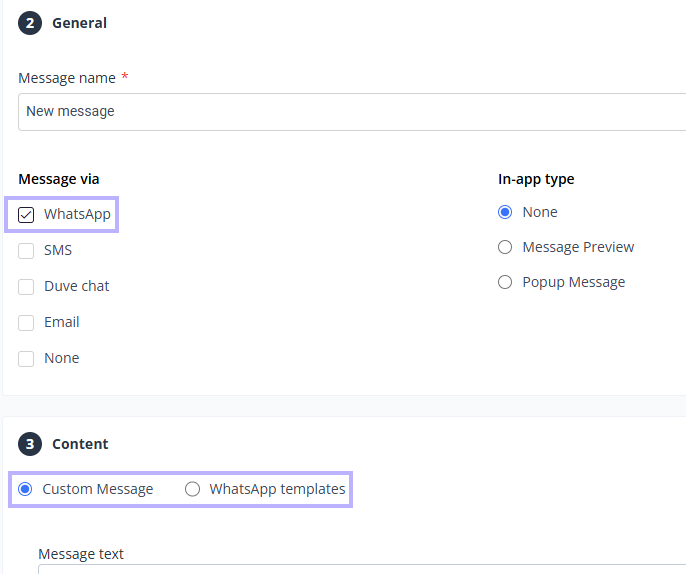
- Message via: select one or more channels. WhatsApp, SMS, Duve Chat, and Email. Duve Chat is hidden on the Communication Hub only and Accor packages. WhatsApp and SMS are disabled until SMS and WhatsApp billing is activated.
- One-way SMS: a switch that appears under SMS once SMS is selected. Use it when guests should not be able to reply to the message.
- None: an extra option that appears only when you have set a PMS status value in the conditions step. Select it to build a message that only updates the PMS status and sends nothing to the guest. Selecting it clears every channel.
- In app type: choose how the message appears inside the Guest app. The options are None, Message preview, and Popup message, plus Page when the confirmation page feature is available and Duve Chat is selected.
Step 3: Content
- Write the message text and personalize it with Dynamic Parameters. These resolve at send time from the reservation, property, key provider, and company data.
- Translations are handled per language. You can translate the message into your account's languages, excluding any language you manage manually.
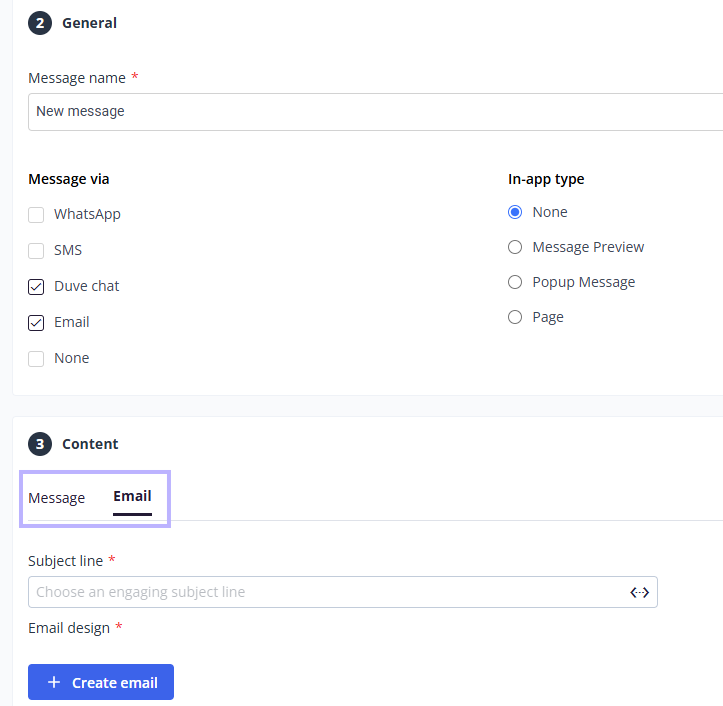
- When you select email together with WhatsApp, SMS, or chat, the content step splits into two tabs: Message and Email. Fill in both.
- For WhatsApp, choose between Custom message and WhatsApp templates. A custom message is limited to 1,000 characters. For any other channel the limit is 5,000 characters.
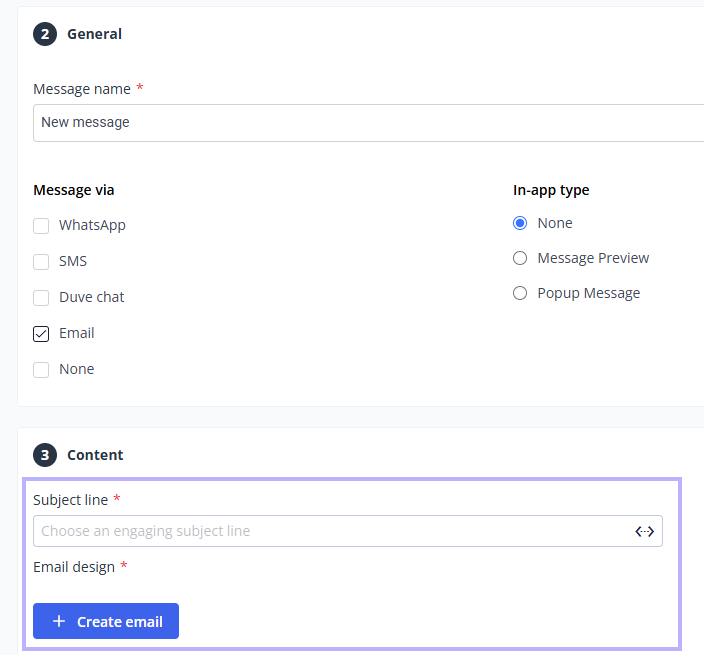
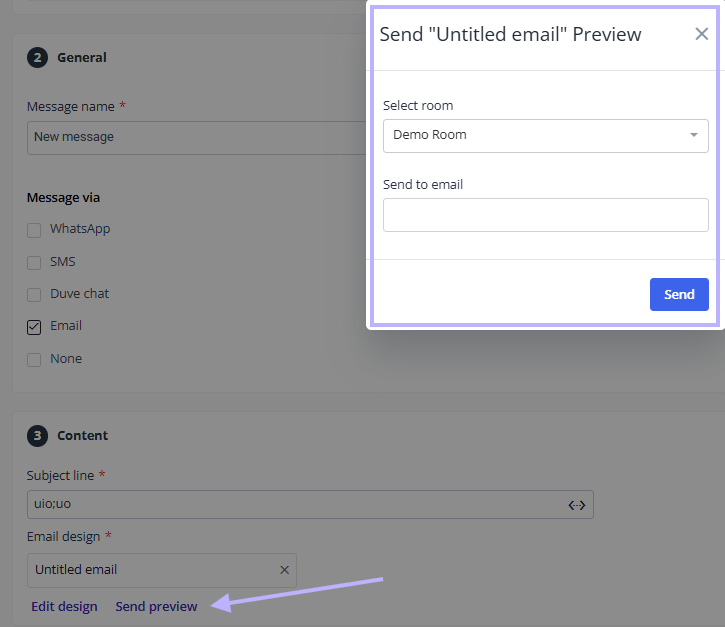
- For email, set the email subject and choose an email template. You can start from a recent email, use a Duve design without editing, or open the email editor to build your own. Once the message is saved, the Edit email design option in the list's row menu takes you back into that design.
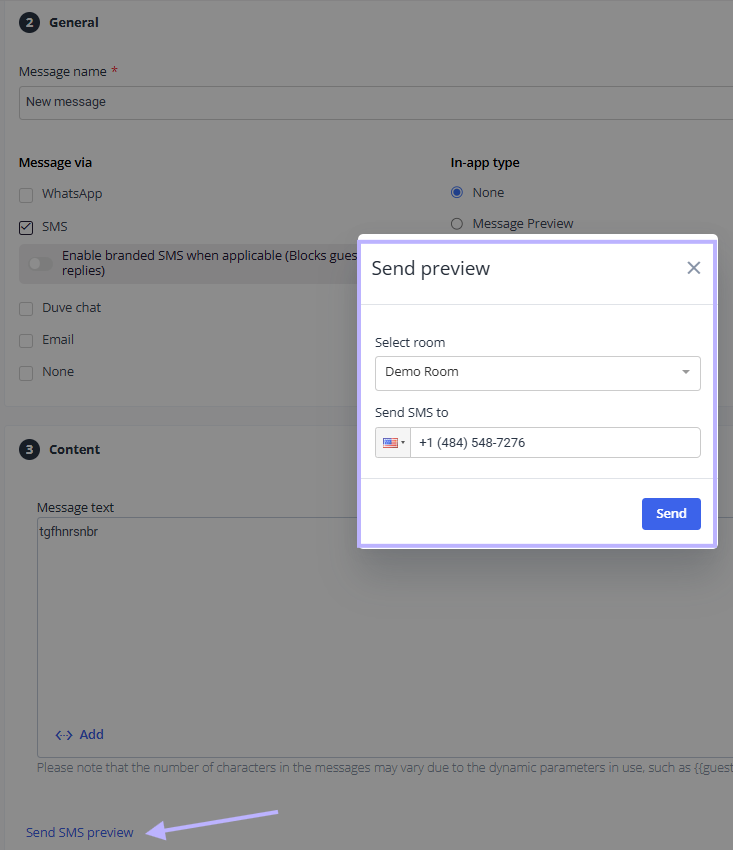
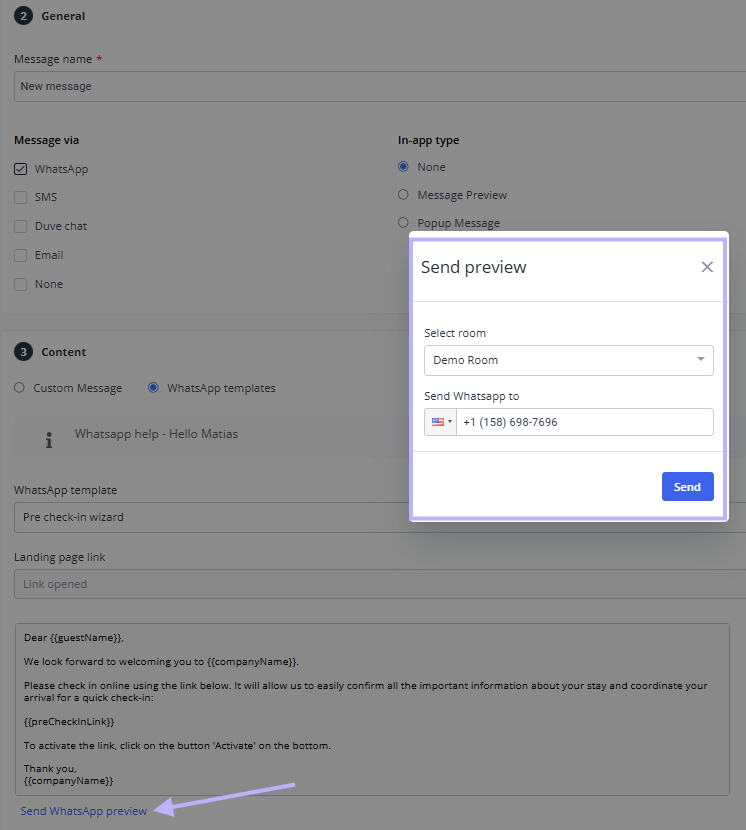
- Use the Send SMS preview, Send WhatsApp preview (only for "Templates" option), or email preview link to send yourself a test before going live.
Save and activate
- For a new message, click Save and send to confirm and start sending, or Save as draft to keep it inactive.

- For an existing message, click Save. If the message is active, you are asked to confirm that the changes go live for anyone matching your rules in the future.
- Use the Active / Inactive button at the top right of the editor to switch a saved message on or off. Deactivating stops sending it; activating starts sending it to anyone matching your rules from that point on.
- Delete removes the message permanently and cannot be undone.

Manage your messages from the list
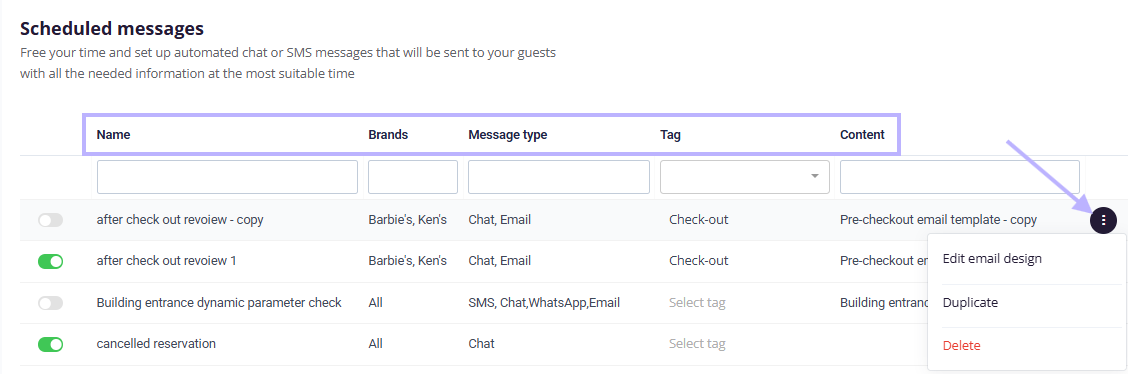
- The on/off toggle on each row activates or deactivates the message.
- Columns show the name, the brands it applies to (when your account has brands), the message type (the channels it sends through), the tag, and the email content it uses. A no-permissions icon appears next to the name of any message you cannot edit.
- Click a row to open the full editor.
- Click the tag cell to open a quick edit popup where you can rename the message, change the brands it is limited to, and set its tag, without opening the editor. Tags are Booking confirmation, Checked in, Arrival, During stay, Check-out date, Marketing, Reviews, and Other.
- Filter the list by tag. Your filter is remembered the next time you open the page.
- The row menu offers Edit email design (only when the message uses an email template), Duplicate, and Delete.
Guest experience
- The guest receives the message through one channel per send, not through every channel you selected. Duve resolves which one at send time:
- If you selected WhatsApp or SMS, and SMS and WhatsApp billing is active, and the guest has a phone number on the reservation or a phone number verified during pre-check-in, the message goes out through WhatsApp when WhatsApp is selected, otherwise through SMS.
- If WhatsApp or SMS cannot be used, because billing is not active or the guest has no phone number, Duve falls back to email when the message has an email template and the guest has an email address, and otherwise to Duve Chat. The chat fallback happens even if you did not select Duve Chat.
- If you selected neither WhatsApp nor SMS, the message goes out by email when the message has an email template and the guest has an email address, and otherwise through Duve Chat.
- When Send to is set to All guests or Booker only, and the guest has no email address of their own, the booker's email address can be used instead.
- If a WhatsApp message falls outside the WhatsApp 24 hour session window and no approved template applies, the message is held as a pending host message in the Communication Hub instead of being delivered right away.
- Inside the Guest app, a chat message appears according to the In app type you chose: as a preview, as a popup, or as a page.
Troubleshooting
- The message was not sent to a guest: check that the message is active, that the reservation matches every condition, and that the reservation's brand is covered. Check the reservation log for a "message not sent, guest muted" entry.
- SMS and WhatsApp are greyed out: SMS and WhatsApp billing is not activated. Use the "learn more" link in the banner to open Settings, Billing, Your plan.
- The message will not save: the message needs a name, at least one channel, message content, and, when email is selected, both an email subject and an email template. The editor jumps to the tab that holds the first error.
- The character limit error appears: a WhatsApp custom message is capped at 1,000 characters and any other message at 5,000 characters. Remember that dynamic parameters expand at send time.
- "WhatsApp template was not found": the template the message points to was deleted, for example when it was recreated under a new number. Pick the template again in the content step.
- A guest got an email instead of an SMS: this is the fallback in action. The guest most likely has no phone number on the reservation and none verified at pre-check-in.
Restrictions & Limitations
- Guests whose communication is muted do not receive scheduled messages, and the reservation log records why. The only exception is a message that releases a key code, so a muted guest still gets their access details.
- Reservations whose stay already ended are skipped.
- When Send to is Main booker only, sub-reservations are skipped. Sub-reservations also need their own phone number to receive SMS or WhatsApp.
- A WhatsApp template that is in use by a scheduled message cannot be edited or deleted until the message stops using it.
- Duve Chat is not offered on the Communication Hub only package.
- Ready made starter templates are not offered on the Communication Hub only and lite packages.
- Brand limited users cannot edit messages that apply company wide or that include brands outside their own.
- Email permissions follow the message: editing an email design is allowed only when you can edit the scheduled message that uses it.
Tips & Tricks
- Name messages by purpose and timing, for example "3 days before arrival, pre-check-in reminder", since only your team sees the name.
- Tag every message. Tags turn the list into something you can filter and report on.
- Use "Send messages, even if trigger time has passed" on arrival messages so last minute bookings are not skipped.
- Use mute hours on any message that could land overnight in the guest's time zone.
- Duplicate an existing message instead of rebuilding a similar one, then adjust its conditions.
- Always send yourself a preview before activating, so you can see how the dynamic parameters resolve.
- If you want an automation that only updates your PMS without contacting the guest, set the PMS status in the conditions step and then select None in Message via.
FAQs
Q: Does the guest receive the message on every channel I select?
A: No. Duve sends through one channel per message. WhatsApp is preferred when both WhatsApp and SMS are selected, and Duve falls back to email and then to Duve Chat when WhatsApp or SMS cannot be used.
Q: Why did a guest receive the message in Duve Chat when I did not select Duve Chat?
A: Duve Chat is the final fallback. When SMS or WhatsApp cannot be used and no eligible email is available, the message is still delivered in chat so the guest is not left without it.
Q: Can I send a scheduled message without a WhatsApp template?
A: Yes, with a custom message, as long as the WhatsApp 24 hour session is open. Outside that window and without an approved template, the message is held as a pending host message in the Communication Hub.
Q: What happens to guests who book after the send time has already passed?
A: Turn on "Send messages, even if trigger time has passed" in step 1. It is available for the guest estimated check-in and check-out hour events, the check-in and check-out day events, and order start time, when the timing is not "after".
Q: How long can a scheduled message be?
A: A WhatsApp custom message is limited to 1,000 characters. Any other message is limited to 5,000 characters.
Q: Can I save a message without sending it yet?
A: Yes. Click Save as draft when creating it, or use the Active / Inactive button to switch a saved message off.
Q: Can a scheduled message update the reservation status in my PMS?
A: Yes, when your connected PMS supports two way updates. Turn on "Update PMS reservation status to" in the conditions step and choose the status. You can also hold the guest message until the PMS confirms the change, which retries every 10 minutes.
Q: Can I update my PMS without messaging the guest at all?
A: Yes. Set a PMS status value in the conditions step, then select None in Message via. None appears only once a PMS status value is set.
Q: Why can I see a scheduled message but not edit it?
A: Either you do not have the Edit scheduled messages permission, or you are limited to specific brands and the message applies company wide or includes a brand outside yours. A no-permissions icon appears next to the name in the list.
Q: Will muted guests receive scheduled messages?
A: No. Muted guests are skipped and the reason is written to the reservation log. The only exception is a message that releases a key code.
Q: Can I stop messages from arriving in the middle of the night?
A: Yes. Turn on "Mute all messages between hours" in step 1 and define one or more windows in which the message is never sent.
Q: Where do I change the name or tag of a message quickly?
A: Click the tag cell on that row in the Scheduled Messages list. The popup lets you change the name, the brands, and the tag without opening the editor.
Comments
0 comments
Article is closed for comments.