
Duve's Mobile Ordering menu tools give you two ways to personalize the guest ordering experience: Item Modifiers let guests customize existing menu items (e.g., sauce choice, size, add-ons), while the Add New Item flow lets guests request something that isn't on your menu at all, submitted as a custom service order for your team to fulfill.
Overview
Item Modifiers are sets of selectable options attached to a specific menu item. Each modifier has a title, a list of choices (each with an optional price adjustment), and rules that control whether a selection is required and whether guests can pick more than one option. Modifiers are created and managed directly on each menu item inside the Duve dashboard.
Modifiers also let guests add multiple instances of the same base item with different customizations within a single order, so you no longer need to duplicate menu items to offer different modifier combinations.
Add New Item Support adds the same item with different modifiers, displaying each item variation as a separate order line, and allowing editing of a specific item variation.
Modifiers are currently supported only for the menu product upsell type, optimized for Food & Beverage. They are not yet available for other upsell types or custom product flows
Use Cases
Item Modifiers
- Food customization: "Add-ons" (extra cheese, extra sauce), "Preparation style" (rare/medium/well-done), "Dietary options" (gluten-free base, dairy-free milk).
- Beverage customization: "Size" (small, regular, large), "Ice" (no ice, light ice, full ice), "Milk type" (whole, oat, almond).
- Upsell opportunities: charge a small premium for specialty options (e.g., truffle oil: +$3.00, oat milk: +$0.75).
- Consistent options across items: save a modifier as a template (e.g., "Sauce Selection") and reuse it across every burger or sandwich on your menu.
Add New Item
- Purchasing the same item with different modifiers: After adding a pizza with olives, you can add the same item again and select different toppings, such as onions.
How to Set It Up
Setting Up Item Modifiers
Follow these steps to add a modifier to a menu item:
- In the Duve dashboard, go to "Upsells" → "Manage"
- Select the menu upsell that contains the item you want to modify.
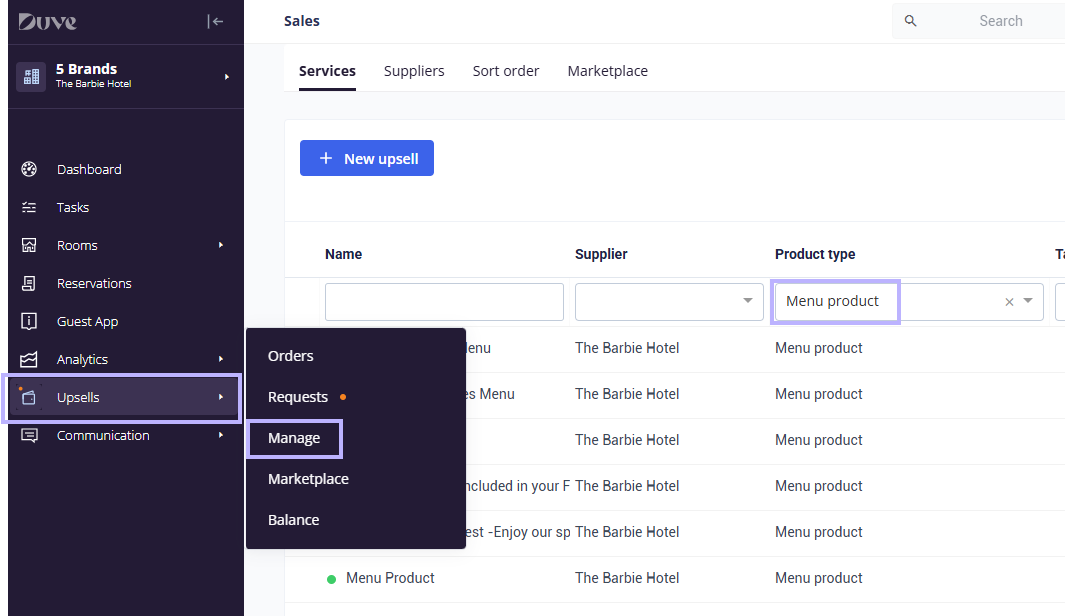
- Click the menu item you want to add a modifier to, which opens the item editor.
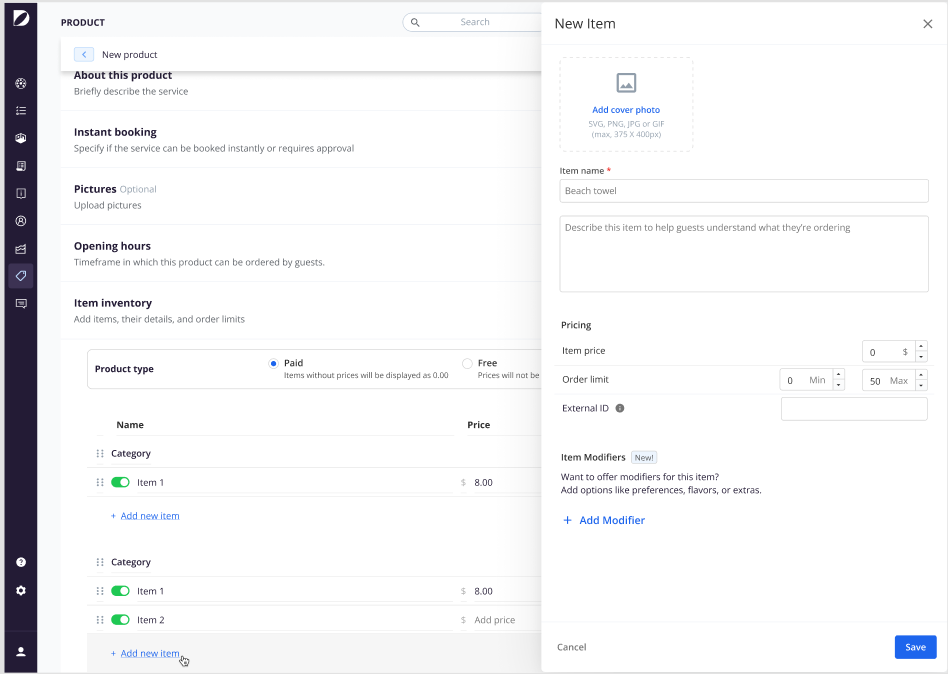
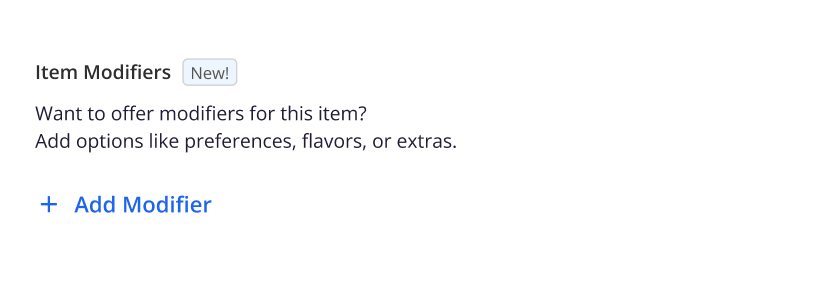
- Scroll to the Modifiers section within the item editor.
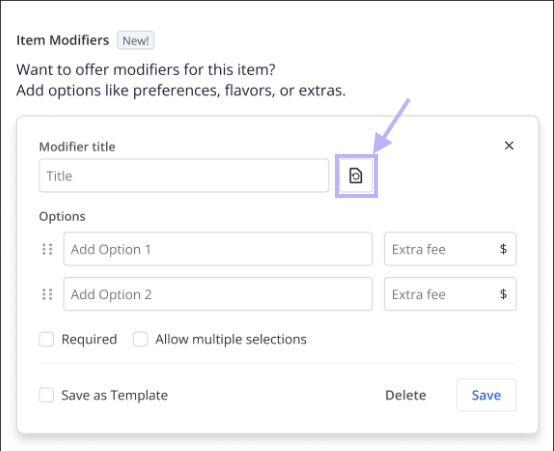
- Click Add Modifier to open the modifier panel.
-
Fill in the modifier details (see Modifier Fields Explained below).
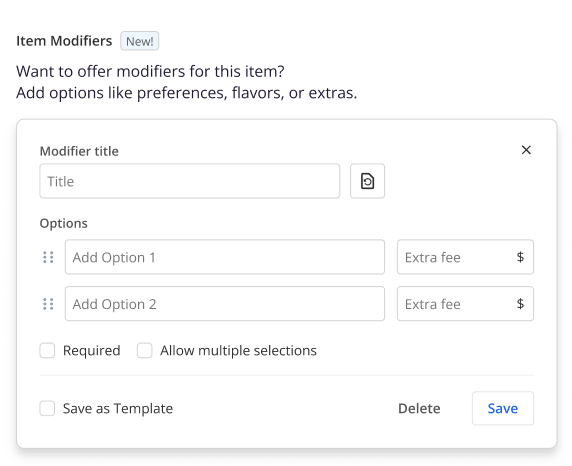
- Click Save or Save as Template to confirm.
How the Add New Item Guest Flow Works
When Add New Item is enabled on your manually managed menu, guests can add a new item from the same category with different Modifiers
Here is what the guest experience looks like, step by step:
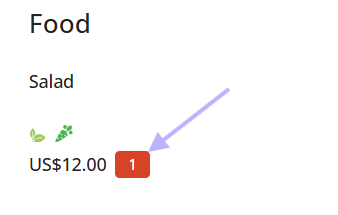
- After the guest orders a category, it will appear as a number:
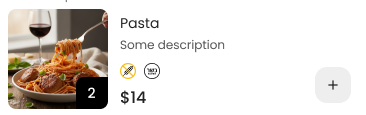
- Guest taps the "+" button to add another item:

- The guest marks his selected modifiers and presses "Add to order":
- The guest submits the request.
- The guest is moved to the "Order summary"
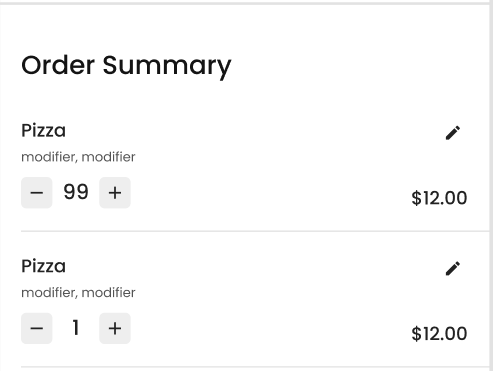
- From the checkout line item, the guest can:
- Edit - redirects to modified item popup
- Change quantity
Modifier Fields Explained
- Modifier Title: The label guests see above the options (e.g., "Choose your sauce"). Maximum 60 characters.
- Option Name: The label for each choice (e.g., "Ketchup", "BBQ Sauce").
- Option Price: An optional additional charge for that option. Leave blank or enter 0 if there is no extra cost. Must be a non-negative number.
- Required (checkbox): When checked, guests cannot add the item to their cart without selecting this modifier. When unchecked, the modifier is optional.
- Allow Multiple Selections (checkbox): When checked, guests can pick more than one option (displayed as checkboxes). When unchecked, guests can select only one option (displayed as radio buttons)ץ
Mobile Ordering: Dietary Labels
Dietary Labels let you tag each item on your Mobile Ordering menu with clear dietary and preparation information, so guests can see at a glance whether an item fits their needs before they order. Labels appear directly on the guest menu as recognizable icons on every item card, and again with their full name when a guest opens an item to view its details.
You can add one or more labels to any menu item, whether the item was created manually in Duve or synced automatically from your point of sale (POS) system. There are nine labels to choose from, covering common diets, restrictions, and preparation notes:
- Vegan
- Vegetarian
- Hot (spicy)
- Halal
- Kosher
- Nut Free
- Gluten Free
- Egg Free
- Dairy Free
Use cases
- Help guests with allergies or intolerances quickly find items that are nut-free, gluten-free, egg-free, or dairy-free.
- Make it easy for guests who keep Kosher or Halal to identify suitable dishes.
- Support vegan and vegetarian guests in filtering the menu visually without reading every description.
- Flag spicy dishes with the Hot label so guests know what to expect.
- Reduce questions to your front desk and F&B team by surfacing dietary information up front.
- Present a more professional, guest-friendly menu that builds trust around food safety and preferences.
How to add dietary labels to a menu item
- Open a Menu upsell
-
Select the menu item you want to label to open its edit window, or add a new item.
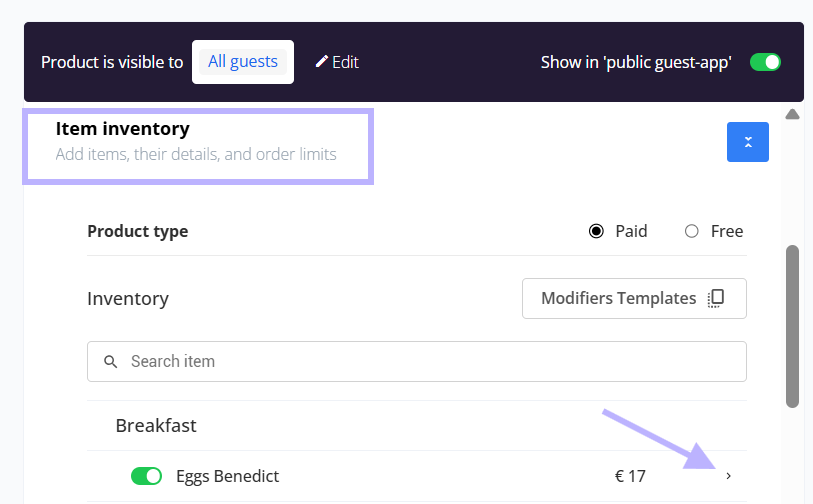
- Locate the Dietary field in the item settings.
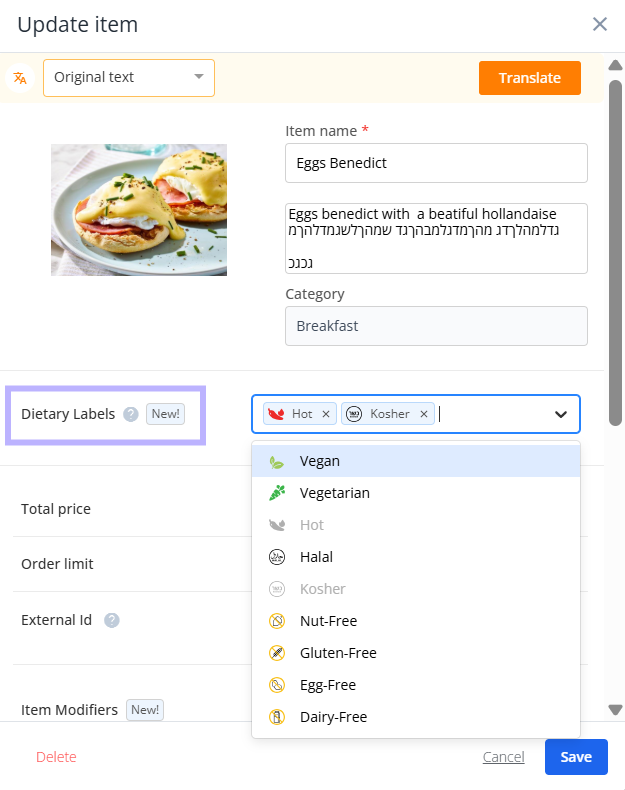
- Click the Dietary field and select one or more labels from the list. Each label shows its icon next to its name.
- Repeat to add as many labels as apply to the item. Selected labels appear as removable tags in the field.
- To remove a label, click the small remove icon on its tag.
- Save the item.
The labels you selected will now appear on that item across your guest-facing Mobile Ordering menu.
How guests see dietary labels
- Guests can tap or hover on a label icon to see the name of that label.
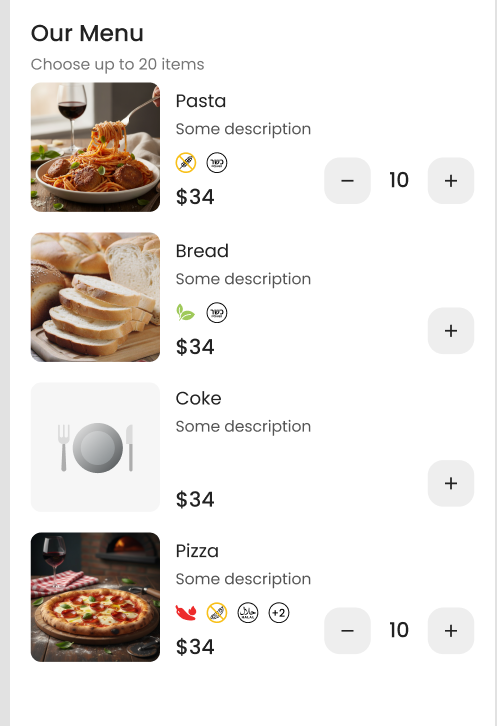
Troubleshooting notes:
- There are nine fixed dietary labels available. You cannot create custom labels or rename the existing ones.
- Labels are informational only. They do not filter the menu automatically or block a guest from ordering an item.
Advanced Settings
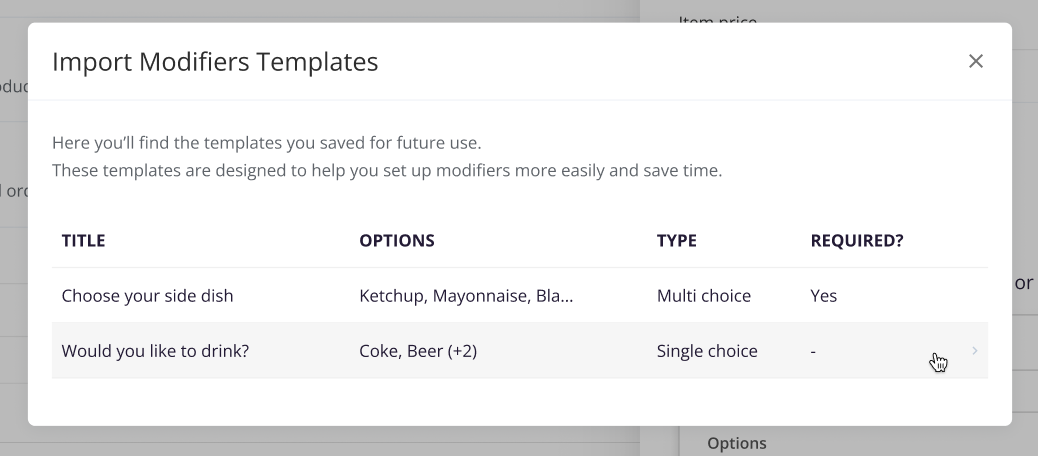
- Save as Template (Modifiers): when saving a modifier, click "Save as Template" instead of Save. This stores the modifier's title, options, prices, and toggle settings as a reusable template that can be applied to any other menu item.
- Reuse a Template (Modifiers): on any menu item's modifier panel, click the Reuse icon to open the template picker. Select a saved template to pre-fill the modifier fields. You can adjust the fields after applying the template, before saving. Saved templates can also be viewed, edited, and deleted from the inventory/templates area in the product builder.
Troubleshooting
- Cannot save a modifier: confirm that (1) the Modifier Title is filled in and within 60 characters, and (2) you have entered at least 2 named options. The form displays an inline error if either condition is not met.
- Guest cannot check out: if a Required modifier exists on an item, guests must select one of its options before adding the item to their cart.
- Staff not receiving custom item request notifications: check that Custom Service Order notifications are enabled and routed to the correct team members in your notification settings.
Common Issues
- Template fields not matching after reuse: when a template is applied, it pre-fills the current modifier fields only. Edits made after applying the template affect only the current modifier; the saved template itself remains unchanged.
- Option price showing as 0 unexpectedly: the price field is optional. If left blank when saving, it defaults to no extra charge. Always verify prices before saving if surcharges are intended.
Tips & Tricks
- Use Save as Template the first time you create a commonly used modifier (e.g., "Sauce Selection"). You can apply it to new items in seconds instead of recreating it each time.
- Combine a Required modifier with Allow Multiple Selections off for choices where only one answer makes sense (e.g., cooking temperature). Use Allow Multiple Selections on for genuine add-on choices (e.g., toppings).
- For modifiers with no price difference between options, leave all Option Price fields blank to keep the order summary clean for guests.
- Train your front desk or F&B team to monitor the orders dashboard for Custom Service Order notifications, so guest custom item requests are acknowledged and fulfilled promptly.
- Consider using the Add New Item flow as a concierge upsell channel. Brief guests in the welcome message that they can request off-menu items directly through the app.
FAQs
Q: Who can create or edit modifiers?
A: Only users with a Manager or Admin role can create, edit, or delete modifiers and manage menu items.
Q: Can guests choose more than one modifier option?
A: That depends on how you configure the modifier. If Allow Multiple Selections is checked, guests see checkboxes and can pick any number of options. If it is unchecked, guests see radio buttons and can select exactly one option.
Q: Can I make a modifier mandatory?
A: Yes. Check the Required box when setting up the modifier. Guests will not be able to add the item to their cart without making a selection.
Q: Is there a minimum or maximum number of options per modifier?
A: Each modifier needs at least 2 named options to be saved. There is no defined maximum, but very long option lists may affect the guest ordering experience.
Q: Can I reuse the same modifier across multiple menu items?
A: Yes. Save a modifier as a template, then apply it to other items from the modifier panel using the Reuse icon. Templates can also be viewed, edited, or deleted from the inventory/templates area in the product builder.
Q: Does deleting a modifier affect orders guests already placed?
A: No. Deleting a modifier does not change already-placed orders. Those orders keep the modifier selections that were made at the time of ordering; the modifier simply stops appearing on new orders.
Q: Are Item Modifiers available for all types of upsells?
A: Not yet. Modifiers are currently supported only for the menu product upsell type, optimized for Food & Beverage. They are not available for other upsell types or custom product flows.
Q: Can I create my own custom dietary label?
A: No. The list of nine labels (Vegan, Vegetarian, Hot, Halal, Kosher, Nut Free, Gluten Free, Egg Free, Dairy Free) is fixed and cannot be edited or added to.
Comments
0 comments
Article is closed for comments.