
Overview - Chekin SDK Integration
Many countries and cities require accommodation providers to report guest registration details, and sometimes ID documents, to the local police or statistics authority. Duve's ChekIn integration automates that reporting so you do not have to submit registrations manually.
When ChekIn is enabled, the regulatory form is rendered by ChekIn directly inside your online check-in flow. Guests never leave Duve, and the questions they see are always ChekIn's current requirements for that property, pulled live at the moment the guest checks in. If an authority changes a required field, the form updates without any work on your side and without waiting for a Duve release.
What happens end to end:
- Duve creates a ChekIn account for you and registers your properties, or your company and brands, with ChekIn.
- ChekIn's form replaces Duve's standard basic details step in online check-in for reservations that are set to be reported.
- Each guest completes the regulatory fields, either by typing them or by scanning an ID document.
- ChekIn submits the registration to the authority and manages the submission lifecycle.
- The outcome appears on the reservation as a regulatory reporting status of Pending, Approved, or Rejected, and submission events are written to the reservation activity log.
Overview - ChekIn API integration
- Creates a ChekIn reservation record for each Duve reservation that is set to be reported.
- Pulls the exact set of questions your local authority requires and adds them to your online check-in flow, per guest.
- Sends each guest's registration data to ChekIn when the guest completes online check-in, and ChekIn forwards it to the authority.
- Tracks the outcome on the reservation as a regulatory reporting status of Pending, Approved, or Rejected.
Who this is for
Applies to
|
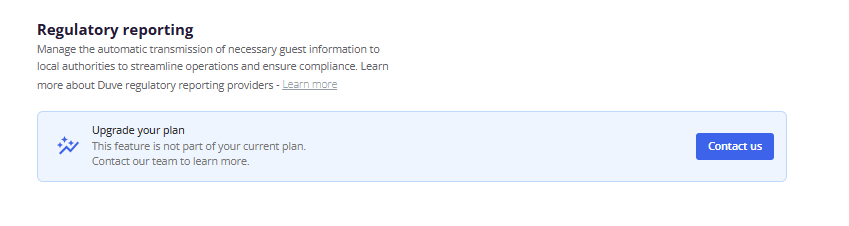
Troubleshooting note: If the add-on is not enabled on your account, the Regulatory reporting page shows an upgrade banner instead of the connection list.
Pricing
- Regulatory reporting is a paid add-on and is not included in the Basic, Pro, or Premium packages.
- It is billed monthly per unit. The monthly total is based on either your committed units or your monthly active units, whichever is higher.
- For your specific rate, contact your Duve account manager.
Use cases - Chekin SDK Integration
- A hotel in Spain that must file guest registrations with the national police for every arriving adult.
- A vacation rental operator in Italy that reports each stay to the Questura and to the regional statistics office, with a different property registration per apartment.
- An operator that wants guests to complete the authority's form without being redirected to a third-party website mid-check-in.
- An operator that was previously seeing rejected submissions because the form did not reflect the authority's current requirements.
- Any operator that wants a single place to see which reservations were accepted or rejected, and to be emailed when one is rejected.
Use cases - ChekIn API integration
- A hotel in Dubai that must report guests to Dubai Police, including the guest's relationship to the main booker and a verified passport scan.
- Any operator that wants to stop re-typing guest data into a government portal after online check-in is already complete.
Before you start
- Ask Duve to enable the Regulatory reporting add-on on your account.
- Fill in a country and a city for your company, and for every brand you use. Duve blocks the connection for hotels and hostels if any of these is missing.
- For Italy and Spain, also fill in the province or region on the address, since Duve passes it to ChekIn as the second-level administrative division.
- For vacation rentals and apart-hotels, make sure each property has a name, country, and city, because each property is registered with ChekIn separately.
- Have an email address ready for the ChekIn account. Duve suggests your company email by default. It must be an email that has never been used for a ChekIn account, or the connection fails with a message that the email must be unique.
- Make sure online check-in is active. The regulatory form is part of the online check-in flow.
- Review your Basic details settings before you go live, because the ChekIn form takes over that step. See "What happens to your Basic details questions" below.
How to set it up
Connect ChekIn
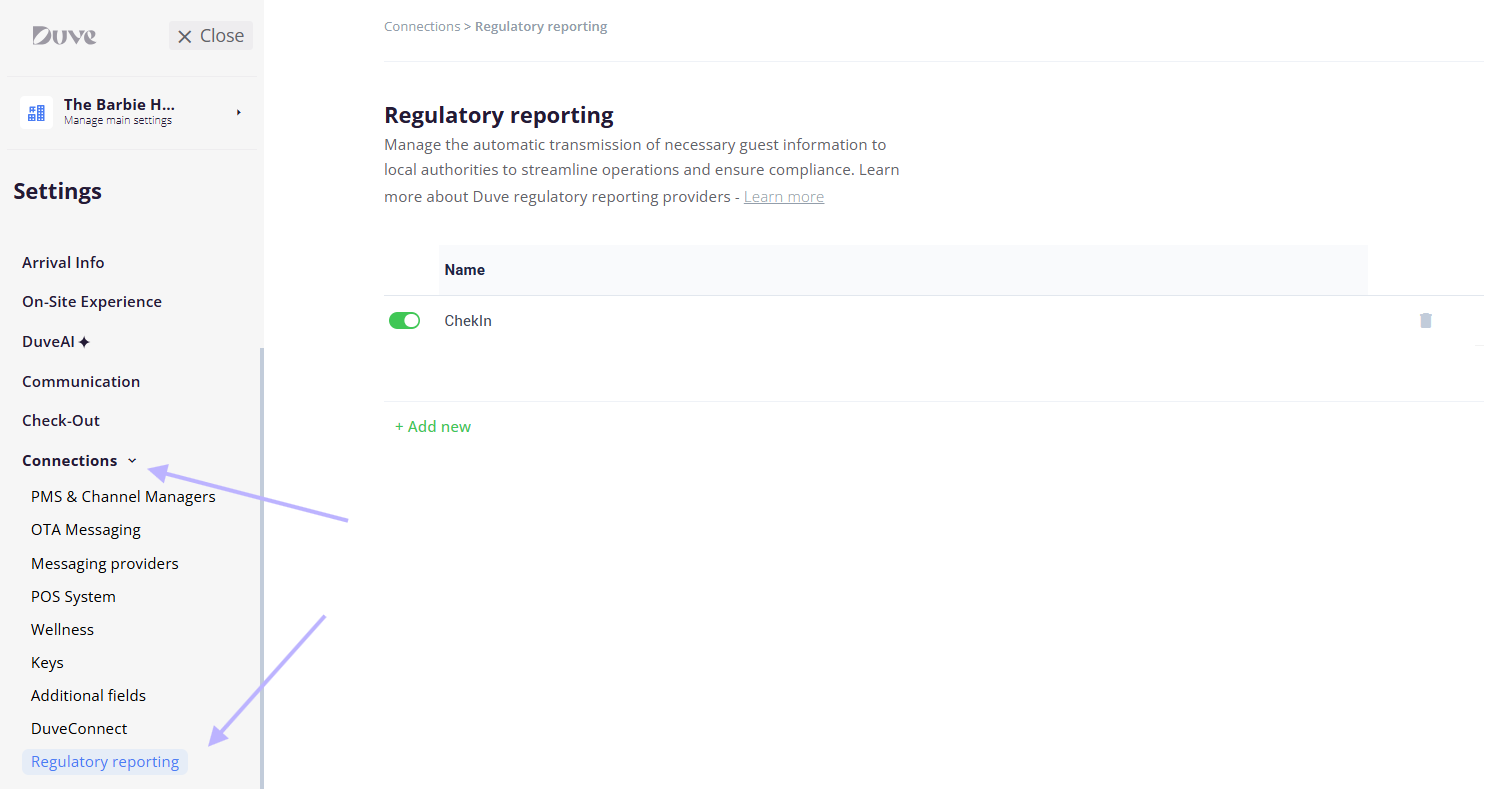
- Go to Settings > Connections > Regulatory reporting.
- Click Add new.
- In the Integration dropdown, select ChekIn.
- Confirm or change the email address. This becomes the login for the ChekIn account Duve creates for you, and it is also copied on rejection emails.
- Click Connect.
- Wait for the setup pop-up to finish. During this step, Duve creates your ChekIn account, registers your company, brands, or properties with ChekIn, provisions the keys the guest form needs, and subscribes to ChekIn's status webhooks.
Setup note: Only one ChekIn connection is allowed per account. Once one exists, ChekIn no longer appears in the Integration dropdown.
Troubleshooting note: If you were already using ChekIn with Duve before the form moved inside online check-in, you do not need to do anything. Existing connections are migrated automatically, and there is no re-onboarding step.
Finish the authority setup inside ChekIn - Checkin SDK Integration
- Back on the Regulatory reporting page, click the ChekIn row.
- Duve opens the ChekIn dashboard embedded directly in Duve, with tabs for Properties, Bookings, and Documents.
- On the Properties tab, each property shows an Authority connection status and a Statistics connection status, either Connected or Disconnected.
- For each property, enter the credentials your authority issued you to move it from Disconnected to Connected. Do the same for statistics registration where your market requires it.
- Reporting only starts once a property's authority connection is live. Until then, Duve does not open reservations in ChekIn for that property.
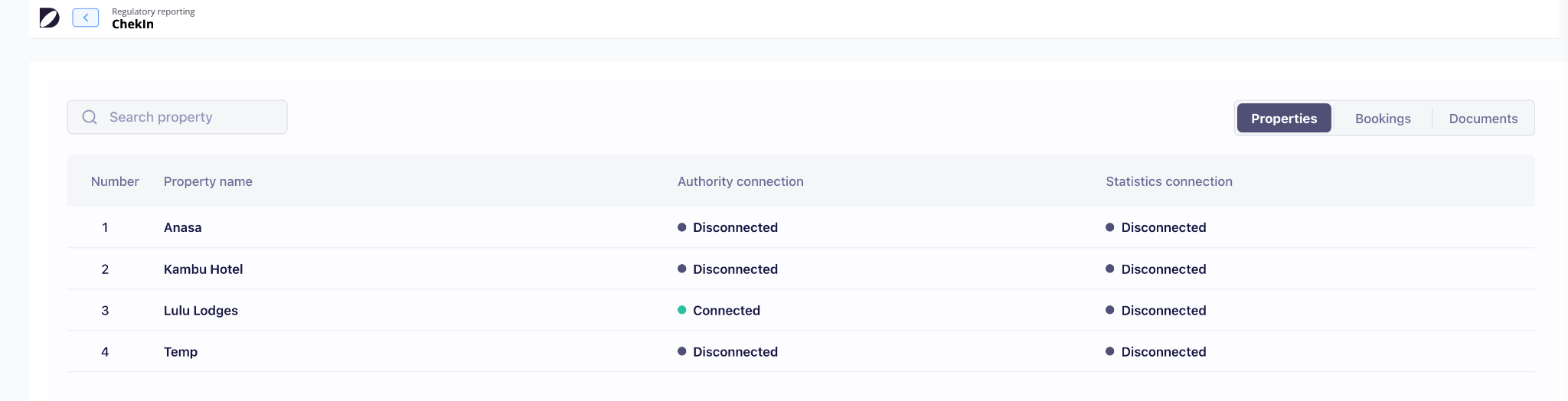
Troubleshooting note: The embedded ChekIn dashboard is displayed in English by default, and in Spanish or Italian if that is your user language in Duve.
Choose which brands report
- Reporting can be switched on and off per brand, so you can run it for the brands in regulated markets and leave it off elsewhere.
- Use the toggle on the ChekIn row to switch the whole connection on or off.
Turn reporting on for reservations
- Open a reservation.
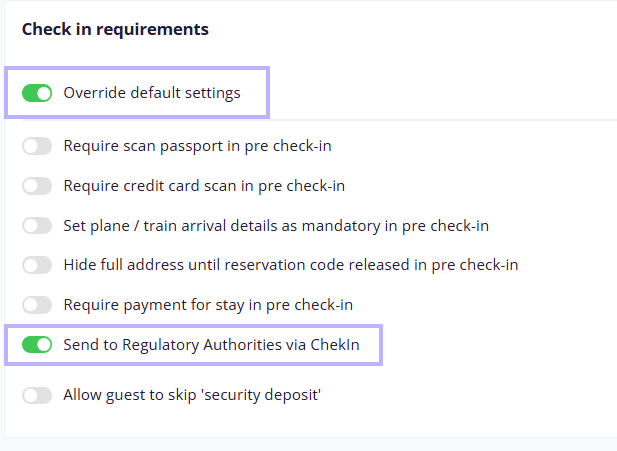
- In the Check-in requirements panel, turn on Override requirements.
- Turn on Send to regulatory authorities via ChekIn.
Setup note: The switch only appears when the Regulatory reporting add-on is enabled, and an active ChekIn connection applies to that reservation. For vacation rentals and apart-hotels, the connection is read from the property. For hotels and hostels, it is read from the brand, and from the company if the brand has none.
What happens to your Basic details questions - Chekin SDK Integration
When ChekIn is on, the regulatory form replaces Duve's basic details step for reported reservations. Your Basic details settings are not deleted, but most of them are not shown to the guest.
- Duve's four main basic details questions (first and last name, email address, and phone number) are hidden because ChekIn asks for that information itself.
- Any question you have field-matched to a regulatory field is hidden, so the guest is not asked the same thing twice.
- If the booking came from an OTA with a masked relay email address (for example …@guest.booking.com or …@m.expediapartnercentral.com), Duve does not pre-fill it into the regulatory form. The email field opens empty so the guest enters their own address, the same way Duve's own basic details step already handles masked emails.
- A masked OTA address also does not count as an answer to the email question. If the guest profile still holds one, Duve asks for the email on the extra screen that follows the regulatory form, and the address the guest types is saved to their profile. The reservation's original OTA address is left untouched, so OTA messaging keeps working.
- Any remaining basic details question that ChekIn does not cover is shown on its own screen, straight after the regulatory form.
- In case the ChekIn SDK fails to load, your configured Basic details questions are still used in full (fall back to duve’s basic details).
- The Basic details settings page shows a "Regulatory reporting is ON" notice explaining this, with a reminder to use field match to prevent duplicate questions.
- The OCI wizard will not advance until the ChekIn SDK confirms the submission is complete.
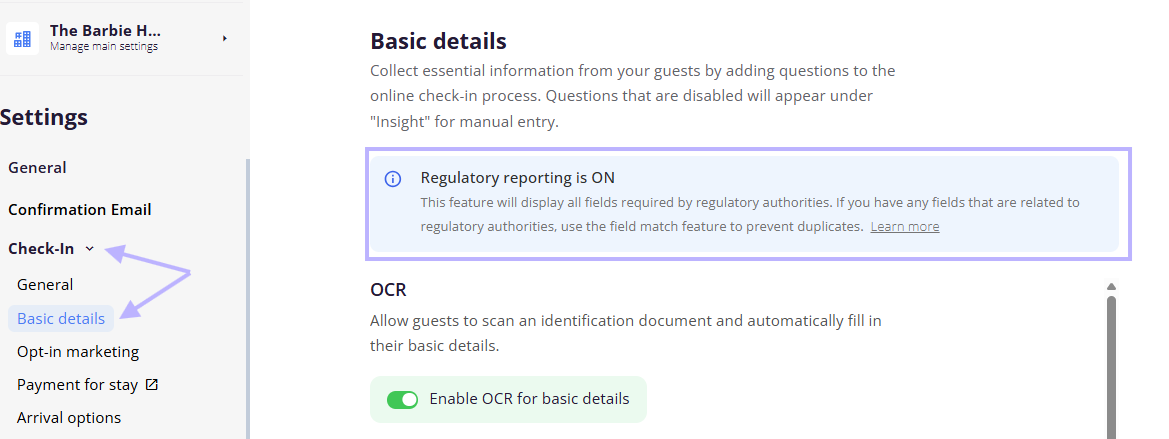
Setup note: Go through your Basic details questions before launch and field-match anything the authority also asks for. Anything you leave unmatched becomes an extra screen for the guest.
What the guest sees - Chekin SDK Integration
- The regulatory form appears in place of the usual basic details step, styled to match your branding.
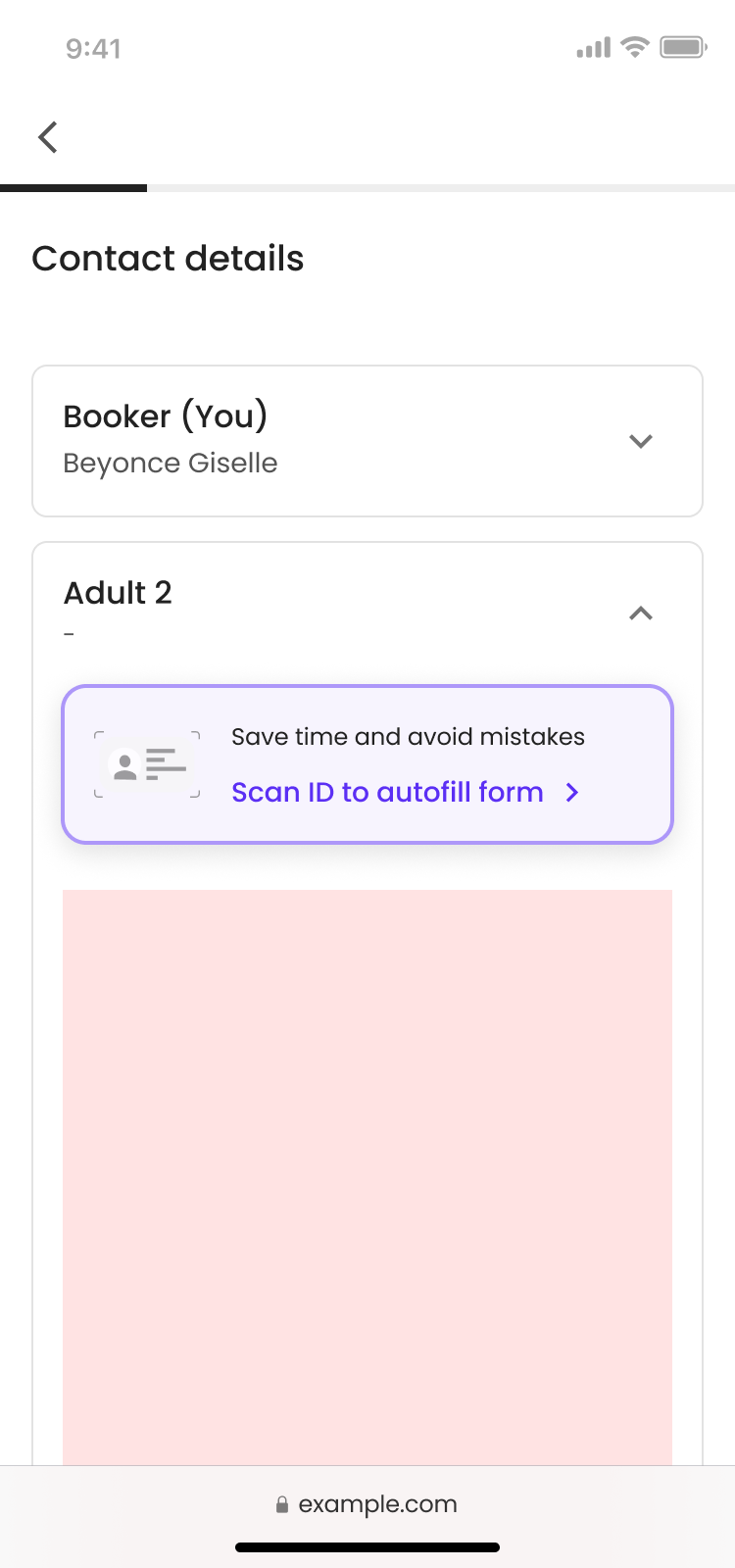
- Guests can type their answers, or scan an ID document to fill the fields automatically. The scan option sits above the form.
- On a multi-guest reservation, guests are shown as an accordion. Only one guest's form is open at a time.
- The first guest is open by default. Every other guest collapses to a single row showing their name and either Completed or Not started.
- Submitting one guest collapses that guest, marks them with a success or failure indicator, and opens the next guest automatically.
- Once the last guest submits successfully, online check-in moves on to the next step.
- Online check-in will not advance past this step until ChekIn confirms the submission is complete, so a guest cannot skip the form.
- A guest who has already submitted can be reopened and resubmitted if something needs correcting.
- A returning guest on a different reservation is treated as a new submission, not a duplicate.
What the guest sees - ChekIn API integration
- During online check-in, each guest is asked the fields the authority requires, for example, nationality, document type, document number, date and place of birth, and issue date.
- Duve requests this question set from ChekIn per reservation, so it reflects the authority's current requirements.
- Where an authority question matches a question you already ask, Duve pairs them so the guest is not asked twice, and it pre-fills answers already known from the PMS or from a previous stay.
- Some authorities mark questions as main booker only. Those are asked only of the primary guest.
- In Dubai, guests are additionally asked their relationship to the booker, with options such as family member, friend, business associate, family helper, and visitor.
Languages - Chekin SDK Integration
- The regulatory form is available in 18 languages.
- Duve supports 31 languages in online check-in. Guests whose language is one of the 13 that ChekIn does not cover, including Hebrew and Arabic, see the regulatory form in English while the rest of online check-in stays in their own language.
- Right-to-left layout is not supported in the regulatory form and is not planned. Hebrew- and Arabic-speaking guests see a left-to-right form in English.
- English is the intended fallback for all not-supported languages.
If the form cannot load
- If the regulatory form fails to load, Duve falls back to your own basic details step so the guest can still complete online check-in.
- The failure is logged so it can be investigated.
- A reservation that fell back this way has not been reported to the authority. Check its regulatory reporting status and resubmit if needed.
After the guest submits - Chekin SDK Integration
- ChekIn submits the registration to the authority and owns the submission lifecycle from that point.
- The reservation's regulatory reporting status is set to Pending.
- When ChekIn reports back, the status changes to Approved on a successful registration, or to Rejected if the registration errored.
- Answers the guest gave in the regulatory form remain visible on the reservation, alongside the custom question answers.
- Submission events are written to the reservation activity log.
- Authorities typically receive the data on the day of check-in, and a final status often arrives some days after that.
- For the ChekIn API integration: If Document verification is enabled, passport scans are analyzed and attached to the guest record in ChekIn, including whether the machine-readable zone was detected.
Where to see the status
- On the reservation, in the Pre-check-in panel, next to Payment status. The field is a dropdown, so you can also set the status manually if needed.
- On the Check-in tasks list, as a regulatory reporting column, which is also included in the export.
- In the reservation activity log, when the status changes.
- For the CheckIn SDK Integration: In the embedded ChekIn dashboard, on the Bookings and Documents tabs, for the full detail ChekIn holds.
Get notified about rejections
- When ChekIn reports a registration error, Duve sets the status to Rejected and emails a rejection notice.
- The notice goes to every user who enabled the regulatory reporting rejection notification in their own profile notification settings, and to the email address used for the ChekIn connection.
- The email names the reservation and the booker, and links back to the reservation so you can review and fix the submission.
- The email is sent once per rejection, not on every repeated error for the same reservation.
Troubleshooting
- The row shows Something went wrong: Setup did not complete. Click Retry on that row to run it again. Common causes are a missing country or city on the company or a brand, a missing province for Italy or Spain, or an email that already exists in ChekIn. Fix the underlying data first, then retry.
- The email you entered must be unique: That email is already tied to a ChekIn account. Connect with a different address.
- You must fill in city and country: Add the missing address details on the company and on every brand, then connect again.
- Nothing is reported for a property: Open the embedded ChekIn dashboard and check that the property's Authority connection shows Connected. Duve does not open reservations in ChekIn for a property that is still Disconnected.
- Guests see Duve's usual basic details step instead of the regulatory form: Either the reservation is not set to be reported, or the form failed to load, and Duve fell back. Confirm the connection is on and that Send to regulatory authorities via ChekIn is enabled for that reservation.
- Guests are asked the same question twice: A Basic details question is not field-matched to the equivalent regulatory field. Match it in Settings > Check-in > Basic details.
- An issue date is refused: Document issue dates cannot be in the future.
- Chekin SDK Integration: A guest cannot move past the step: Online check-in intentionally waits for ChekIn to confirm the submission. Check that every guest in the accordion shows Completed.
- Chekin SDK Integration: The form is in English for some guests: That language is not among the 18 that the regulatory form supports. English is the fallback.
- ChekIn API integration: A field is refused as being in the wrong format: Some authorities send a required format along with the question, and Duve validates the answer against it.
Restrictions and limitations
- One ChekIn connection per Duve account.
- The connection cannot be managed from the brand-level Settings view.
- Reporting is per reservation and requires Override requirements to be on for that reservation.
- Chekin SDK Integration: Only one guest's regulatory form can be open at a time, because the form cannot render more than one guest simultaneously.
- Chekin SDK Integration: Right-to-left languages are not supported in the regulatory form, and there is no plan to add them.
- Chekin SDK Integration: Your Basic details questions are largely bypassed for reported reservations and act as a fallback.
- ChekIn API integration: Guest data is sent when the guest completes online check-in. A reservation must already exist in ChekIn, which only happens once the property has a police account configured on the ChekIn side.
- ChekIn API integration: Passport scans are only forwarded when the Document verification add-on is enabled, and only for passport-type documents.
- Demo properties and inactive properties are not registered with ChekIn.
- Turning the connection off stops reporting. Deleting it also removes the property registrations from ChekIn and unsubscribes the status webhooks.
Tips and tricks
- Complete your company, brand, and property addresses before you connect. Almost every failed setup traces back to a missing city, country, or province.
- Field-match your Basic details questions before launch. This is the single biggest lever on how long the guest's check-in takes.
- Check the Properties tab in the embedded ChekIn dashboard after adding a new property, since a new property arrives disconnected until you enter its authority credentials.
- Subscribe at least one operations user to the rejection notification, so a refused registration is caught the same day rather than at audit time.
- Use the regulatory reporting column on the Check-in tasks export as a simple compliance report for a given date range.
FAQs
Q: Do I need my own ChekIn account before connecting?
A: No. Duve creates the ChekIn account for you when you connect, using the email address you enter. You then enter your authority credentials per property in the ChekIn dashboard that is embedded in Duve.
Q: I already use ChekIn with Duve. Do I have to set it up again for the new SDK integration?
A: No. Existing ChekIn connections are migrated automatically, with no re-onboarding and no action needed from you or from Duve support.
Q: Do guests leave Duve to fill in the regulatory form in the new SDK integration?
A: No. The form is rendered inside your online check-in flow and styled to match your branding.
Q: Which countries are supported?
A: Reporting is available in the markets ChekIn supports, and the exact requirements come from ChekIn per property. Please see the Countries that are covered by CheckIn.
Q: Why does Duve ask for a province or region for properties in Italy and Spain?
A: The Italian and Spanish authorities identify a property by its province, not just by its country and city. When Duve registers your property with ChekIn, it sends the province as the second-level administrative division of the address. Italy and Spain are the only two countries where Duve sends it.
Q: Is this included in my plan?
A: No. Regulatory reporting is a paid add-on. Contact your Duve account manager or Duve's support team to have it enabled.
Q: Can I report only some reservations?
A: Yes. Reporting is controlled per reservation with the Send to regulatory authorities via ChekIn switch, which requires Override requirements to be on. You can also switch reporting on and off per brand.
Q: What happens to the Basic details questions I already configured?
A: For reported reservations, Duve's four main basic details questions and any field-matched questions are hidden, because the regulatory form covers them. Anything left over is shown on its own screen after the form. Your configured questions are used in full only if the form fails to load.
Q: Why is the email field empty for guests who booked through an OTA?
A: Because OTA bookings arrive with a masked relay address rather than the guest's own — addresses like …@guest.booking.com or …@m.expediapartnercentral.com, as used by Booking.com, Expedia, Airbnb, Agoda, Vrbo, Trip.com / Ctrip, Priceline and Tripadvisor. Duve no longer pre-fills a masked address into the regulatory form, so the email field opens empty, and the guest types their real one. A masked address also no longer counts as an answer to the email question, so if the guest profile still holds one, Duve asks for the email on the extra screen after the regulatory form and saves the real address to the profile. The reservation's own OTA address is left as it is.
Q: Why is the form in English for some of my guests?
A: The regulatory form supports 18 languages. Duve supports 31 in online check-in, so guests whose language is not covered, including Hebrew and Arabic speakers, see the form in English while the rest of the flow stays localized.
Q: Is there right-to-left support for Hebrew and Arabic?
A: No. Those guests will see a left-to-right form in English.
Q: What if the form does not load?
A: Duve falls back to your own basic details step so the guest can finish checking in, and logs the failure. That reservation has not been reported, so check its status and resubmit.
Q: Can a guest skip the regulatory form?
A: No. Online check-in does not advance until ChekIn confirms the submission is complete.
Q: A guest made a mistake. Can they fix it?
A: Yes. A completed guest's row can be reopened and resubmitted.
Q: Will the same guest be flagged as a duplicate on a repeat stay?
A: No. A returning guest on a different reservation is treated as a new submission.
Q: Can I see what the guest answered?
A: Yes. The regulatory answers stay visible on the reservation alongside the custom question answers.
Q: What do the statuses mean?
A: Pending means the data was sent and Duve is waiting for the authority's response. Approved means the registration was accepted. Rejected means the authority refused it, and it needs your attention.
Q: Can I change the status myself?
A: Yes. The regulatory reporting status on the reservation is editable, so you can correct it if you resolved a case outside Duve.
Q: Who gets the rejection email?
A: Users who enabled the regulatory reporting rejection notification in their profile notification settings, plus the email address used for the ChekIn connection.
Q: What happens if I delete the connection?
A: Duve removes the property, brand, and company registrations from ChekIn, unsubscribes the status webhooks, and marks the connection as deleted. Reconnecting later means going through setup again.
Q: What happens if I turn the connection off?
A: New reservations are no longer reported. The connection and its ChekIn registrations remain, so you can turn it back on.
Q: Can I connect ChekIn and another regulatory reporting provider at the same time?
A: Duve supports more than one regulatory reporting provider, but only one ChekIn connection per account. Ask your Duve contact which provider fits your market.
Comments
0 comments
Article is closed for comments.