
When a reservation with multiple rooms, or a reservation with sub reservations is synced to Duve, Duve is set up to handle Guest Billing per room in the reservation, so that the main guest in the reservation can split payment with other guests in the Reservation
Overview
If there is a group reservation and the main reservation's guest is prompted to pay first, they will have the option of splitting the payment to the sub reservations. If the guest splits the payment, the leftover payment amount will be prompted in the Online Check-in to the sub reservation.
If a sub reservation completes the payment for stay first, the main guest will not be prompted to pay for what was already paid. The guest will not be able to split the payment in this case.
Guest Flow
The Split Payment prompt will only show when each reservation in the group of reservations has an 'Amount due' on the folio.
The system will then ask if the guest would like to pay for both rooms, or to split the payment. Click the Split Payment to open the prompt.
The prompt will ask guest which room they want to pay for and will show how much is owed per room:

When one room is selected to be paid for, the "Payment for Stay" page refreshes to show the new amount due:
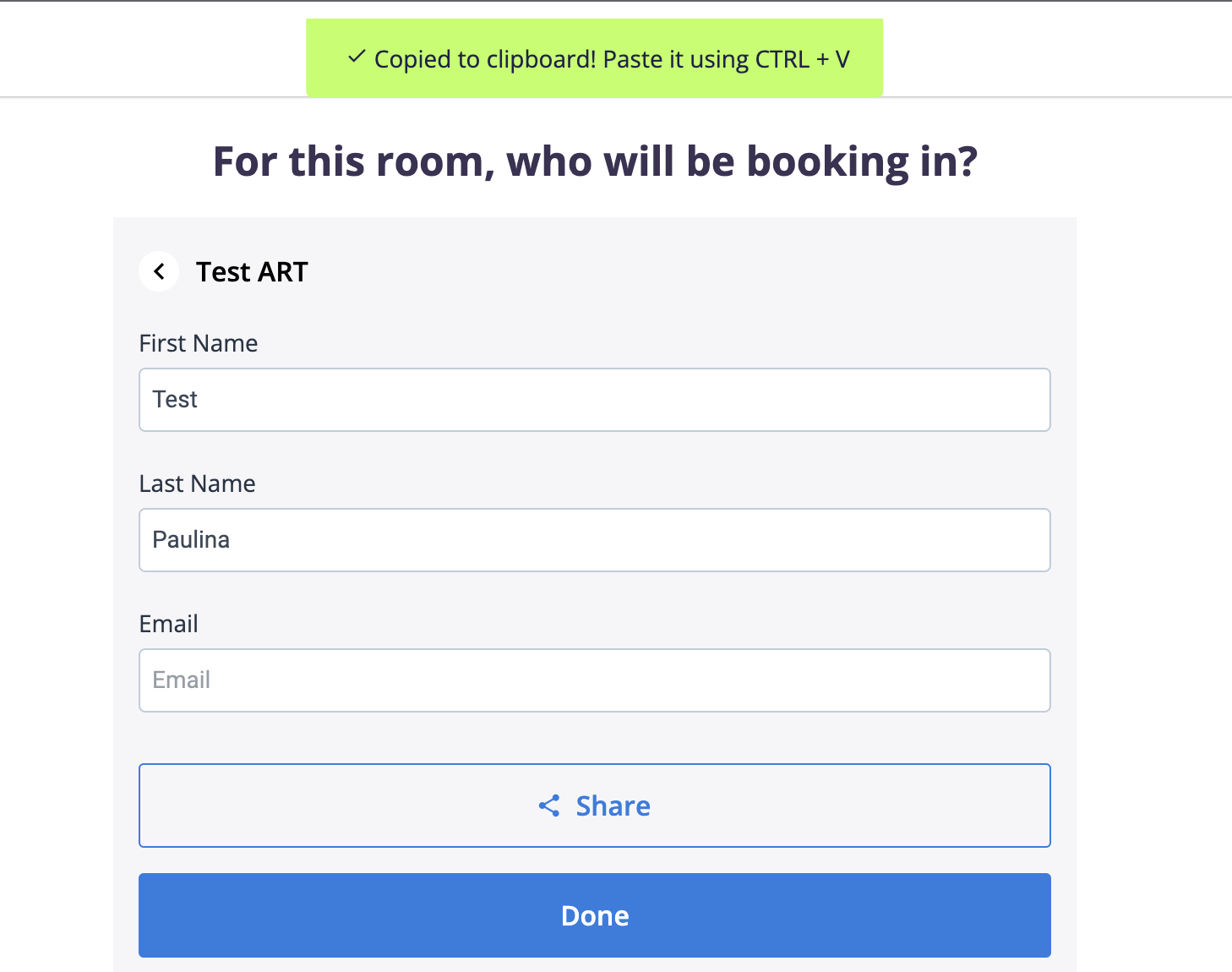
After the guest pays for only one room in the reservation, the next screen will ask the guest who should be sent the bill to pay for the other room/s in the reservation:
To share it ➝ click 'Share' and then the URL will be copied to the clipboard for the guest to forward the URL.
Important Note:
Guests must copy the URL in order to send it to the other guests in the Reservation in order to prompt them to pay.
There is no email being sent to the extra guests to offer them to pay.
When the main Guest in the Reservation updates name and email, it will not update the Guest Profile, but it will update the "Contact Information" section
Payment For Stay Orders will exist under 'Additional Services by Duve' under each reservation and sub reservation respectively.
Main Reservation Example:
Sub Reservation Example:

Comments
0 comments
Please sign in to leave a comment.