
Duve is proud to announce an integration with Assa Abloy’s Wallet Key functionality. To connect to Assa Abloy VOSTIO, please reach out to Duve's Support team.
Overview
Pre-Check-In: Guests can add the key to their wallet before check-in.
Key Release: Once the room is assigned and the reservation triggers key release, Duve automatically sends access credentials to the guest’s Wallet pass. The pass becomes active and can unlock the room and common doors.
Stay Updates: If the guest's room changes or their stay is extended, Duve automatically sends updated credentials. Guests don’t need to re-add or download the pass.
-
Checkout and Revocation: When the guest checks out, Duve revokes access:
Apple Wallet: Pass becomes inactive.
Google Wallet: Pass is removed.
Manual revocation or refresh is possible by reception staff.
Host Management: Property staff can manage wallet keys, including viewing status, revoking keys, reissuing or refreshing keys, receiving alerts, and viewing logs.
If Wallet Fails: If provisioning fails, a standard RFID key card is provided to the guest. Wallet updates are blocked for lost or suspended devices, and Apple/Google handle suspensions or resumes.
Pricing:
- Hotel must create FAQ on their website for the Apple Wallet and one for Google Wallet + General Questions (Assa Abloy Requirement)
- Hotel must purchase license for Duve for their Vostio connection.
Set Up Connection Credentials
Navigate to Integrations > Guest API
Select 'Integration' on the left list - Click "Create Credentials" on the bottom right

Name it as you wish and click 'Create credentials'

Download the Credentials and open the file

- Username
- Password
- userPoolId
- ClientID
- Go to Settings -> Key Providers and add Vostio 10 as a new key provider
- Enter the credentials from the file
Google and Apple Wallet Keys
If the host has their own Google Wallet integration, they can enter their own Client ID and Client Secret.
If these fields are left empty, the system will automatically use Duve’s Google Client ID and Client Secret.
-
Allow adding wallet key at status - Set when the guest can add the key to their Apple/Google Wallet.Recommended: Set to be 'Reserved' or 'Confirmed' so that the guest can add the key to the wallet before their Arrival
-
Activate Wallet Key At Status - Set when the guest will be able to use the key on their Room DoorRecommended: Set status as 'In house' or 'Checked-in' so the guest will be able to use it after they arrive
Room Setup:
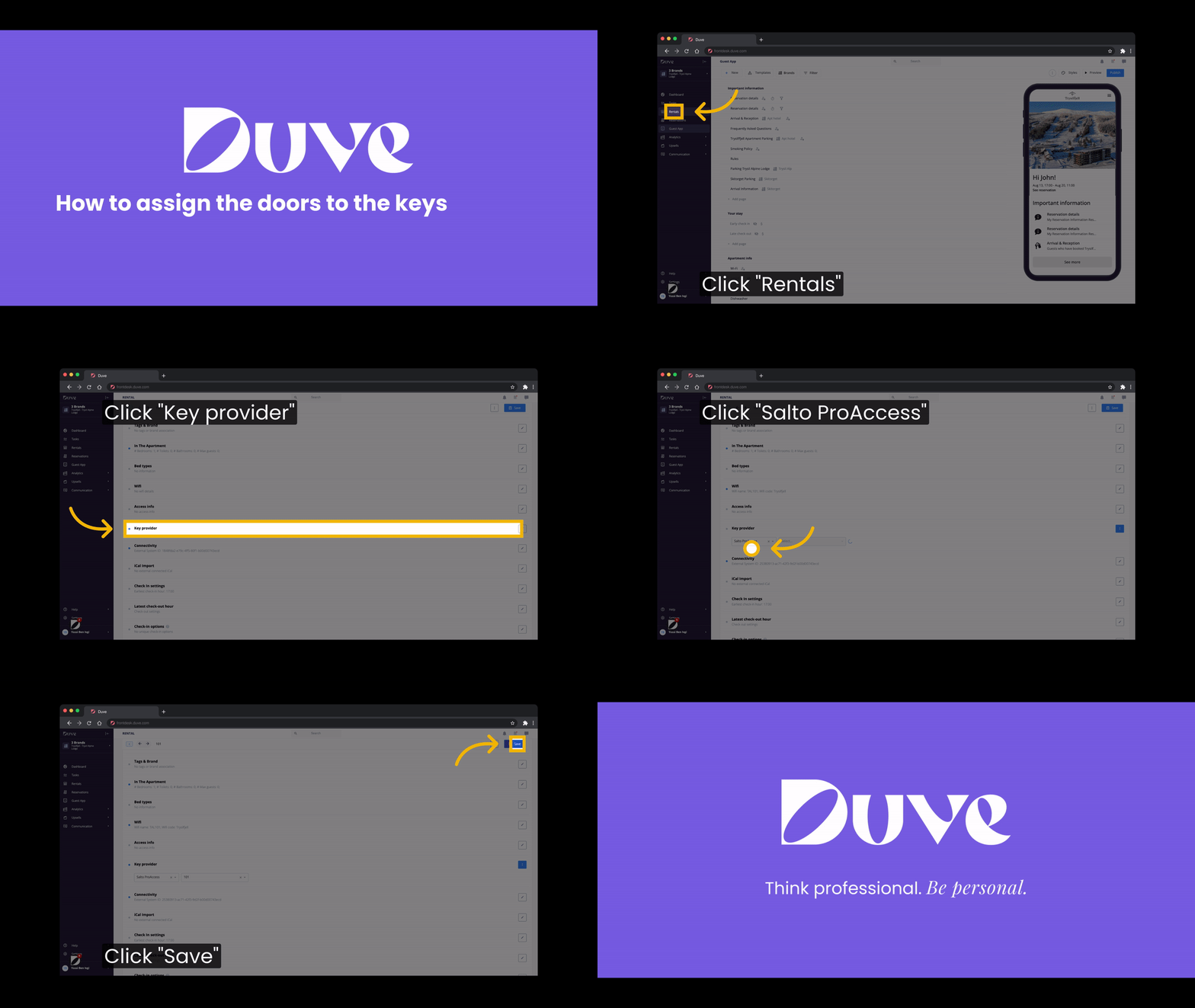
- Go to the Rooms/ Rentals page in your Duve account and go into each Room/ Rental and assign each key to the corresponding Room under Key Provider.

- Save.
- When the key is confirmed, the field will be Blue.

Guest Experience
Guests see an “Add key to wallet” link before arrival through:
Pre-arrival scheduled messages
The Communication Hub
The Guest App quick action button
Guests can click this link from their mobile device to start the wallet setup process.
Secure Guest Authentication (if Wallet 2FA is enabled)
Before provisioning the wallet key, Duve requires guest authentication.
Guests verify their identity using multi-factor authentication (MFA) via a one-time code sent to their registered email.
If the guest does not have a valid email, they will redirect him to the Basic Details page in the Online Check in to fill the information.
Adding the Key to Wallet
After verification, Duve detects the guest’s device type and provides the correct wallet format -
Apple Wallet flow:
Google Wallet flow:
Troubleshooting:
1. Ensure BLE is enabled on all doors
- Click on the ”Cog” icon up in the righthand corner.
- Go to “Door templates”.
- Select the door template you wish to modify.
- Change the “BLE module” from “Disable” to “Enable”
2. If the door flashes blue and the door does not open, please take screenshots of the following to send to Duve Support:
-
A screenshot of the BLE configuration for the account, as shown above
- Lock Logs from the Vostio Service Tool
3. Please ensure that the new mobile key license has to be updated on the locks. Please check with the Assa Abloy local technician team to ensure that this has been updated.
To do this, Kindly try to re-initialize one of the locks & then try to check the mobile keys. In case it is not successful please share the lock readout & logs with us as that will be required to troubleshoot further.
4. To ensure the branding is updated on the mobile key in the Wallet, the customer must update the branding to Vostio's team
5. Hotel must create FAQ on their website for the Apple Wallet and one for Google Wallet + General Questions
Comments
0 comments
Please sign in to leave a comment.