
Overview
Home is the first screen you see after logging in to Duve. It has been redesigned into a focused daily workspace for the front desk, replacing the old collection of widgets.
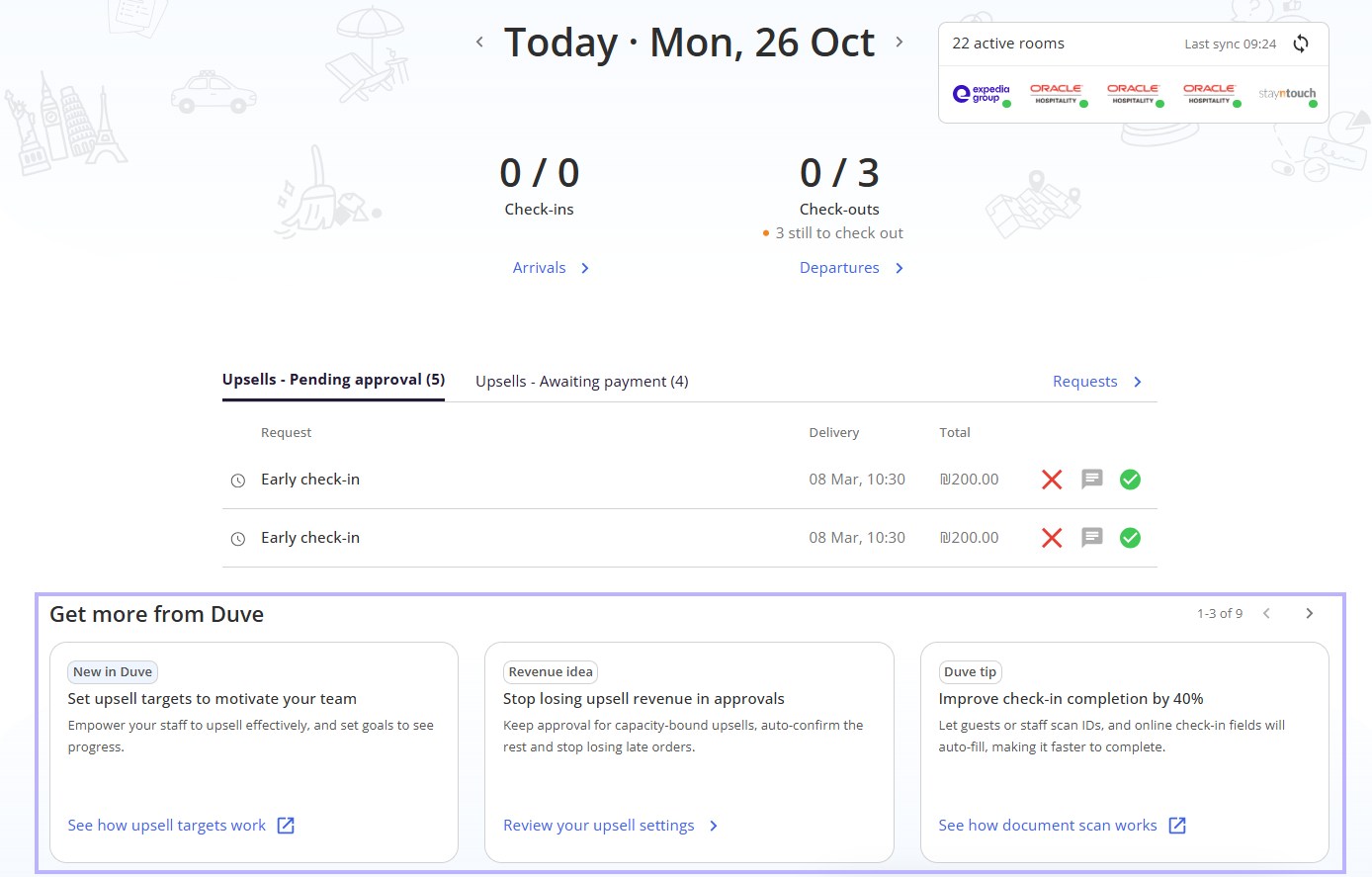
The new Home screen is built from five blocks:
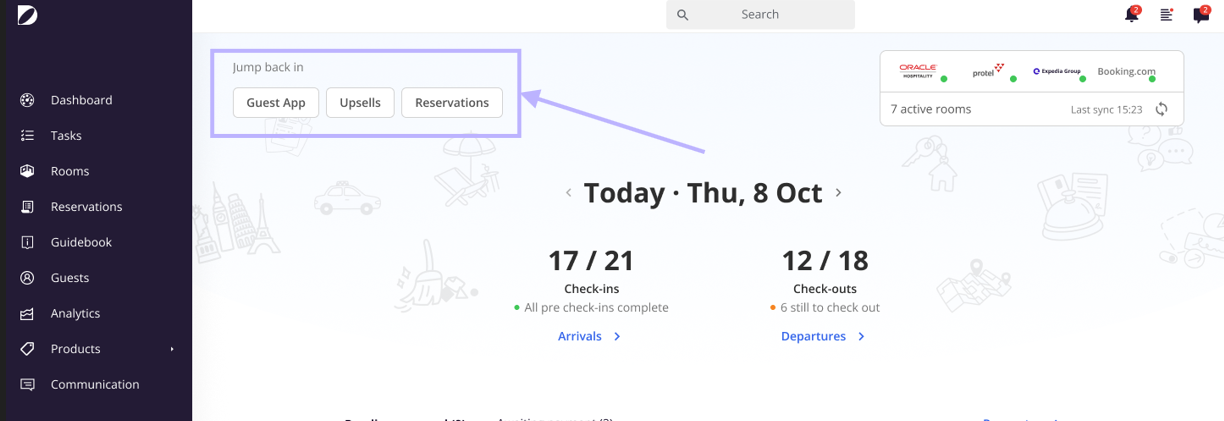
- Jump back in: shortcut chips to the pages you visited most recently.
- Sync card: the status of your connections, your active rooms or properties, the last sync time and a manual sync button.
- Today: check-ins and check-outs for the selected date, with a link into the matching Tasks view.
- Upsell requests: the upsell requests that are waiting for you, with the same actions you have on the Requests page, for both orders pending approval and awaiting payments.
- Get more from Duve: promotion cards for features your account does not use yet.
The following legacy widgets were removed:
- The Guest Journey timeline, which showed every stage as Inactive for accounts using Scheduled Messages and led hosts to turn on legacy messages by mistake.
- Guest satisfaction, which was empty for most accounts.
- Online check-in conversion, which was a metric rather than a daily action.
- Completion tips, which stayed red long after onboarding.
- The weekly pre check-in cards and the Cleaning and Other counts, which are still available on the Tasks page.
- The first steps page and its onboarding tours, including the "Getting started" item in the help menu. Every user now lands directly on the Dashboard.
.png)
Applies to
Room Directory accounts keep their own Dashboard view and are not affected by this change.
PricingMost of the Dashboard is available to every account. Two parts depend on your plan:
|
Use cases
- See today's arrivals and departures at a glance so you can prepare for the day.
- Approve or deny upsell requests without leaving the Dashboard, so revenue requests are handled faster.
- Check whether your connections are syncing and catch a broken connection early.
- Jump back to the pages you were working on in one click.
- Discover Duve features your account does not use yet.
Before you start
No setup is needed. The Dashboard appears automatically when you log in. A few blocks depend on your permissions and your account setup:
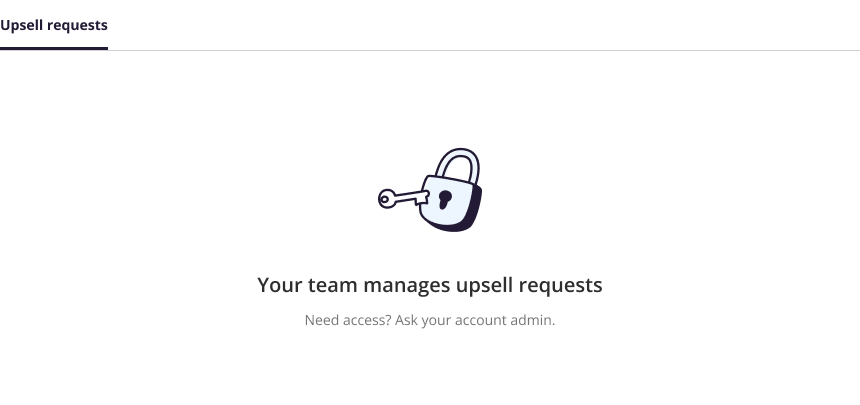
- Upsell requests is hidden behind a locked state for users without the view upsells permission. The block then shows "Your team manages upsell requests" with the note to ask your account admin for access.
- Approve, Deny and Cancel actions require permission to edit orders. Without it, the rows are still listed, but those action icons are not shown.
- The message icon requires chat access. It is also shown but inactive when the request has no conversation to open, and the tooltip says why: "Visitor order, no conversation to open" for a visitor order, or "Reservation was deleted, no conversation" otherwise.
- Jump back in only shows pages you are allowed to open. Pages blocked by your permissions are skipped.
- The Sync card appears only if your account has at least one connection. Accounts with no connection do not see the card at all.
- The in-app link on a Get more from Duve card requires permission to view and manage upsells. Without it, that card opens the matching help center article instead.
How to use it
Today
The Today block is the center of the Dashboard and answers the front desk's first question of the day.
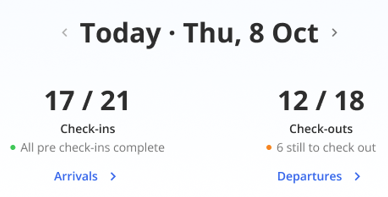
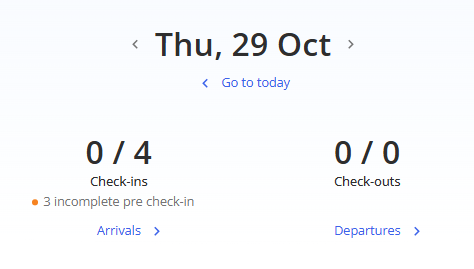
- The heading shows the selected date, for example "Today, Thu 8 Oct". Use the arrows on each side of the heading to move one day back or forward. When the selected day is tomorrow, the heading reads "Tomorrow" with the date.
- When you are on any day other than today, a "Go to today" link with a back arrow appears under the heading.
- Two tiles show Check-ins and Check-outs as completed out of total for the selected date. The counts follow the existing dashboard logic.
- Under the Check-ins count, a status line shows either the number of incomplete pre check-ins with an orange dot, or "All pre check-ins complete" with a green dot. The line is hidden for past dates, when there are no arrivals, and for accounts where online check-in is blocked.
- Under the Check-outs count, a status line shows how many guests are still to check out. It is hidden for past dates and when everyone has checked out.
- Clicking the Check-ins tile, or its Arrivals link, opens Tasks filtered to arrivals for the selected date. Clicking the Check-outs tile, or its Departures link, opens Tasks filtered to departures for that date. The links open Tasks, they do not send any email or message to guests.
Upsell requests
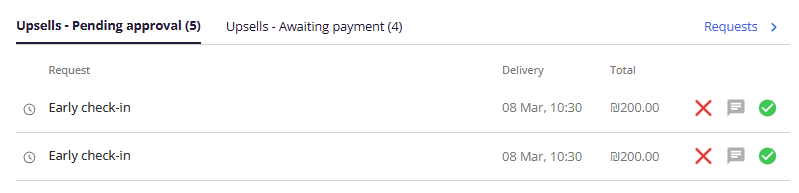
- On desktop the two tabs read "Upsell - Pending approval (N)" and "Upsell - Awaiting payment (N)", so the block says what it is. On a screen narrower than 768 pixels they read "Pending approval (N)" and "Awaiting payment (N)"
- Pending approval opens by default. If there is nothing pending and there are requests awaiting payment, the Awaiting payment tab opens instead.
- The list shows up to five requests, soonest delivery first, with the request name, the guest name, the delivery time and the total. On desktop the number of rows adjusts to the available height, between two and five.
- The Requests link in the top right opens the full Requests page on the tab you currently have open.
- Clicking a row opens that request's Order page.
- On the Pending approval tab, the row actions are Deny, Message guest and Approve. Approve and Deny use the same confirmation popups as the Requests page, and a room upgrade is checked against available inventory before the confirmation is shown.
- On the Awaiting payment tab, the row actions are Cancel order, Message guest and Copy payment link. Copying the link shows a confirmation that the link was copied.
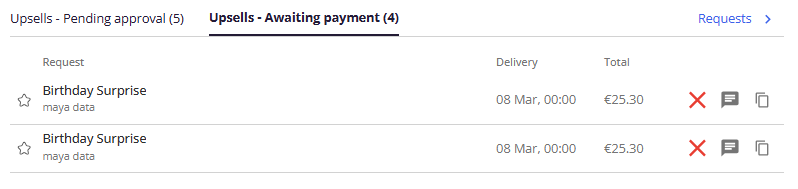
- After you approve, deny or cancel, a notification confirms the result and the list refreshes.
- Each row carries an icon chosen by the request type first (early and late check-out show a clock, a room upgrade shows a building, a menu product shows a menu), then by the product's category (transportation shows a car, wellness and spa shows a lotus), and a star for anything else. The category used is the product's current one, so a product that was moved to another category shows the right icon even on older orders.
- When nothing is waiting, the block shows "All caught up" with the note that new upsell requests will show up there.
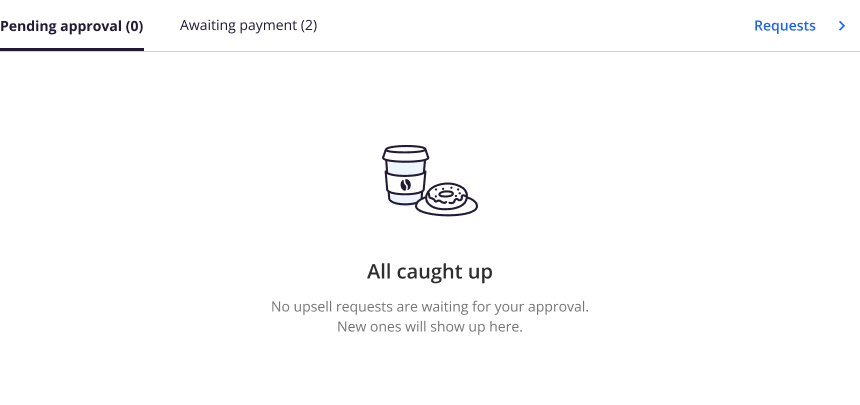
- If the requests fail to load, the block shows a single "Upsell requests" tab with no counts and no Requests link, an alert illustration, "Something went wrong", "We couldn't load upsell requests." and a Retry button that reloads only this block.
Sync card
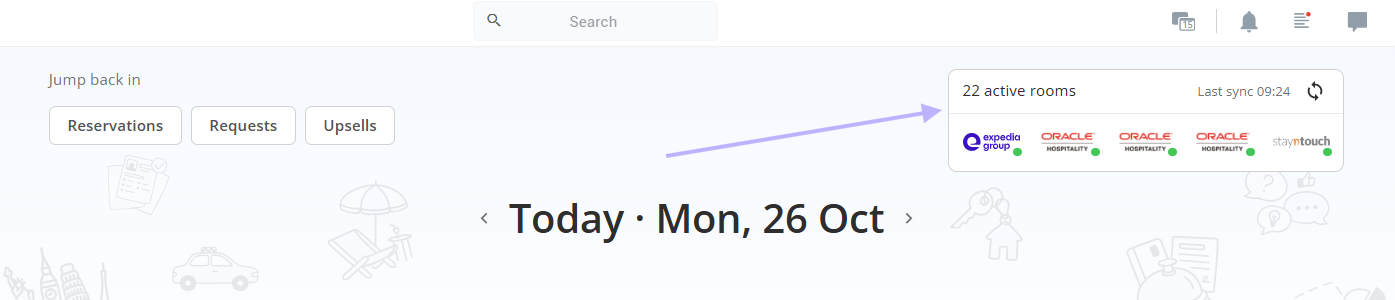
- On desktop the card now floats in the top right corner of Home and stays pinned there while the page scrolls, so connection health is always visible and Today and Upsell requests keep the space they need. On mobile it stays in the page flow, under Jump back in.
- The top of the card shows the number of active rooms, or active properties for property based accounts, on the left, and the last sync time with the sync button on the right. Large numbers are written with a thousands separator, for example 6,465 active rooms. If there was no sync yet, a dash is shown instead of a time.
- Under it, the connection logos are laid out 5 per row on desktop and 4 per row on mobile, at most two rows, each with a status dot: green for an active connection, red for an inactive one. Inactive connections are listed first so a problem is easy to spot.
- Clicking a logo opens that connection on the Integrations page.
- If your account has more than 10 connections (more than 8 on mobile), a line at the bottom of the card shows "N connections, M inactive", or "N connections, all active", with a Show all toggle. Show all turns the card into a list, one row per connection with its logo, the property or brand name and its status dot, inactive first with the name in bold. Clicking a row opens that connection's integration settings. Six rows are visible at a time and the rest scroll inside the card. Show less collapses it back to the logos.
- Clicking the sync button runs a manual sync. The card shows "Syncing" while it runs, then "Synced just now" in green for about three seconds, then the last sync time again. There is no longer a "Started to sync successfully" notification. (Changed: the progress is now shown on the card itself.) If a sync fails, an error notification appears and the card returns to the last sync time.
Jump back in
- The chips above the Sync card are the three pages you visited most recently, so you can return to your work in one click.
- The list updates automatically as you move around Duve. There is nothing to configure.
- Pages you do not have permission to open are not shown, and the block is hidden entirely when there is no recent page to show yet.
Get more from Duve
- The block now holds nine cards, shown three at a time. On desktop a counter and two arrows at the top right of the section page through them, for example "1-3 of 9". On mobile all nine are a swipeable carousel with a position counter.
- Every card has the same size and shows a banner chip ("New in Duve", "Revenue idea" or "Duve tip"), a title, a short description and a link.
- Most cards open a Duve help center article in a new tab, marked with the open window icon. The upsell approvals card opens the upsell services screen inside Duve, marked with a chevron, when you have permission to view and manage upsells, and falls back to the article when you do not.
Loading and errors
- Every block loads on its own and shows its own skeleton placeholder while loading, so a slow block never holds up the rest of the page.
- If a block fails to load, only that block shows "Something went wrong" with a Retry link. Click Retry to load that block again.
Troubleshooting
- The Upsell requests block shows a padlock: you do not have the view upsells permission. Ask your account admin to grant it.
- The Upsell requests block shows a shopping bag and "Earn more from every stay": upsells are not part of your plan. Use the "Discover Upsells" link to learn more.
- There is no Awaiting payment tab: your account does not have the front desk upsells capability, so only Pending approval is shown.
- A block shows "Something went wrong": click Retry. If it keeps failing, reload the page and contact Duve support with the name of the block.
- The Sync card is missing: your account has no connection yet. Add one from the Integrations page.
- Jump back in is missing: you have not visited an eligible page yet in this account, or your permissions block the pages you visited.
- A connection logo has a red dot: that connection is inactive. Click the logo to open it on the Integrations page and check its status.
- You cannot find one of your connections among the logos: the card shows at most ten logos (eight on mobile). Use "Show all" at the bottom of the card to see every connection by name.
- A report or dashboard that filtered on the page name "Dashboard" stopped matching: the page is reported as "Home" in analytics now. Update the filter to "Home".
Restrictions & Limitations
- The Dashboard cannot be customized. Blocks cannot be reordered, hidden or restored, and the removed legacy widgets are not available anywhere on the page.
- Cleaning and Other counts are no longer on the Dashboard. They remain on the Tasks page.
- The Upsell requests block always shows a maximum of five requests. Use the Requests link for the full list.
- The nine Get more from Duve cards are the same for every account. They are not personalized, and they cannot be dismissed or reordered.
- The date you select in Today applies to that block only. It does not change the Upsell requests list or the Sync card.
- The Today counts follow the existing dashboard logic, so a check-out synced from your PMS may still be counted as outstanding until the reservation status updates.
- On a narrow desktop window, the floating Sync card can cover part of what scrolls under it, including the action buttons of the upsell rows. Widen the window or scroll slightly if a row action is hidden.
- The expanded connections list names each connection after its brand, falling back to the connection nickname and then to the integration name, so a connection with none of these shows the integration name only.
Tips & Tricks
- Use the arrows in Today the evening before a busy day to see tomorrow's arrivals and how many pre check-ins are still incomplete.
- Click the Check-ins count rather than navigating to Tasks manually: it opens Tasks already filtered to arrivals for the date you were looking at.
- After moving a few days ahead, use "Go to today" under the date instead of clicking the back arrow several times.
- Handle the quick upsell decisions straight from the Dashboard and keep the Requests page for the longer queue.
- If a guest asks about a pending request, use the message icon on the row to open the conversation without losing your place.
- Run a manual sync from the Sync card before a rush of arrivals to make sure the latest reservations are in Duve.
- If you manage many properties, open "Show all" on the Sync card at the start of the shift: inactive connections are listed first, by name, so a broken one is one click away.
FAQs
Q: Is the page called Dashboard or Home?
A: It is called Home. The side menu, the collapsed side menu and the mobile top bar all read Home. The web address did not change, so old bookmarks still work.
Q: Do the Check-ins and Check-outs links send anything to guests?
A: No. They only open the Tasks page, filtered to Arrivals or Departures for the selected date.
Q: Can I go back to the old dashboard?
A: No. The new Home replaced the previous dashboard for all accounts.
Q: Can I see another day's arrivals and departures?
A: Yes. Use the arrows next to the date in the Today block, then "Go to today" to come back. The counts are the real numbers for the day you picked.
Q: Where did the Guest Journey timeline go?
A: It was removed. It showed every stage as Inactive for accounts using Scheduled Messages, which led hosts to turn on legacy messages they did not need. Connection sync status and active rooms now live on the Sync card.
Q: Where can I see cleaning tasks now?
A: On the Tasks page. Cleaning and Other counts are no longer on Home.
Q: Why do I see only some of my upsell requests?
A: The block shows the five requests with the soonest delivery, and fewer on shorter screens. Use the Requests link to open the full list on the tab you had open.
Q: What happens if I approve a room upgrade and no room is available?
A: Duve checks available inventory before the confirmation popup, and the confirmation tells you when there is nothing available, exactly as on the Requests page.
Q: How are the Jump back in chips chosen?
A: They are the last three eligible pages you visited, saved to your own user profile. They update automatically and are different for every user.
Q: Why does my colleague see a different Home page?
A: Blocks depend on permissions and plan. A user without the view upsells permission sees a locked Upsell requests block, and an account without connections has no Sync card.
Q: Does the first steps page still exist?
A: No. It was removed together with its onboarding tours, and the "Getting started" item no longer appears in the help menu. Every user lands on Home.
Q: My account has dozens of connections. Can I still reach all of them from Home?
A: Yes. The card shows the first ten logos (eight on mobile) and a line that counts the rest. Click "Show all" to open the full list by name, and click a row to open that connection's settings.
Q: Why is there no "Started to sync successfully" message anymore?
A: The Sync card shows its own progress instead: "Syncing", then "Synced just now", then the last sync time. A failed sync still shows an error notification.
Comments
0 comments
Article is closed for comments.