
Overview
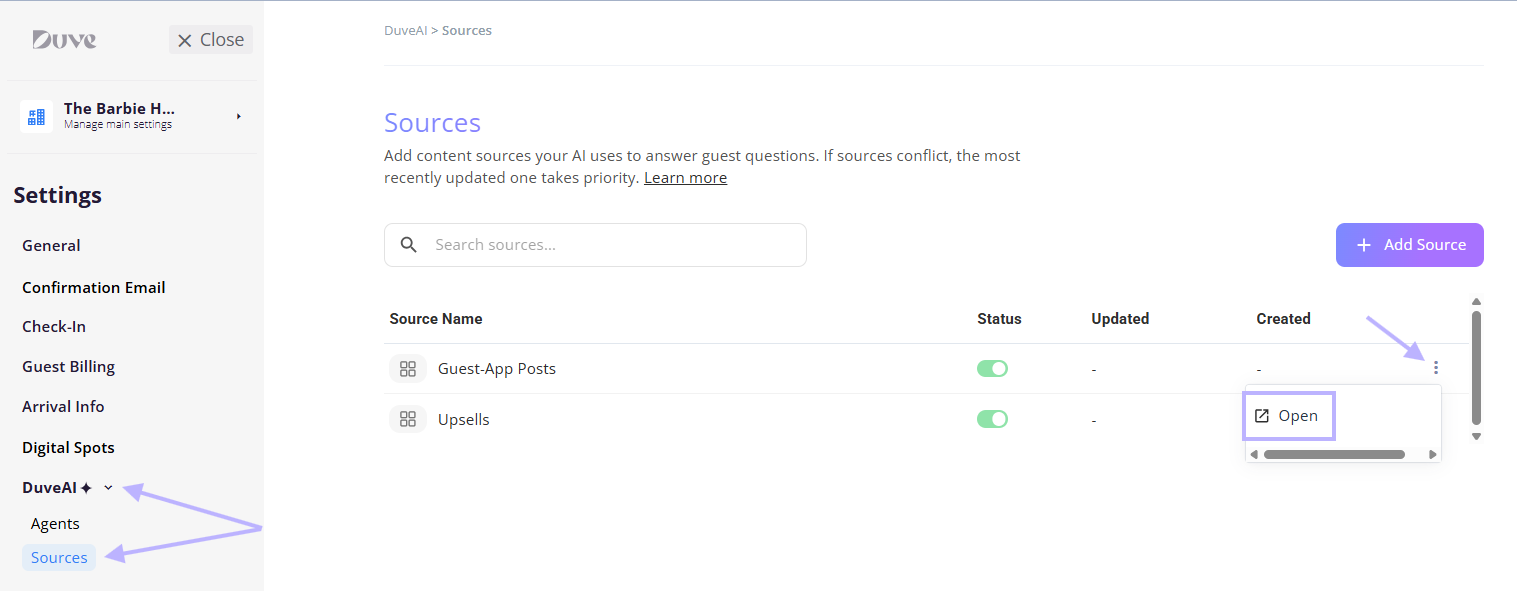
The Source page is where you manage the knowledge DuveAI uses when it answers your guests. You can find it at Settings > DuveAI > Sources.
Every source is a single block of knowledge. DuveAI reads your sources through a structured knowledge base, so anything you want the AI to know has to exist as a source. Content that is not a source is not available to the AI.
The page holds two kinds of entries:
- System sources. These are read-only and reflect content you already manage elsewhere in Duve. There are two: Guest-App Posts (everything in your Guest app) and Upsells (your products and services). You cannot edit, disable, or delete them from this page, but you can jump straight to where they are managed.
- Text sources. These are entries you write directly on this page. Use them for knowledge that does not belong in the guest app, or that only applies to certain guests.
Each text source has a name, free text content, and an optional set of conditions that decide which reservations the source applies to.
Who this is for and what it applies to
Who this is for: Manager or Team Member roles with a "View & Edit Company Settings" permission.
Two rows on the page depend on additional permissions:
Applies to: accounts with DuveAI SmartReply enabled. If SmartReply is not on your plan, the page shows an upgrade banner with a Contact us option instead of the sources table.
PricingIt is included with your DuveAI SmartReply subscription, and the number of sources you create does not affect what you pay.
|
Use cases
- Policies that are not in your guest app: House rules, pet policy, smoking policy, or age restrictions that you want the AI to answer on but do not want published as a Guest app post.
- Segment-specific information: Information that should only reach some guests, such as lounge access for members, a parking arrangement for guests arriving by car, or a different breakfast arrangement for a particular booking source.
- Temporary or seasonal information: The pool is closed for maintenance, the restaurant is on a summer schedule, there is construction next door. Write it once, then switch it off when it no longer applies instead of deleting it.
- Operational detail the AI keeps getting wrong: If the AI keeps escalating the same question, a short, clearly named source on that exact subject is usually the fix.
- Replacing free text notes: Instead of one long block of instructions, you get separate entries you can name, target, toggle, and audit individually.
Before you start
- Confirm DuveAI SmartReply is available on your plan.
- Decide whether the knowledge belongs at the account level or at a specific brand level.
- If you work with brands, note that brand sources are controlled by their own override toggle, Override account settings, on the brand's Sources page. This is separate from the override toggle on the DuveAI Agents page, so turning one on does not turn on the other.
- Be aware of how the brand override behaves before you use it: When a brand overrides source settings, reservations belonging to that brand use only that brand's sources. Account-level sources are not added on top. If you turn the override on, plan to recreate anything from the account level that the brand still needs.
How to set it up and use it
Add a text source
- Go to Settings > DuveAI > Sources.
-
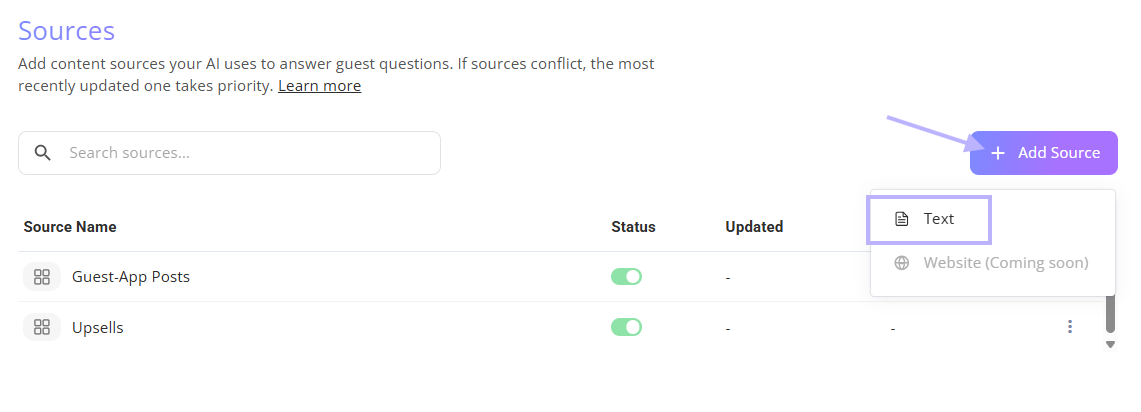
Click Add Source and choose Text.
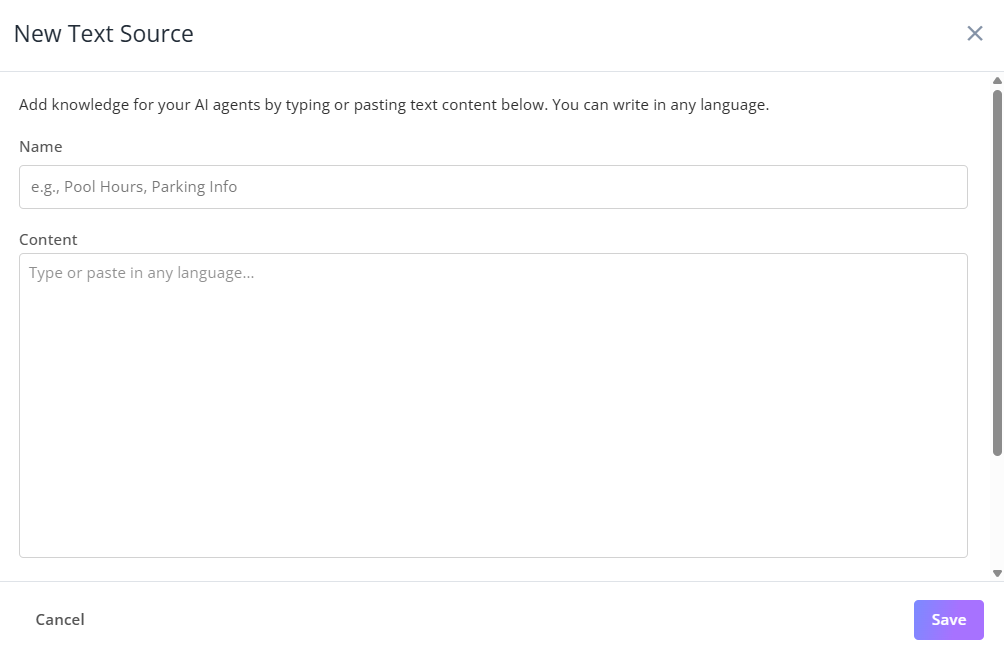
- Fill in Name. This is required and can be up to 120 characters. The AI sees this name, so make it describe the subject, for example "Pet policy" rather than "Notes 3".
- Fill in Content. This is required and is plain text.
- Optionally add conditions under Only use this source when.
- Click Save.
What to put in: Facts, not rules
Add clear, true, up-to-date information. Write it the way you'd explain it to a colleague. Keep each fact short and complete.
✅ Do's: The small facts guests ask about
- “Extra towels are in the cabinet under the bathroom sink.”
- “The iron and ironing board are in the wardrobe, top shelf.”
- “Tap water is safe to drink.”
- “The blue button on the TV remote controls the air-conditioning.”
- “The nearest pharmacy is a 5-minute walk; turn left out of the lobby.”
- “Room safes reset to 0000; instructions are inside the closet door.”
🚫 Don'ts:
- Instructions to the AI: “Always upsell the spa,” “Tell guests to call reception.”
- Conditions & logic: “If the guest is VIP, then offer a free upgrade.”
- Tone or behavior rules: “Be friendly. ”Don't mention prices.”
- Internal / staff-only notes: Codes, staff procedures, private policies.
- Vague or outdated info: “Pool hours may vary.”
- Specific answer: "If the user wants a double bed instead of 2 single beds, say exactly 'we have noted your request and will do our best to assist'"
Target a source with conditions
A source with no conditions is available for every reservation. Adding conditions narrows it.
The parameters available are:
- Booking source
- Booking source second label
- Reservation status
- Pre check-in
- ID / Passport
- Payment
- Nights
- Property floor
- Adults
- Children
- Babies
- Plan type
- Arrival method
- Guest country
- Agent
- Check-in options
- Pre check-out
- Guest email
- Custom question A, B, C, and D
- Guest purchase
- Membership
- Last stay
- Number of stays
- VIP code
- Birth date
- Block ID
- Group name
- In house
- In-house weekday
- Room tags
- Marketing source
Troubleshooting note: Any Reservations' Additional Fields you have enabled also appear in the list, labeled with the field name followed by "(Additional field)".
Manage existing sources
- Edit: click anywhere on the row, or open the ••• icon actions menu on the right and choose Edit. Click Update to save.
- Turn a source on or off: use the Status toggle on the row. A source that is switched off is kept but is never used by the AI.
- Delete: open the ••• icon actions menu and choose Delete, then confirm.
- Find a source: use the search box. It matches on the source name only, not on the content.
- Open a system source: the actions menu on Guest-App Posts and Upsells offers Open, which takes you to the Guest app settings or upsell management.
The table shows each source's name, status, last updated date, and created date, ten rows at a time.
What happens after you save
Saving does more than store text. Each new or edited source is sent to the DuveAI knowledge base, where a model reads it and classifies it into one or more topics:
- Hotel general information: Property-wide facts and universal policies that apply to every guest - Address, phone, Wi-Fi, pet/smoking/dress-code policies, FAQ, about-us, social media, reception, room descriptions.
- Arrival, departure, and transport: Getting to, into, and out of the hotel, vehicles and luggage - Check-in/check-out times, early/late requests, luggage storage, parking &valet, EV charging, shuttles, airport transfers, directions.
- Dining and restaurants: All food, drink, bar, and restaurant information, on-site or nearby - Breakfast/dinner hours, menus, room service, dietary options (kosher, vegan), meal plans, bars, cafés, food events.
- Facilities and activities: Amenities, services, recreation, local attractions, and in-room comfort - Spa, pool, gym, kids' club, tours, local attractions, housekeeping requests, in-room features (AC, fridge, balcony), lost & found.
- Other: A catch-all for useful facts that don't clearly fit the four topics above - One-off notes, seasonal information, or anything special that guests ask about butisn't covered elsewhere.
Setup note: Topics matter because of how the AI answers. When a guest asks something, DuveAI first works out which topics the question touches, then loads only the sources filed under those topics. A source that is classified into the wrong topic will not be considered, which is why a clear name and a content block that stays on one subject work much better than a long mixed block.
This classification runs in the background, so allow a few minutes between saving and seeing the change reflected in AI answers. Changes only affect future responses, never a reply that has already been sent.
Troubleshooting note: Editing a source creates a new version and retires the previous one, so the AI always reads the current text. Deleting a source removes it from the knowledge base.
How a source is chosen during a conversation
For each guest conversation, Duve builds the list of sources available for that reservation:
- Sources that are switched off are excluded.
- Sources with conditions are included only if the reservation matches every condition.
- Sources with no conditions are always included.
- If the reservation belongs to a brand that overrides source settings, only that brand's sources are considered.
The AI then has to justify its use of each source. It checks whether a source explicitly mentions the subject the guest asked about, and only answers from sources that pass that check. Related is not enough: a source about car parking does not answer a question about bicycles. If no source explicitly covers the question, the AI does not improvise. It hands the conversation to your team instead.
Troubleshooting note: The names of the sources used are recorded with the AI's answer so your team can see what the reply was based on.
Host Experience
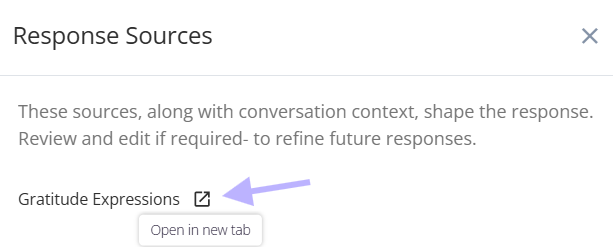
When DuveAI uses information from a text source to answer a guest, the response will show the Response source:
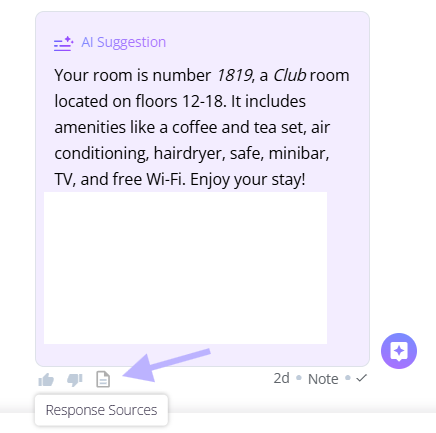
And a redirect button (Where the host can edit or see the source text)
Troubleshooting
- The AI is not using a source I created: Check the Status toggle first, then the conditions. A condition that does not match the reservation silently removes the source for that guest. Then check the wording: the source must explicitly mention the subject by name for the AI to treat it as relevant.
- The AI answered from the wrong source: Two sources probably cover overlapping ground. Duve does not resolve conflicting information, so tighten the scope of each one or merge them.
- I just saved a source, and nothing changed: Classification runs in the background. Give it a few minutes, then start a new conversation to test. An answer already sent will not change.
- A brand stopped using our shared knowledge: Someone likely turned on the override toggle on that brand's Sources page. Brand override replaces account-level sources rather than adding to them.
- I cannot find a source in the list: Search matches the source name only. If you named it something generic, scroll or rename it.
- The page shows an upgrade banner: DuveAI SmartReply is not active on the account. Contact Duve Support.
Restrictions and limitations
- Text is currently the only source type you can create.
- Content is plain text. Rich formatting is not supported.
- Source names are limited to 120 characters.
- Guest-App Posts and Upsells cannot be edited, disabled, or deleted from this page.
- Conditions rely on reservation data. In chats with no reservation attached, such as anonymous chats, all enabled sources are available, and conditions are not applied. Do not rely on conditions to keep information away from anonymous visitors.
- Duve does not detect or resolve conflicting information between sources. Keeping your knowledge consistent is up to you.
Tips and tricks
- Keep one subject per source. It classifies more accurately and is far easier to maintain.
- Name the source after the subject a guest would ask about, and repeat that subject inside the content. The AI matches on the subject appearing explicitly.
- Use conditions instead of writing "if you booked through Expedia" inside the content. The AI shows the guest what the source says, so conditional text can leak the wrong answer.
- Switch seasonal sources off rather than deleting them, so you can switch them back on next season.
- Keep guest-facing information in Guest-App Posts, where guests can also read it themselves, and reserve text sources for knowledge that should not be published.
- Review the Updated column periodically. A source that has not changed in a year is worth rereading.
FAQs
Q: We used the Info Boost field before. Is that content still being used?
A: Info Boost is a separate free text field that was migrated to the Source page.
Q: How long does it take for a new source to be used?
A: Usually a few minutes. Each source is classified in the background before the AI can retrieve it, so it is not instant. Changes apply to future responses only.
Q: Can I limit a source to certain guests?
A: Yes, with conditions. Add conditions under "Only use this source when" and the source is used only for reservations that match all of them. This does not apply to anonymous chats.
Q: What happens if two sources say different things?
A: The AI may use either one. Duve does not detect or resolve conflicts, so it is your responsibility to keep sources consistent and remove duplicates.
Q: Why did the AI escalate to my team instead of using my source?
A: The most common reason is that the AI did not judge any available source to explicitly cover the question. It is designed to hand over rather than guess. Rewriting the source so it names the subject directly usually resolves it. A source that is switched off, or whose conditions do not match, is also invisible to the AI.
Q: Can I see which source an answer came from?
A: Yes. The AI records the names of the sources it used with each answer.
Q: Do I need to add my Guest app posts and upsells as sources?
A: No. They are already included through the Guest-App Posts and Upsells system sources, which stay in sync automatically. Add a text source only for knowledge that is not covered there.
Q: Can each brand have its own sources?
A: Yes. Open the brand's Sources page and turn on Override account settings. Be aware that the brand then uses only its own sources. Account-level sources are not combined with them.
Q: Does deleting a source remove it immediately?
A: The source is removed from your list right away and is taken out of the AI knowledge base. Answers the AI already sent are not affected.
Comments
0 comments
Article is closed for comments.