
Overview
SmartReply is the DuveAI agent that answers guest messages in your Communication Hub. It reads the question, looks up your property knowledge, writes a reply in the guest's own language, and either sends it or hands it to you as a draft, depending on the mode you choose. When it cannot answer confidently, it escalates the conversation to your team instead of guessing.
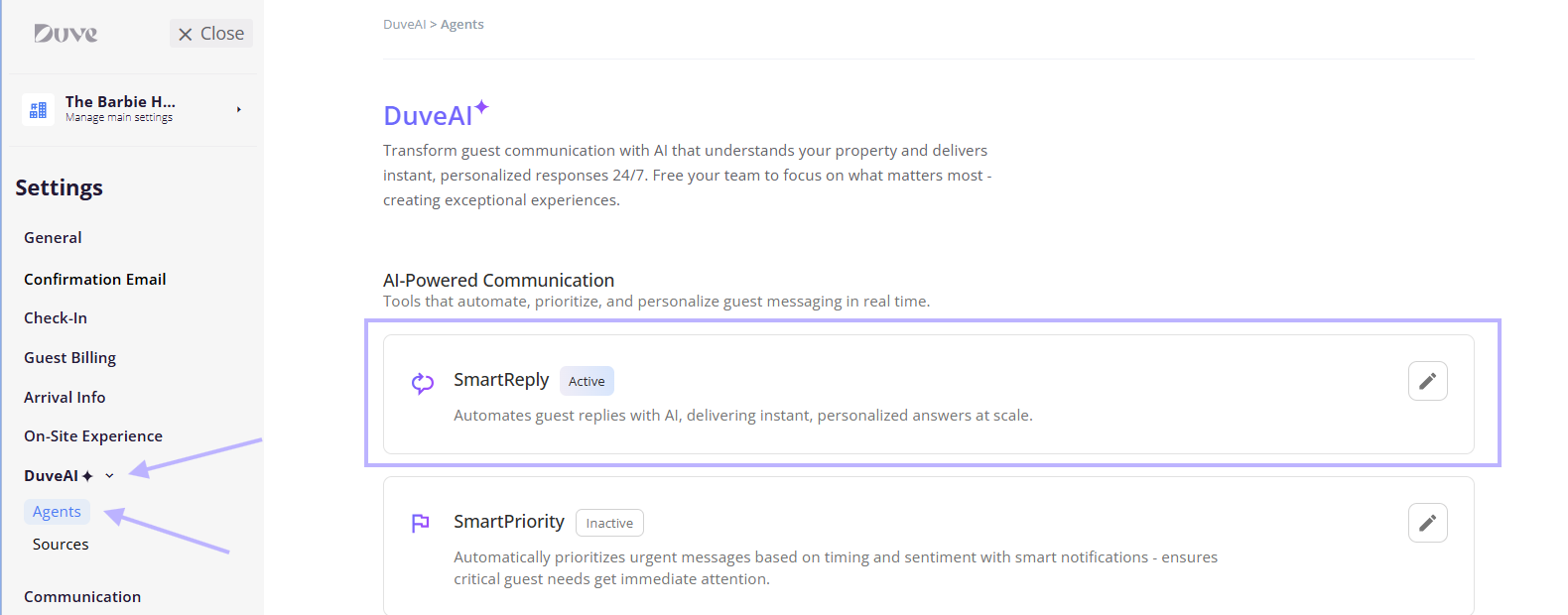
You control SmartReply from one place: Settings > DuveAI > Agents. This article covers everything on that screen: choosing an operating mode, testing safely, narrowing Auto Answer with Exception Rules, controlling the escalation message, and what you and your guests actually see once it is running.
Applies to:Accounts with DuveAI on their plan. Without it, the DuveAI page shows an upgrade banner with a Contact us link instead of the settings.
Pricing:SmartReply is a paid add-on to your Duve subscription. There is no additional charge for the settings described here: modes, testing, Exception Rules, and the escalation message are all included once SmartReply is active. For current subscription and usage pricing, contact Duve Support or your Customer Success Manager.
|
Use cases
- Cover the hours you do not staff. Overnight, weekends, and shoulder periods get answered instantly instead of waiting for the morning shift.
- Take the repetitive questions off your team. WiFi passwords, check-in times, parking, breakfast hours, and directions are answered from your own content.
- Get faster without giving up control. Suggestion Mode drafts every reply so your team edits and sends rather than writing from scratch.
- Protect sensitive segments. Run Auto Answer for most guests while VIPs, a specific agent's bookings, or guests with special requests keep a human in the loop.
- Answer in any language. SmartReply replies in the language of the guest's latest message, without your team needing to translate.
- Surface relevant upsells. When a guest's question relates to something you sell, SmartReply can include the offer and its self-service link in the answer.
Before you start
- Confirm SmartReply is active on your plan.
- Make sure your knowledge is in place. SmartReply answers from your Guest app posts, upsells, room types, and the text sources on Settings > DuveAI > Sources, plus core account details (property name, address, phone, email, website, check-in and check-out times, WiFi details, FAQ, About us). It does not use general knowledge about hotels, so anything not in those places cannot be answered.
- Decide whether you are configuring the account or a single brand. Brands have their own Override account settings toggle on their DuveAI page. Once it is on, that brand uses its own SmartReply settings instead of the account's.
- If you want SmartReply to handle pre-booking questions from anonymous chats, connect a booking engine first under Settings > Connections > Booking Engines.
How to set it up and use it
Choose an operating mode
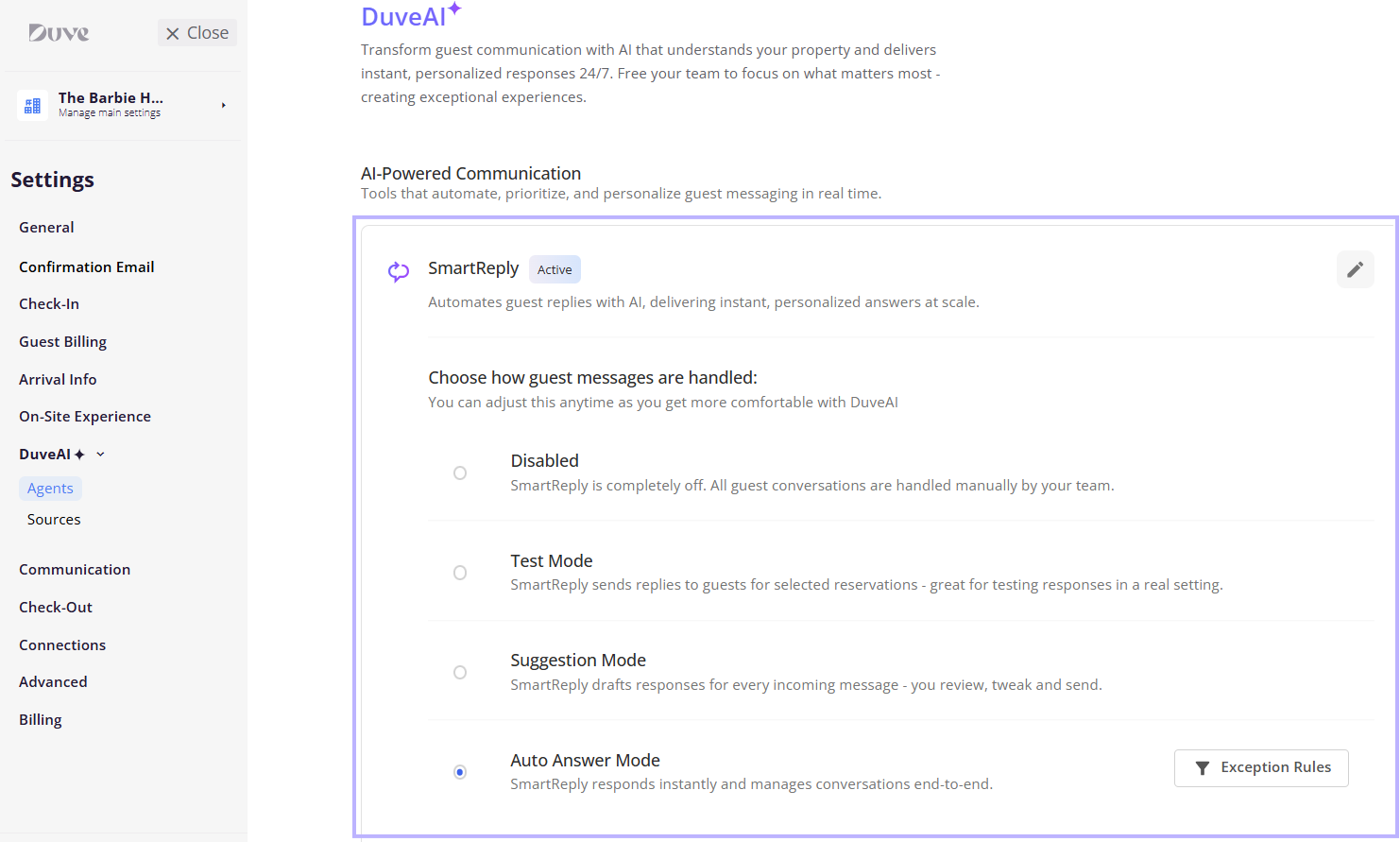
Open Settings > DuveAI > Agents, click the SmartReply card to expand it, and pick one of four modes. The card header shows Active or Inactive so you can see the current state at a glance.
- Disabled. SmartReply is completely off. All guest conversations are handled manually by your team.
- Test Mode. SmartReply sends replies to guests for selected reservations. Read the testing section below before you use it, because these are real messages to real guests.
- Suggestion Mode. SmartReply drafts responses for every incoming message. You review, tweak, and send. This is the recommended starting point, and it is labeled Start here in-product while SmartReply is off.
- Auto Answer Mode. SmartReply responds instantly and manages conversations end-to-end.
Setup note: You can change the mode at any time, and you are not locked into a path. Most teams start in Suggestion Mode, watch the drafts for a week or two, then move to Auto Answer.
Test SmartReply before you go live
Test Mode: Replies generated in Test Mode are sent to the guest on their real channel, exactly as they would be in Auto Answer Mode. The only difference is scope: in Test Mode, the AI runs only on conversations that someone has explicitly assigned to the AI Bot. It does not pick up conversations on its own.
To test safely:
- Create a test reservation in Duve and put your own phone number or email on it.
- Switch SmartReply to Test Mode.
- Open the conversation for that reservation and assign it to the AI Bot.
- Send a question as the guest, from WhatsApp, SMS, or the guest app, and watch the reply come back.
- Check the sources listed with the answer to see which knowledge it used.
- Repeat with the questions your guests actually ask, including ones you expect it to refuse.
When you are done, switch to Suggestion Mode or Auto Answer Mode. Leaving the account in Test Mode means the AI answers only the conversations you hand it, which is rarely what you want long term.
Setup note: If you would rather never risk a real guest seeing a test reply, use Suggestion Mode instead. Drafts are written for every conversation, and nothing reaches a guest until you send it.
Narrow Auto Answer with Exception Rules
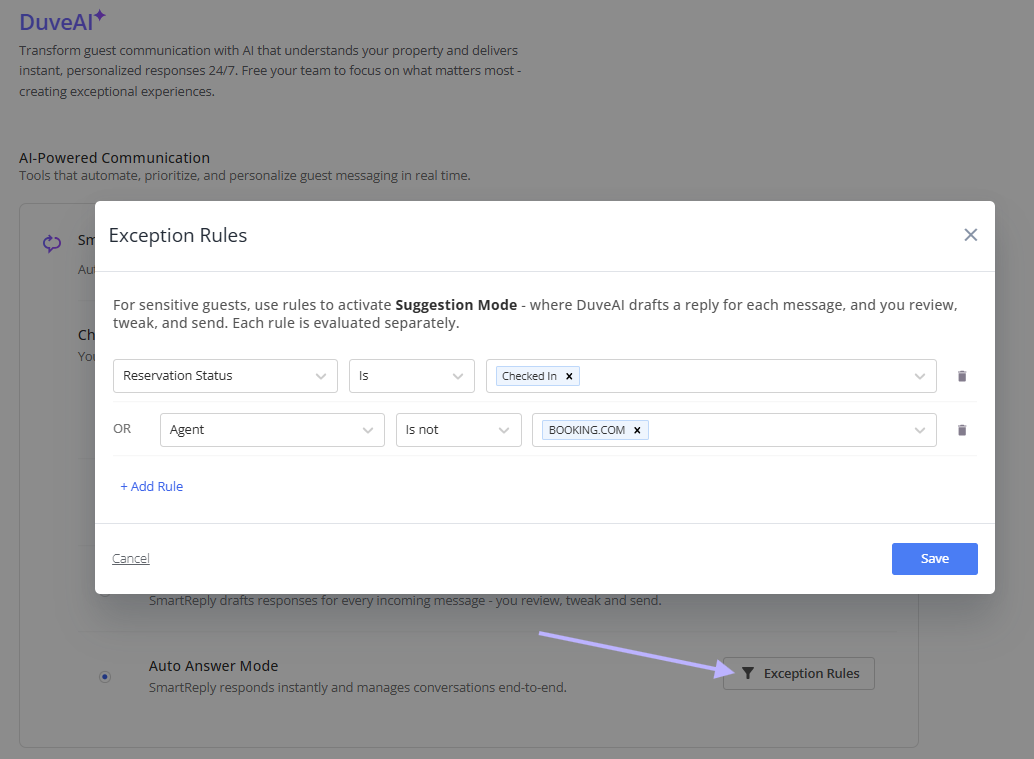
Exception Rules let you keep Auto Answer on for most guests while specific reservations fall back to Suggestion Mode, so your team reviews every reply for them.
The Exception Rules button sits on the Auto Answer Mode row and is only clickable when Auto Answer is the selected mode.
- Select Auto Answer Mode.
- Click Exception Rules.
- Choose a parameter, an operator, and a value.
- Click + Add Rule for each additional rule.
- Click Save.
Setup note: Each rule is evaluated separately. If a reservation matches any rule, that conversation switches to Suggestion Mode. Rules are not combined, so you do not need to build one complicated rule to cover several segments.
The parameters available are:
- Agent
- Reservation status
- Booking source
- Booking source second label
- Custom question A
- Custom question B
- Custom question C
- Custom question D
- Membership
- VIP code
- Special requests
Each parameter can be used once. Once you have added a rule for Membership, for example, Membership is removed from the list for the remaining rules.
Control the escalation message
When SmartReply cannot answer, it escalates to your team. By default, it also sends the guest a short message so they know a human is picking it up.
The Send guest message on escalation row appears under the feature cards, and only when you are in Auto Answer Mode. In Suggestion Mode, there is nothing to configure, because you send every message yourself.
- Enabled (the default): the guest gets a brief message letting them know your team will follow up.
- Disabled: nothing is sent to the guest for that turn. Your team is still notified, and the guest sees only your team's eventual reply.

Troubleshooting notes:
- Choose Disabled if you would rather the handoff be invisible, for example, on premium properties where you want the conversation to read as one continuous human voice. Be aware of the trade-off: with it disabled, an escalated turn produces no guest-facing message at all, so the guest waits in silence until someone replies.
- The wording of the escalation message cannot be edited. It is generated for each conversation in the guest's language rather than being a fixed template, which is why there is no text field to change.
Turn on pre-booking replies
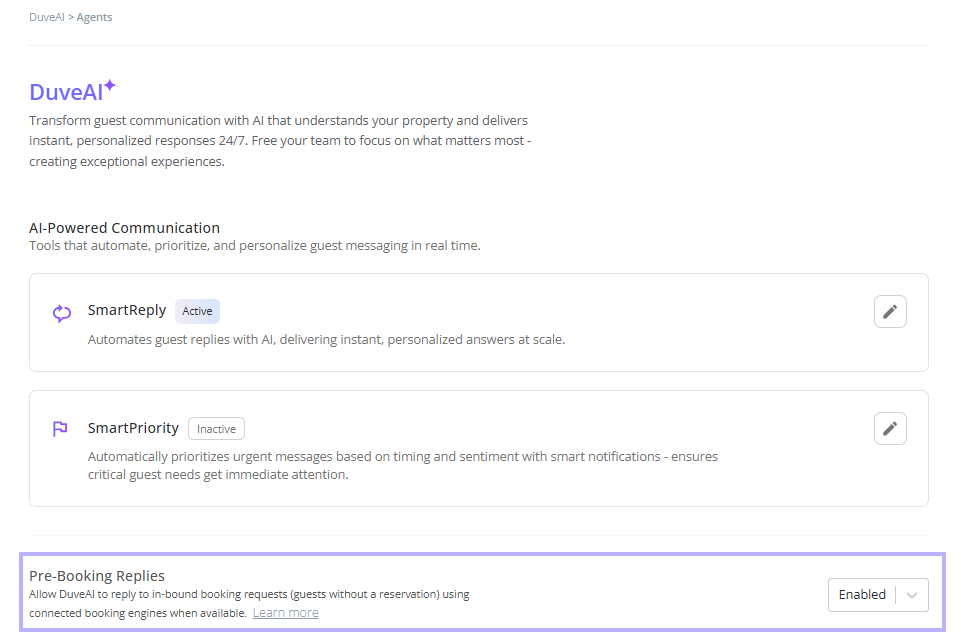
If you have the Booking Agent on your plan, a Pre-booking replies row appears above the escalation setting. It lets DuveAI reply to booking requests using a connected booking engine.
The row is disabled until an engine is connected. When none is connected, you will see "No booking engine connected" with a Connect to enable link that takes you to Settings > Connections > Booking Engines. Once an engine is connected, set the row to Enabled.
Configure a brand differently from the account
On a brand's DuveAI page, turn on Override account settings. The brand then uses its own SmartReply mode, Exception Rules, and escalation setting instead of the account's. Leave the toggle off, and the brand follows the account.
Host experience
Once SmartReply is running, this is what your team sees in the Communication Hub:
-
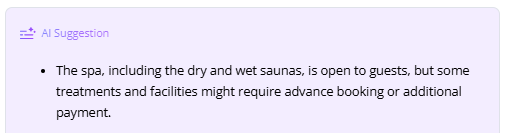
In Suggestion Mode, a draft is prepared for each incoming guest message. Your team reviews, edits, and sends it.
- In Auto Answer Mode, the reply is sent to the guest automatically on the channel the guest used.
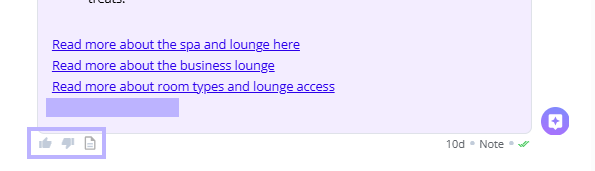
- Sources are shown with each AI answer, so you can see which pieces of your knowledge the reply was built from.
- Thumbs up and thumbs down appear on AI answers. Rating an answer stores the feedback and sends it to Duve, and on a negative rating you can add a comment. Negative ratings include a sanitized conversation summary with emails, phone numbers, long ID numbers, and links removed. Feedback is used by the Duve team to improve the product. It does not retrain the AI on your account.
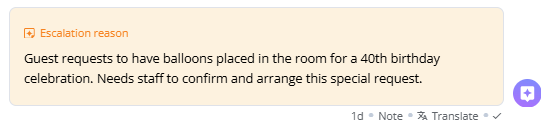
- Escalations are flagged for your team, with a reason recorded so you can see why the AI handed over.
- Replying manually takes over. When someone on your team sends a message, any queued AI reply for the pending guest messages is canceled.
Guest experience
- Replies come back in the guest's language, matched to their latest message rather than the language of your content or your property settings.
- The tone is a warm, concise concierge. Answers acknowledge the question, then answer it, usually in one or two sentences. Multi-part questions come back as a bulleted list.
- Links are included only in the guest app chat. On SMS, WhatsApp, and other channels, the AI is instructed not to send links, so answers there are self-contained.
- Guests are told once per session that they are talking to a digital assistant. The message reads: "Hi, you're chatting with a digital assistant who's here to help. You can ask to speak with a human representative at any time." It is sent once, in the guest's language, and appears again only after a long gap in the conversation (six hours by default). It is not sent in Suggestion Mode, on conversations matched by an Exception Rule, or on a turn that escalates while the escalation message is disabled. The text cannot be edited or turned off.
- The AI never claims to have done something. It cannot place orders or make arrangements, so it points guests to self-service links and says it will check on anything that needs a person.
- Sometimes it deliberately says nothing. A bare acknowledgment such as "ok" or a thumbs-up shortly after your last message does not get a reply, so guests are not pestered with an answer to a non-question.
Troubleshooting
- The AI is not replying at all: Check the mode first. In Test Mode, it only answers conversations assigned to the AI Bot. Also check whether the conversation is assigned to a person or a team, which stops the AI from picking it up.
- The AI stopped replying partway through a conversation: After 20 unresolved escalations on a single chat, SmartReply pauses itself for that conversation and waits silently. It resumes automatically once your team clears the escalations.
- The AI escalated instead of answering: The most common reason is that no source in your knowledge explicitly covers the subject the guest asked about. Related is not enough: a source about car parking will not answer a question about bicycles. Other automatic escalations are listed under Restrictions and limitations below.
- The AI answered part of the question, then said it would check: That is intentional. When only part of a question is covered, it answers what it knows, offers to check on the rest, and flags the conversation for you.
- The reply did not include a link: Links are sent only in the guest app chat.
- The guest sent a photo or a document and got no answer: Any attachment escalates to a human. Unsupported file types get a short note that the file type is not supported.
- The guest replied on Booking.com or Expedia, and the answer arrived in the app: Inbound OTA messages are read and answered, but only Airbnb replies are sent back through the OTA channel. Booking.com and Expedia replies are delivered in the in-app guest chat.
- The escalation message is missing from Settings: It only appears in Auto Answer Mode.
- A guest in Auto Answer Mode is getting drafts instead of automatic replies: An Exception Rule probably matches that reservation. Open Exception Rules and check the conditions.
Restrictions and limitations
SmartReply always hands over to a human when:
- The guest asks for someone to come or for a physical action tied to a stated problem.
- The guest wants to change their booking, such as dates, guest count, or room type. Questions about existing booking details are answered normally.
- The message is a safety, medical, or legal emergency.
- The guest disputes a charge or reports a billing error.
- The guest is in genuine distress.
- The guest reports a problem or complaint, including pests, noise, cleanliness, breakages, leaks, damage, or theft.
- The guest mentions a celebration or special occasion.
- The guest reports a technical issue with an app, website, or in-room device. The AI will not troubleshoot.
- The guest says a previous answer did not help.
- The message includes an attachment of any kind.
- The message is longer than 4,000 characters.
Other limits worth knowing:
- SmartReply answers only about the stay, the property, and the surrounding area. Off-topic questions are not answered even when the answer is obvious.
- It never states a fact that is not written in your knowledge. It will not fill a gap with what is typical for hotels.
- It never tells a guest that information is missing. It offers to check instead.
- It does not name brands of locks, devices, or third-party services unless the brand appears in your own content.
- It will not assess safety, health, or legal risk, or offer reassurance about them.
- It does not repeat a fact or link it already sent in the same conversation.
- Tone of Voice is not editable by hosts. (Please see further information in the DuveAI article)
- The escalation message can be switched on or off, but not rewritten.
- Messages that look like unsubscribe keywords or quick-reply button taps are skipped.
Tips and tricks
- Start in Suggestion Mode: Reading a week of drafts tells you more about your knowledge gaps than any amount of planning, and nothing reaches a guest by accident.
- Use the thumbs down with a comment when a reply is wrong: The comment is what makes the feedback actionable.
- When you find an escalation you wish had been answered, add a text source named after that exact subject rather than editing an existing one: Named, single-subject sources are matched far more reliably.
- Move to Auto Answer one segment at a time: Turn it on, then use Exception Rules to hold back the segments you are least comfortable with, and remove those rules as confidence grows.
- Keep Exception Rules few and broad: Each parameter can be used once, so spend them on the segments that matter.
FAQs
Q: Does Test Mode send real messages to real guests?
A: Yes. Test Mode is not a sandbox. Replies go to the guest on their real channel. The only limit is that it runs on conversations someone has assigned to the AI Bot. If you want to be certain no guest sees an AI message, use Suggestion Mode.
Q: Which channels does SmartReply work on?
A: It reads and answers messages arriving on the in-app guest chat, SMS, WhatsApp, email, and OTA inboxes, including Airbnb, Booking.com, and Expedia. Replies are delivered on SMS, WhatsApp, or the in-app guest chat, and Airbnb replies are also sent back through Airbnb.
Q: What happens if my team replies while the AI is working on an answer?
A: The queued AI reply is canceled, and your message goes out instead. In Auto Answer Mode, the AI picks up again on the guest's next message if the conversation is still assigned to the AI Bot. In Suggestion Mode, it keeps drafting regardless.
Q: Can I stop the AI on one specific conversation?
A: Yes. Assign the conversation to a person or a team, which takes it away from the AI Bot. For a whole segment of reservations, use Exception Rules instead.
Q: Can I edit the message the guest gets when a conversation is escalated?
A: No. It can be switched on or off, but not rewritten. The message is generated per conversation in the guest's language rather than pulled from a template.
Q: Why can't I find the escalation message setting?
A: It only appears in Auto Answer Mode. In Suggestion Mode, there is nothing to send automatically, so the row is hidden.
Q: Are Exception Rules combined with "and" or "or"?
A: Each rule is evaluated separately. If a reservation matches any one rule, it switches to Suggestion Mode.
Q: Do Exception Rules work in Suggestion Mode?
A: No. They only apply in Auto Answer Mode, because their whole purpose is to move specific reservations from Auto Answer down to Suggestion.
Q: Where does the AI get its answers from?
A: Your Guest app posts, your upsells, your room types, the text sources on Settings > DuveAI > Sources, and core account details such as address, phone, check-in and check-out times, WiFi details, and FAQ. It does not use outside knowledge.
Q: Will the AI ever tell a guest it is a bot?
A: It sends one fixed disclosure message per session so guests know they are talking to a digital assistant and can ask for a person. Beyond that message, the AI does not discuss its own nature. The disclosure cannot be edited or disabled.
Q: Can I turn SmartReply on for one brand only?
A: Yes. Open that brand's DuveAI page and turn on Override account settings, then set the mode you want for the brand.
Q: Does my thumbs up or thumbs down train the AI?
A: No. Feedback is stored with the answer and sent to the Duve team so they can improve the product. It does not change how the AI behaves on your account. To change behavior, update your knowledge sources.
Q: The AI keeps escalating a question I have documented. Why?
A: It only uses a source that explicitly mentions the subject the guest asked about by name. If the fact is buried inside a source about a different topic, it will not be matched. Create a source named after that subject with the answer stated plainly.
Comments
0 comments
Article is closed for comments.