
The Expedia Group integration brings your Expedia guest messaging directly into Duve's Communication Hub, so you no longer need to log in to Expedia's native inbox to talk to your guests.
Connect Expedia Group messaging to Duve to manage guest conversations from Expedia alongside your other channels, all in one place. Keep response times fast and conversations consistent by working directly from Duve's Communication Hub.
Overview
Duve's Expedia Group integration is messaging-only. It links Expedia message threads to reservations that already exist in Duve and lets you send and receive Expedia messages from the Communication Hub.
What it does:
- Links Expedia message threads to reservations already present in Duve, matching on the Expedia external reservation ID.
- Lets you send and receive Expedia messages without leaving the Communication Hub.
- Backfills recent Expedia conversations when you first connect a property.
What it does not do:
- It does not import Expedia reservations into Duve.
- It does not sync property content.
- Does not integrate with Vrbo.
Key points:
- Connections are established per property, not per unit or per account. One property equals one connection.
- Because the Expedia API does not expose channel-level granularity, all Expedia Group brands appear as a single unified channel in the Communication Hub named "Expedia Group."
- Supported Expedia Group domains: Expedia.com, Hotels.com, Orbitz, Travelocity, Hotwire, Egencia, CheapTickets, Wotif, ebookers, and Trivago.
Use cases
- Initiate, receive, and reply to Expedia guest messages inside Duve without logging in to Expedia separately.
- Share documents and images with guests when needed, for example, a PDF guide.
- Send automated scheduled messages or in-stay replies through Duve's standard chat automation when an Expedia conversation is linked, without needing to select Expedia as a dedicated trigger channel.
- Keep the guest in their preferred app. Guests continue messaging from the Expedia app they booked with and still get fast, consistent responses, with no request to switch to WhatsApp or another tool.
- Messages sent to guests according to their preferred language, using Duve's translation workflow.
Setup checklist
Use this as a quick reference. Each item is explained in the sections below.
- Select Duve as your connectivity partner in Expedia Partner Central for the property you are connecting
- Locate the Expedia Property ID for that property
- Confirm the property's reservations already exist in Duve and include the Expedia external reservation ID
- Open the Sync Source page in Duve
- Select Expedia Group and set Account type to Single property
- Enter the Property ID and click Connect
-
Confirm the source shows Status: Active

-
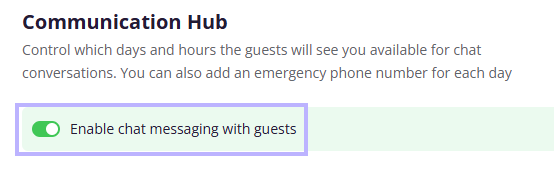
Confirm chat is enabled for the source
- Open a linked Expedia conversation in the Communication Hub and send a test reply
- Repeat for each additional Expedia Property ID
Before you start
What you need:
- Access to Expedia Partner Central with permission to manage connectivity settings.
- Access to Duve Connection settings.
- Your Expedia Property ID for each property you plan to connect.
- Your Expedia Property Internal Name for each property you plan to connect.
Things to check first:
- Confirm that your PMS syncs Expedia reservations to Duve. If Duve cannot identify a reservation as an Expedia reservation, messaging will not be available for it.
- Check whether your PMS already has its own direct Expedia messaging integration. Some platforms, such as Cloudbeds, offer a direct connection. Running both at the same time can cause duplicate messages or sync issues, so the direct connection may need to switch its messaging partner. Contact your Duve representative to review your setup before connecting.
How to set it up
Step 1: Connect on the Expedia side
Order of connection matters:
- The connection must be established on the Expedia side first, then on the Duve side. This order is required.
There are two connection flows on the Expedia side. Most accounts use the self-serve flow.
Self-serve connection (default):
- In Expedia Partner Central, go to Rooms and Rates.
- Open Connectivity Settings.
- Select Manage Services.
- Go to Connected Service Providers.
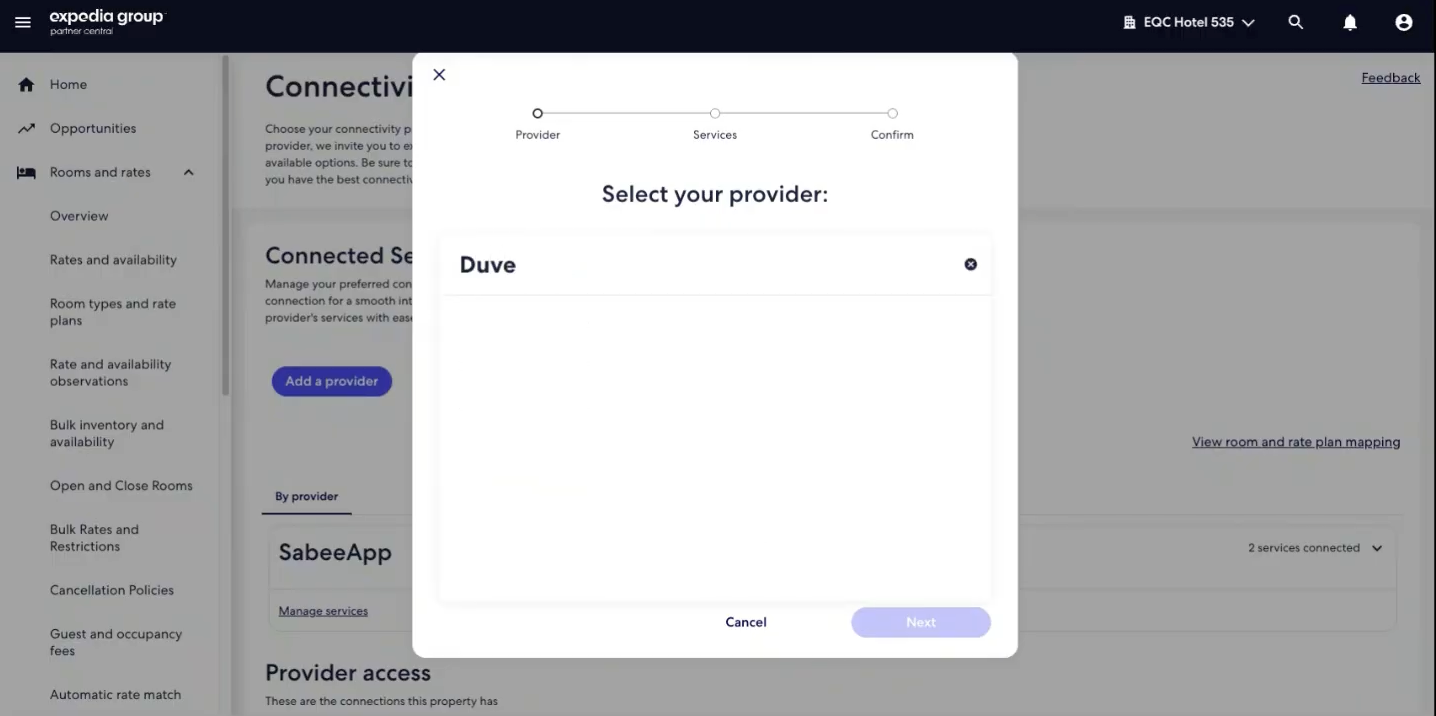
- Select Add a Provider.
- Type Duve in the provider search field.
- Select Connect.
- Select Next, then Confirm.
Custom connection (for enterprise partners):
- Some partners, typically large enterprise groups, do not support self-serve connections.
- In this case, request the connection through your Expedia account manager or Expedia support.
After the Expedia connection is created:
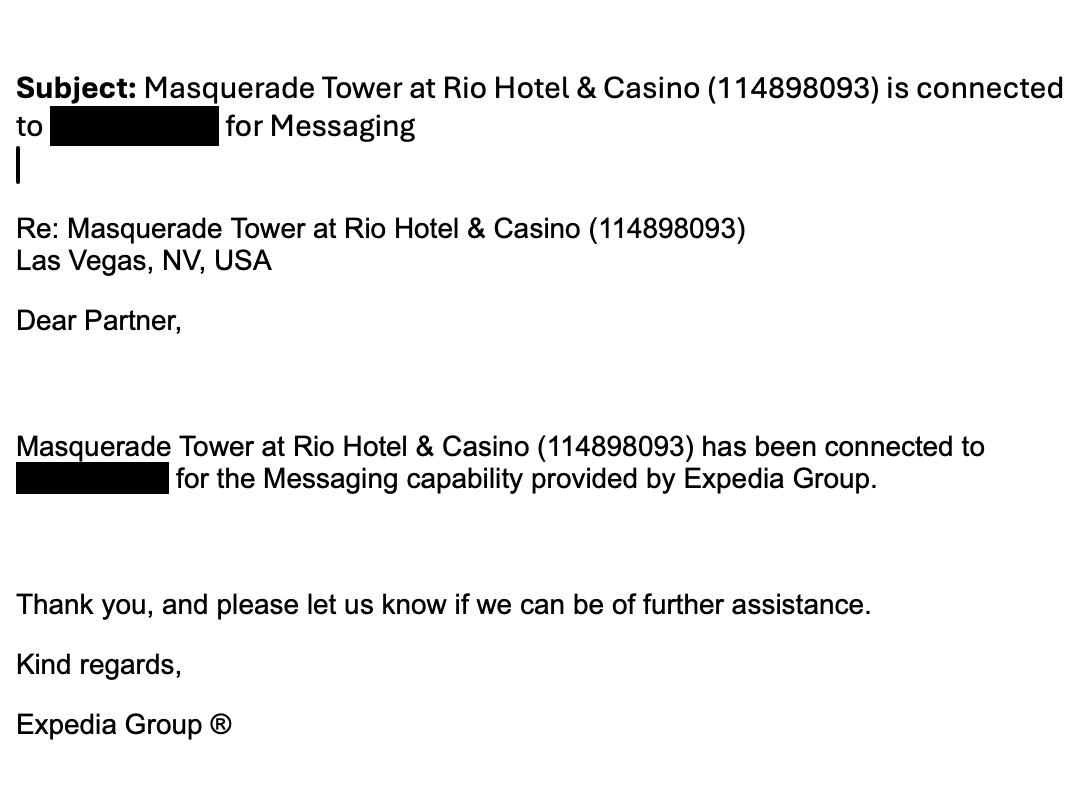
- Duve is notified automatically by email once the connection is established on the Expedia side, regardless of which flow you used.
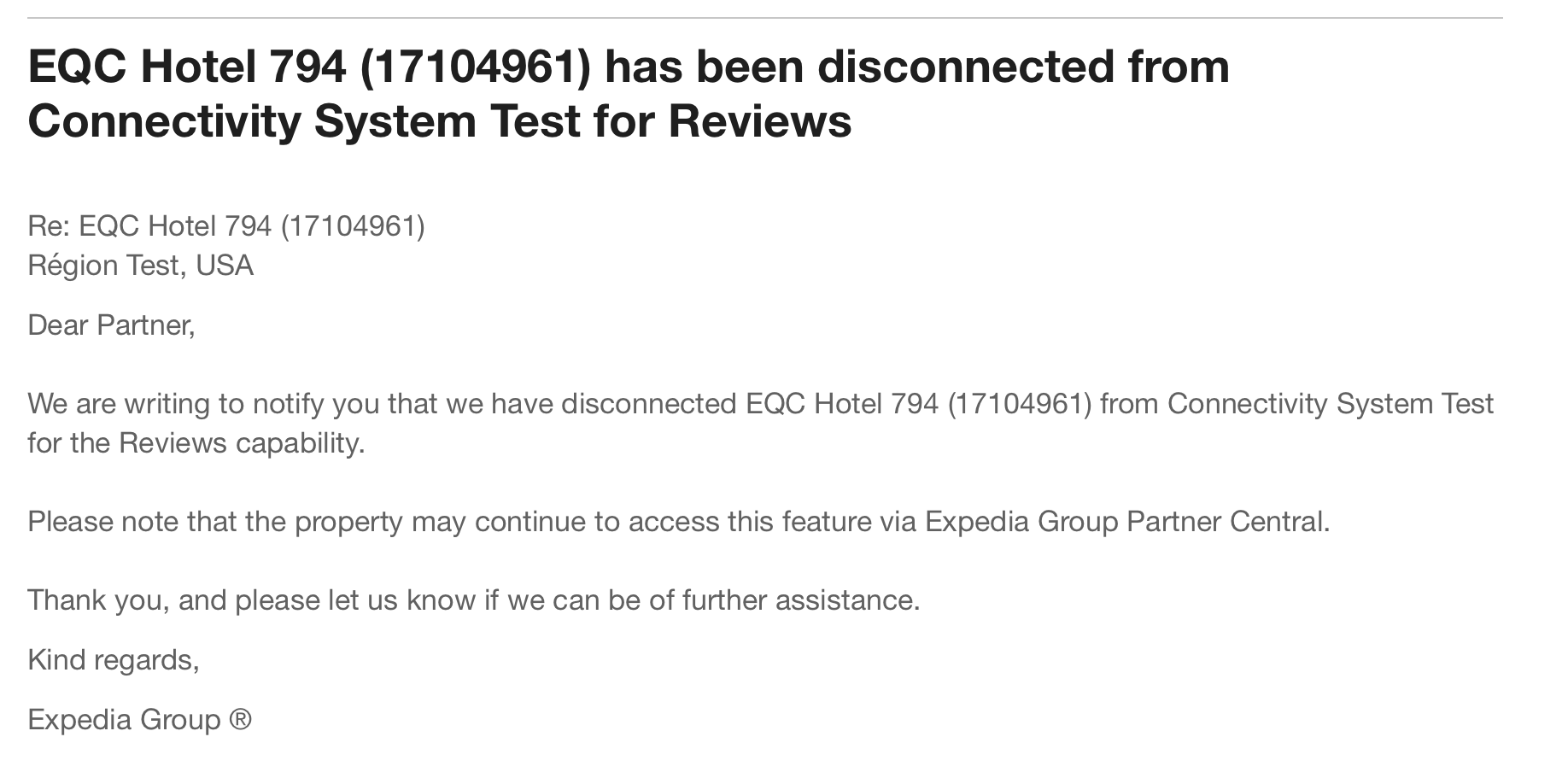
- Duve is also notified automatically if a connection is later revoked on the Expedia side.
Step 2: Add the connection in Duve
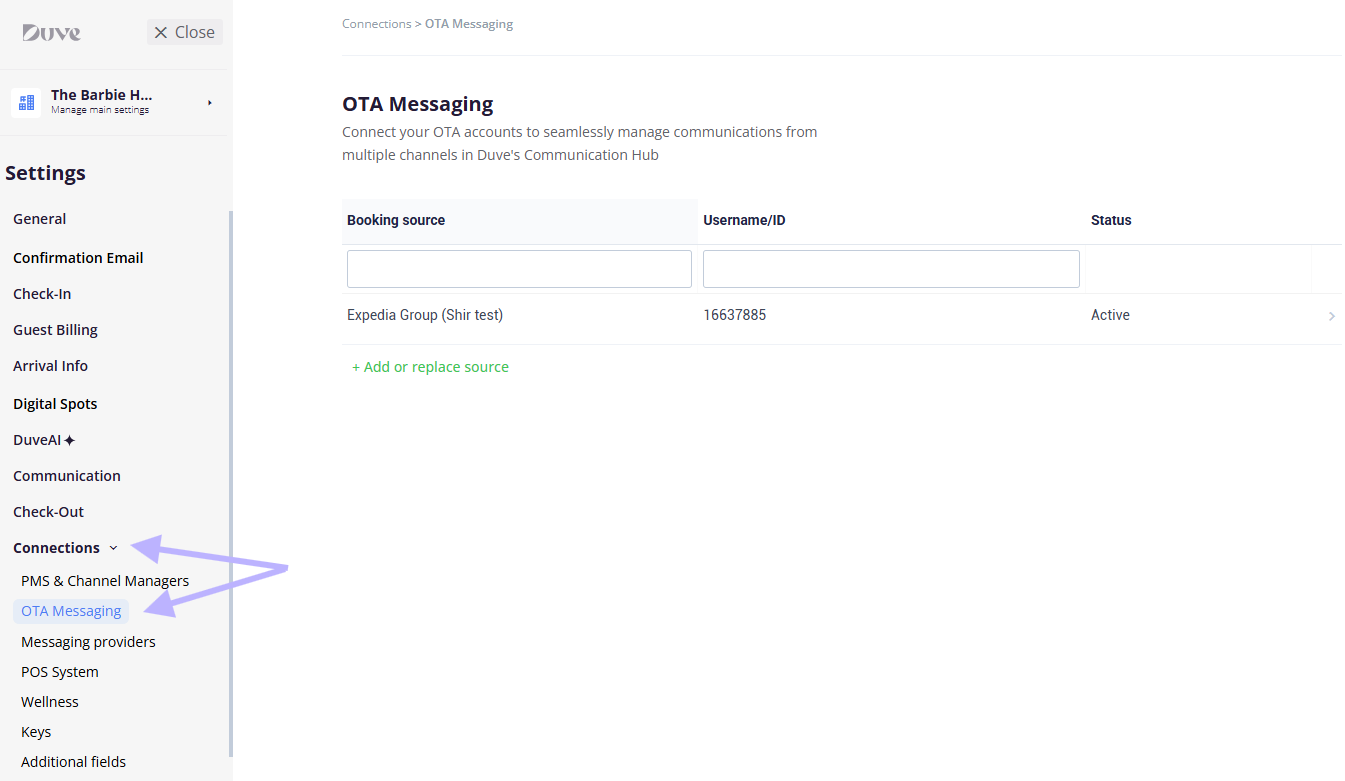
- In Duve, go to Connection settings.
-
Find the OTA Messaging section.
-
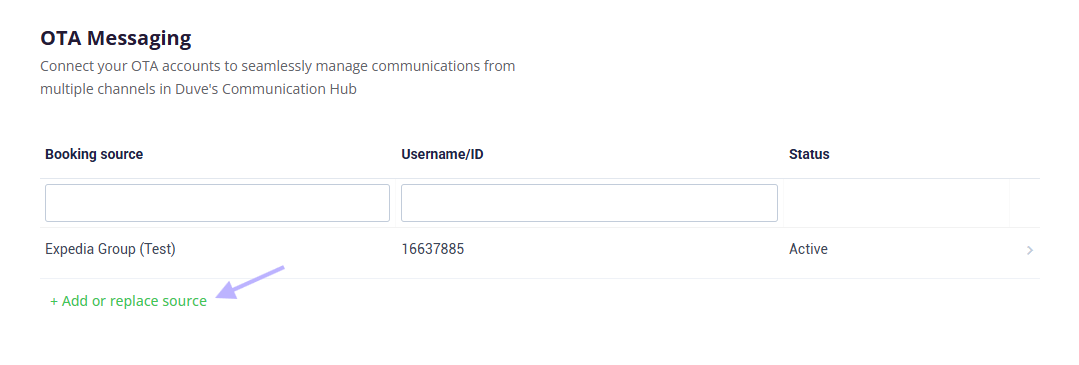
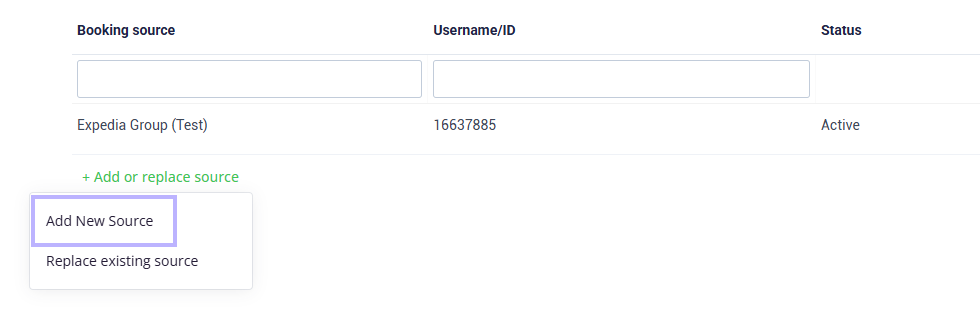
Select Add new Source.
-
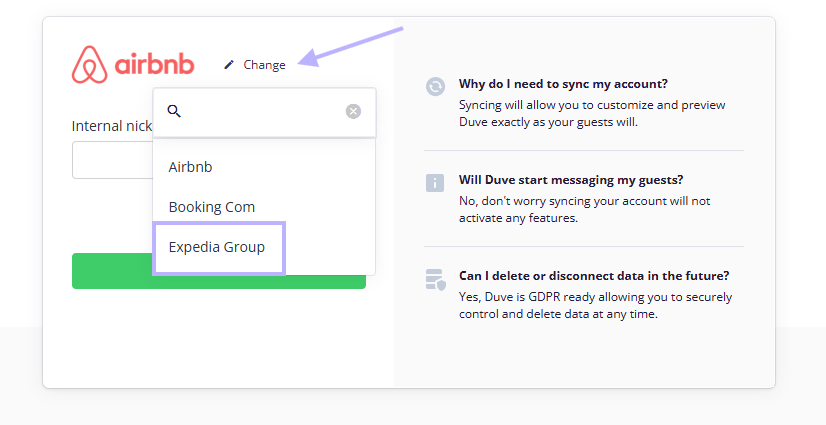
Choose Expedia Group.
- Enter the Expedia Property ID.
-
Enter the Expedia Property Internal Name.
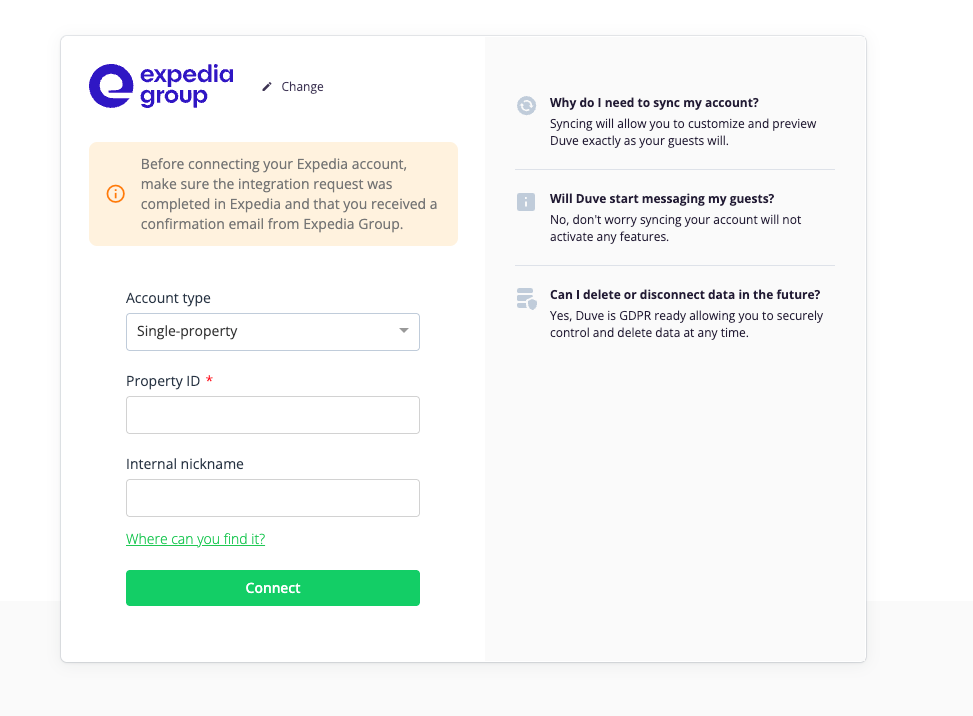
- Submit the details.
Once submitted, the property appears in your list of Expedia Group connections. Select any connection in the list to open its connection details screen.
To remove a connection:
- Open the connection details screen.
-
Select Delete.
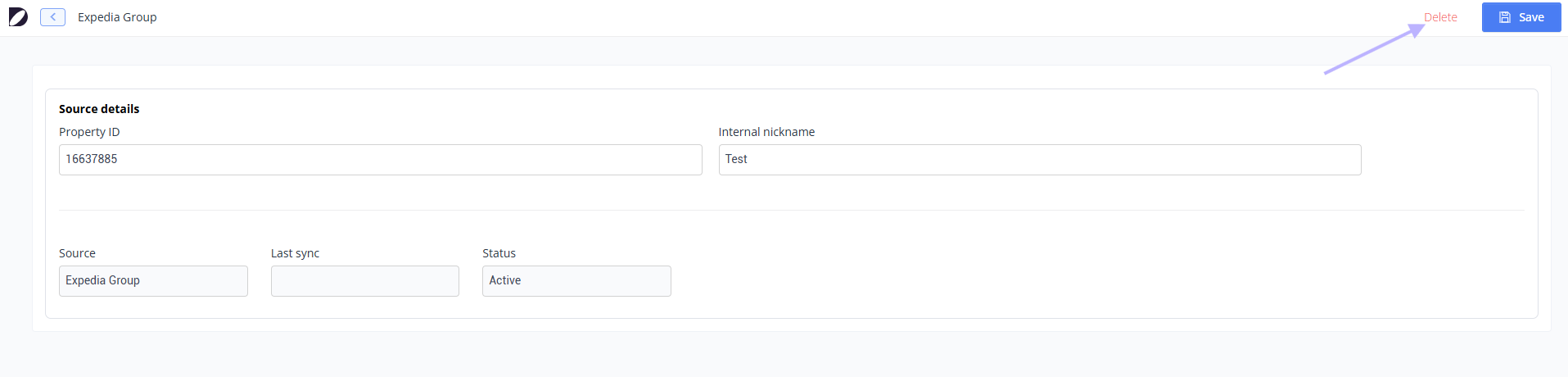
- Confirm in the delete connection modal. The connection is then removed.
Step 3: Start messaging in the Communication Hub
Once a reservation is successfully matched to an Expedia Group reservation:
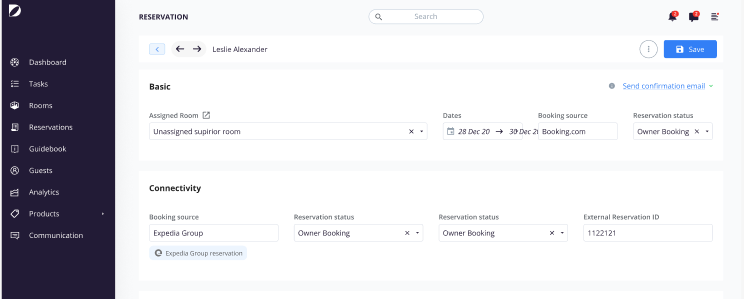
- The "Expedia Group" channel becomes available for that reservation in the Communication Hub.
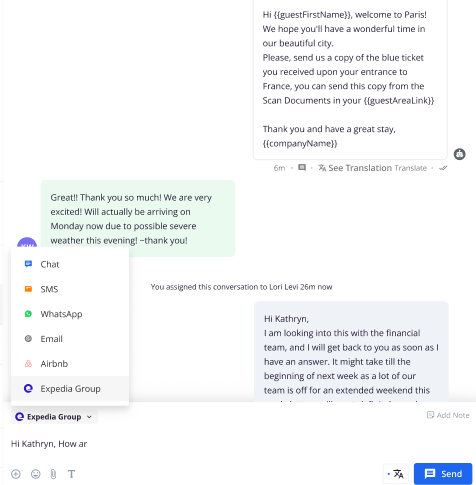
- A banner appears in the Communication Hub screen and on the reservation screen indicating that this is an Expedia Group reservation.
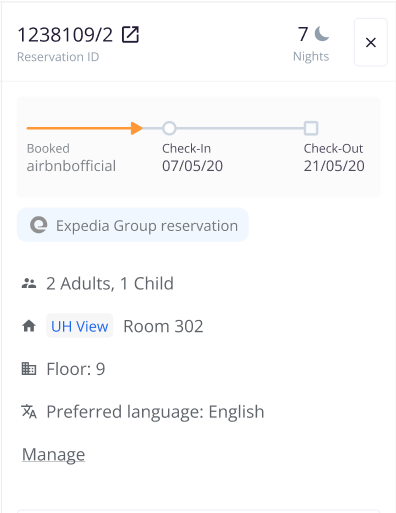
- A log entry is recorded on the reservation screen, under the "Booking source" field.
How message syncing works
- New reservations: For any new upcoming reservation that gets matched, Duve syncs all future messages from Expedia, including attachments.
- Backfill for existing reservations: When you first connect Expedia to Duve, Duve checks your existing Expedia reservations for match candidates. This includes current and future reservations that have not yet checked out. For any reservation that can be matched, Duve establishes the connection and syncs up to 90 days of message history, including attachments.
- Post-checkout: For reservations that have already checked out, Duve continues syncing new messages for 90 days after the checkout date.
Scheduled messages
- There is no dedicated "Expedia Group" trigger channel in scheduled message settings, and none is needed.
- Scheduled messages follow the same flow as regular messages. If a reservation is identified as an Expedia OTA match, the scheduled message is delivered through the Expedia Group channel automatically.
Troubleshooting
- The Expedia Group channel does not appear on a reservation. The reservation has not been matched to an Expedia Group reservation. Confirm that the property is connected on both the Expedia side and the Duve side, that your PMS is syncing the reservation, and that the reservation carries an Expedia source flag along with a valid external reservation ID that Duve can match against the Expedia API.
- The connection was created in Duve but no messages are flowing. Verify that the Expedia-side connection was completed first. If the Duve-side connection was created before the Expedia-side connection, delete it and add it again, only after the Expedia connection is confirmed.
- Duplicate messages or sync conflicts. This usually means a direct Expedia messaging integration is also active in your PMS. Only one messaging partner should be connected at a time.
- No historical messages appeared after connecting. Backfill covers up to 90 days of history and only applies to reservations that have not yet checked out at the time of connection. Older conversations and already checked-out reservations outside the sync window are not backfilled.
Restrictions and limitations
- Connections are per property, identified by Property ID. Account-level and unit-level connections are not supported.
- The Expedia-side connection must be completed before the Duve-side connection.
- Duve must be certified by Expedia and visible in Expedia's connections hub before hosts can select it in the self-serve flow.
- Vrbo is not part of this integration.
- Pre-booking and anonymous guest conversations are not supported. Every conversation must be tied to a specific Expedia group reservation.
- Attachments are one-way. Hosts can send images and documents to guests, but guests cannot send attachments to hosts through this channel.
- Post-checkout message syncing stops 90 days after the checkout date.
- Some enterprise partners cannot self-serve the Expedia-side connection and must go through their Expedia account manager.
Tips and tricks
- Gather the Property ID and Internal Name for every property before you start, so you can add all connections in one sitting.
- Connect ahead of your busy season. Backfill only covers reservations that have not checked out yet, so connecting earlier preserves more conversation history.
- Add a distinct Internal Name per property if you manage several. It makes the connection list much easier to scan later.
- If you use scheduled messages, review your existing templates once the integration is live to confirm the wording works for guests reading them inside an Expedia app.
- If you are migrating from a direct PMS-to-Expedia messaging connection, plan the switchover so only one messaging partner is active at any moment.
FAQs
Q: Do I need to connect each room or unit separately?
A: No. Connections are made per property. One property equals one connection, and it covers all units in that property.
Q: Which Expedia brands are included?
A: Expedia.com, Hotels.com, Orbitz, Travelocity, Hotwire, Egencia, CheapTickets, Wotif, ebookers, and Trivago. All of them appear under the single "Expedia Group" channel.
Q: Is Vrbo included?
A: No. Vrbo is excluded from the Expedia Group integration.
Q: Does this work with my PMS?
A: The integration is PMS-agnostic. Duve handles the messaging connectivity, while your PMS remains the source of truth for reservations. Any PMS integrated with Duve can support Expedia messaging.
Q: My PMS already has a direct Expedia messaging integration. Can I use both?
A: Not at the same time. Running two messaging partners can cause duplicate messages or sync issues. The direct connection may need to switch its messaging partner. Contact your Duve representative so your setup can be reviewed case by case.
Q: Can guests send me photos or documents through this channel?
A: No. Attachments are one way. You can send images and documents to guests, but guests cannot send attachments back through the Expedia Group channel.
Q: Will I see conversations from before I connected?
A: Yes, within limits. When you connect, Duve backfills up to 90 days of message history for current and future reservations that have not yet checked out.
Q: What happens to messages after a guest checks out?
A: New messages continue syncing for 90 days after the checkout date.
Q: Do I need to create a separate scheduled message trigger for Expedia?
A: No. There is no dedicated Expedia trigger channel. If a reservation is identified as an Expedia OTA match, your existing scheduled messages are delivered through the Expedia Group channel automatically.
Q: Is there a fallback to email or SMS if an Expedia message fails?
A: No Expedia-specific fallback is provided. Expedia send failures are logged, and there is no automatic switch to another channel.
Q: Can I message someone who has not booked yet?
A: No. Pre-booking and anonymous guest conversations are out of scope. Every conversation must be associated with a specific reservation.
Q: Can I connect more than one property under a single connection?
A: No. Only the Single property account type is available. Create a separate connection for each Expedia Property ID.
Q: How do I disconnect a property?
A: In Duve, open Connection settings, select the connection, choose Delete, and confirm in the modal. You can also revoke the connection on the Expedia side, and Duve is notified by email when that happens.
Comments
0 comments
Article is closed for comments.