
Overview
Guests can now scan their identity document at the start of the Online Check-In (OCI) wizard, and Duve will automatically read it and fill in their personal details for them.
Instead of typing their name, date of birth, nationality, document number, and expiry date from scratch, guests tap Scan ID on the Basic Details step, photograph or upload their document, and review the details Duve has already filled in. Duve extracts the data using MRZ (Machine Readable Zone) for passports and OCR (optical character recognition) for other document types.
Two things are new here:
- Scan-first auto-population. Document scanning moves to the beginning of the Basic Details step, and the extracted data pre-fills the form.
- Broader document support. Duve previously validated passports only, via MRZ. You can now also accept and validate national IDs and driver's licenses.
Manual entry is never blocked. Guests who cannot scan, or simply prefer not to, can skip the scan and type their details as before, then upload their document later in the Required Documents step.
Why it matters:
- Fewer fields to type means less drop-off on mobile, where most guests complete check-in.
- Extracted data matches the document exactly, so there are no typos or mismatches for your front desk to reconcile on arrival.
- Cleaner identity data supports regulatory reporting submissions in markets that require them.
| Applies to: All Duve accounts using Online Check-In, including hosts who do not currently require a document upload. The guest-facing scan entry point appears in the OCI wizard on both mobile and desktop. |
Use cases
As a guest:
- Scan your passport instead of typing your details, so you can finish check-in faster on your phone.
- Review and correct the pre-filled fields, so you can make sure your details are right before you submit.
- Skip the scan and type manually, so you can complete check-in without scanning anything.
As a host:
- Turn the scan entry point on per property, so you can offer a faster, scan-first check-in experience.
As a front desk team member:
- Receive accurate, pre-populated guest identity data, so you can cut down on arrival-day corrections and check-in delays.
Before you start
- Decide which document types you will accept. At least one type must be selected.
- If you use regulatory reporting, confirm that the document types you accept meet your local authority's requirements.
How to set it up
1. Choose which documents you accept
Go to Settings > Check-In > Required Documents.
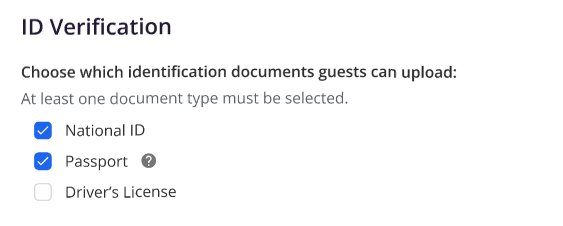
Under ID verification, select the document types you want to accept:
- Passport
- National ID
- Driver's License
This is a multi-select control, and at least one type must be selected. Guests who upload a document type you have not selected will see an error and be prompted to retake it.
2. Turn on the OCR scan entry point
Go to Settings > Check-In > Basic Details and switch on the OCR toggle.
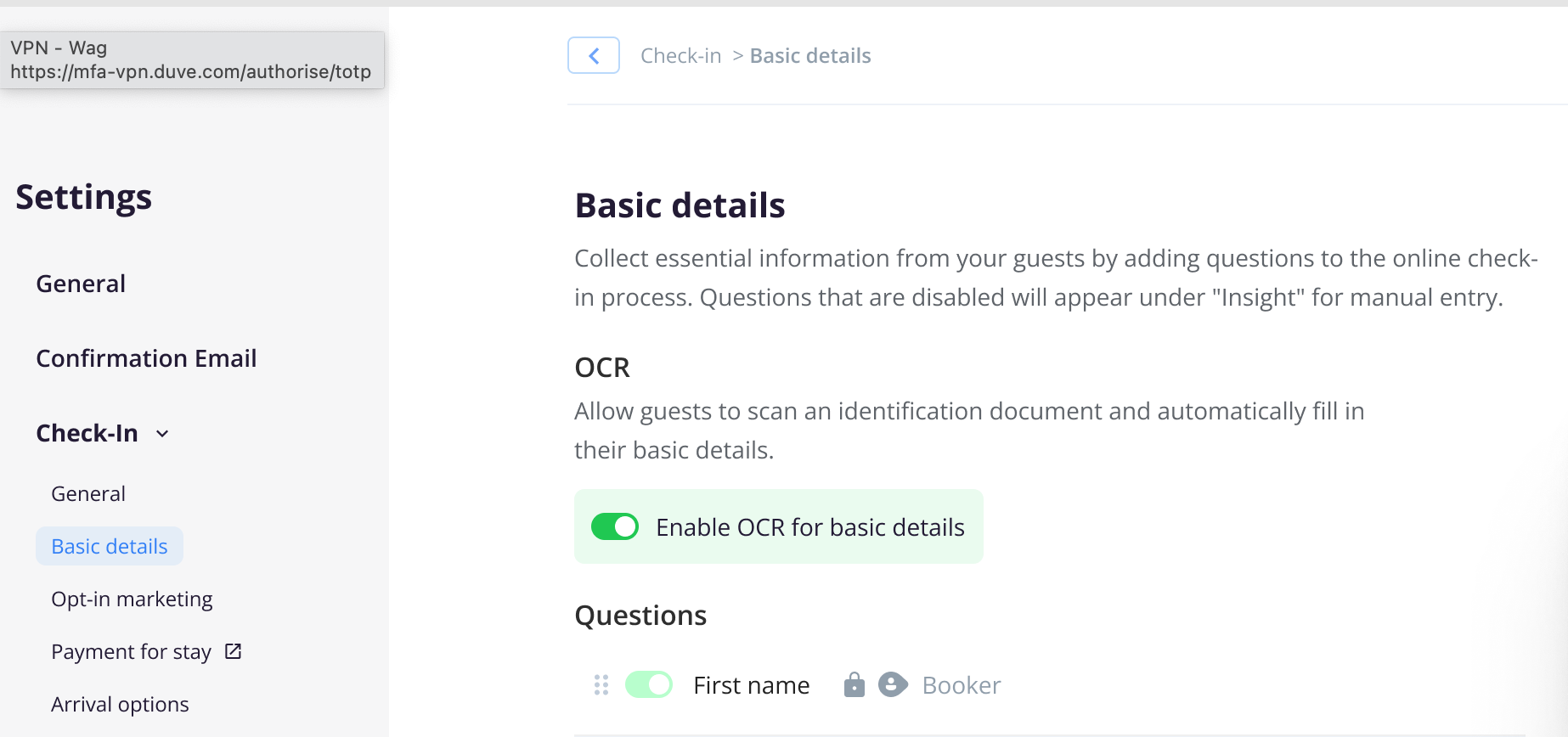
- On: guests see the Scan ID entry point at the top of the Basic Details step.
- Off: the OCI flow behaves exactly as it did before. Guests fill in the Basic Details form first, then upload their document in the Required Documents step.
Default states:
- Hosts who already require a document scan: enabled by default.
- Hosts who do not require documents: disabled by default.
3. Set who needs to scan
Choose whether documents are required from the primary guest only, or from additional guests as well. See Multi-guest flow below for what this looks like to guests.
You can also apply customization rules, for example, requiring IDs only for adults on domestic bookings, but passports for all guests arriving from abroad.
How guests use it
-
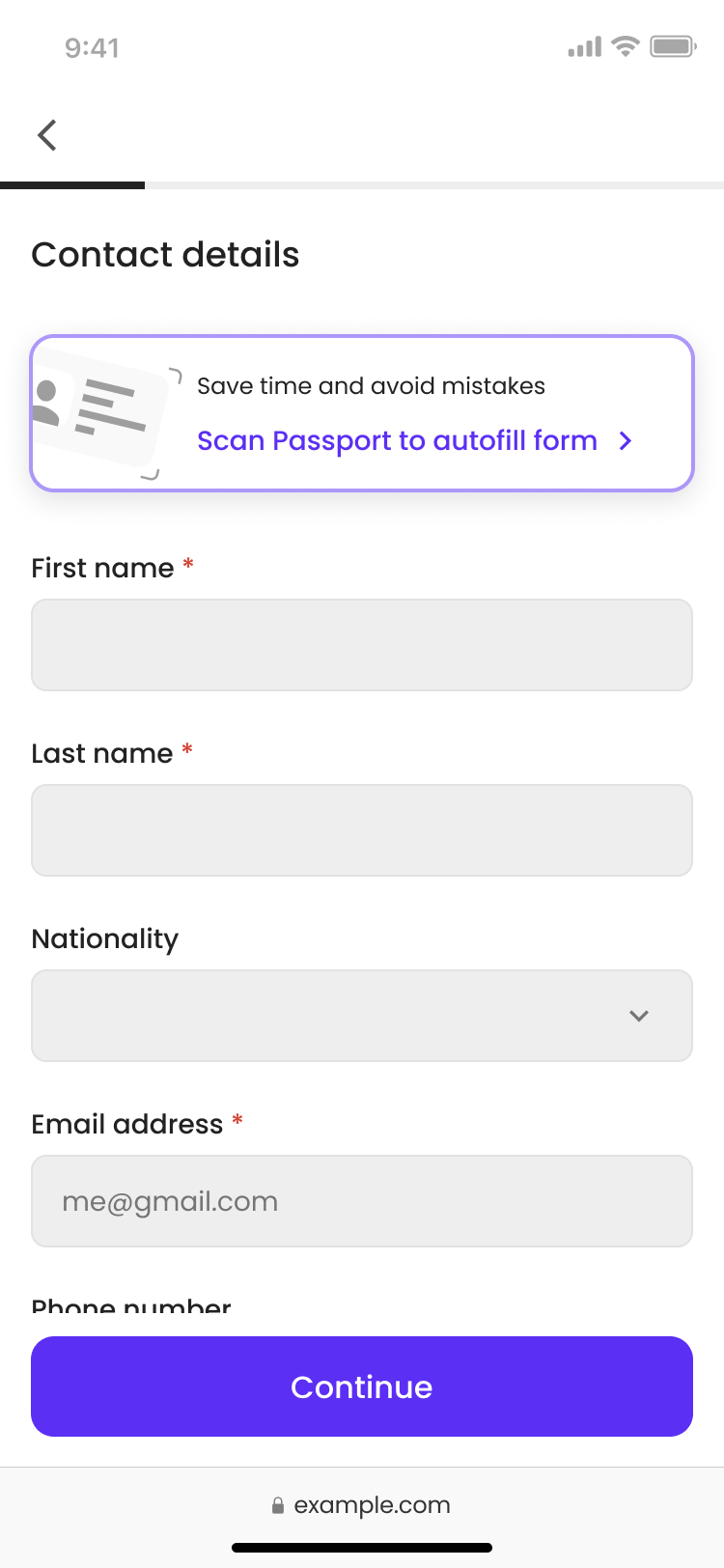
Guest reaches the Basic Details step. A Scan ID entry point appears at the top of the form.
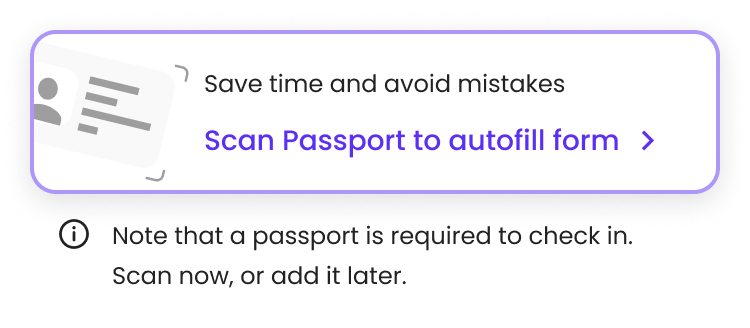
- If a passport scan is mandatory for your property, a note explains this.
- Guest taps Scan ID. A drawer opens with the camera and photo upload options.
- Guest photographs or uploads the document. A scanning animation runs over the preview while Duve reads the document.
-
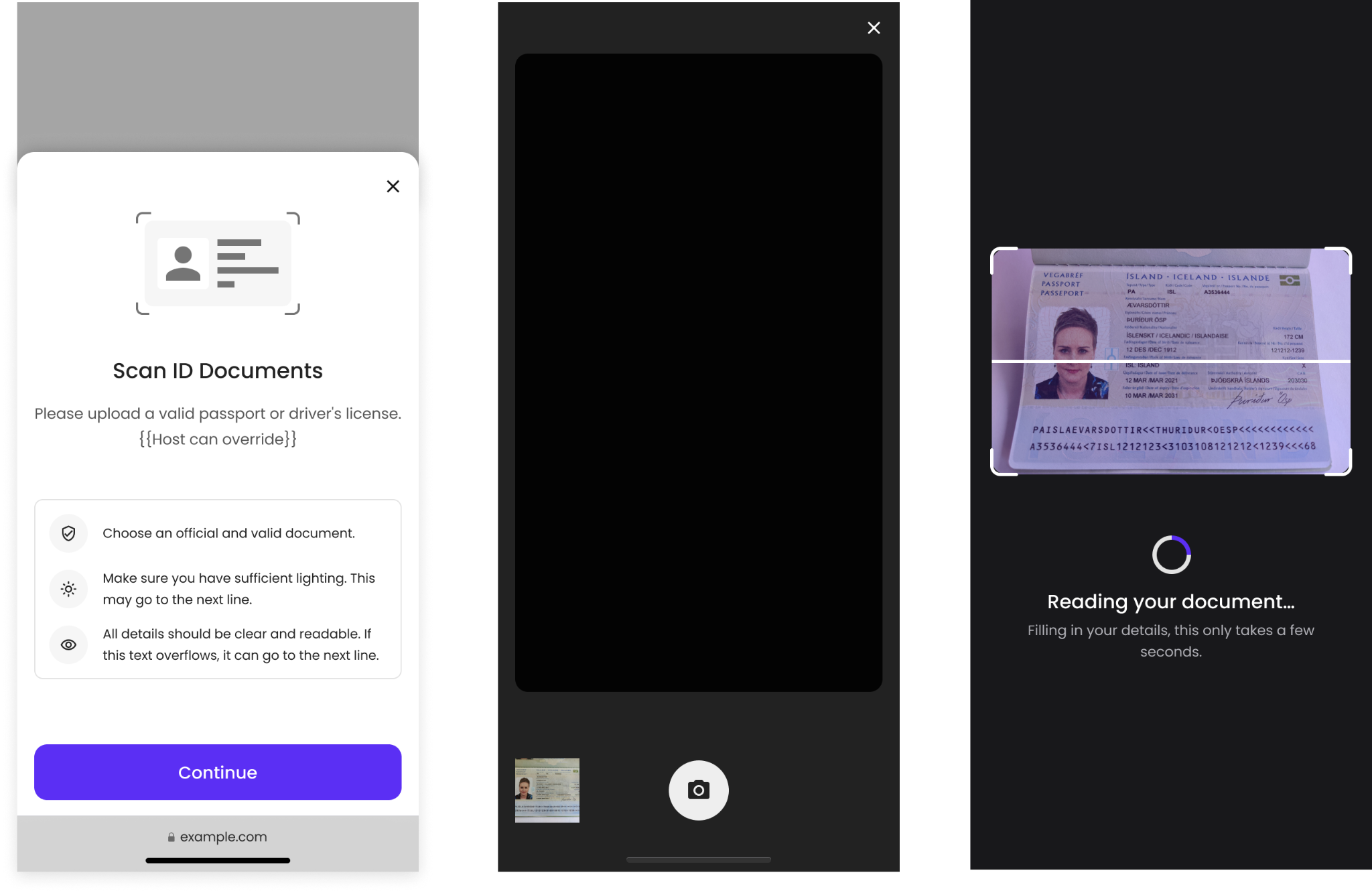
Guest lands back on the Basic Details form.
- On success:
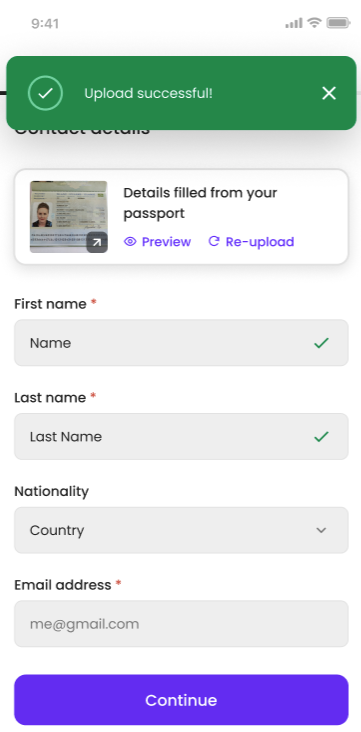
- A confirmation message appears, along with a thumbnail preview of the scan (The thumbnail stays visible as the guest moves back and forth through the wizard), and two actions:
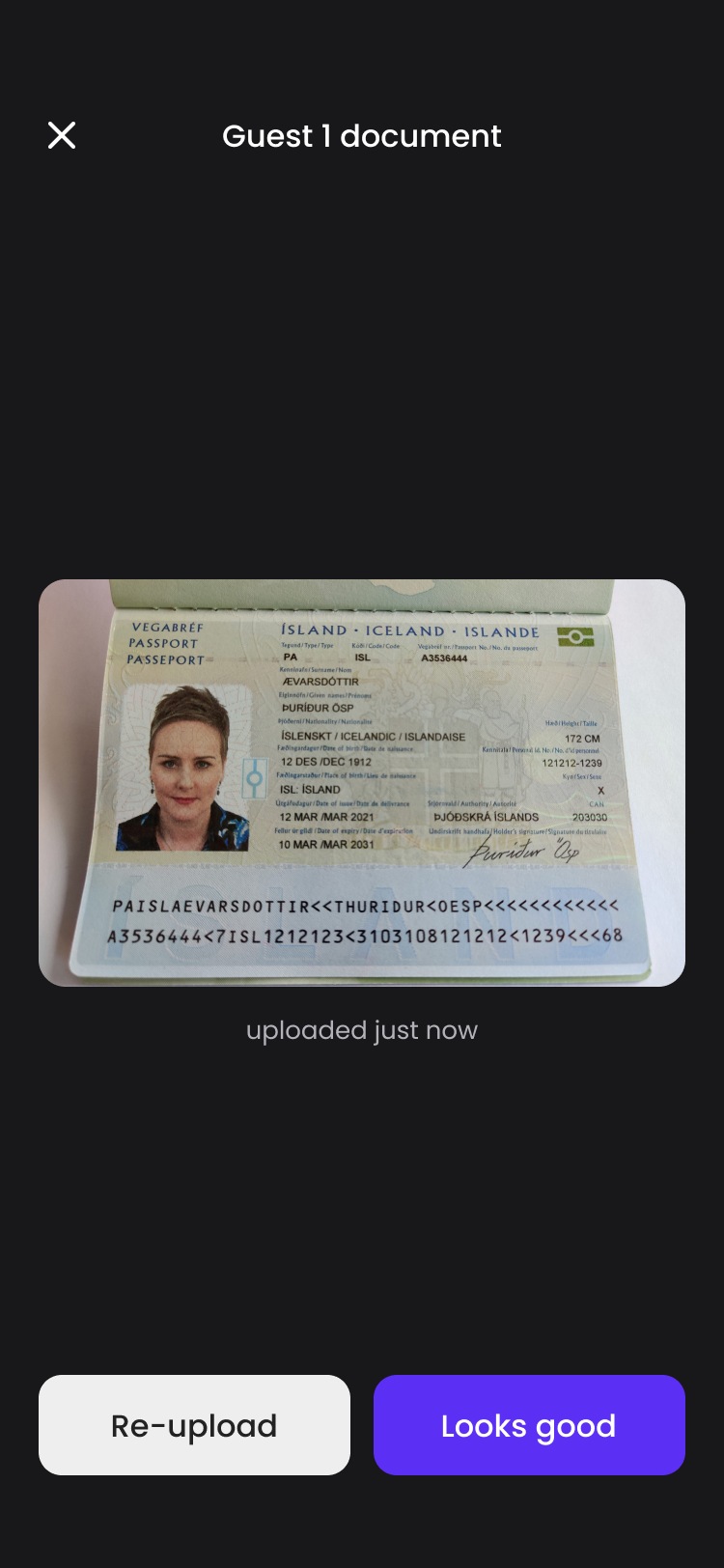
- Preview opens the image so the guest can approve it or re-upload.
- Re-upload resets the flow and starts a new scan.
-
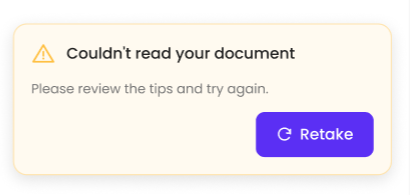
On failure:
- An error message Couldn't read your document appears when the documentation cannot be read and includes a Retake button, which restarts the photo or upload flow.
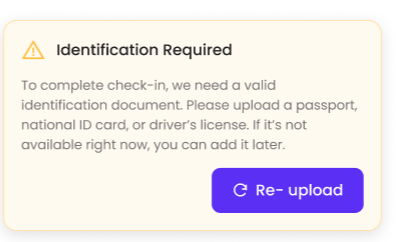
- An error message Identification Required appears when the documentation cannot be read and includes a Re-upload button, which restarts the upload flow.
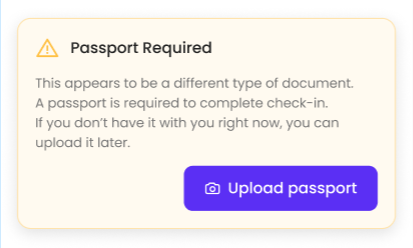
- An error message Passport Required appears when the documentation cannot be read and includes an Upload passport button, which restarts the upload flow.
- Guest reviews the pre-filled fields, completes anything left blank, and continues.
- Guest skips the document step later. Anyone who completes the scan successfully on Basic Details will not be asked to upload the document again in the Required Documents step.
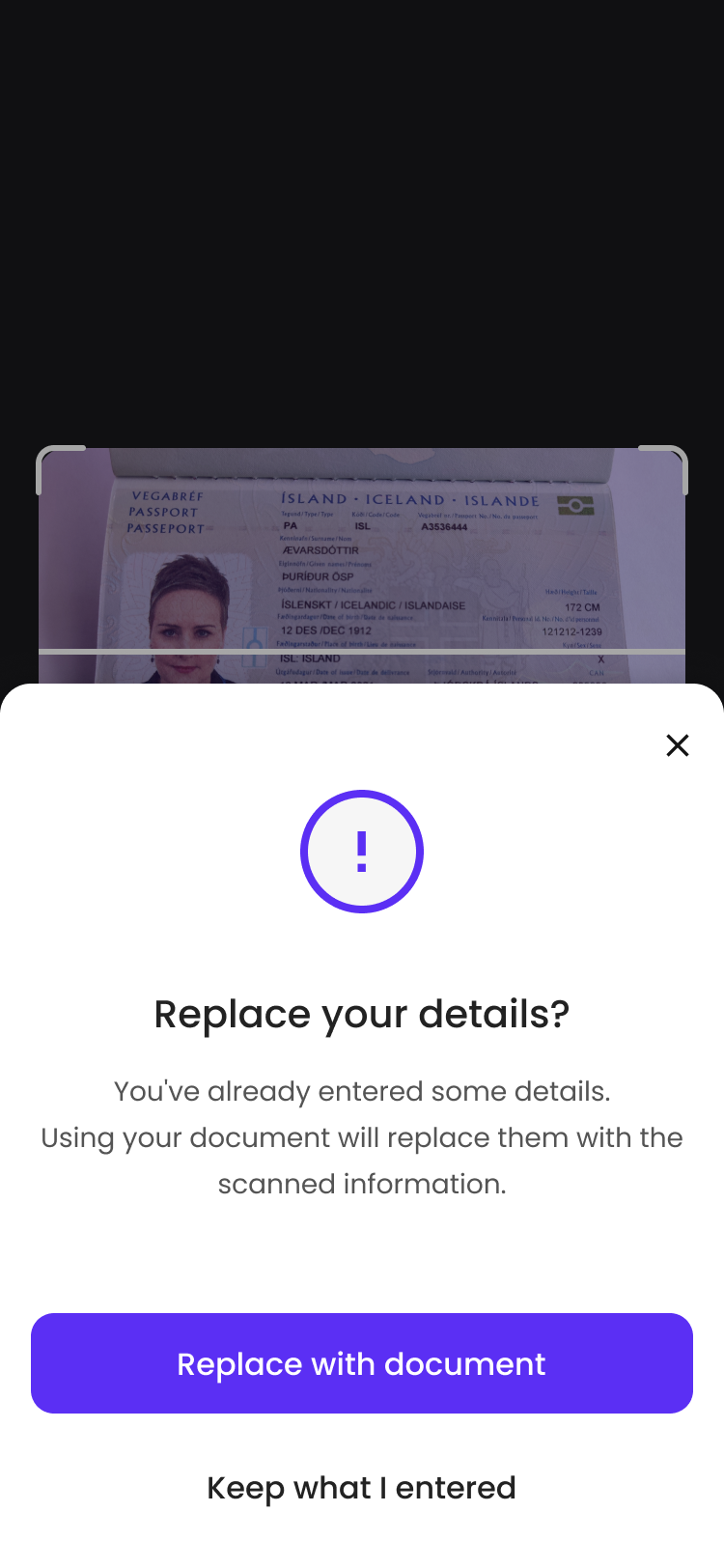
If the guest already typed their details before scanning
After a successful scan, Duve asks whether to use the newly extracted data:
- Replace with document overwrites the fields with the scanned values.
- Keep what I entered leaves everything the guest already typed untouched.
Multi-guest flow
- Each guest who needs a document gets their own scan entry point. If you require documents for more than the primary guest, the Scan ID entry point appears for every guest who needs one, on their own section of the form.
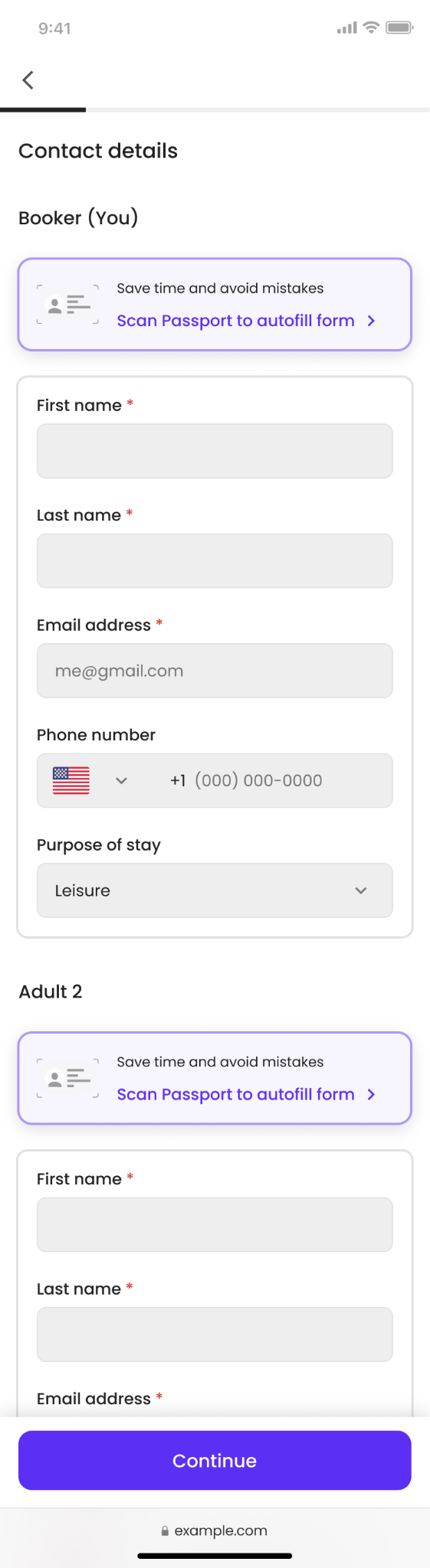
- A successful scan means no second upload. Any guest who completes the document scan on the Basic Details step will not be asked for their document again later in the Required Documents step.
Which fields get filled in
Duve auto-populates fields it extracted with high confidence:
- First name
- Last name
- Date of birth
- Nationality
- Document number (passport, national ID, or license)
- Document expiry date
Troubleshooting note: Fields extracted with lower confidence are left empty and editable rather than filled in with a guess. Every pre-filled field remains editable by the guest.
-
When Check-In > Extra Customization > Prevent guest from editing his personal info is enabled, the guest's personal detail fields are locked in the check-in flow, and scanned document (OCR) data does not update them. The document is still uploaded and stored, but the values it reads are not written into the locked fields.
Troubleshooting
-
Symptom: "We couldn't read your document" error: The image was too blurry, dark, cropped, or angled for Duve to read the MRZ or run OCR.
- Solution: Tap Retake. Lay the document flat on a plain surface, in good, even light, with all four corners in frame and no glare.
-
Symptom: "Identification Required" error: the document could not be validated, or it is expired or damaged.
- Solution: Tap Re-upload and try a different document, or skip the scan and enter details manually.
-
Symptom: "Passport required" error: the uploaded document is not the type your property accepts.
- Solution: Upload the document type requested, or contact the property if the guest does not have one.
-
Symptom: Some fields are still empty after a successful scan: Those values were extracted with low confidence, so Duve left them blank on purpose.
- Solution: The guest fills them in manually. This is expected behavior, not a failure.
-
Symptom: Names came back slightly different from the booking: the document is the source of truth for extracted names.
- Solution: The guest can edit the fields, unless your property prevents guests from editing personal info.
Troubleshooting note: If a guest cannot get a scan to work at all, they can always continue with manual entry and upload the document in the Required Documents step.
Restrictions and limitations
- No PMS sync. Validated document data is not pushed to guest or reservation records in your PMS in this version.
- Not a fraud prevention tool. This feature extracts and validates document data. It does not perform full identity verification, biometric matching, or liveness detection.
-
Three document types only. Passport, national ID, and driver's license. Other documents such as residence permits or visas are not supported for extraction.
-
Supported documents
- Passport (with MRZ) → fills all fields
- National ID (MRZ) → EU countries + Dubai
- Driver's license → USA, EU (not Greece), UK, Israel, Singapore (doesn't fill doc number/type)
- Singapore NRIC → supported
-
Supported documents
- Manual entry cannot be removed. The scan is a convenience, not a gate. There is no setting that forces a guest to scan before typing.
- Guest form editing rules still apply. If you have enabled Check-In > Extra Customization > Prevent guest from editing personal info, guests will not be able to change locked fields, including those pre-filled from a scan.
- No changes to retention or privacy policies. Document retention and privacy handling are unchanged by this feature.
- When "Require document" is mandatory, guests can skip the scan in the "Basic details" section. If they scan at the beginning, they won't be asked again.
Tips and tricks
- Keep the document types you accept narrow. Only select types your team can actually work with, so guests are not offered an option that fails validation.
- Advise guests to use the back camera. Rear cameras produce a much sharper image than front cameras, and image quality is the main reason scans fail.
FAQs
Q: Do guests have to scan their document?
A: No. Scanning is optional. Guests who skip it fill in Basic Details manually and upload their document later in the Required Documents step, exactly as before.
Q: Which documents can Duve read?
A: Passports (via MRZ), national IDs, and driver's licenses (via OCR). You choose which of these your property accepts in Settings > Check-In > Required Documents.
Q: Can guests edit the details Duve fills in?
A: Yes, every pre-filled field stays editable. The one exception is if you have enabled Prevent guests from editing personal info, in which case locked fields cannot be changed.
Q: What happens if a guest already filled in the form and then scans?
A: Duve asks whether to Replace the existing values with the scanned ones or Keep what the guest typed.
Q: Why are some fields still empty after a successful scan?
A: Duve only fills fields it reads with high confidence. Anything below that confidence threshold is left blank rather than filled in with a possibly wrong value, so guests complete those fields themselves.
Q: Why is scanned document data not filling in the guest's personal details?
A: The Prevent guest from editing his personal info setting under Check-In > Extra Customization is enabled for this property. While it is on, personal detail fields are read-only for the guest, and OCR results are not written into them. Turn the setting off if you want scanned document data to populate those fields.
Q: Will guests be asked for their document twice?
A: No. A guest who completes the scan on the Basic Details step skips the document upload in the Required Documents step.
Q: Does this work when multiple guests need to provide documents?
A: Yes. If you require documents for more than the primary guest, each guest gets their own scan entry point.
Q: Is this identity verification or fraud detection?
A: No. The feature reads and validates document data to speed up check-in and improve accuracy. It does not perform identity verification, biometric checks, or liveness detection.
Q: Can I turn this off?
A: Yes. Switch off the OCR toggle in Settings > Check-In > Basic Details, and the check-in flow returns to the previous behavior.
Q: Does the guest's document image get stored?
A: Yes, the same way document uploads are handled today. Extracted values, confidence scores, source metadata, and timestamps are also stored so you have an audit trail of what was extracted and what the guest confirmed. Retention and privacy policies are unchanged.
Q: I have guests who mostly use national IDs, not passports. Is this useful for them?
A: Yes, and that is a big part of why the feature exists. National IDs and driver's licenses can now be read automatically, so guests in markets where passports are not the primary travel document get the same time savings.
Related articles:
MRZ Verification for Required Documents in the Online Check-in
Setup Document Verification and Guest Experience for Dubai Hosts
Comments
0 comments
Article is closed for comments.