
Overview
The Check-in week day and Check-out week day conditions let you limit a scheduled message to reservations that arrive or depart on specific days of the week.
- Check-in week day looks at the reservation's check-in (arrival) date and matches it against the weekdays you select.
- Check-out week day looks at the reservation's check-out (departure) date and matches it against the weekdays you select.
Both conditions work the same way:
- You choose an operator: Is or Is not.
- You choose one or more weekdays from Sunday through Saturday. The list is a multi-select, so you can pick several days in a single condition.
- The weekday is calculated using your company's time zone when one is set, so the day matches the local calendar date of the reservation rather than a UTC date.
Important behavior to keep in mind:
- With Is, the message is sent when the reservation's check-in or check-out date falls on any one of the selected days.
- With Is not, the message is sent when the reservation's check-in or check-out date falls on none of the selected days.
- When a scheduled message has more than one condition, all conditions must be met for the message to go out.
These conditions are available on scheduled messages (triggers). They sit alongside the related weekday conditions you may already be using, such as At days (the day the message would be sent) and In-house week day (any weekday that falls within the stay).
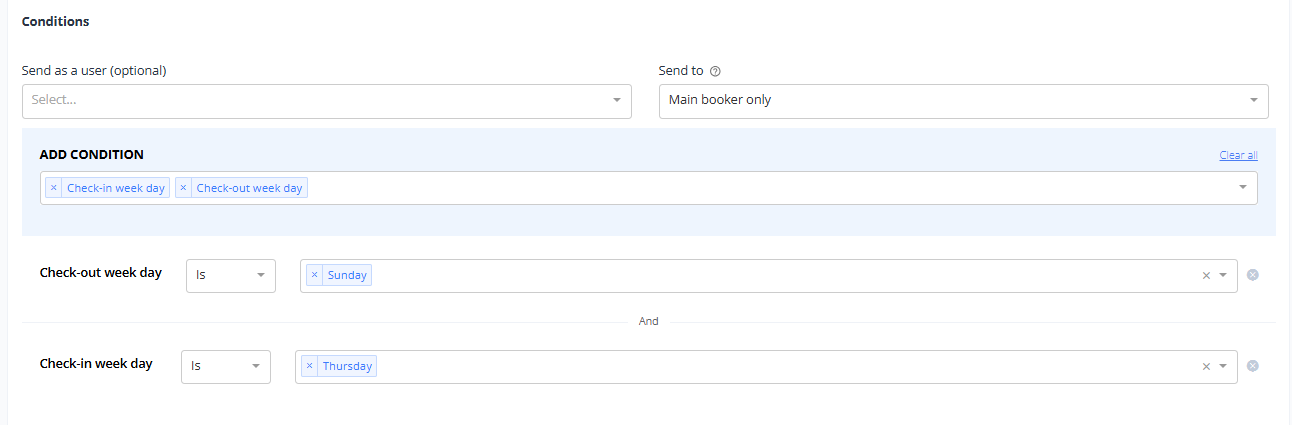
How to set it up
- Open the scheduled message you want to edit, or create a new one.
- Go to the Conditions area of the message.
- Add a condition and select Check-in week day or Check-out week day from the condition list.
- Set the operator to Is or Is not.
- Open the weekday selector and pick one or more days (Sunday, Monday, Tuesday, Wednesday, Thursday, Friday, Saturday). The selector stays open so you can add several days in a row.
- Add any other conditions the message needs. Remember that every condition on the message must be met.
- Save the scheduled message.
Notes while setting up:
- You can use both conditions on the same message, for example, check-in Is Friday, and check-out Is Sunday, to target a specific weekend pattern.
- The operator defaults to Is, so change it only if you want to exclude days.
Comments
0 comments
Article is closed for comments.