
Your hotel website already holds the answers guests ask about most: check-in details, amenities, dining, policies, and FAQs. With the Website data source, you can point DuveAI to your website instead of retyping that content into text sources. DuveAI scans the pages you choose and uses them as context when it answers guest questions, so you save setup time and keep answers aligned with what you already publish.
Quick navigation:
- Applies to
- Use cases
- Before you start
- How to set it up
- How to manage a website source
- Host experience + Guest experience
- Troubleshooting
- Restrictions & Limitations
- Tips & Tricks
- FAQs
- Related article
Applies toAccounts with the DuveAI package.
|
Use cases
- Faster AI onboarding: Add your website link and let DuveAI learn from your existing content instead of copying it into text sources.
- Answer from a specific page: Add only the page that matters (for example, your "Spa" or "Dining" page) so DuveAI answers from that content only.
- Cover your whole website: Discover all accessible pages on your domain and choose which ones DuveAI can use.
- Multi-property setups: Add a separate website or subpage for each property or brand so each one gets answers based on its own content.
- Keep answers current: Rescan a website source after you update your website so DuveAI picks up the changes.
Before you start
- Make sure the pages you want to add are public. Pages behind a login cannot be scanned.
- Have the full URL ready, including
https://(for example,https://hotel.com/about). - If you manage brands, decide whether the brand should use its own sources or the account-level sources. See "Account vs. brand sources" below.
How to set it up
- Go to DuveAI > Sources.
-
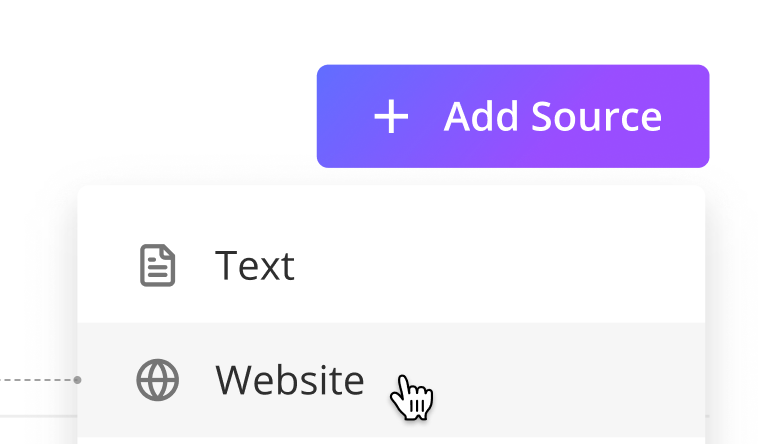
Click Add Source and select Website.
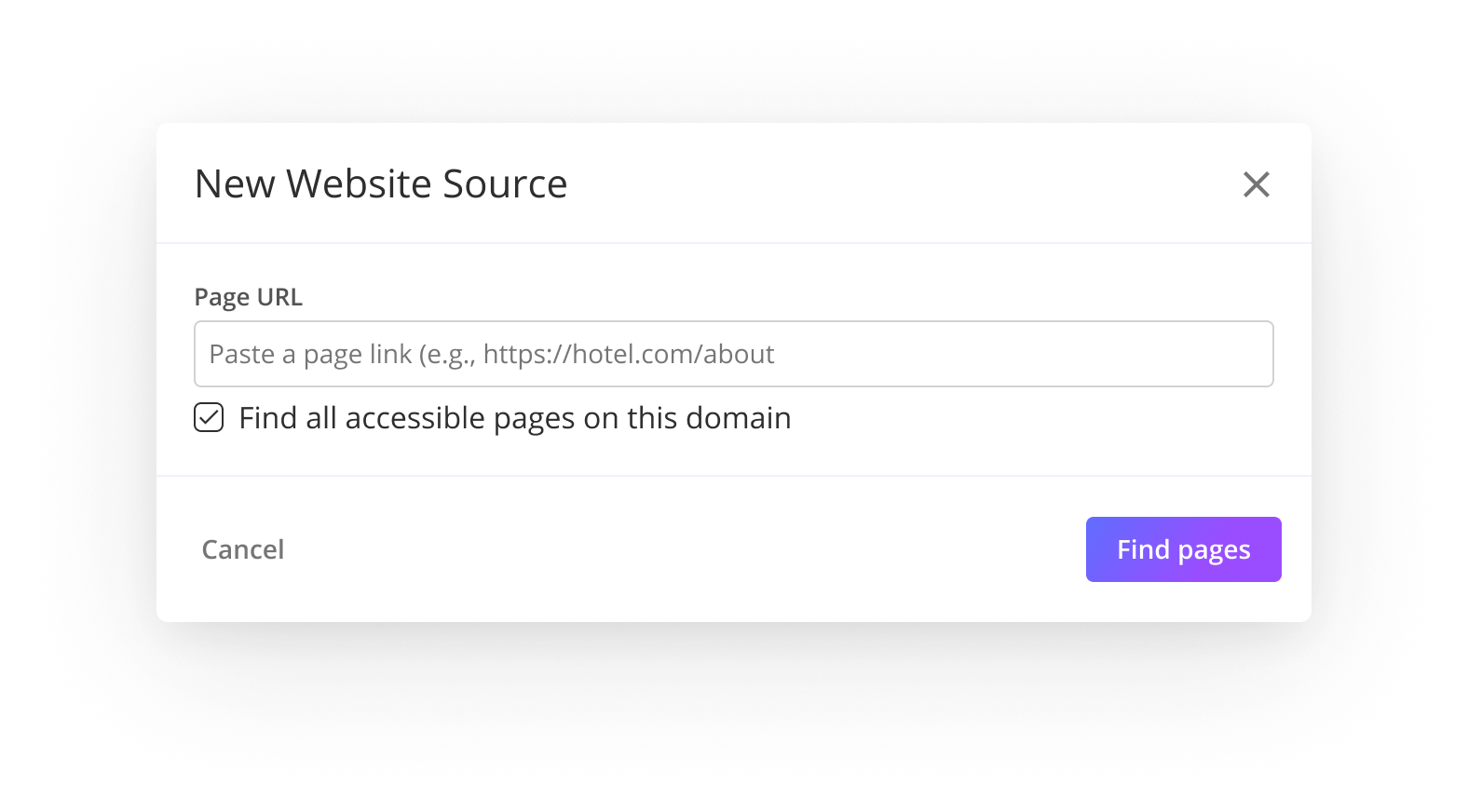
- In the New Website Source window, paste the page link into the Page URL field.
- Choose how much of the website to add:
- A single page: Leave Find all accessible pages on this domain unchecked and click Scan Page.
-
Multiple pages: Check Find all accessible pages on this domain and click Find pages.
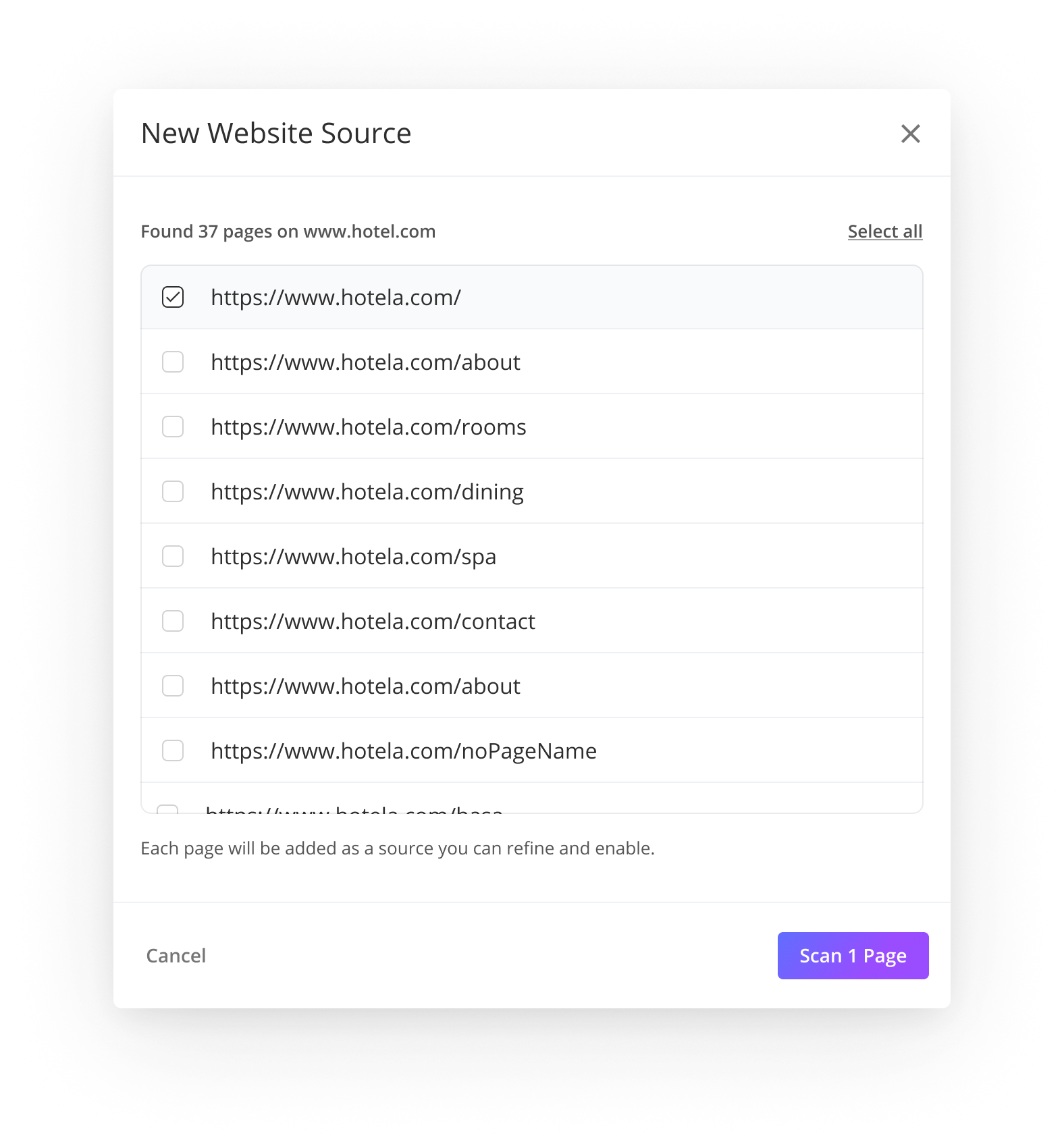
- If you chose to find all pages, Duve shows a "Discovering pages..." screen while it searches your website. When it finishes, you see the list of pages it found (for example, "Found 24 pages on hotel.com").
- The page you entered is listed first and is selected by default.
- Use the search field to filter the list, and select all or Deselect to change your selection quickly.
- Only checked pages are used for answers.
-
Click Scan X Pages to continue.
-
When the scan starts, you will see Scanning in progress. Click Done to add the source and close the window. You do not need to keep the window open while the scan runs.
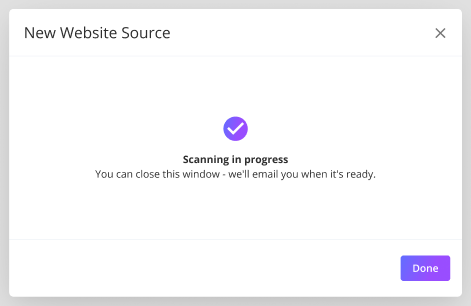
- Note: If you close the window with the X at this step instead of clicking Done, the new source is discarded.
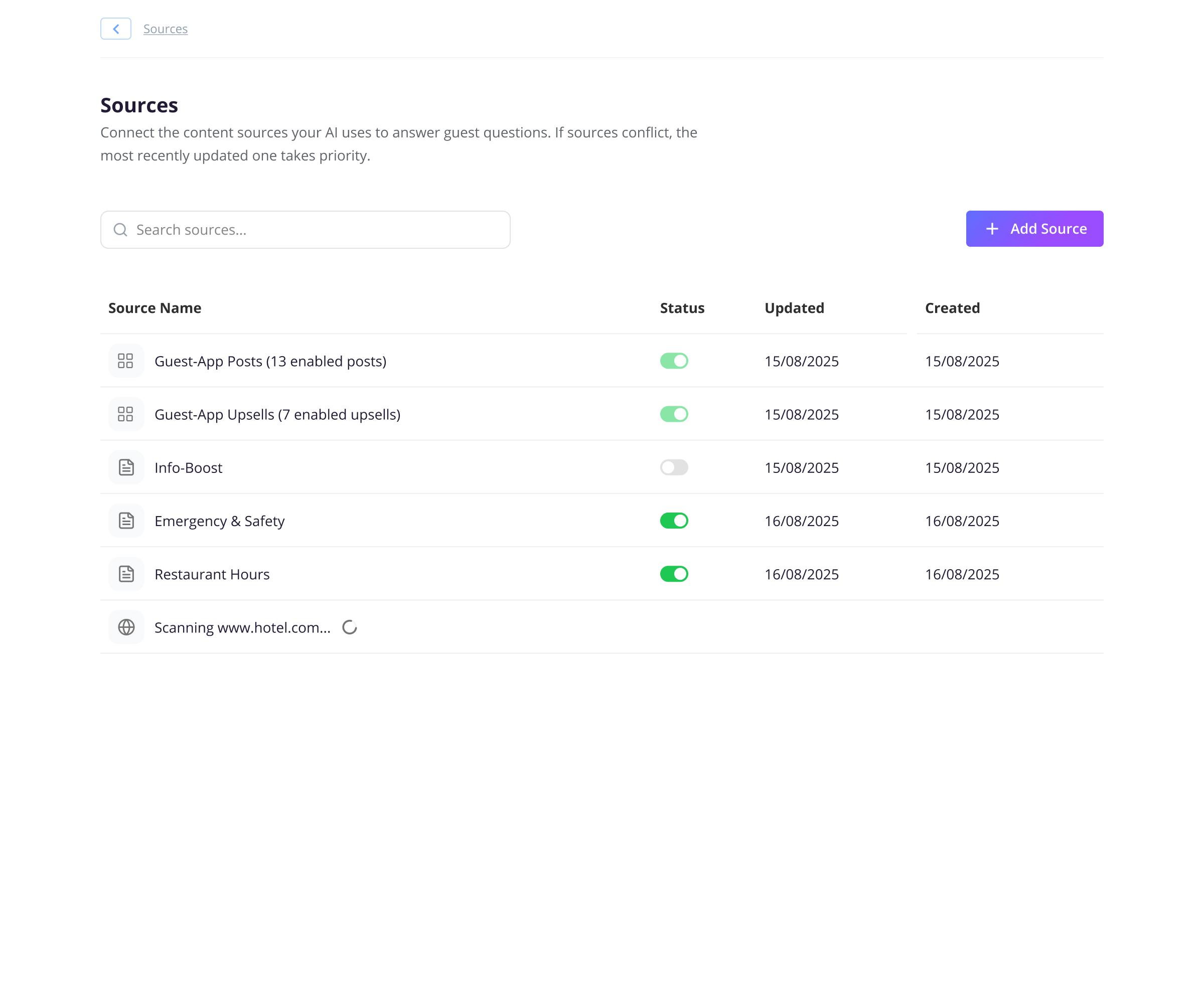
- Back on the Sources page, the new source shows "Scanning [URL]" with a loading indicator. When the scan is complete, the row updates automatically with its status toggle and dates.
How to manage a website source
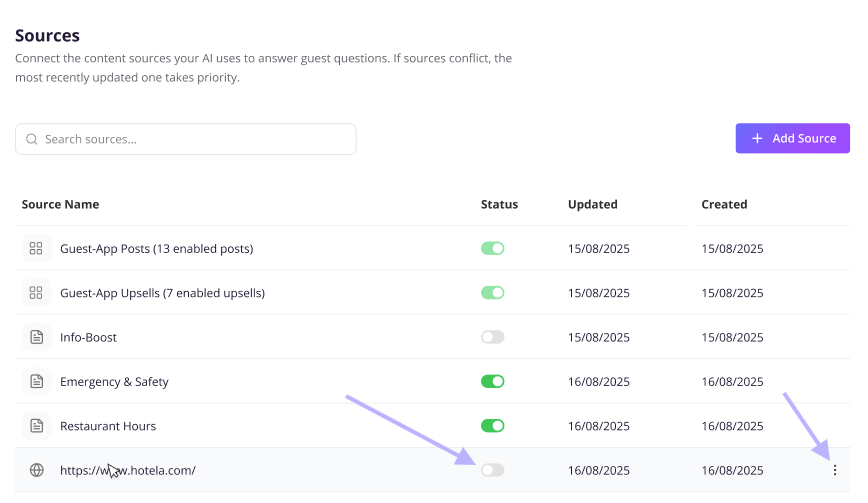
Each website source row shows its URL, a status toggle, the Updated and Created dates, and an actions menu (the three dots). From the actions menu, you can:
- Edit: Change which pages of the source are used. Check or uncheck pages and click Save.
- Rescan: Scan the source again to pick up changes on your website. For a source created with "Find all accessible pages on this domain", Duve searches the domain again: new pages are added as enabled, pages that no longer exist are removed, and your on/off choices for existing pages are kept. For a single-page source, the same page is scanned again.
- Delete: Remove the source permanently. A confirmation window appears first. To stop using a source temporarily, turn off its status toggle instead.
- To stop DuveAI from using a website source without deleting it, turn off the Status toggle in its row.
Account vs. brand sources
On a brand's Sources page, the Override account-level settings toggle decides which website sources the brand uses:
- Override on: The brand uses only its own website sources.
- Override off: The brand uses only the account-level website sources.
Note: DuveAI never combines account and brand website sources. If you turn on the override for a brand, make sure you add at least one website source at the brand level, or that brand will not have website content to answer from.
Host experience + Guest experience
Host experience
- Website sources appear in the same Sources table as your text sources, Guest-App Posts, and Upsells.
- While a source is scanning, its row shows a loading indicator. If a scan fails, the row shows "Scan failed" for that URL in red.
- Every create, edit, and delete action on a website source is recorded in your account activity logs, along with the user who made the change.
Guest experience
- When a guest asks a question, DuveAI can answer using the content from your enabled website pages.
- DuveAI answers with the information itself. It does not tell guests to "check the website" or download a brochure, and it does not describe where the answer came from.
- DuveAI uses only the pages you enabled. Disabled pages are excluded from answers.
Troubleshooting
-
"That doesn't look like a valid website URL": Check that the link is complete and starts with
http://orhttps://. - "This page has already been added as a source": That page already belongs to another website source. Edit the existing source instead of adding the page again.
- "We couldn't reach this website. Check the URL and try again": Duve could not access the website or find any pages on it. Confirm the website is online and public, then try again.
- "Too many pages to scan - try adding specific URLs instead": Your domain has more pages than Duve can list in one discovery. Add the specific pages you need as single-page sources instead.
- "No relevant content found": No new pages were found (for example, all discovered pages were already added in other sources). Try a different URL.
- "We couldn't discover additional pages on this website": Duve found only the page you entered. You can scan that page now and add more URLs manually later.
- A source shows "Scan failed": Open the actions menu and click Rescan. If the scan keeps failing, confirm the page is public and reachable.
Restrictions & Limitations
- Only public pages can be scanned. Pages that require a login are not supported.
- Websites that rely heavily on JavaScript (single-page apps) may not be fully supported.
- Page discovery covers pages on the same domain you entered. Links to other domains are not included.
- Files such as PDFs, images, videos, and Office documents linked from your website are skipped during page discovery.
- Page discovery is limited to 5,000 pages per domain.
Tips & Tricks
- Start focused: If your website covers many topics guests do not ask about, select only the guest-relevant pages (rooms, dining, spa, policies, FAQs, contact). Fewer, relevant pages lead to more precise answers.
- Rescan after website updates: Whenever you change opening hours, prices, or policies on your website, rescan the source so DuveAI uses the latest version.
- Use text sources for exceptions: If something is not on your website, or you want to override it, add a text source. When sources conflict, the most recently updated one takes priority.
- Disable instead of delete: Turning a source off keeps your page selection, so you can turn it back on later without setting it up again.
FAQs
Q: What kind of content can DuveAI use from my website?
A: DuveAI can use content from most public websites, such as check-in details, amenities, dining, house rules, and FAQs. Pages that require a login and websites built as JavaScript-heavy single-page apps may not be supported.
Q: Do I have to add my whole website?
A: No. You can add a single page, or use "Find all accessible pages on this domain" and choose exactly which pages to include.
Q: Can I change which pages are used after I create the source?
A: Yes. Open the source's actions menu, click Edit, check or uncheck pages, and click Save.
Q: Will DuveAI send guests a link to my website?
A: No. DuveAI answers with the information itself instead of directing guests to the website.
Q: Can I use it for multiple properties?
A: Yes. If each property or brand has its own website or subpage, add each URL as a separate website source. For brands, use the brand's Sources override to choose whether the brand uses its own sources or the account-level sources.
Q: Why can't I select the Website option?
A: If the Website option appears grayed out with "Coming soon", the AI Website Source feature is not enabled for your account yet. Contact your Duve Customer Success Manager.
Q: What happens if I delete a website source?
A: The source is removed permanently, and DuveAI stops using its content. This cannot be undone. To pause a source instead, turn off its status toggle.
Comments
0 comments
Article is closed for comments.