
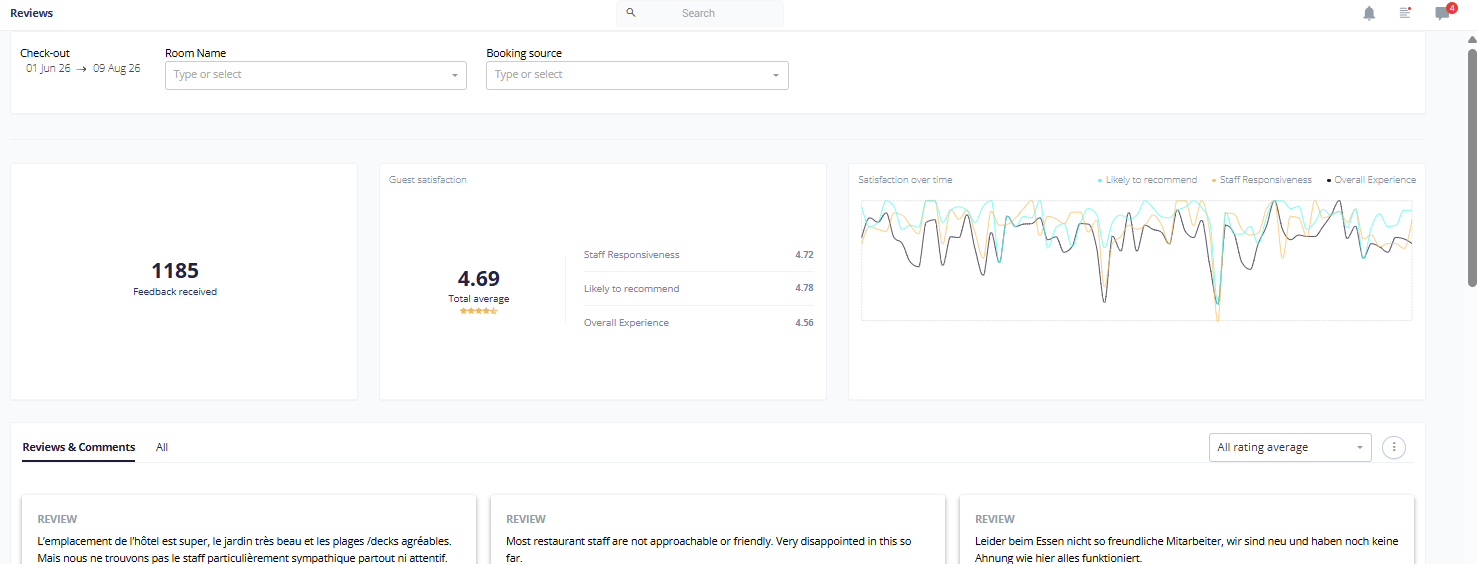
The Guests review page is the Duve dashboard screen where all guest feedback collected at check-out is gathered in one place. When a guest completes the online check-out flow, Duve can ask them to rate their stay and leave a written review. Everything they submit lands on this page.
The page brings together three things:
- Aggregated satisfaction scores, so you can see your average ratings across the three rating categories you configured, plus a combined average.
- A trend graph that plots your rating averages over time, based on the check-out date of each reservation.
- The actual guest feedback, shown either as review cards with the free-text comments or as a sortable table of every rated reservation.
Guests are asked to rate up to three categories, and the labels of those categories are chosen by the host in the settings. By default they are Staff, Cleanliness, and Overall satisfaction, but you can swap them for options such as Location, Value for money, Check-in process, Food and dining, Facilities and amenities, Safety and security, Room quality, or Likely to recommend. Alongside the star ratings, guests can leave a written review and a separate property comment, which is where they typically report an issue with the room or rental.
Applies toAccounts using the online check-out flow, since ratings and reviews are collected as part of it. |
Quick navigation:
- Use cases
- Before you start - How to set it up
- How to use it
- The Guest Experience
- Troubleshooting
- Restrictions & Limitations
- Tips & Tricks
- FAQs
- Related articles
Use cases
- Tracking guest satisfaction over time and spotting whether a change you made, such as a new cleaning vendor or a new front desk shift pattern, moved your averages up or down.
- Catching unhappy guests quickly by filtering for reviews with an average below three or four stars, then reaching out before they post the same feedback publicly.
- Turning a written review into a conversation. Each review card lets you open a chat with that guest directly from the page.
- Routing operational problems to the right team. Property comments usually describe a maintenance or housekeeping issue tied to a specific room or rental.
- Comparing performance across your portfolio by filtering the page by property, brand, or booking source.
- Understanding which booking channels bring you the most satisfied guests, by filtering the same date range by booking source.
- Building a monthly or quarterly reporting pack, using the export to pull every rated reservation into a spreadsheet.
- Encouraging happy guests toward a public review, by setting a rating threshold so only guests who rate you well are shown your external review link.
Before you start - How to set it up
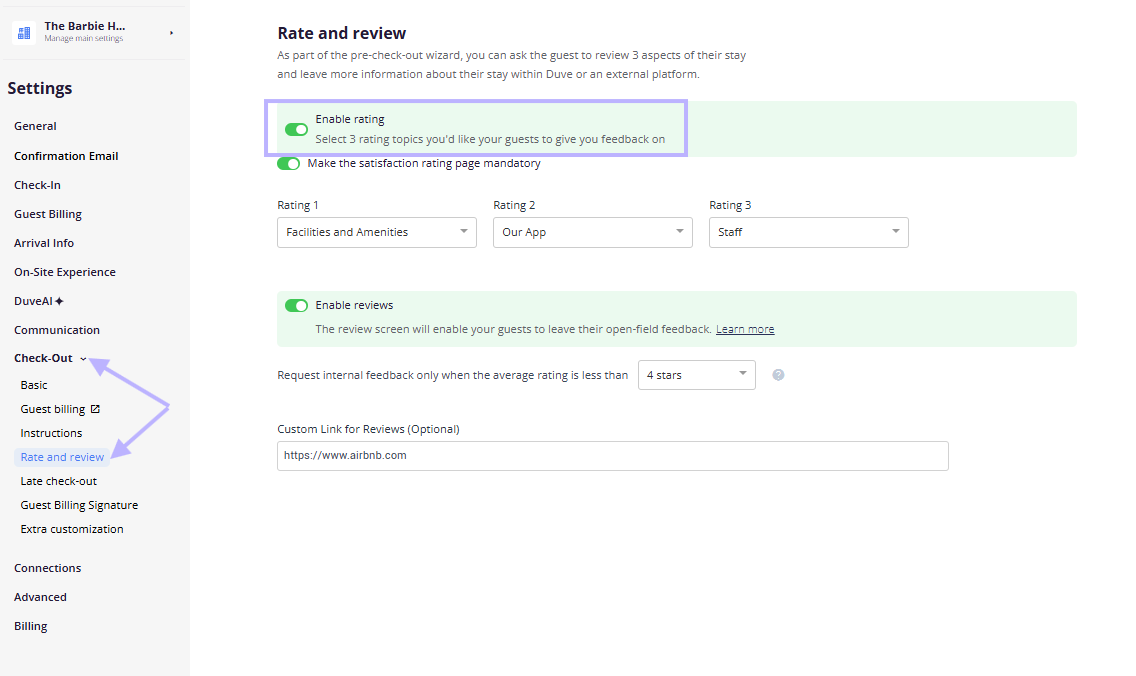
Ratings and reviews only appear on this page if the check-out flow is set up to collect them. Check the following in your settings, under the check-out section, in the Rate & Review area:
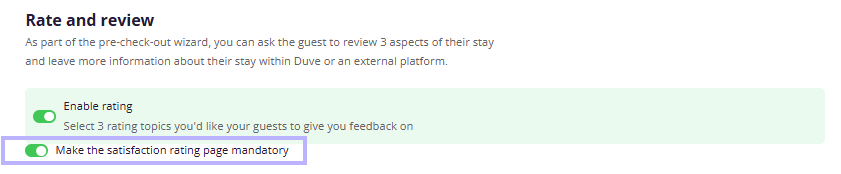
- Enable rating must be on. This is the switch that shows guests the star rating step at check-out. Turning it off also turns off the option to make the satisfaction page mandatory.
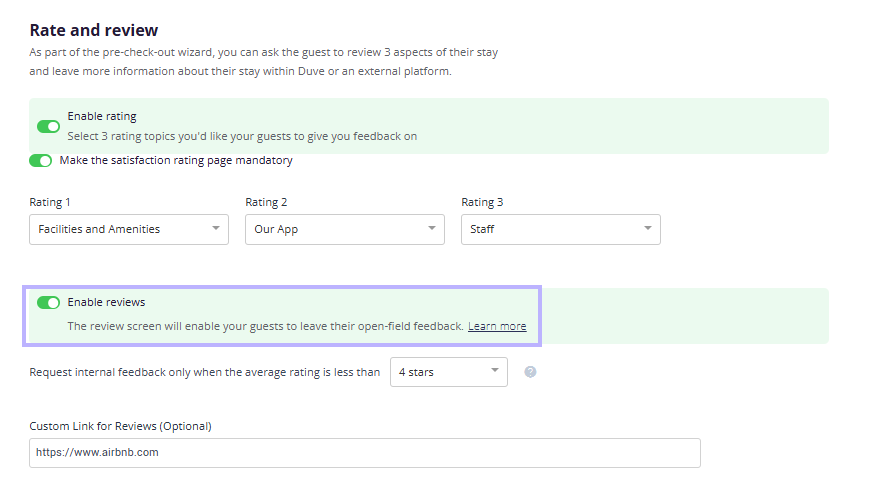
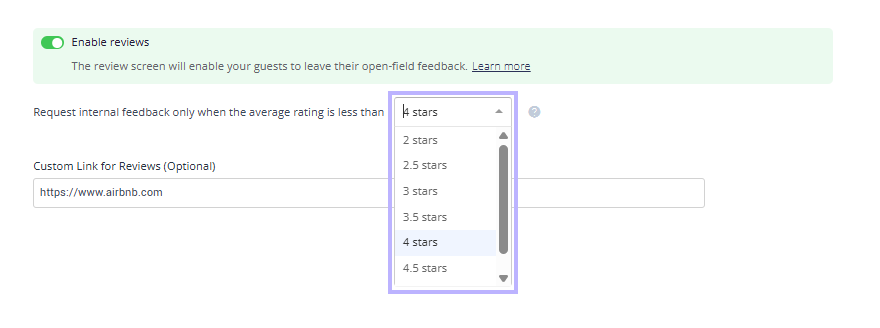
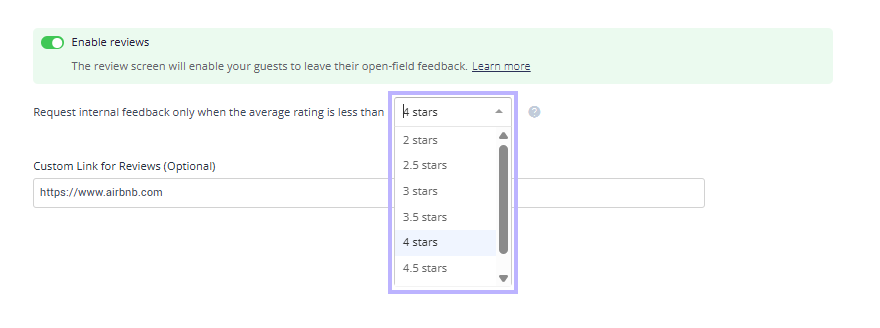
- Enable reviews must be on if you want written feedback and not just star scores.
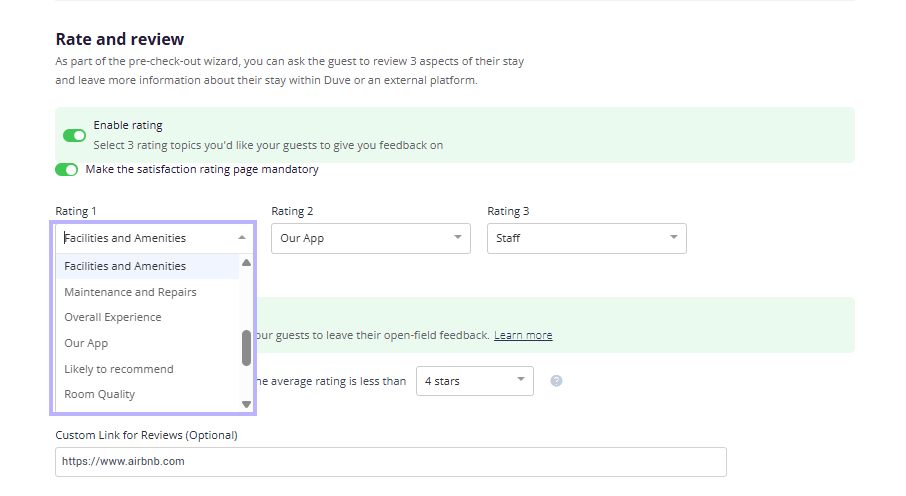
- Choose your three rating labels. Rating 1 defaults to Staff, Rating 2 defaults to Cleanliness, and Rating 3 defaults to Overall satisfaction. The labels you pick here become the column headers on the Reviews page, so choose them before you start collecting data.
- Optionally turn on "Make the satisfaction page mandatory" if you want guests to complete the rating step rather than skip it.
- Optionally: Paste a custom link for reviews. This is the external URL, for example your Google or TripAdvisor listing, that Duve shows to guests after they rate you.
- Optionally: Set the average star threshold that controls when the Duve review page is shown. The options run from 2 to 5 stars in half-star steps, and the default is 4 stars.
Troubleshooting note: Give it time. Feedback is tied to the reservation's check-out date, so a brand new account will show an empty page until guests start checking out.
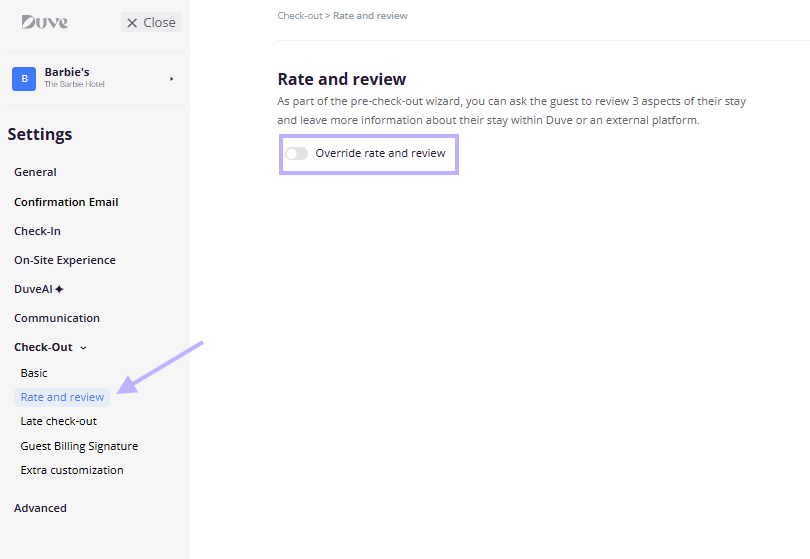
Setup note: If your account is connected to a brand structure, the Rate & Review settings can be overridden per brand. You need to switch on the override at the brand level before the brand-specific values take effect.
How to use it
Opening the page and reading the widgets
- Go to the Reviews page in the dashboard navigation. The page loads the current data set automatically.
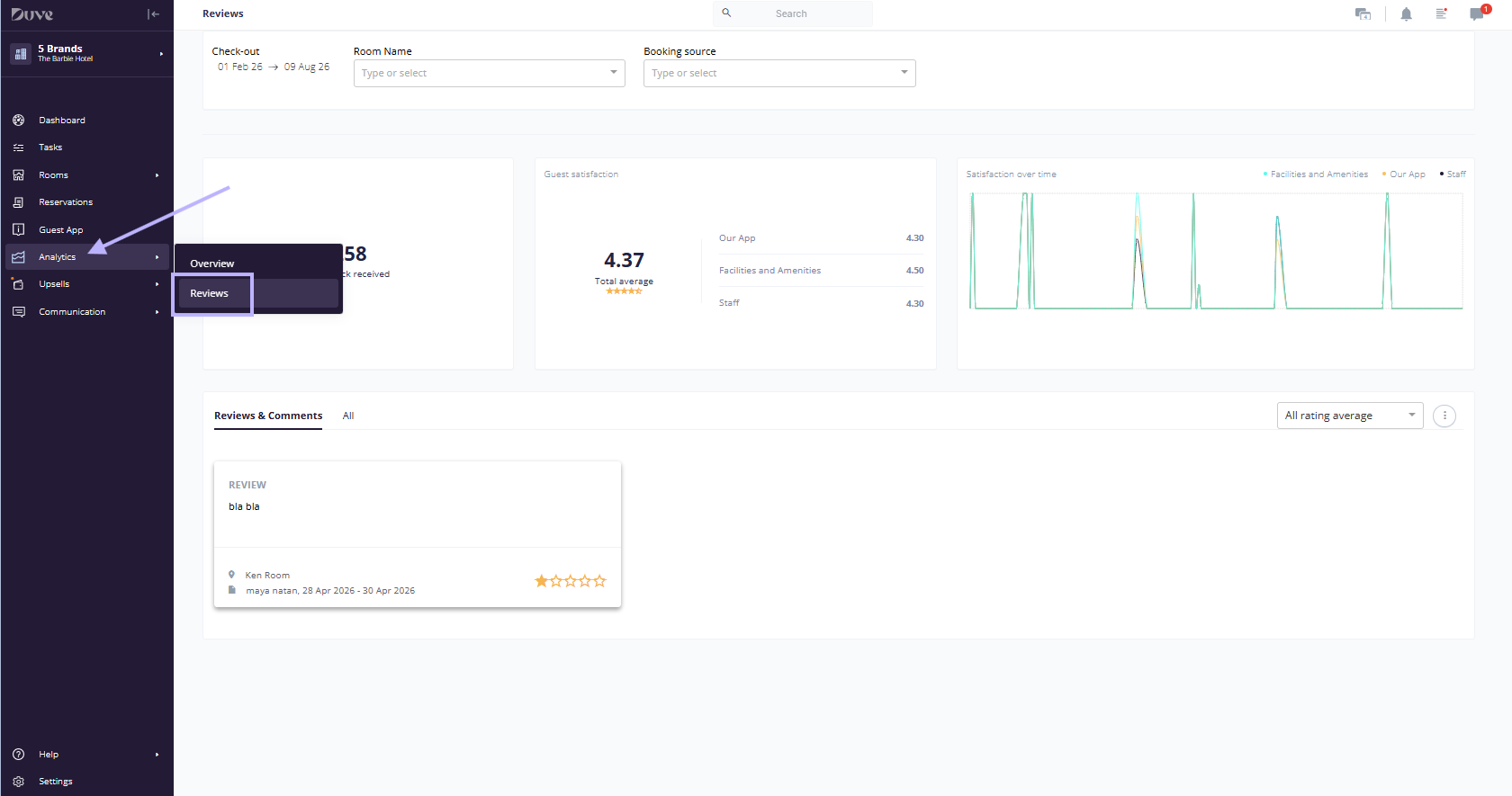
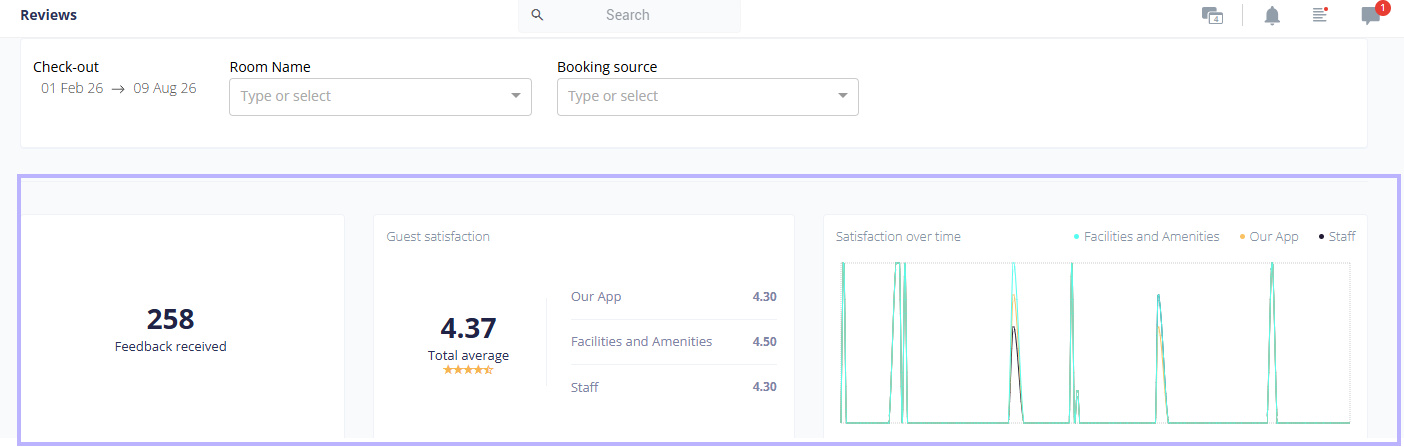
- The "Feedback received" widget shows how many reservations are included in the current filter selection.
- The "Guest satisfaction" widget shows the average for each of your three rating categories, plus a total average across them. Categories with no responses in the selected range show a dash instead of a number.
- The "Satisfaction over time" rates graph plots the three averages over time, grouped by check-out date, so you can see the direction of travel rather than just a single snapshot.
Filtering
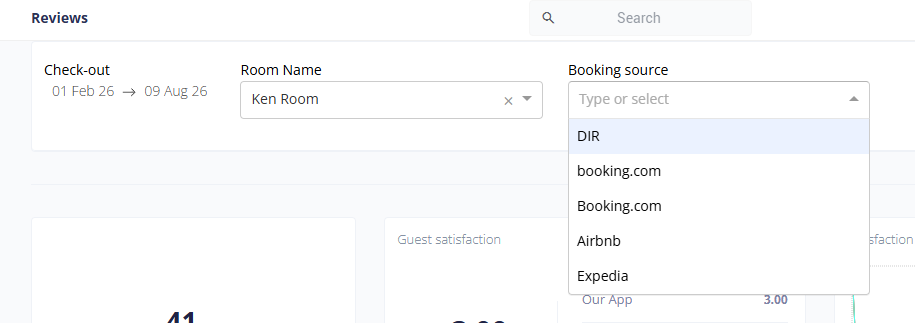
- Filter by check-out date: Using the date picker. This is the primary filter, and every widget and tab on the page respects it.
- Filter by property: The label is Room name for hotel and hostel accounts and Rental name for vacation rental accounts.
- Filter by booking source: The list is built from the booking sources that actually exist on your account, so you only see relevant options.
- Changing any filter reloads the widgets, the graph, and both tabs.
Working in the Reviews and comments tab
- This tab is the default view and shows one card per reservation that has written feedback.
- Each card shows the written review.

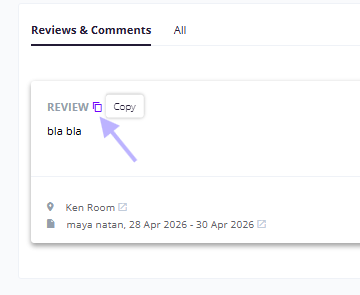
- Hover over a card to reveal a copy icon next to each piece of feedback so that you can lift the text into a reply or a task.
- Hover over a card to reveal a chat icon, which can open or create a conversation with that guest. This icon is hidden for users whose chat access is denied.
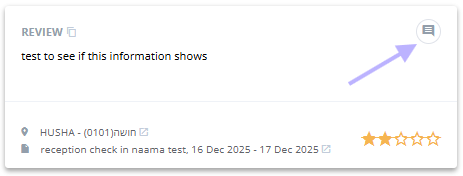
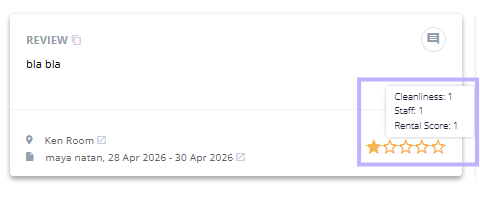
- The star display at the bottom right of each card shows the rounded average of the scores that the guest gave. Hover over the stars to see the individual category scores behind that average.
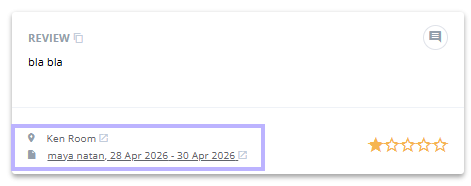
- Click the property name in the card footer to jump to that property, or click the guest name and dates to jump to the reservation.
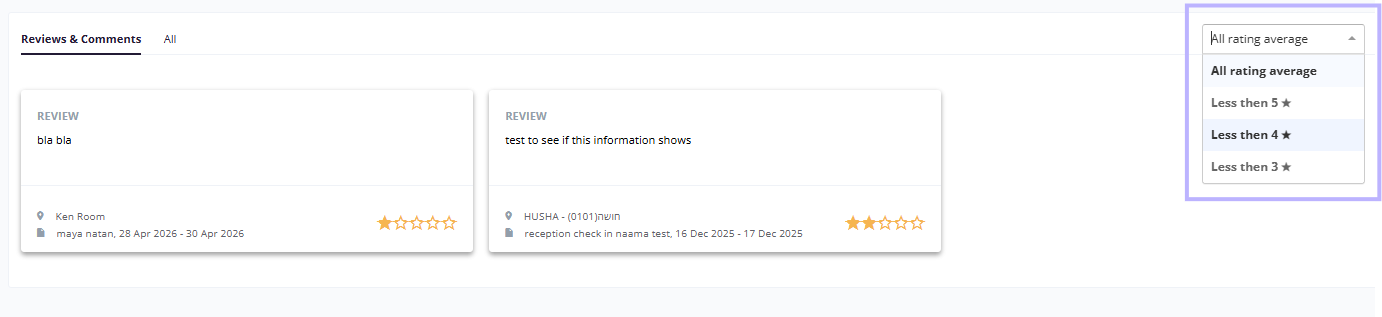
- Use the dropdown at the top right of the tab to narrow the cards by rating. The options are all rating averages, less than 5, less than 4, and less than 3. The default is all.
Working in the All tab
- Switch to the All tab to see every rated reservation as a sortable table, including ones without written feedback.
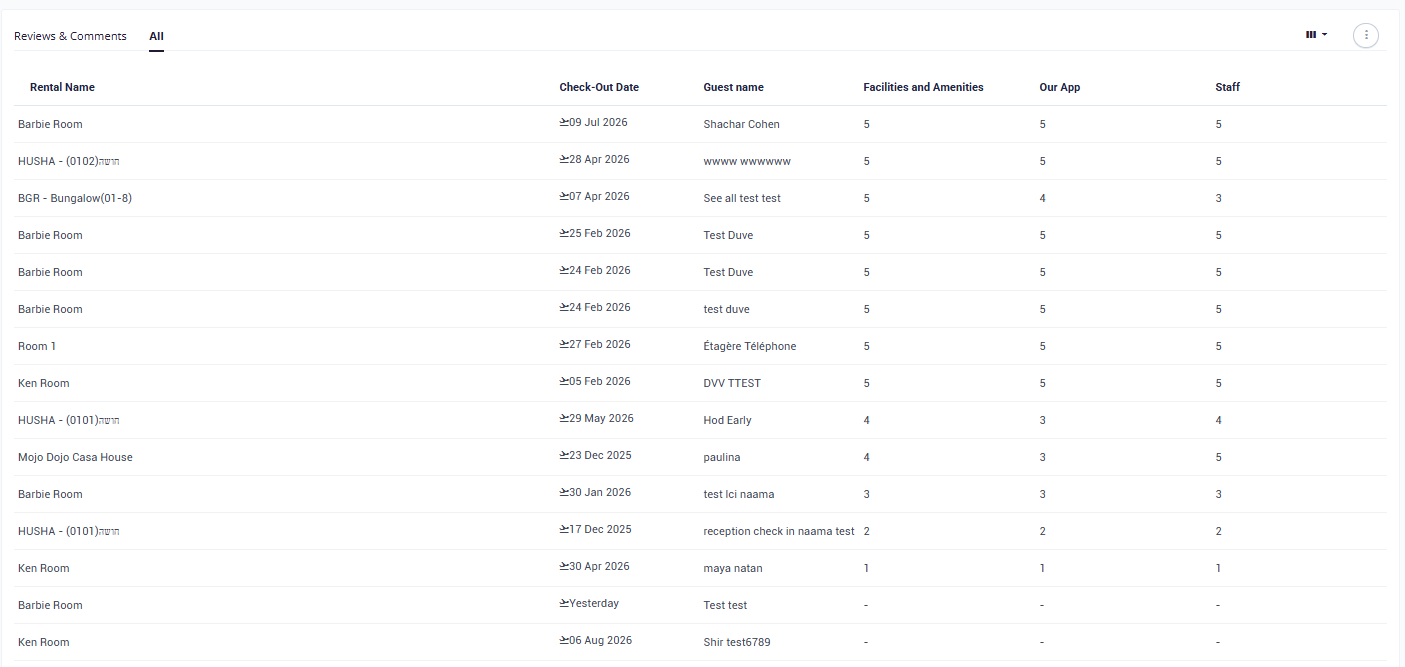
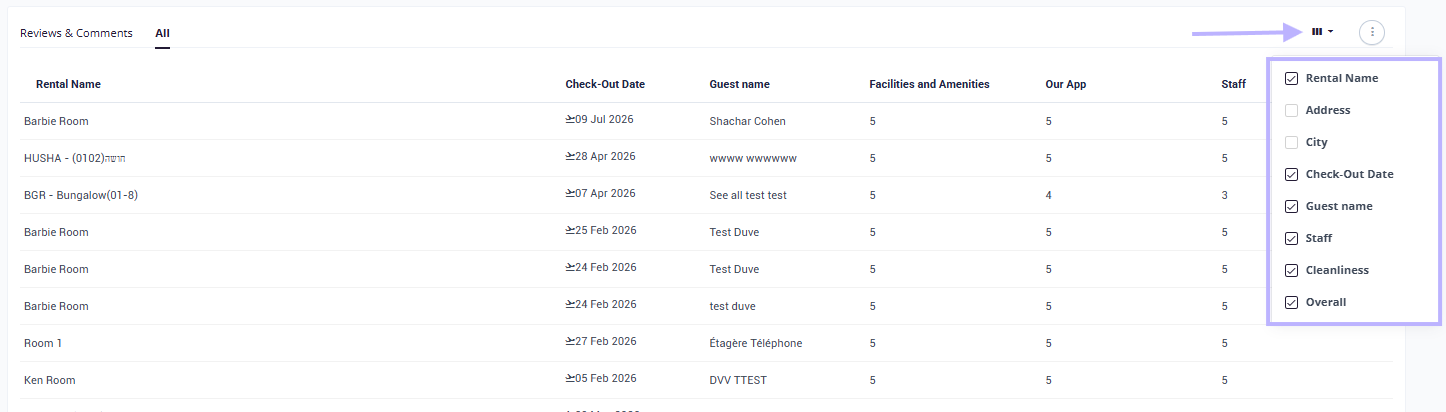
- Default columns are the property name, check-out date, guest name, and your three rating scores. Scores that were not given show a dash.
- Address and City are available as additional columns and are hidden by default.
- Use the columns chooser at the top right to show or hide columns. Your choice is saved to your user profile, so the layout persists the next time you open the page.
- Click a column header to sort by it. The table is sorted by check-out date by default.
- Drag column edges to resize them. Widths are remembered for this page.
- Click any row to open the full reservation.
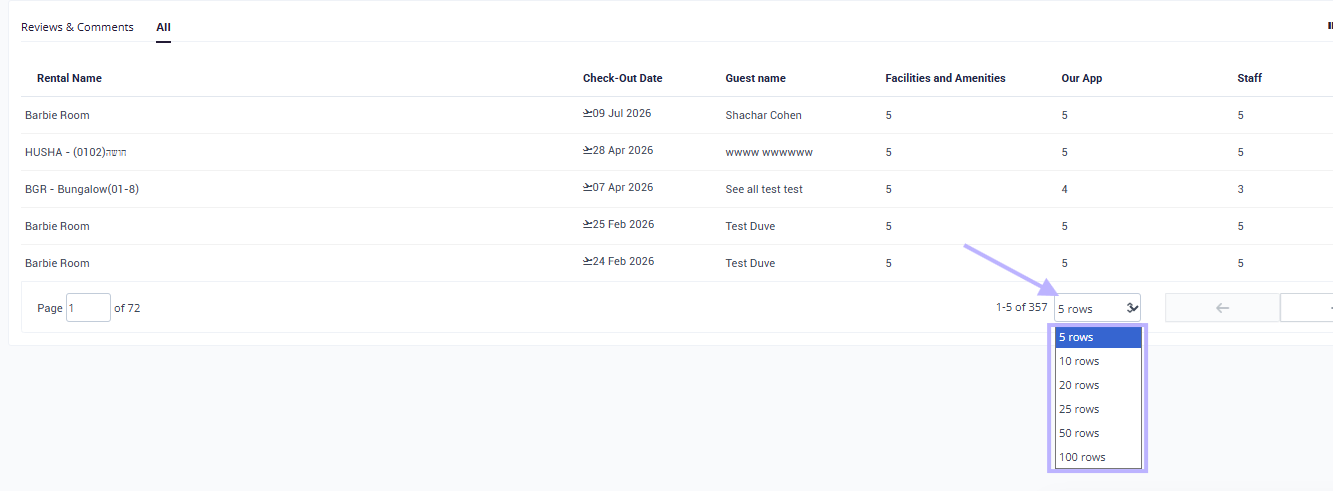
- Change the page size at the bottom of the table. The default is 25 rows, and your preference is saved to your profile.
Exporting
- Open the menu behind the ••• icon at the top right of the tab area and choose Export.
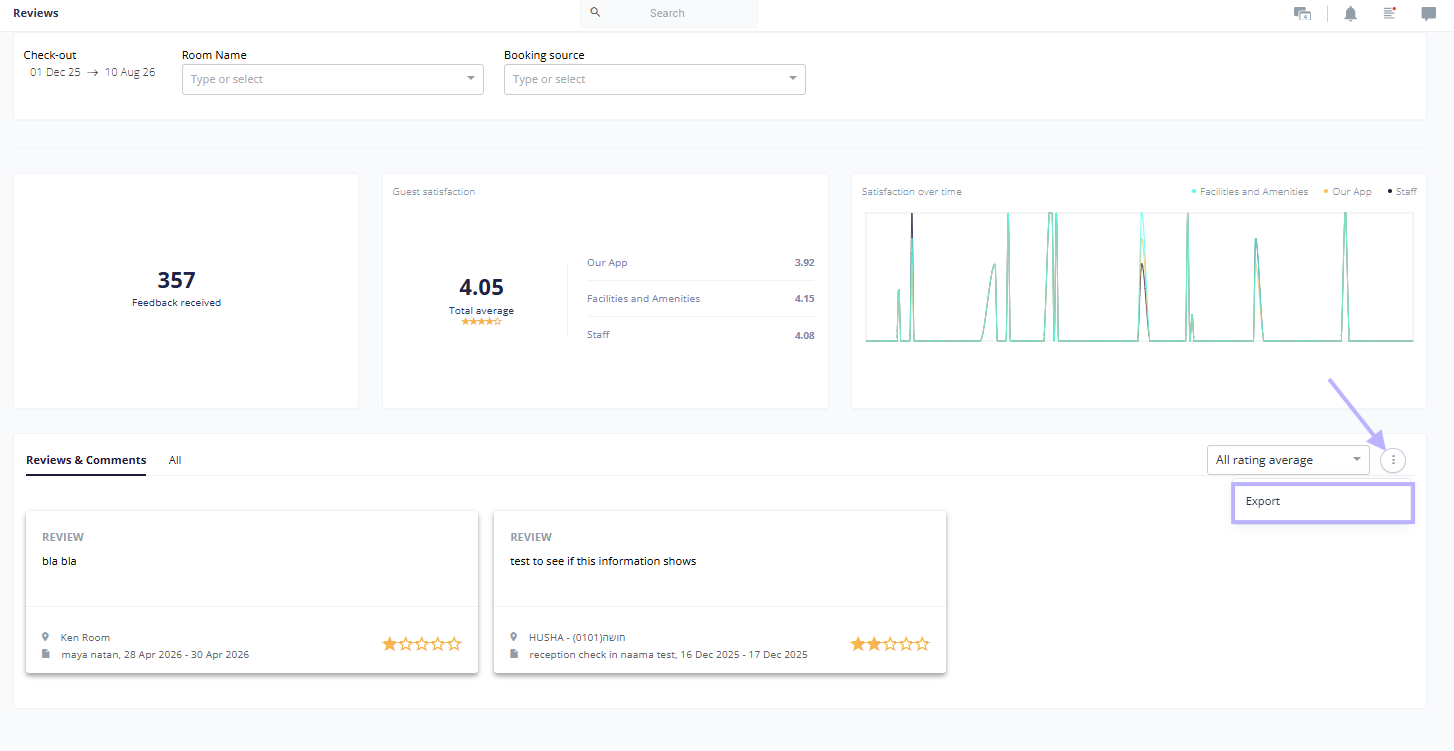
- The file downloads as an XLSX spreadsheet, with a CSV fallback in browsers that do not support the download attribute.
- The export contains the external ID, property name, address, city, check-out date, guest first and last name, the three scores, the property comment, the review text, the email, and the verified email from pre-check-in.
- The export always reflects the filters currently applied to the page.
- The Export option does not appear for users who have the export data permission denied.
The Guest Experience
Everything on the Reviews page starts with what your guest sees at check-out. Understanding that flow makes the host side much easier to read, because the routing decisions Duve makes for the guest are what determine whether you get a star score, a written review, both, or nothing at all.
Where feedback fits in the check-out flow
- Feedback is collected inside the online check-out wizard, which the guest sees under the heading Quick check-out.
- The guest reaches the rating step after the earlier steps in the wizard, which can include estimated check-out time, check-out instructions, signature, payment, and transportation, depending on what you have enabled.
- There is also a Rate and review quick action, which sends the guest straight into a short two-step flow. The heading reads Rate and review instead of Quick check-out, the back button is hidden, and upsells are not shown.
The rating step
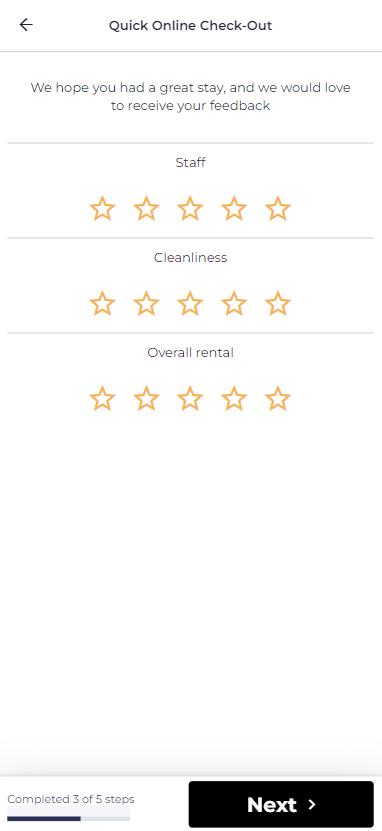
- The guest sees a short intro line, "We hope you had a great stay, and we would love to receive your feedback." In the Rate and review quick action, this reads "We would like to have your feedback."
- Below it are three star rating rows, one for each category you configured, each scored from 1 to 5 stars.
- The category names the guest sees are exactly the labels you picked in your settings, in the same order.
Troubleshooting notes:
- If you turned on "Make the satisfaction page mandatory," the guest cannot continue until all three categories are rated. Any category they skipped has its label highlighted in orange when they try to move on.
- If you turned rating off, the guest never sees this step. Duve moves them past it automatically.
What the guest sees after rating
This is the part worth understanding well, because the guest's own score decides which screen comes next. Duve compares the average of what they just gave against the star threshold in your settings, which defaults to 4 stars.
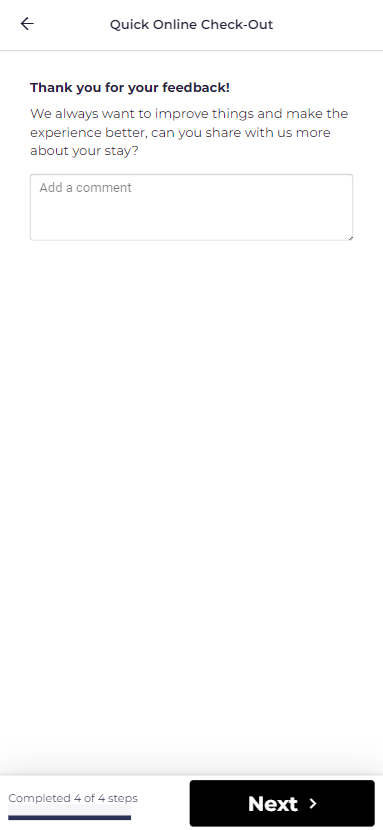
- If the guest rated below your threshold, they are asked for details privately. They see "Thank you for your feedback!" followed by "We always want to improve things and make the experience better, can you share with us more about your stay?" and a free-text box. This is the internal review that lands on your Reviews page. It is not published anywhere.
- Troubleshooting note: If the guest rated at or above your threshold and booked through Airbnb or Booking.com, they see a note saying that in 1 to 3 days they will receive an email from that platform about their stay, along with that platform's logo. They are not asked for a Duve comment, and your custom link is not shown, because the review belongs to the channel.
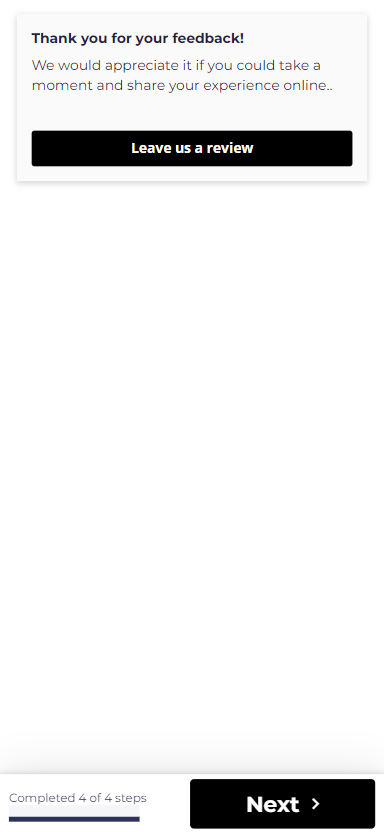
- If the guest rated at or above your threshold and you have set a custom review link, they see a branded "Leave us a review" button. Clicking it opens your link in a new tab and completes the check-out flow.
- Troubleshooting note: If the guest rated at or above your threshold, booked direct, and you have no custom link set, the review step is skipped, and they go straight to the end of the flow.
Details worth knowing
- The written review box is limited to 600 characters, with "Add a comment" shown as the placeholder. Guests who want to say more will run out of room, which is one reason a chat follow-up is often the better next step.
- The custom review link can be set per property as well as for the whole account. A property-level link takes precedence over the account-level one, which is useful when your listings live on different pages.
- Scores and reviews are saved against the reservation, which is why each entry on the Reviews page carries the guest name, the stay dates, and the property.
Troubleshooting
- The page is empty: Check that Enable rating is on in your check-out settings, then widen the check-out date filter. Remember that feedback is attached to the check-out date, not to the date the guest submitted it.
- Scores appear, but there are no cards in the Reviews and comments tab: That tab only shows reservations that have a written review or a property comment. If "Enable reviews" is off, guests can still rate you but cannot write anything, so this tab stays empty by design.
- Cards are missing even though you can see them in the All tab. Check the rating dropdown at the top right of the tab. If it is set to less than 3, for example, only cards averaging below three stars are shown.
- A category shows a dash in the Guest satisfaction widget: No guest in the selected range answered that category. Widen the date range or check that the category is actually configured as one of your three ratings.
- Column headers are not the labels you expected: The headers follow your rating settings. If you changed the labels recently, older feedback keeps the score it was given but is displayed under the new label.
- The Export option is not visible: Your user has the export data permission denied.
- The chat icon does not appear on a card: Chat access permission is denied for your user, so the shortcut is hidden.
- The page seems slow with a very wide date range: The page loads the full result set for the range you select, so narrowing the dates or filtering by a single property returns results faster.
Restrictions & Limitations
- Feedback here comes from the Duve check-out flow only. Public reviews on OTAs and other external platforms are not pulled into this page.
- Guests are asked to rate exactly three categories. You can choose which three, but you cannot add a fourth or reduce the set.
- The three ratings are configured at the account level, and per brand where brand overrides are in use. They are not configured per property.
- Rating labels are display labels. Changing a label does not migrate or relabel the underlying historical scores; it changes how they are presented.
- Filtering is limited to check-out date, property, booking source, and brand. There is no filter on the free-text content of a review.
- On mobile, the rating dropdown in the Reviews and comments tab is not shown, and cards stack into a single column.
- Reviews cannot be edited, replied to in place, or deleted from this page. Follow-up happens through chat or through the reservation.
- The total average is calculated across the categories that actually received responses, so it is not comparable across periods where different categories were answered.
Tips & Tricks
- Set the rating threshold thoughtfully. Leaving it at the default of 4 stars means only guests averaging four stars or better are pushed toward your public review link, which keeps your public profile healthier while still capturing the critical feedback internally.
- Make the satisfaction page mandatory if your response volume is too low to trend reliably. More responses make the graph far more useful.
- Pick your three rating labels to match what you actually control. If your team cannot influence location, rating it every stay tells you very little.
- Use the less than 4 filter as a daily service recovery queue, then use the chat icon to reach the guest while they still remember the stay.
- Treat property comments differently from reviews. A review is about the experience; a property comment usually points to a fixable problem in a specific room or rental.
FAQs
Q: Where does the feedback on this page come from?
A: From your guests, as part of the Duve online check-out flow. Guests are asked to rate up to three categories and can leave a written review and a property comment.
Q: Does this page show my Booking.com, Airbnb, or Google reviews?
A: No. This page shows the internal feedback collected by Duve. Your public reviews stay on those platforms.
Q: Can I change what guests are asked to rate?
A: Yes. In the check-out settings, you choose the label for each of the three ratings from a list that includes options such as Staff, Cleanliness, Overall satisfaction, Location, Value for money, Check-in process, Food and dining, Facilities and amenities, Safety and security, Room quality, and Likely to recommend. The available options vary slightly for hotels, hostels, and vacation rentals.
Q: Can I add a fourth rating category?
A: No. Three ratings are collected, and you choose which three they are.
Q: What happens to my existing data if I change a rating label?
A: The scores are kept, and they are shown under the new label. Historical scores are not converted or separated, so change labels with that in mind.
Q: Can I collect star ratings without asking for written reviews?
A: Yes. Keep Enable rating on and turn Enable reviews off. Guests will rate you, and the Reviews and comments tab will stay empty because there is no written feedback to show.
Q: What is the difference between a review and a property comment?
A: The review is the guest's general feedback about the stay. The property comment is a separate field where guests typically flag a specific issue with the room or rental. Both appear on the card, under their own headings, and both are included in the export.
Q: How is the star average on a review card calculated?
A: It is the average of the scores that guests actually gave, across the categories they answered. Hover over the stars to see each score.
Q: Why does one of my rating categories show a dash?
A: No guest in the selected date range answered that category. Widen the range or confirm the category is one of your configured three.
Q: Can I filter to see only my worst reviews?
A: Yes. In the Reviews and comments tab, use the dropdown to show only reviews averaging less than 5, less than 4, or less than 3 stars.
Q: Can I search reviews by keyword?
A: Not on this page. Filtering is by check-out date, property, booking source, and brand. To search text, export the data and search in your spreadsheet.
Q: Can I reply to a review from this page?
A: Not as a public reply. You can open a chat with the guest directly from the review card, which is how follow-up is handled.
Q: Can I delete a review?
A: No. Reviews cannot be removed from the page.
Q: What date does the page filter on?
A: The reservation's check-out date. This is also how the trend graph groups the data.
Q: What format is the export?
A: An XLSX spreadsheet, with a CSV fallback in browsers that do not support the download attribute. It respects whatever filters you have applied.
Q: Why can I not see the Export option?
A: Your user has the export data permission denied. An Admin can change this.
Q: Can I control which guests are asked to leave a public review?
A: Yes, indirectly. Set the average star threshold in the Rate & Review settings, and add your external review link. Guests who rate at or above the threshold are shown the link. The threshold can be set from 2 to 5 stars in half-star steps, and the default is 4.
Q: Can different brands in my account have different rating settings?
A: Yes. Where brand overrides are available, switch on the override for Rate & Review at the brand level, then set that brand's own values.
Q: Do all guests see the same screen after they rate?
A: No. Guests who rate below your threshold are asked for private detail in a comment box. Guests who rate at or above it are either pointed to your custom review link, or told to expect an email from Airbnb or Booking.com if they booked through those channels, or moved straight to the end if you have no link set.
Q: Is the written review shown publicly anywhere?
A: No. The comment a guest leaves in the Duve flow is internal and appears only on your Reviews page and in the pre-check-out summary email. Public reviews only happen if the guest follows your custom link to an external platform.
Q: How long can a guest's review be?
A: Up to 600 characters.
Q: Can I use a different review link for each property?
A: Yes. A property-level review link takes precedence over the account-level link, so each listing can point to its own page.
Q: Are my column and page size choices remembered?
A: Yes. Column visibility, column widths, and page size are saved to your user profile for this page.
Q: Does the page work on mobile?
A: Yes, with a simplified layout. Cards stack into a single column, and the rating dropdown in the Reviews and comments tab is not available on mobile.
Comments
0 comments
Article is closed for comments.