
Overview
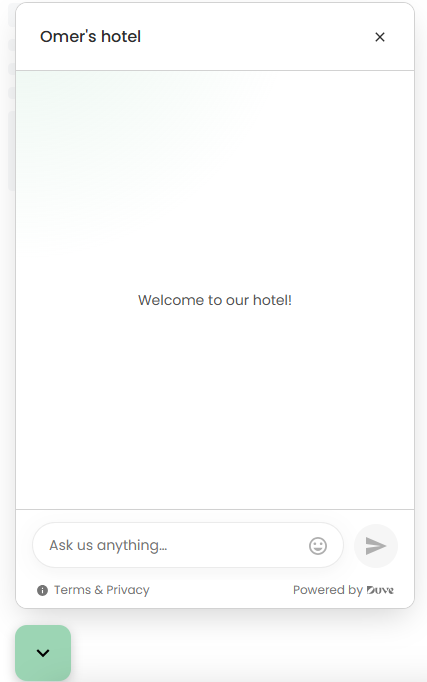
The Website Chat Widget adds a floating chat button to your own website. When a visitor clicks it, a chat panel opens directly on the page, and the visitor can start a conversation with your team without leaving your site, without an app, and without sharing a phone number.
Messages sent from the widget arrive in Duve like any other guest conversation, so your team replies from the same inbox they already use. Replies, attachments, typing indicators, and read receipts flow back to the visitor in real time.
The Website Chat Widget is one of two widget types in Duve. The other is the WhatsApp Widget, which opens a WhatsApp conversation instead of an on-page chat. You choose between them with the "Communication channel type" setting when you create the widget.
In this article
- Use cases
- Before you start
- How to set it up
- Host experience
- Guest experience
- Troubleshooting
- Restrictions and limitations
- Tips and tricks
- FAQs
- Related article
Use cases
- Answer pre-booking questions from visitors browsing your rooms, rates, or availability, while they are still on the page.
- Capture leads from anonymous visitors who are not ready to book and who do not want to call or email.
- Give in-house and returning guests a support channel from your website, with no phone number and no app install.
- Offer a lower-friction alternative to WhatsApp for visitors in markets or on devices where WhatsApp is not the norm.
- Route conversations from different websites or different properties to the right team by creating one widget per brand.
Before you start
- Make sure a Website Chat messaging connection is active on your account. Without it, the "Chat" option is not usable and widget creation fails.
- Decide whether the widget belongs to a specific brand or to the Group/account. A widget assigned to a brand routes its conversations to that brand. A widget with no brand routes its conversations to the Group (main account).
- Note that the brand cannot be changed after the widget is created. If you need a different brand, create a new widget.
- Have access to your website's HTML, or have someone on your side who can paste a code snippet into it. The widget is not added to your site automatically.
- Prepare your branding details: display name, welcome message, terms and privacy text, and the color you want the button to use.
How to set it up
- Contact Duve to request the initial Website Chat installation. This is a one-time setup that Duve performs on your account, and it connects the messaging service that delivers website chat conversations into your inbox. You cannot complete it yourself from Duve settings. Reach out to your Duve representative or to Duve support (support@duve.com), and wait for confirmation that the connection is active before you continue. Until it is, the "Chat" option cannot be used.
- In Duve, go to Settings → Communication → Chat Widgets.
- Click "Add new".
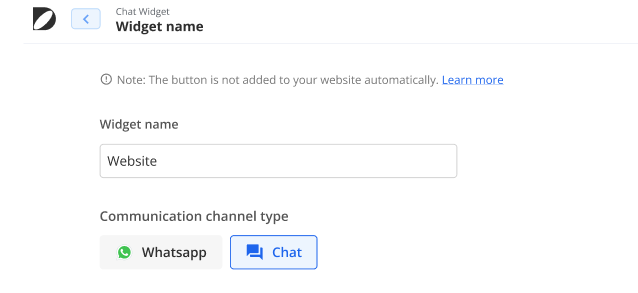
- Enter a widget name. This name is for internal use only; it is never shown to visitors, and it can be up to 80 characters.
-
Under "Communication channel type", select "Chat".
- Select a brand, or leave the field empty to assign conversations to the Group instead of a specific brand.
- Fill in the widget content and appearance:
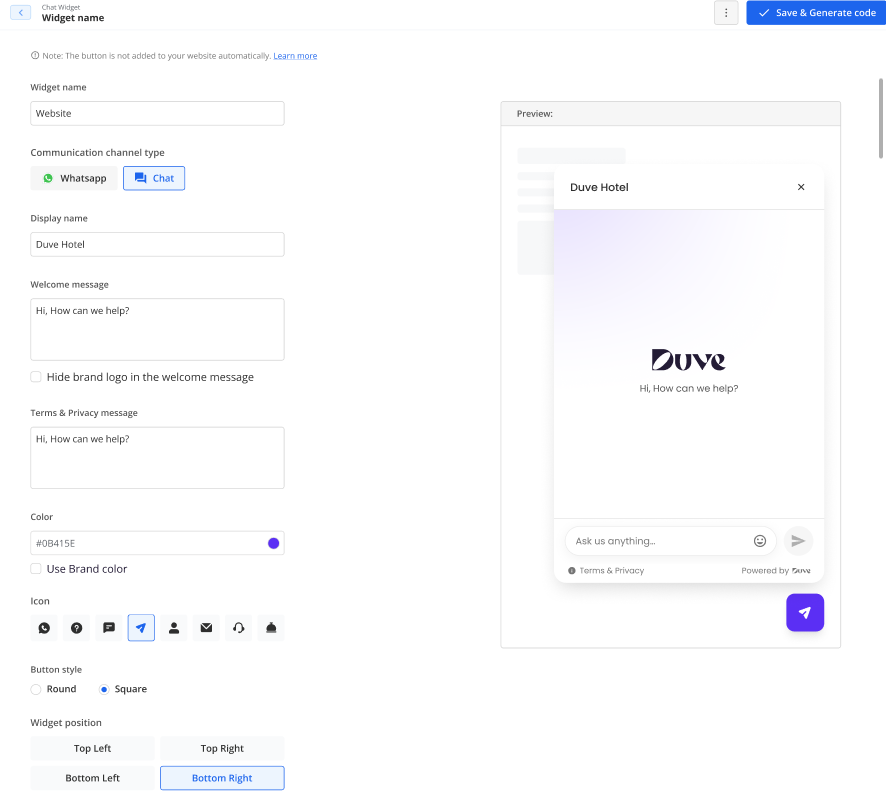
- Display name: the name shown in the chat panel header, up to 60 characters. If you leave it empty, the brand or company name is used.
- Welcome message: the first message a visitor sees when the panel opens, up to 300 characters. If you leave it empty, "Hi! How can we help?" is used.
- Hide brand logo in welcome message: select this if you do not want the logo shown above the welcome message.
- Terms and Privacy message: the text shown at the bottom of the chat panel, up to 500 characters.
- Color: the hex color of the launcher button and the panel header. Select "Use Brand color" to inherit the brand color instead.
- Icon: the symbol on the launcher button. The options are chat bubble, WhatsApp, question mark, paper plane, person, mail, headset, and dish cover. The default is the chat bubble.
- Button style: round or square.
-
Widget position: top left, top right, bottom left, or bottom right. The default is bottom right.
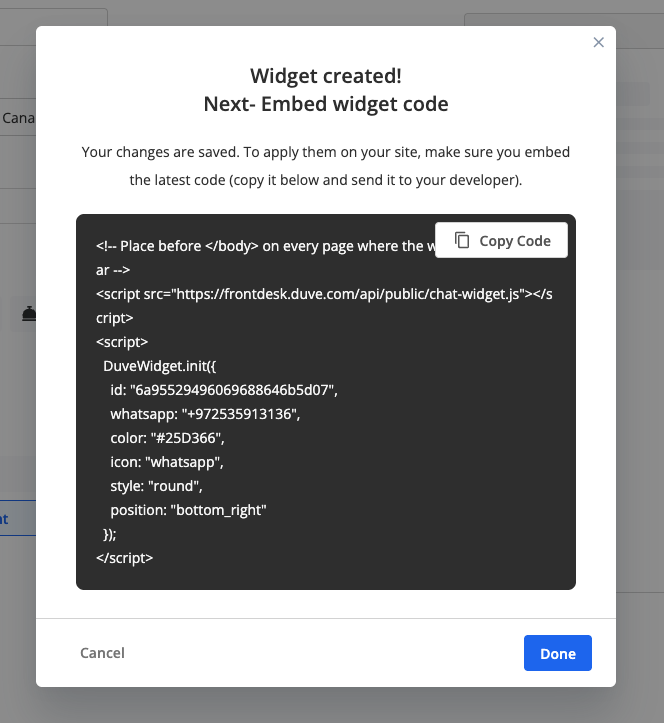
- Click "Save widget" at the top right.
- Copy the embed code that Duve generates for the widget, and paste it into your website just before the closing
</body>tag, on every page where the chat should appear. - Re-enter the widget page at any time to preview the widget, to copy the embed code again, or to change the configuration.
Translating the widget
- The welcome message and the terms and privacy message can be translated into the languages your account supports. Use the language selector and the "Translate" action at the top of the widget page.
- The widget detects the visitor's browser language and serves the matching translation. If there is no translation for that language, the original text is used.
- Right-to-left languages are rendered right to left, including the chat panel layout.
Changing or removing a widget
- Editing a widget and saving it updates the live widget. You do not need to replace the code on your website after a content or appearance change.
- Deleting a widget stops it from working. The snippet stays on your site, but the chat no longer opens, so remove the snippet from your pages as well.
Host experience
- Conversations started from the widget appear in your Duve inbox as conversations with anonymous guests, next to your other channels.
- Each visitor gets their own conversation, so follow-up messages from the same visitor on the same browser continue the same thread.
- Conversations are assigned to the widget's brand, or to the Group when the widget has no brand.
- You reply from Duve exactly as you do on other channels, including sending attachments.
- When you are typing, the visitor sees a typing indicator in the chat panel.
- When the visitor reads your reply, the message is marked as read in Duve.
Guest experience
- The visitor sees your launcher button in the position, color, style, and icon you configured.
- Clicking it opens a chat panel with your display name, your logo unless you hid it, your welcome message, and your terms and privacy text.
- The visitor types in a message box, can add emojis, and sends without registering or giving a phone number.
- Your replies arrive in the panel in real time, including files you send.
- While the panel is closed, an unread badge shows how many replies are waiting.
- If the visitor returns to your site later in the same browser, the conversation history is still there and loads as they scroll back.
- If a message fails to send, the visitor can tap it to retry.
Troubleshooting
- The button does not appear on your site: confirm the snippet is present on that page, placed before the closing
</body>tag, and that it was not stripped by your CMS or a content security policy. - The button appears, but the panel does not open: confirm the widget was not deleted in Duve, and that your site is not blocking the request to Duve.
- The button is in the wrong place or the wrong color: re-check the appearance settings on the widget page, and remember that "Use Brand color" overrides the color field.
- The visitor's messages do not reach your inbox: confirm your account's Website Chat messaging connection is still active, and contact Duve support if it is.
- The widget shows the wrong language: the language follows the visitor's browser, not your account language, and it falls back to the original text when there is no translation for that language.
Restrictions and limitations
- The widget must be added to your website manually. Duve cannot install it for you.
- The brand assigned to a widget cannot be changed after the widget is created.
- Widget names must be unique and can be up to 80 characters.
- The display name is limited to 60 characters, the welcome message to 300 characters, and the terms and privacy message to 500 characters.
- The color must be a six-digit hex value, for example #25D366.
- Deleting a widget is not reversible from the widget page. You need to create a new widget, which also means a new embed code.
- Conversation history lives with the visitor's browser. If the visitor switches browsers, devices, or clears site data, they start a new conversation.
- Staff users cannot manage chat widgets.
Tips and tricks
- Create one widget per brand, or per website, so conversations reach the right team without manual routing.
- Keep the welcome message short and ask a question, for example, "Hi! Looking for dates or rates?". It gets more replies than a generic greeting.
- Use the terms and privacy message to link your policy, so visitors know how their messages are handled.
- Pick a position that does not cover booking buttons, cookie banners, or accessibility controls.
- Test the widget on desktop and on mobile after you paste the snippet, and send yourself a message to confirm it lands in Duve.
- Preview the widget on the widget page before you publish changes to your site.
FAQs
Q: Do visitors need WhatsApp or any app to use the chat?
A: No. The chat runs inside your website page. Visitors don't install anything or share a phone number.
Q: What is the difference between the Website Chat Widget and the WhatsApp Widget?
A: The Website Chat Widget opens a chat panel on your own site, and the WhatsApp Widget opens a WhatsApp conversation with your number. You choose between them with the "Communication channel type" setting.
Q: Can I use both widget types on the same website?
A: Yes. They are separate widgets with separate embed codes. Place each one where you want it, and keep their positions from overlapping.
Q: Where do the messages arrive?
A: In your Duve inbox, as conversations with anonymous guests, assigned to the widget's brand or to the Group.
Q: Do I need to update the code on my website after I change the widget?
A: No. Content and appearance changes take effect on the live widget.
Q: How many widgets can I create?
A: You can create a widget per brand or per site as needed. If you hit a limit when saving, contact Duve support.
Q: Can the visitor send files?
A: Your team can send attachments to the visitor from Duve, and the visitor can open them in the chat panel.
Q: What happens to a conversation if the visitor closes the page?
A: It stays open. Your reply waits for them, and the launcher shows an unread badge when they return in the same browser.
Q: Who can create and edit chat widgets?
A: Admin, Manager, and Agent users who have permission to view and edit company settings. Staff users cannot.
Q: What happens if I delete a widget?
A: The widget stops working immediately, and existing snippets on your site no longer open a chat. Remove the snippet from your pages, and create a new widget if you need chat again.
Comments
0 comments
Article is closed for comments.