
E-Signature lets your guests read and sign your contract, Terms and Conditions, or registration card as part of online check-in. You write the contract once, personalize it with dynamic parameters, and Duve collects a signature from each required guest. Signed documents are saved to the reservation automatically, so you never have to chase paperwork at the front desk. If your property is connected to Oracle OPERA Cloud, you can also have guests sign the registration card generated by your PMS instead of a Duve template.
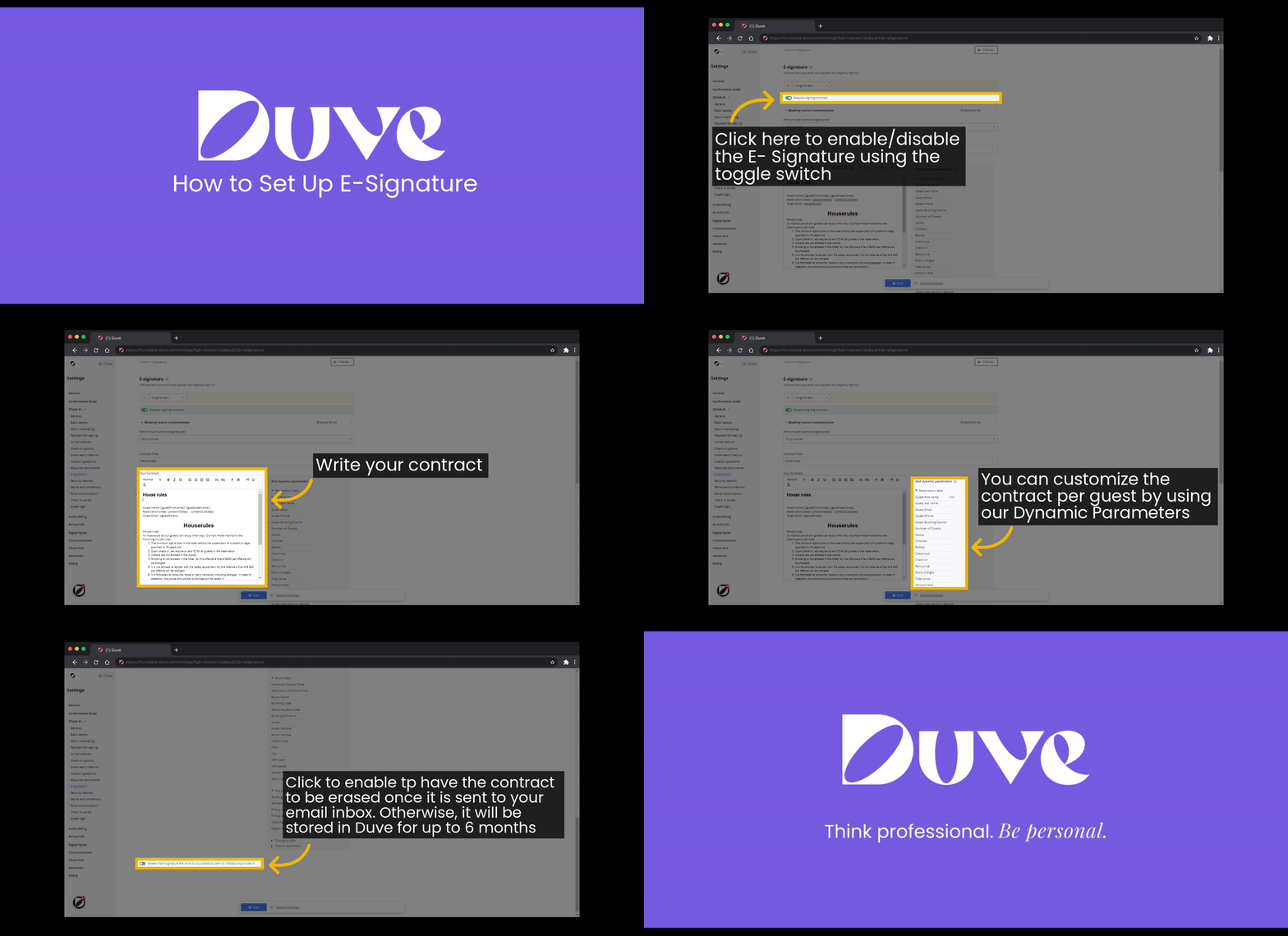
Quick navigation:
- Use cases
- Before you start
- How to set it up
- Host experience + Guest experience
- Troubleshooting
- Restrictions & Limitations
- Tips & Tricks
- FAQs
Use cases
- Have the booker sign your rental agreement or house rules before arrival.
- Collect a signed registration card from every adult staying in the room.
- Require signatures only for specific booking sources, such as direct bookings, while skipping OTA bookings.
- Number each signed document automatically for your records or local compliance.
- Show your Oracle OPERA Cloud registration card to guests and have them sign it digitally.
Before you start
- Make sure Online check-in is enabled for your account.
- Prepare your contract text, plus any translations you want to offer.
- To use your PMS registration card, your account must have an active Oracle OPERA Cloud (OHIP) connection. OPERA on-premise is not supported.
How to set it up
Turn on E-Signature
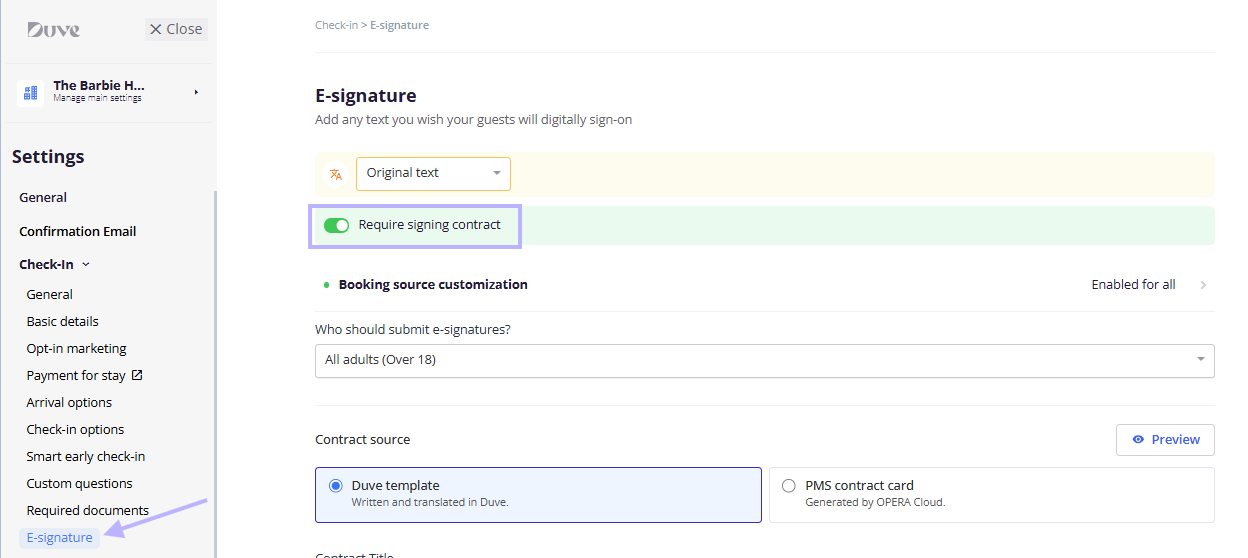
- Go to Settings > Check-in > E-Signature.
- Turn on Require signing contract.
- Under Who should submit, choose who must sign:
- Only booker (default)
- All adults
- Adults and children
- Click Save.
Write your contract
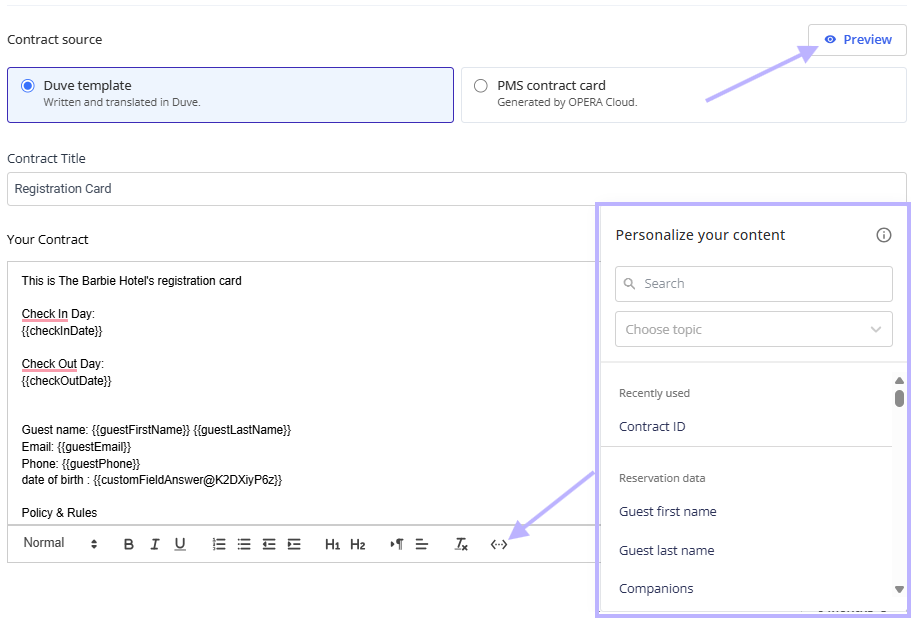
- Enter a Contract title.
- In Your contract, type or paste your contract text. Use the toolbar to format text (bold, lists, headings, alignment, right-to-left).
- To personalize the contract, click the Dynamic parameters icon in the editor toolbar and insert fields such as guest name, email, reservation dates, or answers to your custom check-in questions.
- To number each signed document, insert the "Contract ID" (
{{EsignatureRunningNumber}}) dynamic parameter. - Click Preview to see the contract as guests will see it, then Save.
Add translations
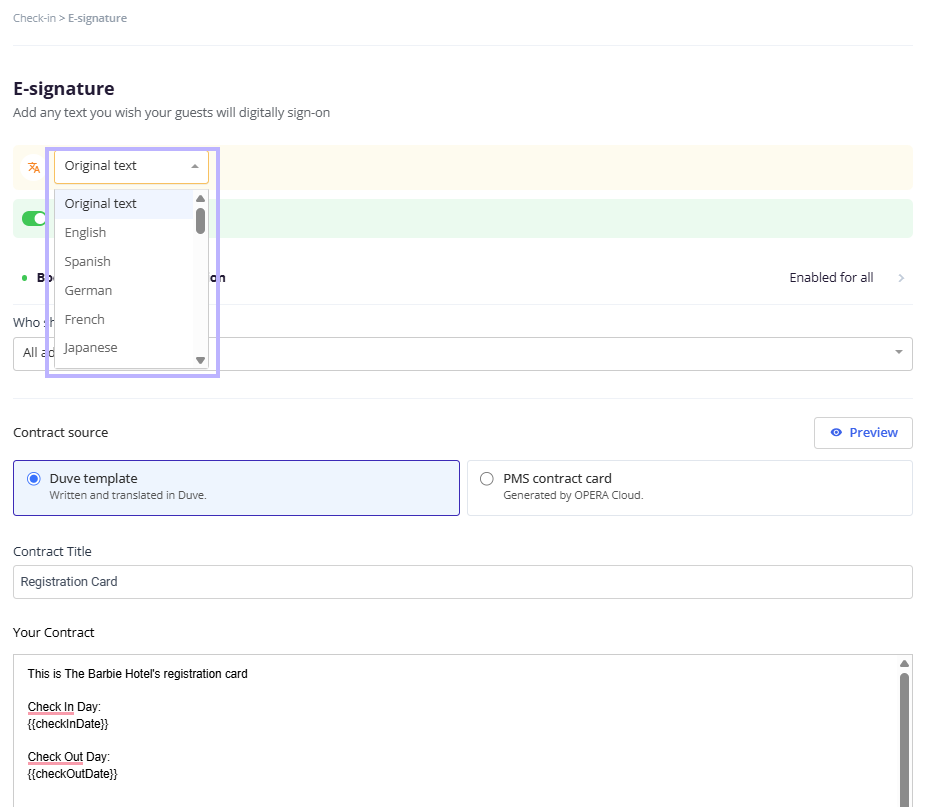
Duve does not translate your contract automatically. To offer it in another language:
- Use the language selector at the top of the E-Signature section to switch languages.
- Enter the translated title and contract text.
- Click Save. Repeat for each language.
Limit E-Signature to specific booking sources
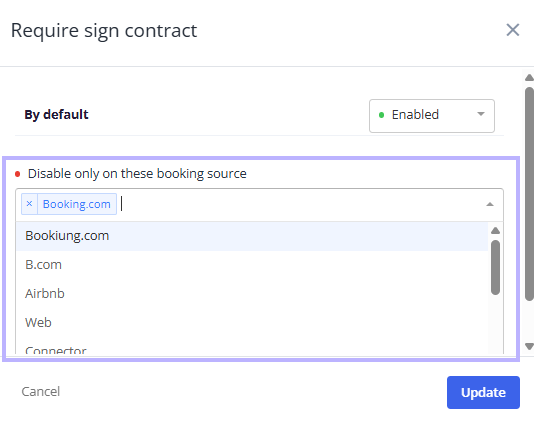
- Click Booking source customization.
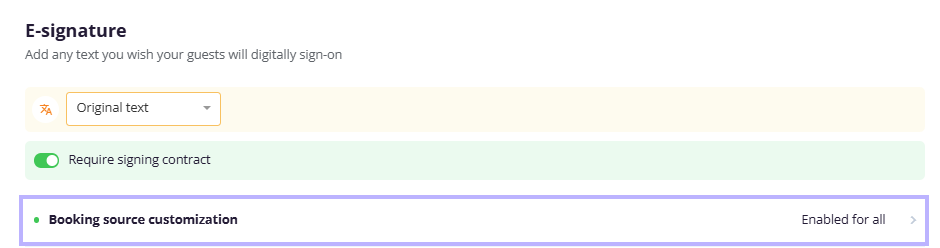
- Select the booking sources that should require a signature.
- Save your changes.
Choose a contract source (OHIP accounts only)
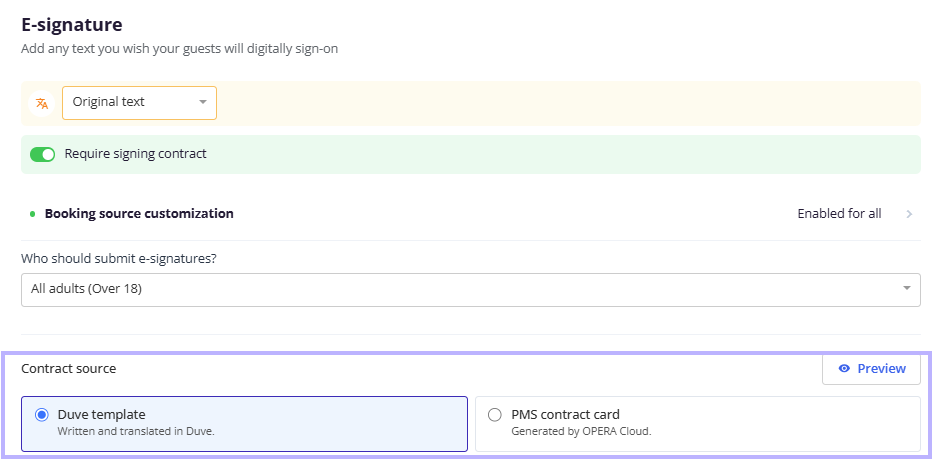
If your account is connected to Oracle OPERA Cloud, a Contract source section appears with two options:
- Duve template: Guests sign the contract you write in Duve.
- PMS contract card: Guests sign the registration card generated by OPERA Cloud. When selected, the Duve contract editor is hidden, and Preview is disabled.
When the PMS contract card is selected, you can also add Guest agreement checkboxes (for example, marketing consent or policy acknowledgment):
- Click Add new under Guest agreement.
- Enter the agreement text and choose whether it is mandatory.
- Drag rows to reorder them, and use the toggle on each row to turn it on or off.
For more information, see the "OHIP Registration Card for Guest E-Signature" article
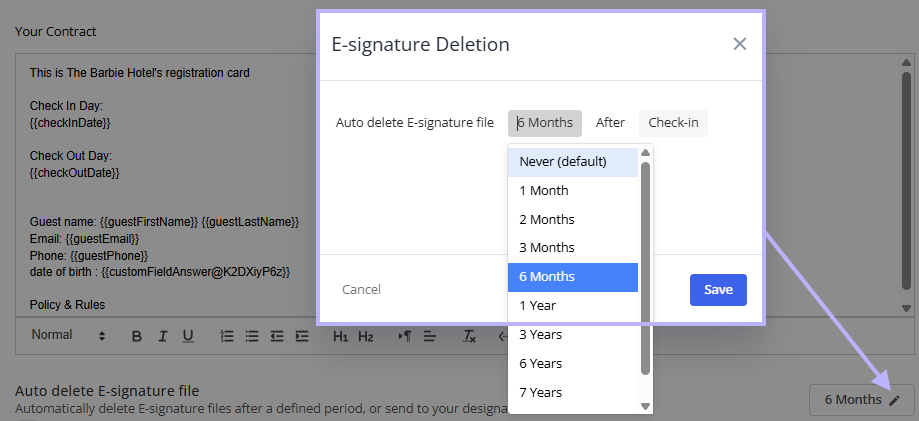
Set automatic deletion of signed files
- Next to Delete E-Signature files, click the current value (default: never).
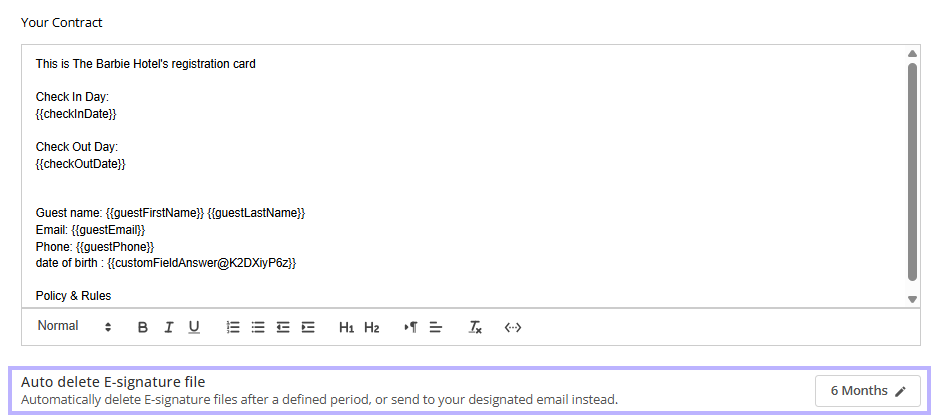
- Choose when files are deleted: after several months or years (up to 7 years), counted from check-in or check-out, or right after the signed copy is emailed.
- Click Save.
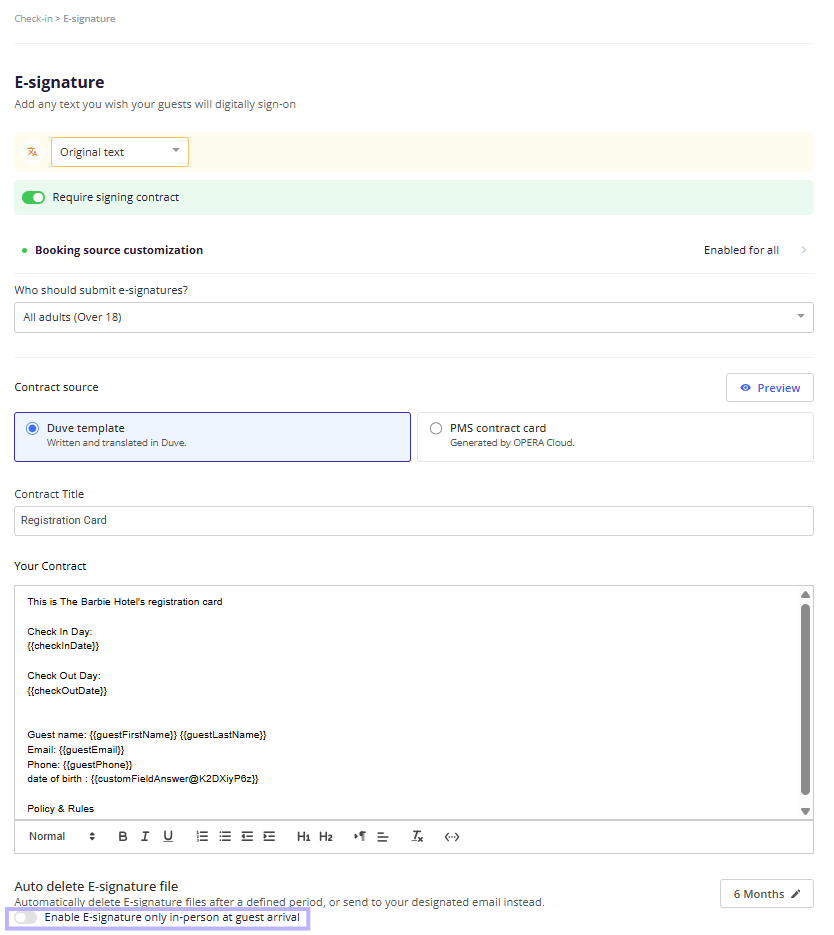
Collect signatures only in person
Turn on Enable E-Signature only in person at guest arrival if you want guests to sign at the property (for example, on a front desk device) instead of during remote online check-in.
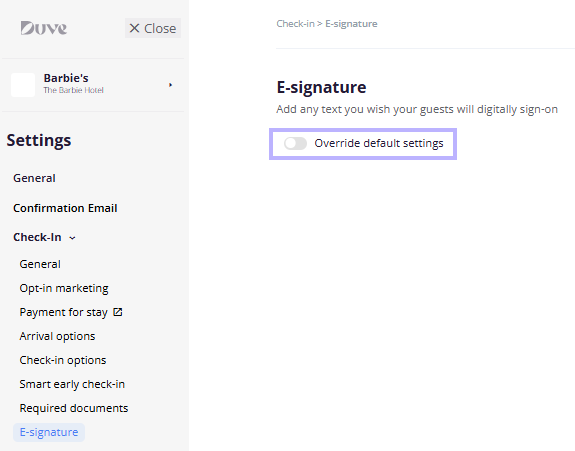
Brand-level settings
If you manage several brands, open the brand's settings and turn on Override default settings in the E-Signature section to give that brand its own contract, signer rules, and contract source. Brands without an override use the account settings.
Host experience + Guest experience
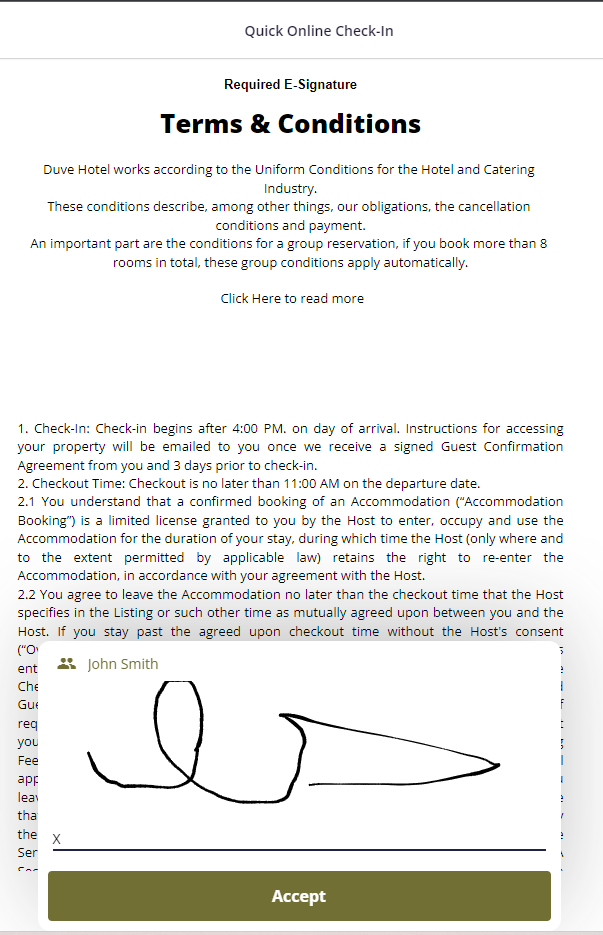
Guest experience
- During online check-in, guests reach the E-Signature step, read the contract, and tap Accept and sign.
- Each guest draws a signature on the signature pad and taps Submit. When several guests must sign, the button shows progress (for example, 2/3) and moves to the next guest.
- If Guest agreement checkboxes are set up, they appear above the signature pad. Mandatory ones must be checked before submitting.
- With the PMS contract card, guests see the OPERA Cloud registration card as a PDF instead of the Duve template.
.png)
Host experience
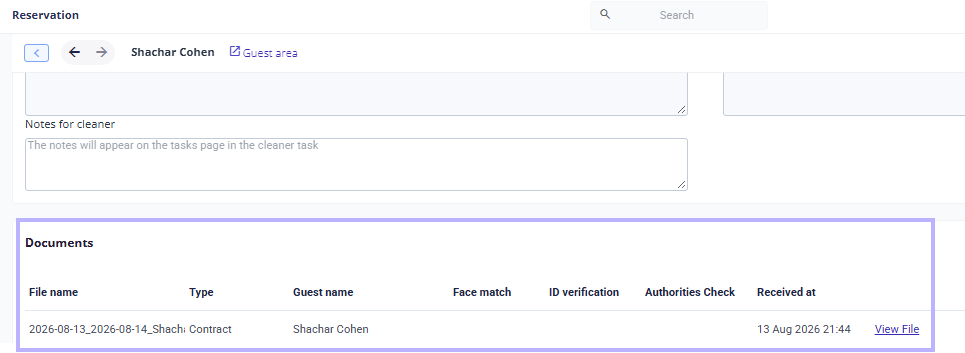
- Signed documents appear in the Documents section of the Reservation page.
- With the PMS contract card, the signature is added to the OPERA registration card and the signed file is sent back to your PMS. If uploading to the PMS is not available, a link to the signed file is shared instead.
Troubleshooting
- The guest sees "registration card unavailable": Duve could not load the card from OPERA Cloud. The guest can tap Try again, or skip and sign at the front desk. The check-in stays incomplete until the card is signed. Duve never swaps in the Duve template automatically.
- The Contract source section is missing: It only appears for accounts with an active Oracle OPERA Cloud connection.
- The E-Signature step is not showing for a reservation: Check the booking source customization and the in-person setting.
- The signature is rejected: The signature pad requires a clear, full signature. A very small mark is not accepted.
Restrictions & Limitations
- Contracts are not translated automatically.
- The PMS contract card is available only for Oracle OPERA Cloud. Other PMSs and OPERA on-premise are not supported.
- The PMS registration card cannot be edited in Duve, and Preview is disabled when it is selected.
- Guest agreement checkboxes are available only with the PMS contract card.
Tips & Tricks
- Add the Special notes field (set per rental under Rental Data) as a dynamic parameter to include property-specific terms in one shared contract.
- Use
{{EsignatureRunningNumber}}in the title so every signed file has a unique reference. - Always preview the contract in each language before saving.
FAQs
Q: Who has to sign by default? A: Only the booker. You can change this to all adults, or adults and children, under Who should submit.
Q: Does Duve translate my contract? A: No. Switch to each language and add your own translation.
Q: Where do I find the signed contract? A: In the Documents section of the Reservation page.
Q: Can I delete signed contracts automatically? A: Yes. Set a deletion period under Delete E-Signature files, from several months up to 7 years, or right after the signed copy is emailed.
Q: Can I use my OPERA registration card instead of a Duve template? A: Yes, if your account has an active Oracle OPERA Cloud connection. Select PMS contract card under Contract source.
Q: What happens if the PMS registration card does not load? A: The guest can try again or sign at the front desk. The check-in is not marked complete until the card is signed.
Q: Can each brand have a different contract? A: Yes. Turn on Override default settings in the brand's E-Signature section.
Comments
0 comments
Article is closed for comments.