
Overview
Refine Text lets you rewrite a message with AI before you send it, straight from the message box in the Communication Hub. You type your reply as you normally would, click the AI rewrite button next to Send, and Duve returns a cleaner version of the same message: spelling and grammar corrected, sentence structure improved, and phrasing that sounds like a caring host writing to a guest.
The rewrite is a suggestion, not a commitment. Your original text is kept aside, an Undo link appears above the message box, and nothing is sent until you click Send.
Key behaviors:
- Keeps the meaning and intent of what you wrote. It does not add facts, remove information, or answer on your behalf.
- Keeps roughly the same length as your original message, so a short reply stays short.
- Applies the tone of voice configured for the account or brand in AI settings. When no tone is set, a professional tone is used.
- Fixes common mechanics: capitalizing the first letter, capitalizing a standalone "i", adding missing end punctuation, and removing extra spaces between words.
- Ignores any instructions written inside your message text. The text is treated as content to rewrite, never as a command to the AI.
Who this is for:
Users whose permissions deny access to chat do not see the message box at all, so Refine Text is not available to them.
Applies to:
- The Communication Hub and the side chat panel that opens from a reservation or guest profile. Both use the same message box, so the button appears in both places.
- These message types: Duve chat (including conversations that arrive through Airbnb, Booking.com, Expedia, a connected PMS, and WeChat), Email, SMS, and WhatsApp.
- Internal notes are not supported. When you switch the message box to Note, the AI rewrite button is not shown.
- Conversations currently handled by the AI agent show the AI panel instead of the message box, so there is nothing to refine until the conversation is back with your team.
Use cases
- Cleaning up a fast reply typed on the go, with typos and missing punctuation.
- Helping agents who write to guests in a language they are comfortable reading but less comfortable writing.
- Softening a reply that came out too short or too blunt, without rewriting it yourself.
- Keeping a WhatsApp reply inside a single message, since the rewrite is capped at the WhatsApp length limit.
- Keeping a consistent brand voice across a team of agents who all answer the same inbox.
Before you start
- Type at least two words in the message box. The button stays disabled for an empty box or a single word.
- If you want the rewrite to follow a specific tone of voice, ask your Duve contact to set the tone of voice in AI settings for the account or the relevant brand.
How to use it
- Open the Communication Hub and select the conversation you want to answer.
- Choose the message type you are sending: chat, email, SMS, or WhatsApp.
-
Type your message in the message box.

-
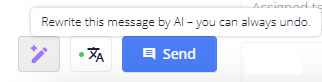
Click the AI rewrite button, the AI icon to the left of the Send button. Hovering over it shows "Rewrite this message by AI – you can always undo."
-
While the rewrite runs, the message box and the message type selector are locked, and the button area shows "Rewriting, click to cancel". Click it if you change your mind and want to keep your original text.

-
When the rewrite comes back, it replaces the text in the message box, and the Send button switches to its AI styling so you can see that what you are about to send was rewritten.

-
Review the result. An Undo link appears in the bar above the message box. Hover it to see "Your original message:" with your original text, and click it to restore that text.

- Edit the text further if you want. Any manual edit clears the rewritten state and removes the Undo link, because the message is now yours again.
- Click Send. After sending, the message box clears, and the rewrite state resets, so the next message starts fresh.
Host experience
The whole flow happens inside your message box, and the guest sees nothing until you send. The guest then receives an ordinary message on the channel they are using, with no AI label attached to it. Duve stores an internal indication that the sent message was rewritten, which is used for Duve product analytics only.
Troubleshooting
- The AI rewrite button is greyed out: your message box is empty or has only one word. Add more words and the button becomes active.
- Nothing changed after clicking: if the rewrite fails, Duve keeps your original text in the message box and clears the rewrite state. Try again, and if it keeps failing, contact Duve support.
- The Undo link disappeared: you either edited the text after the rewrite or already sent the message. In both cases, the rewritten text has become your working text.
- You cannot type while the rewrite runs: this is expected. The message box unlocks as soon as the rewrite returns, is canceled, or fails.
- The message type selector is locked: this is also expected during a rewrite. Cancel the rewrite or wait for it to finish before switching between chat, email, SMS, and WhatsApp.
Restrictions & Limitations
- Minimum of two words in the message box before the button becomes active.
- Maximum of 10,000 characters of text per rewrite.
- For WhatsApp, the rewritten text is capped at 1,000 characters, the length of a single WhatsApp message in Duve.
- Not available for internal notes.
- Not available while the conversation is being handled by the AI agent and the message box is replaced by the AI panel.
- It is not a translation tool. It rewrites what you wrote and does not switch your message to the guest's language. Use Duve's auto-translate for that.
- It will not add information that is not in your draft, such as access codes, times, or prices. If a detail is missing from your draft, it will still be missing after the rewrite.
- Attachments, templates, and canned responses are not changed by the rewrite. Only the text in the message box is rewritten.
Tips & Tricks
- Type the facts first in whatever shape they come out, then rewrite. The feature is at its best when your draft is complete but rough.
- Use it on the short replies too. Missing punctuation and a lowercase first letter are exactly what it fixes.
- Always read the result before sending, especially when your draft includes dynamic parameters, codes, times, or prices.
- If the result is not what you wanted, click Undo and try rephrasing your draft rather than sending something you are unsure about.
- For a consistent team voice, set the tone of voice in AI settings once instead of coaching each agent separately.
FAQs
Q: Does the guest know that the message was rewritten by AI?
A: No. The guest receives a normal message on their channel with no AI indication. Duve records internally that the message was rewritten, for product analytics only.
Q: Can I get my original message back?
A: Yes. Click Undo in the bar above the message box. Hovering over Undo also shows your original text before you restore it. Undo is available until you send the message or edit the text yourself.
Q: Can I stop a rewrite that is already running?
A: Yes. While it runs, the button area shows "Rewriting, click to cancel". Clicking it returns your original text to the message box.
Q: Why is the AI rewrite button greyed out?
A: The message box is empty or contains only one word. The rewrite needs at least two words.
Q: Will it change what I meant to say?
A: It is built not to. The rewrite keeps your meaning, intent, and approximate length, and it is not allowed to add new information or drop information you wrote.
Q: Does it translate my message into the guest's language?
A: No. Refine Text rewrites your message as written. Translation is handled separately by Duve's auto-translate setting.
Q: Is it available for internal notes?
A: No. Refine Text is available for guest-facing message types: chat, email, SMS, and WhatsApp.
Q: Does it work in the side chat, or only in the Communication Hub?
A: Both. The side chat that opens from a reservation or guest profile uses the same message box, so the AI rewrite button is available there too.
Q: Is there a length limit?
A: Yes. Up to 10,000 characters can be sent for a rewrite, and for WhatsApp, the rewritten result is capped at 1,000 characters so it stays within one message.
Comments
0 comments
Article is closed for comments.