
Overview
"Add Key to Wallet" is a destination option for Digital Spots (QR codes). When you point a QR code at this destination, a guest who scans it on site goes straight into the add-to-wallet flow for their room key, instead of landing on the Guest app home and having to find the key themselves.
Until now, a Digital Spot could only send a guest to the Guest app, a specific Post, a Service, Online check-in, or Face verification at the hotel. None of those put the room key one tap away, so a guest standing at reception, by the elevators, or in the room either had to navigate the Guest app or give up and ask the front desk for a card.
The destination works the same way for every wallet key provider and protocol (Vostio V10, vConnect, Dormakaba, and any wallet key provider added later), because it reuses the shared wallet keys experience rather than a per-provider flow.

In this article
- Applies to
- Pricing
- Use cases
- Before you start
- How to set it up
- Host experience
- Guest experience
- Troubleshooting
- Restrictions and limitations
- Tips and tricks
- FAQs
- Related articles
Applies to
Pricing
|
Use cases
- A guest scans a QR code at the hotel and goes straight to adding their room key to their wallet, without hunting through the app.
- A guest is taken to the right screen depending on whether their key is already added, so there is no confusion about whether they are set up.
- A host offers an on-site QR code that launches the add-to-wallet flow to drive wallet key adoption at physical touchpoints and reduce front desk key handouts.
- Typical placements: the reception desk, the elevator lobby, the back of the room door, and in-room collateral.
Before you start
- Confirm the Wallet keys feature is active on your plan.
- Connect a wallet key provider and make sure its status is active under Settings → Connections → Keys. An inactive provider does not count.
- Make sure the account (or the relevant brand) has a check-in portal, since that is where guests who are not signed in are sent to identify themselves. Without a portal, the QR code falls back to the public Guest app page and the wallet flow does not open.
How to set it up
- Go to Settings → On-Site Experience → QR Codes.
- Create a new Digital Spot, or open an existing one.
- Enter an Internal QR name. This name is for your own reference in the list of QR codes.
- Under Link to, select Add Key to Wallet. The option appears alongside Guest App, Post, Service, Online check-in, and Face verification at hotel, and only when the account meets the conditions listed under "Applies to".
- Save, then use Download to get the QR code image for printing or for placing in your on-site collateral.
Host experience
- The destination appears as one more radio option in the existing "Link to" list, so nothing changes about how you create, name, download, or delete a QR code.
- The option is hidden for accounts without the Wallet keys feature or without an active wallet key provider, so staff cannot create a QR code that leads nowhere.
- If a provider is later deactivated, or the feature is removed from the plan, an existing "Add Key to Wallet" QR code keeps working as a link but sends guests to the Guest app home instead of the wallet flow.
Guest experience
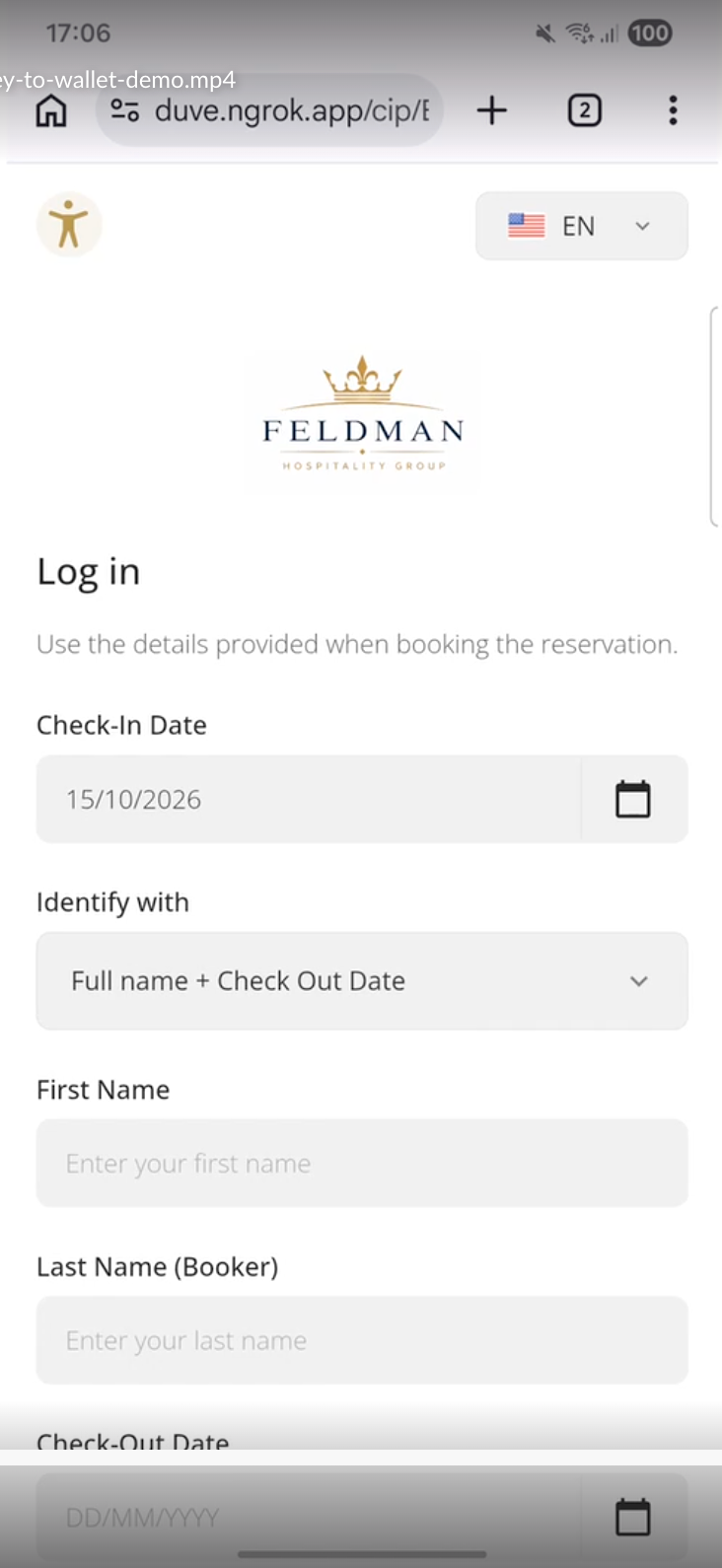
- Guest is not signed in: the QR code opens the check-in portal login first. The guest identifies the reservation with Full name + Check-Out Date, the same simplified contactless login used by the arrival flow QR codes. This login method is forced for this QR code regardless of the account's Guest Login settings, and both first and last name are required. After a successful login, the guest continues into the add-to-wallet flow.
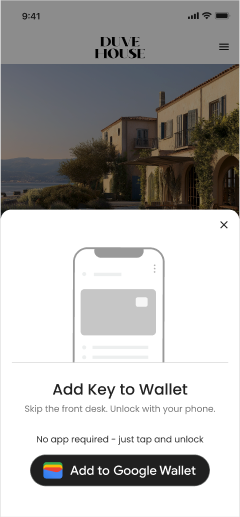
- Guest is already signed in: the Add Key to Wallet screen opens directly, as a sheet over the Guest app. The guest taps "Add to Apple Wallet" or "Add to Google Wallet" to install the key.
- Companions: a companion on the reservation can log in with their own name and check-out date, and the flow opens their own key rather than the main booker's. The match never falls back to the main guest.
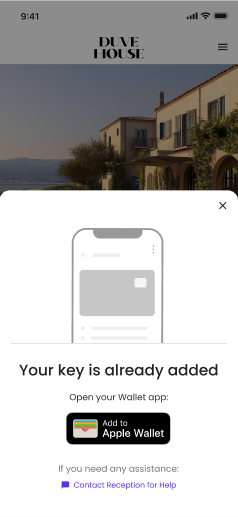
- Key already added: the guest sees the "Your key is already added" screen, which points them to open their wallet app, instead of the add screen.
- Verification: The add-to-wallet flow keeps the account's existing wallet key verification behavior. If two-factor verification is enabled for wallet keys, the guest is asked to confirm a one-time code before the key is installed.
Troubleshooting
- The guest sees "Your key is not available yet": the identified guest has no wallet key available yet, for example because the reservation is not yet eligible by status, or because no wallet key exists on the reservation. The screen reads "We can't add a room key to your wallet at the moment." and directs the guest to reception. This screen is shown only for QR code scans. Message links and the desktop-to-phone QR code keep their previous behavior.
- The QR code opens the Guest app home instead of the wallet flow: the account no longer has the Wallet keys feature or an active wallet key provider, or no check-in portal was found for the account or brand.
- The guest cannot be found at login: the login matches on full name plus check-out date. Check that the name on the reservation or on the guest profile matches what the guest typed, and that the check-out date entered is the correct one.
- The option is missing when creating a QR code: check the plan feature and the provider status, as described under "Before you start".
Restrictions and limitations
- The destination requires both the plan feature and an active wallet key provider. There is no override.
- The login for this QR code always uses Full name + Check-Out Date, which is a simplified and less secure identification method than the other login options. Place these QR codes where that trade-off is acceptable.
- A guest who opens the link on a desktop computer is shown the switch-to-your-phone screen, because wallet passes can only be installed on the phone that will hold them.
- The QR code does not create a key. It only opens the flow for a key the reservation is already entitled to.
- Brand-level QR codes use the check-in portal of that brand. If no portal exists for the brand or the account, the link falls back to the public Guest app page.
Tips and tricks
- Give each QR code a clear internal name, for example "Reception desk, Add Key to Wallet" or "Floor 3 elevator lobby", so you can tell your placements apart in the QR codes list.
- Create a separate QR code per physical location, even though they all lead to the same flow. It costs nothing and keeps your list readable.
- Pair the QR code with short signage such as "Skip the front desk, add your room key to your phone", so guests know what the code does before they scan.
- Keep the printed code where a guest is already waiting, for example at the desk or by the elevators, since that is where the front desk queue forms.
FAQs
Q: Do I need a separate QR code for Apple Wallet and Google Wallet?
A: No. One QR code serves both. The add screen offers the badge that matches the guest's device.
Q: Does this work for all of our lock providers?
A: It works for any wallet key provider connected to the account, including Vostio V10, vConnect, and Dormakaba. The flow is identical for all of them, and any wallet key provider added later is supported automatically.
Q: Can a companion use the same QR code as the main booker?
A: Yes. A companion logs in with their own first name, last name, and the check-out date, and gets their own key.
Q: What happens if the guest already added the key?
A: They see the "Your key is already added" screen, which points them to open their wallet app instead of adding the key again.
Q: Why do I not see the "Add Key to Wallet" option when creating a QR code?
A: The option only appears when your plan includes the Wallet keys feature and at least one wallet key provider connection is active. If either is missing, the option is hidden.
Q: Does the guest need to complete online check-in first?
A: No. The QR code opens the add-to-wallet flow directly. The guest only needs to identify the reservation if they are not already signed in, and a key has to be available for that guest.
Q: Can the guest still be asked for a verification code?
A: Yes. If wallet key two-factor verification is enabled for your account, the guest confirms a one-time code before the key is installed, exactly as in the other wallet key entry points.
Q: Does this change the login method configured in our Guest Login settings?
A: No. Your account settings are unchanged. This specific QR code always uses Full name + Check-Out Date for identification, the same as the other on-site arrival flow QR codes.
Q: What does the guest see if the key is not ready yet?
A: A screen titled "Your key is not available yet", explaining that a room key cannot be added at the moment and asking them to visit reception.
Comments
0 comments
Article is closed for comments.