
Branding lets you make every guest touchpoint look like it comes straight from your property. From one page in your settings, you can upload your logo, cover image, and favicon, set your brand color, choose or upload the font your guests see, and create a branded URL for your outgoing messages. Most hosts set this up during onboarding, but you can update it anytime. If your account has extra brands, each brand can carry its own branding.
Quick navigation:
- Use cases
- Before you start
- How to set it up
- Guest experience
- Troubleshooting
- Restrictions & Limitations
- Tips & Tricks
- FAQs
Use cases
- A boutique hotel adds its logo and brand color so pre-check-in emails and the Guest app match its website.
- A property manager with several brands gives each brand its own logo, cover image, colors, and branded URL.
- A hotel group uploads its licensed corporate font so the Guest app matches its brand guidelines.
- A host replaces the default Duve favicon, so guests see the property's icon in their browser tab.
- A host creates a branded URL (for example,
yourhotel.duve.co) so links in guest messages show the property name.
Before you start
- Prepare your assets:
- Logo: JPG or PNG, up to 500 KB, recommended size 284 x 170 px
- Cover image: JPG or PNG, up to 1 MB, recommended size 1120 x 1550 px
- Favicon: square image (1:1 ratio), recommended size 512 x 512 px
- Custom font files (optional): .otf, .woff, .woff2, or .ttf, up to 2 MB per file
- Have your brand color's hex code ready (for example,
#1A3C6E).
How to set it up
Go to Settings > General > Branding. Changes are saved with the page's save action.
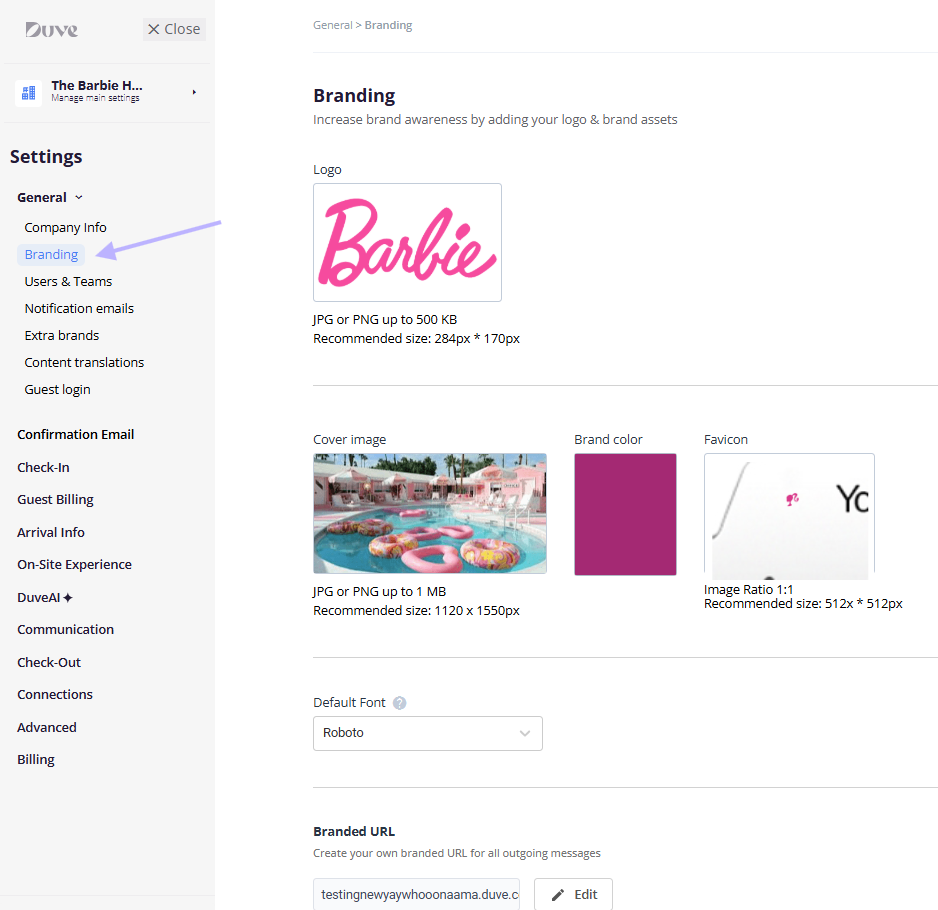
Upload your logo
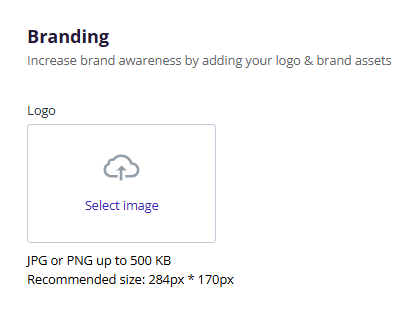
- Under Logo, click to select an image.
-
In the Upload logo image window, select your file.
-
Use the slider to zoom and position the logo inside the crop area.
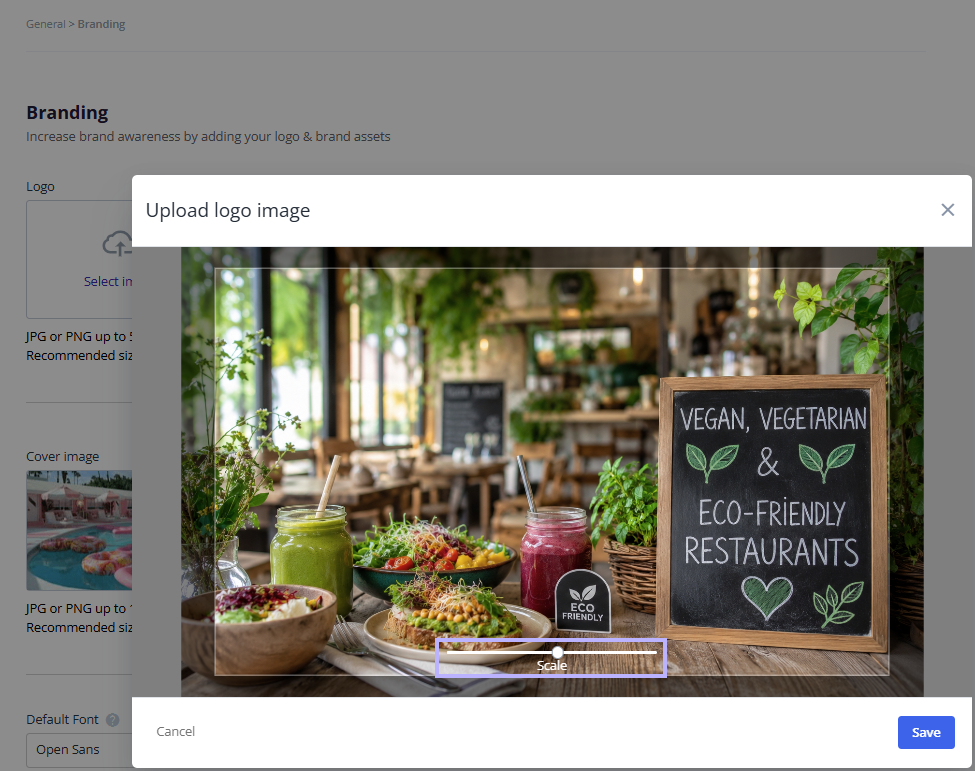
- Confirm the upload.
To remove the logo, delete it from the logo box. Your account goes back to the default logo.
Upload a cover image
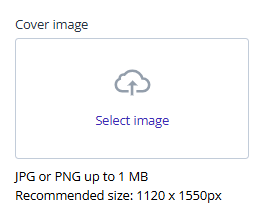
- Under Cover image, click to select an image.
- In the Upload cover image window, select your file and adjust the crop.
- Confirm the upload.
The cover image is the main image guests see in the Guest app, so choose a photo of your property or its surroundings.
Set your brand color
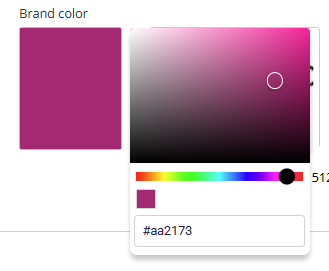
- Under Brand color, open the color picker.
- Pick a color, or enter its hex code.
If the color is too light to read against white text, a Contrast ratio warning appears. See Troubleshooting.
Upload a favicon
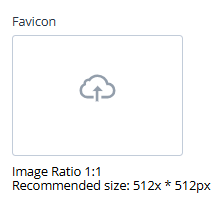
- Under Favicon, click to select an image.
- In the Upload favicon image window, select your file and crop it to a square.
- Confirm the upload.
Your favicon replaces the Duve icon in browser tabs and is also used as the icon when a guest saves the Guest app to their phone's home screen.
Choose or upload a font
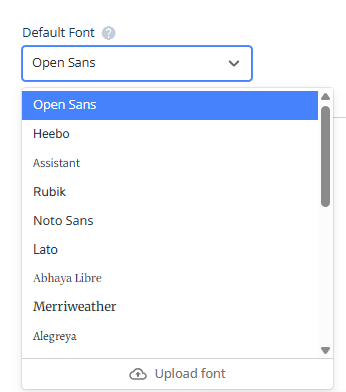
- Under Default font, open the drop-down and select one of the 17 preset fonts (the default is Open Sans).
- If your account is in Israel, a Hebrew font drop-down also appears, with four Hebrew-supporting fonts (the default is Heebo).
To upload your own font:
-
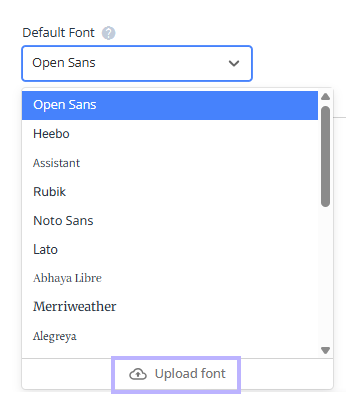
Open the font drop-down and click the upload option.
-
In the Upload font window, click Add font file next to each weight you have: Light (300), Medium (500), and Bold (700).
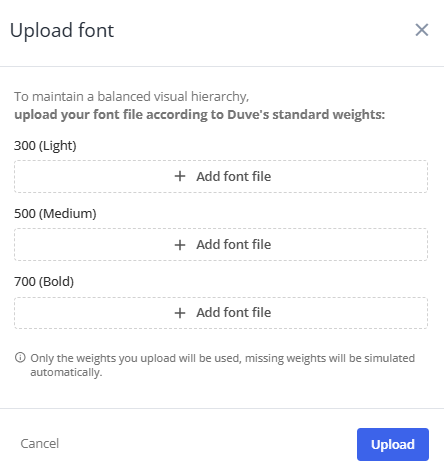
- Click Upload.
Note: You need at least one font file. Any weight you don't upload is simulated automatically. After a successful upload, the font is added to your fonts library and appears in the drop-down. To edit or delete a custom font, hover over it in the drop-down.
Create a branded URL
- Under Branded URL, click Edit.
-
In the Create branded URL window, enter the prefix you want before
.duve.co.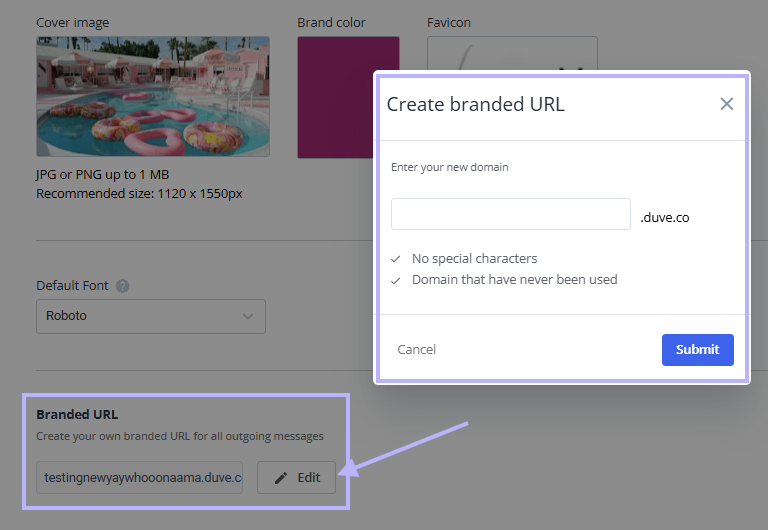
- Make sure both checks pass: No special characters and a domain that has never been used.
- Click Submit.
The request can take up to 2 hours to process. While it processes, you will see Request received. It may take up to 2 hours to process. To go back to the default
duve.co address, open the window, clear the field, and submit.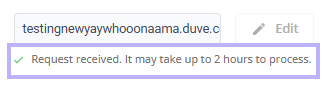
Set branding for an extra brand
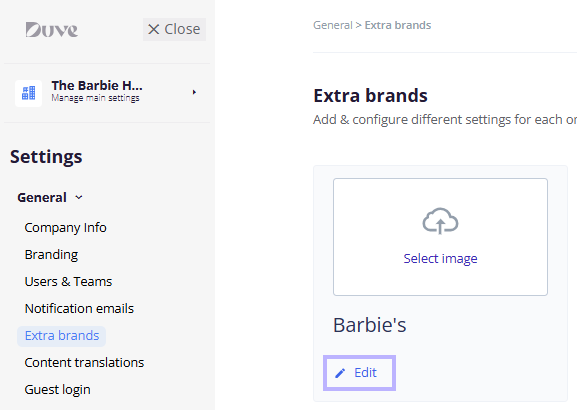
All of your brands are managed from Settings > General > Extra brands. On this page, you can create a new brand or open an existing one to set its branding.
Create a new brand
- Go to Settings > General > Extra brands.
- Click the Add card to start a new brand.
- (Optional) Upload the brand's logo in the card.
- Enter an internal brand name (required, up to 11 characters).
- Save the card.
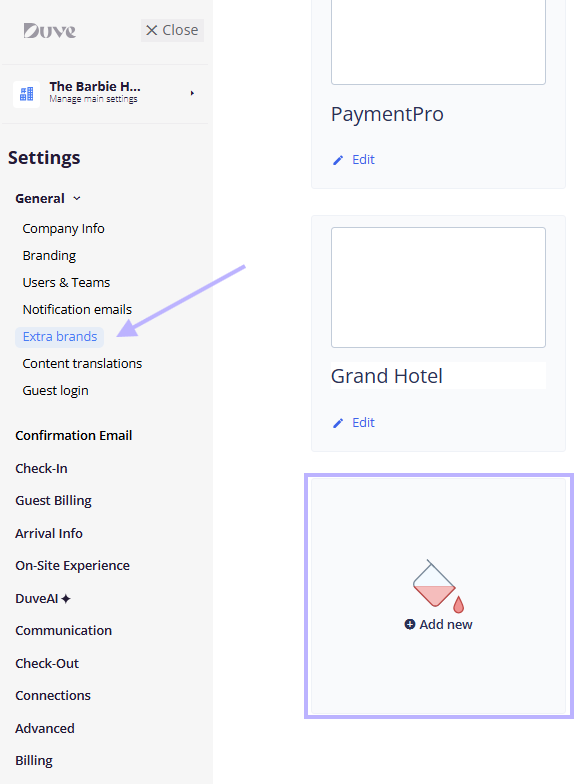
Once the brand is saved, you're taken straight into the brand's settings, on General > Brand info.
Enter an existing brand
- Go to Settings > General > Extra brands.
- On the brand's card, click the edit option.
You're taken into the brand's settings, on General > Brand info. You can also rename a brand by clicking its name on the card, or replace its logo directly from the card.
Edit the brand's branding
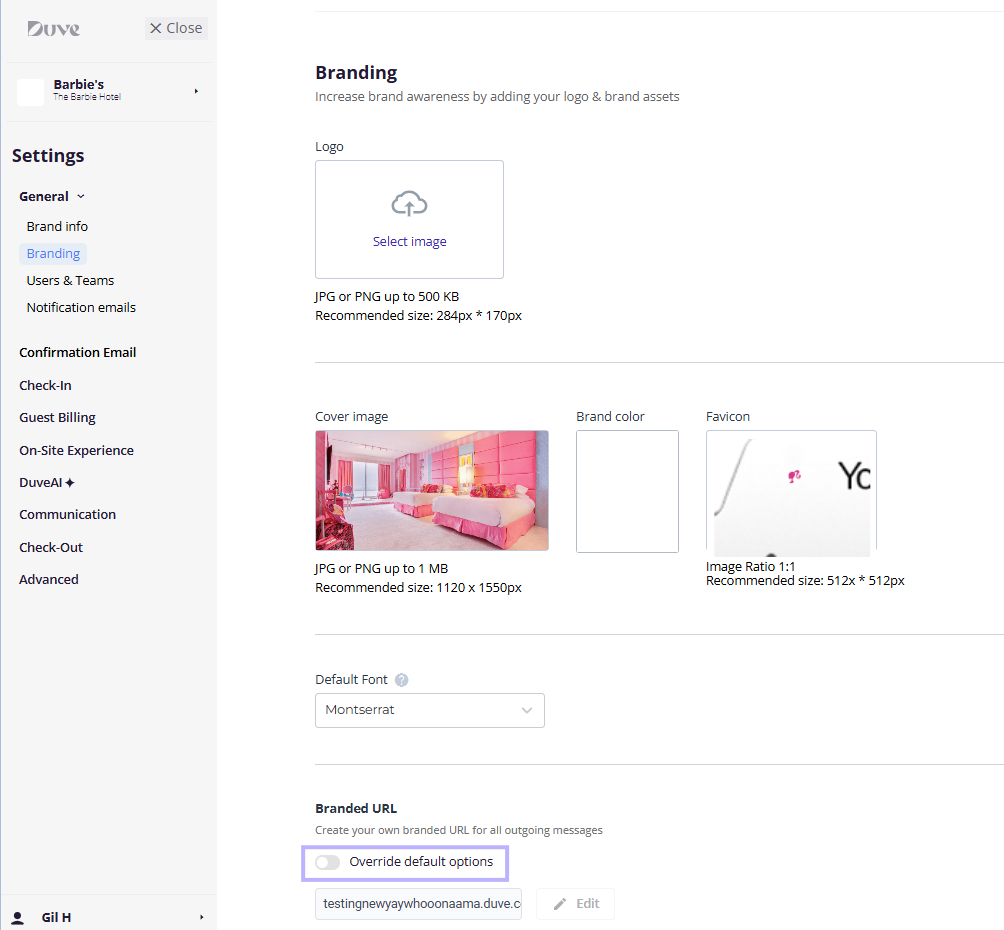
- Inside the brand's settings, go to General > Branding.
- Set the brand's logo, cover image, brand color, favicon, and font the same way as for your main account.
- To give the brand its own branded URL, turn on Override default options under Branded URL, then click Edit. If the toggle is off, the brand uses your main account's branded URL.
Custom fonts uploaded at the account level are also available to every brand.
Guest experience
- Your logo, cover image, brand color, and font appear in the Guest app.
- Your brand color and font also apply to online check-in and check-out.
- Your logo appears in the header of guest emails, and your brand color is used on email buttons.
- Your favicon appears in the browser tab and as the home-screen icon on guests' phones.
- Links in your outgoing messages use your branded URL once it is active.
Troubleshooting
- "Contrast ratio is too low" warning: Your brand color is too light for white text. If you keep it, buttons such as Let's Start, Next, and Go to Guest Area can look blank. Choose a darker shade.
- Edit button for the branded URL is grayed out: A request may still be processing, or (for an extra brand) Override default options is off. Users with the Staff role can't edit the branded URL.
- "Submit" stays disabled in the branded URL window: The prefix contains special characters, is shorter than 2 characters, or is already in use.
- Custom font won't upload: Check that each file is .otf, .woff, .woff2, or .ttf and no larger than 2 MB.
- Guest app shows a different color or font than Branding: The Guest app style page can set its own color and font, which take priority in the Guest app. Check GuestApp style.
Restrictions & Limitations
- The font you choose does not apply to emails.
- Branded URL prefixes can use only letters, numbers, and hyphens, and must end with
.duve.co. - Custom font uploads support three weights only: Light, Medium, and Bold.
Tips & Tricks
- After you upload a custom font, select it on the GuestApp style page if you want it used as your Guest app font.
- Use a high-resolution logo with a transparent background so it looks clean in both emails and the Guest app.
- Need help finding a hex code? Use any online color picker, or take it from your website's style guide.
FAQs
Q: Can each of my brands have different branding?
A: Yes. Each extra brand has its own Branding page with its own logo, cover image, color, favicon, and font. To give a brand its own branded URL, turn on Override default options.
Q: Can I use my own font?
A: Yes. Open the font drop-down and use the upload option to add .otf, .woff, .woff2, or .ttf files, up to 2 MB each.
Q: How long does a branded URL take to go live?
A: Up to 2 hours after you submit the request.
Q: Why don't I see the Fonts or Branded URL sections?
A: These sections are not available on CommHub-only or Lite plans.
Q: Does the font I choose apply to my emails?
A: No. The font applies to the Guest app and online check-in and check-out only.
Q: What happens if I delete my logo?
A: Your account goes back to the default logo until you upload a new one.
Comments
0 comments
Article is closed for comments.