
Let guests and potential guests start a WhatsApp chat with your front desk in Duve, even without a reservation, and filter these inbound conversations.
Overview
A host will only be able to communicate with Anonymous guests via WhatsApp
| Inbound messaging via WhatsApp - Please see here for a Brief Explanation on Duve's Inbound feature! |
Pricing:
|
Applies to: Accounts enabled with the "Inbound Chats from Anonymous Guests" feature. |
- In-house: Hosts can add a QR code inside the hotel and rooms for guests to scan to directly communicate with the Frontdesk
- Pre-Booking Guests: Guests without booked reservations or identifying details can now reach out to hosts via WhatsApp, enabling effective communication and support.
Requirements:
Branded WhatsApp Number: Only hosts with branded WhatsApp numbers can use this integration. Each brand must have its own branded phone number.
To start the process of adding a custom Phone Number to your Duve account, please see our Help Article: Purchase a Custom Phone Number for your Duve account
How to Set it Up?
Step 2: Embed the WhatsApp Snippet in your Website.
Embedding the WhatsApp snippet in your website will allow your guests and potential guests to approach your Frontdesk to communicate directly through Duve.
Last Step!
Print out the QR code and add it to your guest rooms and public spaces so guests can easily contact your team.
Host Experience:
The anonymous guest will appear with their WhatsApp sender name as it exists in their WhatsApp profile and can be updated by the host in the Communication Hub
Auto translation - Hosts can enable the auto-translate feature in the chat in order for guests to receive messages in the preferred language. Guests' preferred language will be taken from the country code of the guest's phone number.
If a guest messages the hotel without a reservation and then books one later, the conversations will be linked for 14 days past the last message
The reservation will show as linked to the previous inbound conversation:
Inbound Conversation Filter
Overview
Before you start
- No initial configuration is required. Once enabled, the filter is available directly inside the Communication Hub inbox.
How to use it
- Open the Communication Hub from the main navigation.
-
Locate the Conversations Filter Header at the top of the conversation list.
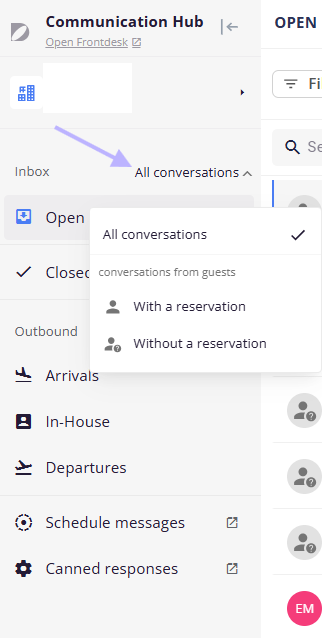
- Select "Without a reservation" to filter the Inbound conversations.
Filter options
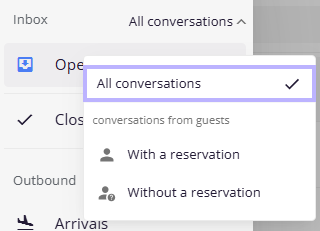
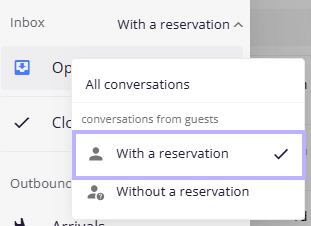
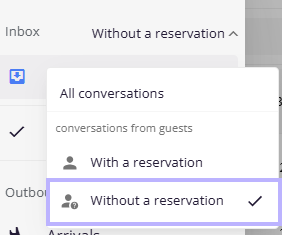
Troubleshooting
- The filter dropdown is not visible: Only accounts with the "Inbound Chats from Anonymous Guests" feature will be able to see the dropdown.
- The list did not update after I chose an option: The conversation list refreshes in real time. Confirm your selection shows a checkmark, then reload the Communication Hub if the list still appears unchanged.
Tips & Tricks
- Assign a dedicated team member to monitor the "Without a Reservation" view to catch pre-booking inquiries before they go cold. These contacts are actively considering a stay and often expect a fast response.
- Use the "With a Reservation" view during high-traffic check-in windows to keep your front desk focused on confirmed guests without distraction from general inquiries.
- Because the filter selection persists between sessions, encourage each staff member to set the filter that matches their role so it is ready every time they log in.
FAQs
Important Notes:
Conversation assignment
Inbound conversations can be tied to a brand based on the phone number the guest messaged and the actions your team takes. How a conversation displays, and who can change its brand, depends on whether the number is an account-level phone number or a custom phone number assigned to a specific brand.
Conversations on the account-level phone number
- Inbound conversations assigned to the account-level phone number are displayed with the account name.
- Account-level users can assign the conversation to a specific brand and can unassign it.
- Brand-level users cannot unassign the conversation, and cannot assign it to another brand.
- Once a conversation is assigned to a brand, all brand-level users of that specific brand can see the conversation.
- When the conversation's brand changes, it automatically appears in the new brand and disappears from the previous brand.
Conversations on a custom (brand-specific) phone number
When a message is routed to a custom phone number that is assigned to a specific brand:
- The conversation cannot be assigned to a different brand.
- The brand name is reflected under the guest name.
- There is no option to add internal notes when communicating with inbound guests.
- The Inbound messages will appear only in the main account view. Users that are filtered for brand/s view won't be able to see the inbound conversations.
Anonymous Guest Chat: Related Reservation
When an anonymous message arrives in the Communication Hub, Duve automatically looks up the sender's phone number and surfaces a Possible reservation match panel in the right sidebar and in the chat header. Agents get guest and stay context instantly, with no manual search required.
How it works
- Match found: The sidebar displays the guest name, reservation ID, check-in and check-out dates, and contact info. Click View Reservation to go straight to the booking.
- Multiple reservations on the same phone number: Duve surfaces the reservation with the date closest to the incoming message.
- No match found: The sidebar and header continue to show the standard anonymous contact view, with no changes.
Comments
0 comments
Article is closed for comments.