
| How to Create a User - see the step-by-step video |
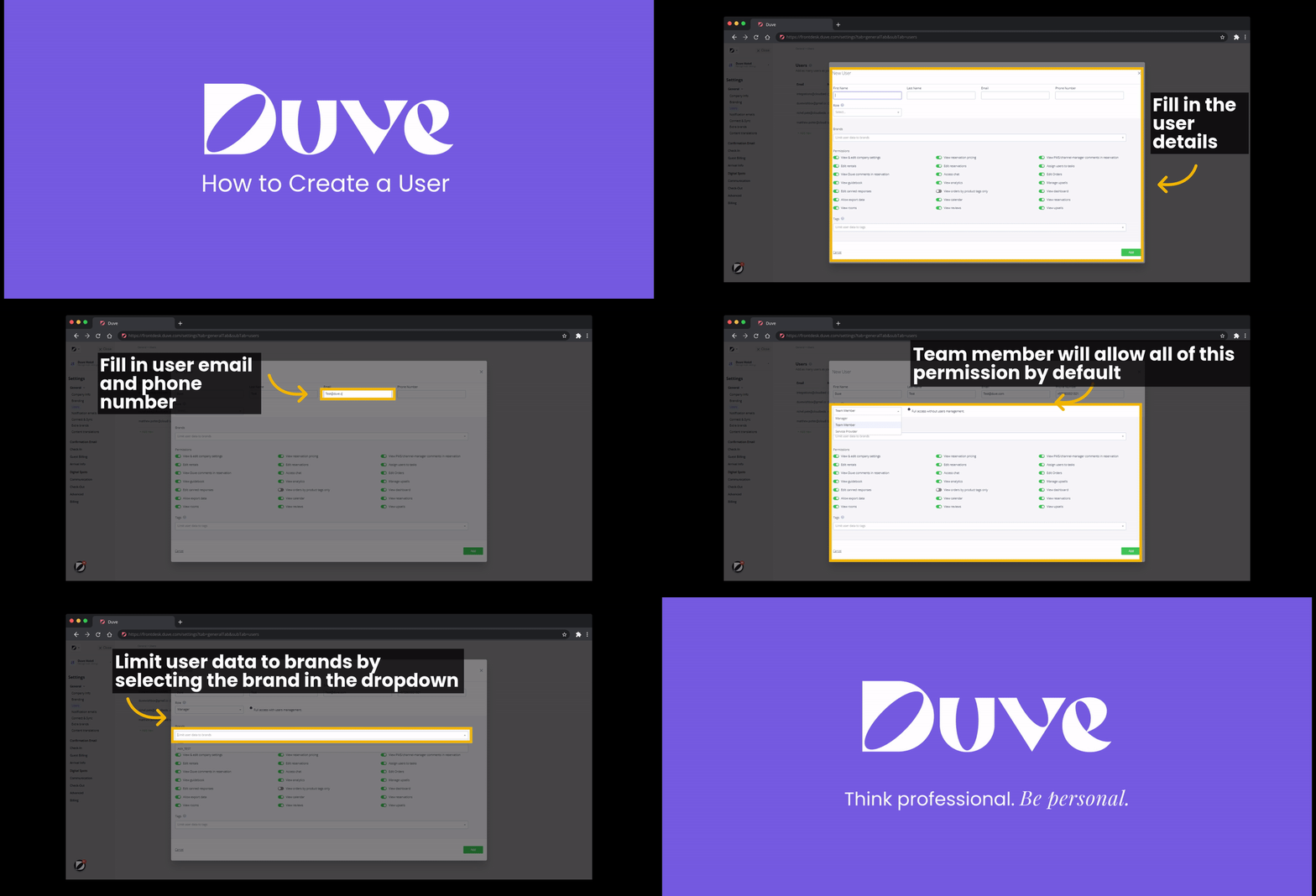 |
How to Create a User:
Go to Settings > Users & Teams
- Click on "Add User."
- Enter the desired permissions for the new user.
- Assign the appropriate permissions.
- Click "Save" to add the user.
There are three roles:
- Manager
- Can have any permission
- Has the exclusive permission to create other users
- Team Member
- Can have any permission
- Service Provider
- Service Providers have limited access only to view tasks that are assigned to their user on the Tasks page
List of User Permissions:
- View & Edit Company Settings - A user can change any of the Settings in the backend Settings and upload images to Guest App posts.
- Edit Rentals - A user will be able to view & edit the fields and Settings of a rental
-
View Duve comments in reservations - A user will be able to see any Notes created in Duve on the reservation

- View Guidebook - A user can view and edit the entire Guestapp
- Edit Canned Responses - The User will be able to edit canned responses in Duve
- Allow Export Data - A user will be able to export Excel or CSV files of Guest Information or Upsell Orders
- View Rooms - A user will be able to view the rooms/rentals in Duve
- View Guest sensitive data - A user will be able to view customer data from Custom Questions that the account has specified as sensitive data
- Edit Scheduled Messages - A user will be able to edit the Scheduled Messages.
- View reservation pricing - This user can see all payment for stay information and breakdown of charges.
- Edit Reservations - A user can make changes to fields of the Reservation.
- Access Chat - A user will be able to view and chat to guests and other users. Full capabilities of the Communication Hub.
- View Analytics - A user will be able to view Analytics.
- View Product orders by tag - A user can edit upsell orders as long as there are shared tags
- View Calendar - A user will be able to view the Calendar View on the Tasks page
- View Reviews - A user will be able to view the Reviews page
-
Edit Automated Communication Status - A user will be able to enable or disable the automated communications:
- Pre-check-in
- Confirmation email
- Pre-check-out
- Arrival email
- View PMS/ CM comments in reservation - A user will be able to see comments from the PMS/CM on the guest reservations.
- Assign users to tasks - A user will be able to assign other users to Tasks.
- Edit Orders - A user can confirm or deny orders.
- Manage upsells - A user can create upsell services, suppliers or add services from the Marketplace to the guest App.
- View Dashboard - A user can view and edit Dashboard
- View Reservations - A user will be able to view Reservations
- View Upsells - A user will be able to view the Upsells page
- Edit Guest Billing requirement - A user will be able to edit the Guest Billing page in the Settings.
Limit by tag, Brand, or a team
- Any user who is limited by brand will only see rooms, reservations, and conversations for that brand
- Each user can be assigned 0,1 or multiple brands
- Any user who is limited by tag will only be able to see rooms, reservations, services, and orders for that tag
- Each user can have 0,1 or multiple tags
- Any user can be added to a team
Exporting users and permissions
You can download a CSV of everyone who has access to your account, with their role, teams, brands, last login, tags, and permissions. It is the quickest way to run a periodic access review, hand an access list to IT or audit teams, or confirm that former employees were offboarded, without opening each user one at a time.
Who can export
- Managers who already have access to the Users & Teams screen. No extra permission was added for the export.
- Users whose "Allow export data" permission is enabled. This is the same permission that controls the other exports in Duve.
- Users who are not limited to specific brands. The file always covers the whole account, so the button is hidden from brand-limited users.
How to export
- Go to Settings > Users & Teams and stay on the Users tab. The tab label shows how many users are in the account, for example, "Users (243)".
- Click Export on the right side of the tabs row.
- The "Export users" window opens and confirms how many users will be included.
- Click Export. The file downloads straight to your computer. Click Cancel or the X to close the window without exporting.
What is in the file
The file is an Excel-compatible CSV with one row per user. It opens correctly in Excel, Google Sheets and any other spreadsheet tool, including accented and non-Latin characters. Each row starts with the user's details:
- First Name, Last Name, Email, and Phone number
- Role: Manager, Team Member, or Service Provider
- Teams, listing every team the user belongs to
- Brands, listing the brands the user is limited to, or "All brands" if they are not limited
- Last login, shown as date and time in your account's time zone
- Tags
After those come the permission columns, one per permission, each holding Yes or No for that user. They use the same labels as the permissions list above. A permission that the user's role never includes is shown as No.
The file is named after your account and the export date, for example:
User Permissions_The Barbie Hotel_24092026.csv.
Good to know
- The export always covers the full account. Filters you applied to the Users table do not change the file, and there is no option to export a single brand or team. Filter the file in your spreadsheet tool after it downloads.
- The Export button appears only on the Users tab in account-level settings. It is hidden on the Teams tab and inside a specific brand's settings.
- The file lists Managers, Team Members, and Service Providers. Guests, devices, and leads are not account users and are not included.
- Last login is empty for users who have never logged in. For users who sign in with single sign-on or Google, it fills in from their next sign-in onward.
- The file is a snapshot of the moment you clicked Export. Export again whenever you need current data.
Note: If you do not see the Export button, check that you are on the Users tab in account-level settings, that your user is not limited to specific brands, and that "Allow export data" is enabled for you.
Comments
0 comments
Article is closed for comments.